
Understanding file permissions is crucial for anyone working with Linux or Unix-like operating systems. Many users often encounter the command chmod 777, but what does chmod 777 mean in practical terms? This command grants the broadest possible access to a file or directory, essentially allowing anyone to read, write, and execute it. While it might seem like a quick fix for permission issues, using chmod 777 carries significant security risks that developers and system administrators must understand.
Introduction: What Does chmod 777 Mean?
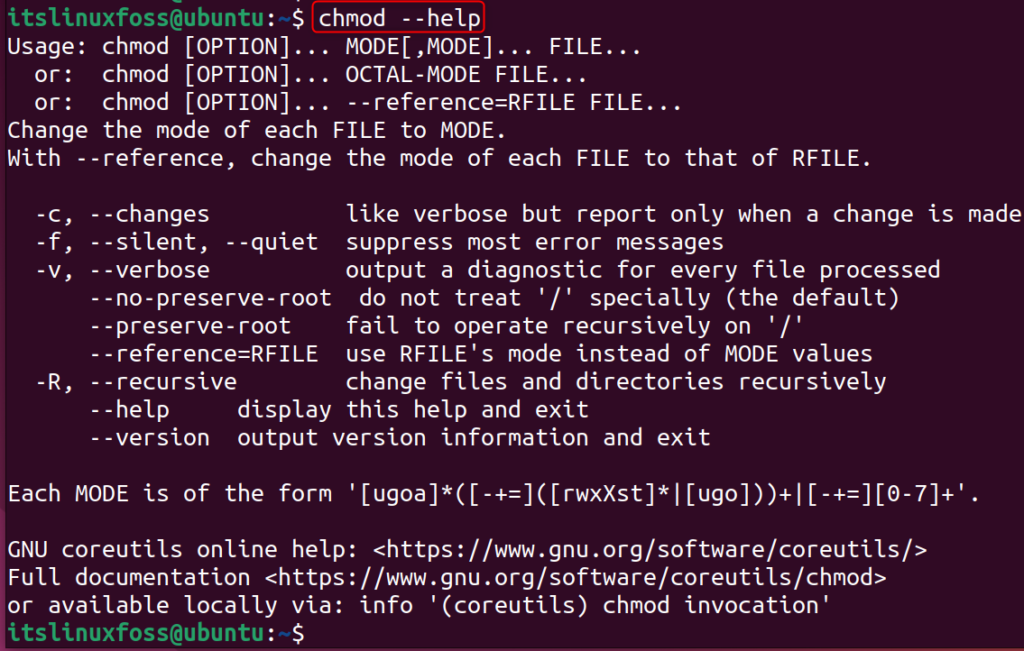
The chmod command, short for “change mode,” is a fundamental utility in Unix-like systems. It modifies file system permissions, controlling who can access files and directories and what actions they can perform. When you execute chmod 777 on a file or folder, you are setting its permissions to be fully open, granting universal read, write, and execute privileges. This level of access is rarely appropriate for production environments due to inherent security vulnerabilities.
The Importance of File Permissions in Linux/Unix
File permissions are a cornerstone of security and system integrity in Linux and Unix environments. They dictate how users, groups, and the system itself interact with files and directories. Proper permissions prevent unauthorized access, accidental modifications, and malicious code execution. Furthermore, they ensure that critical system files remain untouched, maintaining the stability and security of the operating system.
A Quick Overview of chmod
The chmod command uses either symbolic or octal notation to set permissions. Octal notation, which uses numbers like 777, is a common and concise way to represent these settings. Each digit in the octal code corresponds to a specific set of permissions for different user categories. Understanding this numerical system is key to mastering file security.
Understanding Linux File Permissions: The Basics
Linux file permissions are organized around three primary entities: the owner, the group, and others. Each entity can be granted specific rights: read, write, and execute. These permissions are vital for maintaining control over your system’s data and processes. Therefore, knowing how to manage them correctly is essential for any system administrator or developer.
Users, Groups, and Others: Who Can Access Files?
In Linux, every file and directory has an owner, typically the user who created it. Additionally, each file belongs to a specific group. The “others” category refers to all other users on the system who are neither the owner nor part of the file’s designated group. This granular control allows for precise management of access rights.
- Owner: The user account that owns the file or directory.
- Group: A collection of users who share specific access rights to the file.
- Others: All other users on the system not covered by the owner or group.
Read, Write, Execute: What Each Permission Means
Each of the three user categories can be assigned three types of permissions. These permissions determine the actions permitted on the file or directory. For instance, read access allows viewing content, while write access permits modification. Execute access is necessary for running programs or accessing directory contents.
- Read (r): Allows viewing the file’s content or listing a directory’s contents.
- Write (w): Permits modifying the file’s content or creating/deleting files within a directory.
- Execute (x): Enables running an executable file or traversing into a directory.
Symbolic vs. Octal Modes Explained
Permissions can be set using either symbolic (e.g., u+rwx,g+rx,o-rwx) or octal (e.g., 750) modes. Octal mode uses a three-digit number, where each digit represents the permissions for the owner, group, and others, respectively. Each permission (read, write, execute) has a numerical value: read is 4, write is 2, and execute is 1. Summing these values gives the octal digit.
For example, rwx (read, write, execute) sums to 4+2+1=7. Meanwhile, r-x (read, execute) sums to 4+0+1=5. This numerical representation offers a concise way to specify complex permission sets. Understanding this conversion is fundamental to interpreting commands like chmod 777.
Decoding chmod 777: Owner, Group, and Others
When you encounter the command chmod 777, it signifies a very specific and powerful permission setting. Each ‘7’ in the octal code grants full permissions to a distinct category of users. Consequently, this command effectively opens up access to everyone on the system, which can be problematic.
Breaking Down the ‘7’ in chmod 777
The number ‘7’ in octal mode represents the sum of read (4), write (2), and execute (1) permissions. Therefore, a ‘7’ grants all three permissions. In chmod 777, the first ‘7’ applies to the file’s owner, the second ‘7’ applies to the group, and the third ‘7’ applies to all other users. This means every single entity has complete control over the file or directory.
The Full Permission Set for All Users
A file or directory with chmod 777 permissions allows any user to perform any action. They can read its contents, modify it, or even delete it. Furthermore, if it’s an executable file, anyone can run it. If it’s a directory, anyone can create, delete, or rename files within it. This unrestricted access is the core of what does chmod 777 mean for security.
Here’s a breakdown:
- Owner: Read, Write, Execute (4+2+1=7)
- Group: Read, Write, Execute (4+2+1=7)
- Others: Read, Write, Execute (4+2+1=7)
Visualizing 777 Permissions
Imagine a locked door. With chmod 777, that door is not just unlocked; it’s completely removed. Anyone can walk in, take anything, change anything, or even destroy anything inside. This visualization helps highlight the extreme level of access granted. It effectively eliminates any security barriers for that particular file or directory.
The Security Risks and Implications of chmod 777
While chmod 777 might seem convenient for troubleshooting, its use introduces severe security vulnerabilities. Granting universal read, write, and execute permissions can expose your system to various threats. Therefore, understanding these risks is paramount for maintaining a secure computing environment.
Why chmod 777 is Considered Dangerous
The primary danger of chmod 777 lies in its complete lack of access control. It allows any user, including potentially malicious actors or automated scripts, to modify or delete critical files. This can lead to data corruption, system compromise, or the execution of unauthorized code. Consequently, it creates an open invitation for security breaches.
Potential Vulnerabilities and Exploits
Using chmod 777 can lead to several types of exploits. For instance, an attacker could upload malicious scripts to a web server directory with 777 permissions and then execute them. Furthermore, sensitive configuration files could be read or altered, exposing credentials or compromising system settings. Even accidental user errors can have devastating consequences when permissions are so lax.
- Malware Injection: Attackers can upload and execute malicious code.
- Data Tampering: Unauthorized users can modify or delete important data.
- Information Disclosure: Sensitive files become readable by anyone.
- System Compromise: Allows escalation of privileges or full system control.
Real-World Scenarios of Misusing chmod 777
Consider a web server running a PHP application. If the `uploads` directory is set to chmod 777, an attacker could easily upload a web shell and gain control over the server. Similarly, if a database configuration file has 777 permissions, anyone could read the database credentials. These scenarios underscore the critical importance of proper permission management, highlighting why what does chmod 777 mean for security is so important.
When to Use (and Absolutely Not Use) chmod 777
Despite its inherent dangers, some very specific and temporary situations might call for chmod 777. However, these instances are exceedingly rare and should always be followed by immediate permission adjustments. Most often, using chmod 777 is a symptom of a deeper configuration issue rather than a solution.
Rare and Specific Use Cases for chmod 777 (e.g., temporary fixes)
Occasionally, during development or debugging, a developer might temporarily set chmod 777 on a file or directory to quickly rule out permission issues. This might occur when installing a complex application or troubleshooting a stubborn error. However, this should only be done in isolated, non-production environments and for the absolute shortest duration possible. It is a diagnostic step, not a permanent solution.
Why It’s Almost Always the Wrong Choice
In almost all production or public-facing environments, chmod 777 is the wrong choice. It violates the principle of least privilege, which dictates that users and processes should only have the minimum permissions necessary to perform their functions. Granting excessive permissions creates unnecessary attack vectors and significantly increases the system’s risk profile. Always seek more granular and secure alternatives.
Common Misconceptions About chmod 777 Usage
Many new users mistakenly believe that chmod 777 is a harmless way to solve “permission denied” errors. They think it’s a universal fix. However, this misconception overlooks the severe security implications. Another common error is leaving 777 permissions in place after development, forgetting to revert them before deployment. This oversight can lead to disastrous consequences down the line.
Safer Alternatives to chmod 777 Permissions
Instead of resorting to the insecure chmod 777, there are much safer and more appropriate permission settings for various scenarios. Implementing the principle of least privilege is key to a robust security posture. By understanding common permission patterns, you can protect your files effectively.
Recommended Permissions for Web Servers (e.g., 755, 644)
For web servers, specific permission sets are widely recommended. Directories typically use chmod 755, allowing the owner full access while groups and others can only read and execute (traverse). Files, on the other hand, often use chmod 644, granting the owner read and write access, but only read access to groups and others. These settings balance functionality with security.
For example, a common setup for a website’s public HTML directory might involve:
chmod -R 755 /var/www/html/your_site  # For directories
chmod 644 /var/www/html/your_site/index.php # For files
This ensures that the web server can read and execute necessary files, but external users cannot modify them. You can learn more about file permissions on Wikipedia.
Using chmod 775 and chmod 755 for Directories and Files
chmod 775 is a slightly more permissive option for directories, allowing the owner and group full read, write, and execute access, while others retain read and execute. This can be useful in collaborative environments where multiple users within a group need to modify files. For general files, chmod 644 remains a strong default. Meanwhile, chmod 755 for directories is often preferred for public-facing content, as it prevents unauthorized writing by groups or others.
Understanding the Principle of Least Privilege
The principle of least privilege (PoLP) is a core security concept. It dictates that every user, program, and process should operate with the minimum set of permissions required to perform its function. By adhering to PoLP, you significantly reduce the potential damage from a security breach. Always ask yourself: “Does this user or process really need this level of access?” before granting permissions.
Frequently Asked Questions About chmod 777
Is chmod 777 ever safe to use?
No, chmod 777 is generally not safe for any long-term or production environment. It should only be used in very specific, temporary, and isolated debugging scenarios, and permissions must be reverted immediately afterward. Its use indicates a potential security flaw or a misunderstanding of proper permission management.
How do I change chmod 777 permissions back?
To change permissions back from chmod 777, use the chmod command with more restrictive settings. For example, for directories, you might use chmod 755 [directory_name]. For files, chmod 644 [file_name] is a common choice. Always apply the principle of least privilege, granting only necessary access. You can use ls -l to verify the new permissions.
What is the difference between chmod 777 and chmod +x?
chmod 777 grants full read, write, and execute permissions to the owner, group, and others. In contrast, chmod +x only adds execute permission to the existing permissions for all categories (owner, group, others). It does not explicitly set read or write permissions. Therefore, chmod +x is a much more targeted and less dangerous command than chmod 777.
Does chmod 777 affect subdirectories?
By default, chmod 777 only affects the specified file or directory. However, if you use the -R (recursive) option, like chmod -R 777 [directory_name], then the command will apply 777 permissions to all subdirectories and files within the specified directory. This recursive application is extremely dangerous and should be avoided at all costs.
Conclusion: Mastering File Permissions Beyond chmod 777
Understanding what does chmod 777 mean is crucial for anyone managing Linux or Unix systems. While it provides universal access, its use introduces severe security risks that can compromise your data and system integrity. Therefore, it is almost always the wrong choice for production environments. Prioritize secure alternatives like chmod 755 for directories and chmod 644 for files.
Always adhere to the principle of least privilege, granting only the necessary permissions. By mastering proper file permission management, you build a more secure and resilient system. Take the time to review your current file permissions and implement best practices. For further reading, explore internal resources on secure system administration and file management best practices.
