
Back to main guide: Complete Guide To Cron
Are your crucial automated tasks mysteriously failing to run? You’re likely encountering one of the most common frustrations for system administrators and developers alike: a silent cron job failure. When your scheduled tasks aren’t running as expected, it can lead to missed backups, outdated reports, or non-executing scripts, causing significant operational headaches. This guide will walk you through the essential steps for troubleshooting cron jobs, helping you diagnose and resolve why your scheduled tasks aren’t running.
See also: Complete Guide to Cron, Cron Job Syntax: Mastering Crontab Scheduling, How to Create, Edit, and Delete Cron Jobs.Understanding Cron: The Fundamentals of Task Scheduling
Cron is a time-based job scheduler in Unix-like computer operating systems. It allows users to schedule commands or scripts to run automatically at a specified date and time. This powerful utility is fundamental for automating repetitive tasks, from system maintenance scripts to data processing jobs, making it an indispensable tool for efficient server management and application deployment. Without properly configured cron jobs, many essential background processes would require manual intervention, drastically reducing productivity.
How Cron Works: The Crontab File
At the heart of cron’s operation is the `crontab` (cron table) file. This file contains a list of commands, with each command preceded by five fields that define the schedule for its execution. Understanding the precise syntax of these fields—minute, hour, day of month, month, and day of week—is crucial for ensuring your scheduled tasks run exactly when you intend them to. Even a single misplaced asterisk or number can prevent a cron job from ever executing.
The standard `crontab` entry follows this format:
- `*` (minute 0-59)
- `*` (hour 0-23)
- `*` (day of month 1-31)
- `*` (month 1-12)
- `*` (day of week 0-7, where 0 and 7 are Sunday)
- `command to be executed`
For example, `0 2 * /path/to/script.sh` would run a script every day at 2:00 AM. Mastering this syntax is the first step in effective cron job management and troubleshooting.
User Crontabs vs. System Crontabs
Cron jobs can be configured at different levels, primarily as user crontabs or system-wide crontabs. User crontabs are managed by individual users and are typically stored in `/var/spool/cron/crontabs/` under the respective username. These are edited using the `crontab -e` command, which allows users to schedule tasks that run with their specific user permissions.
Conversely, system-wide crontabs, often found in `/etc/crontab` or within directories like `/etc/cron.d/`, `/etc/cron.hourly/`, etc., are managed by the root user. These are used for system-level tasks and are executed with root privileges, offering broader control but also requiring greater care due to their impact on the entire system. Understanding which type of crontab you’re using can be vital when troubleshooting cron jobs, especially concerning permissions.
Common Causes: Why Your Cron Job Fails to Execute
When your scheduled tasks aren’t running, it’s often due to one of several recurring issues. Identifying the root cause requires a systematic approach, as cron jobs can fail silently without immediate error messages. From syntax errors to environmental discrepancies, understanding these common pitfalls is key to effective troubleshooting cron jobs. Let’s delve into the most frequent reasons why a cron job fails to execute.
Incorrect Cron Syntax
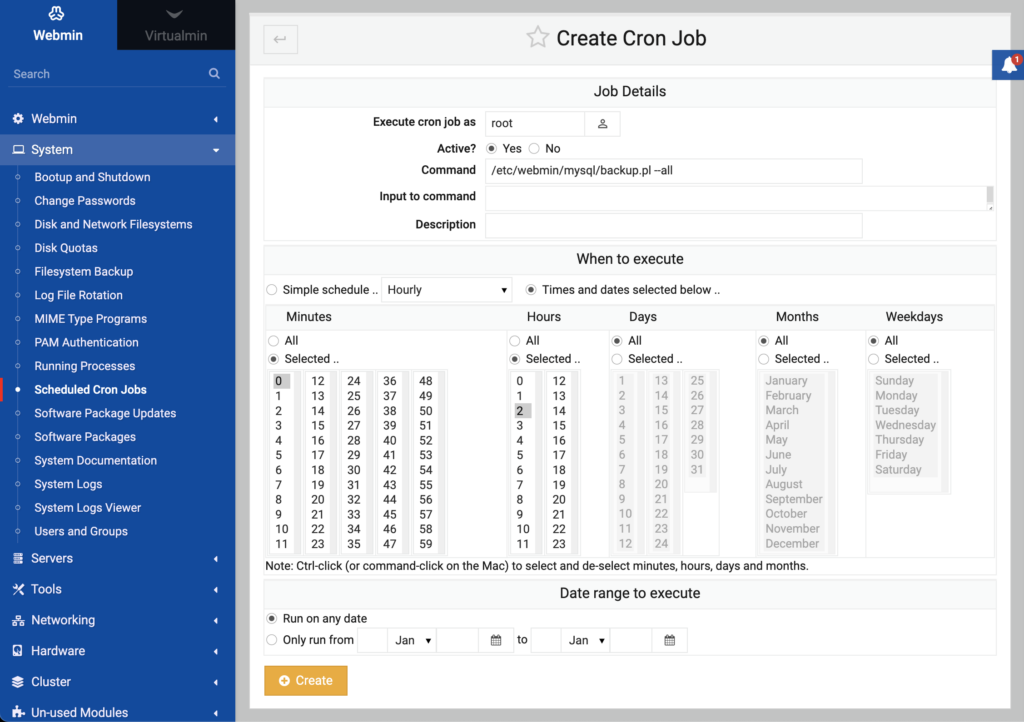
One of the most frequent reasons for a cron job failure is simply incorrect syntax in the `crontab` entry itself. A single wrong character in the time fields or a missing space can render the entire line ineffective. Even subtle errors, like using a non-existent day of the week or an invalid minute, will prevent your command from ever being triggered. Always double-check your `crontab` entries for precision.
Environment Variables Issues
Cron jobs execute in a minimal environment, meaning they don’t inherit the same environment variables (like `PATH`, `SHELL`, etc.) that you might have in your interactive shell session. This is a very common reason why scripts that run perfectly from the command line fail when executed by cron. If your script relies on specific commands or executables that are not in cron’s default `PATH`, it simply won’t find them.
Command Not Found or Incorrect Path
Related to environment variables, if the command or script you’re trying to run isn’t specified with its absolute path, cron might not be able to locate it. For instance, `myscript.sh` might work from your home directory, but cron needs `/home/user/myscript.sh`. This also applies to any commands used within your script, such as `python` or `php`, which should ideally be referenced by their full path (e.g., `/usr/bin/python`).
Permissions Problems
Permission issues are another significant hurdle when your scheduled tasks aren’t running. The user under which the cron job executes must have read and execute permissions for the script or command, as well as appropriate permissions for any files or directories the script interacts with. If cron attempts to write to a directory where it lacks write permissions, the job will fail silently, leaving no immediate trace in standard output.
Resource Limits or System Load
Sometimes, a cron job might fail not because of syntax or permissions, but due to system resource constraints. If your server is under heavy load, or if the cron job itself is very resource-intensive, it might be terminated before completion or simply fail to start. This is especially true for jobs that consume significant CPU, memory, or disk I/O, leading to unexpected behavior or outright failure.
Output Redirection and Logging
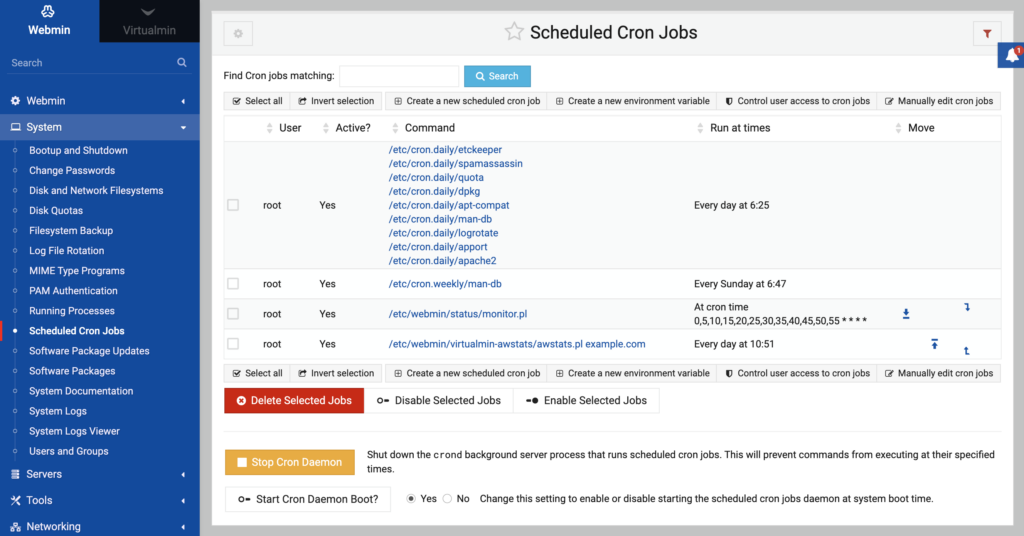
By default, cron attempts to email any output (stdout or stderr) of a job to the user who owns the crontab. If this mail system isn’t configured, or if there’s too much output, it can cause problems or simply prevent you from seeing crucial error messages. Many users forget to redirect output to a log file, which then makes troubleshooting cron jobs incredibly difficult, as there’s no record of what happened.
Systematic Troubleshooting: Diagnosing and Resolving Cron Issues
When facing a non-running cron job, a systematic approach is your best friend. Instead of guessing, follow a clear diagnostic path to pinpoint the exact problem. This section will guide you through practical steps to effectively debug and resolve why your scheduled tasks aren’t running, ensuring your automated processes get back on track.
Check Cron Logs
The very first step in troubleshooting cron jobs should always be to consult the cron logs. These logs provide valuable insights into whether cron attempted to run your job and if there were any immediate system-level errors. On most Linux distributions, cron logs can be found in `/var/log/syslog`, `/var/log/cron`, or `/var/log/messages`. Use commands like `grep CRON /var/log/syslog` to filter for cron-related entries and look for error messages or indications of job execution attempts.
Test Your Command Manually
Before assuming a cron issue, run the exact command or script specified in your `crontab` entry directly from the command line. This helps isolate whether the problem lies with the command itself or with how cron is executing it. Make sure to run it as the same user that owns the crontab to accurately simulate the cron environment. If it fails manually, the issue isn’t cron but the script or command itself.
Verify Cron Syntax
Even experienced users can make syntax mistakes. Use online cron expression generators or simple tests to verify your `crontab` syntax. A common trick is to temporarily schedule a very simple command, like ` * echo “Cron test ran!” >> /tmp/cron_test.log`, to run every minute. If this simple job executes, you know cron itself is working, and the issue lies with your specific job’s configuration.
Set Environment Variables Explicitly
To overcome the minimal environment issue, explicitly define necessary environment variables within your `crontab` file or directly in your script. For example, add `PATH=/usr/local/sbin:/usr/local/bin:/usr/sbin:/usr/bin:/sbin:/bin` at the top of your `crontab` file, or set specific variables like `SHELL=/bin/bash` if your script requires a particular shell. This ensures cron has all the necessary paths and settings to execute your command.
Use Absolute Paths
Always use absolute paths for commands, scripts, and any files or directories they interact with. Instead of `script.sh`, use `/home/user/scripts/script.sh`. Similarly, if your script uses `python`, use `/usr/bin/python` or wherever your Python executable resides. This eliminates ambiguity and ensures cron can always find what it needs.
Redirect Output for Debugging
To capture any errors or output from your cron job, redirect both standard output (stdout) and standard error (stderr) to a log file. Append `>> /path/to/my_cron.log 2>&1` to the end of your cron command. This will write all output, including error messages, to the specified log file, providing invaluable clues for diagnosis. This is a crucial step when troubleshooting cron jobs that fail silently.
Check User and File Permissions
Verify that the user owning the crontab has execute permissions for the script (`chmod +x script.sh`) and appropriate read/write permissions for any files or directories the script accesses. Use `ls -l` to inspect permissions and `chown` or `chmod` to adjust them if necessary. Incorrect permissions are a frequent culprit behind silent failures.
Monitor System Resources
If your cron job is resource-intensive, monitor your system’s CPU, memory, and disk I/O during the scheduled execution time. Tools like `top`, `htop`, `free -h`, or `iostat` can help identify if the server is simply too busy to run the job successfully. Consider optimizing the script, staggering job times, or upgrading server resources if this is the issue.
Troubleshooting cron jobs can seem daunting when your scheduled tasks aren’t running, but by following these systematic steps, you can effectively pinpoint and resolve most issues. Remember to check logs, verify syntax, address environmental differences, and ensure proper permissions. With a methodical approach, you’ll have your automated tasks back on track and running smoothly in no time.
