
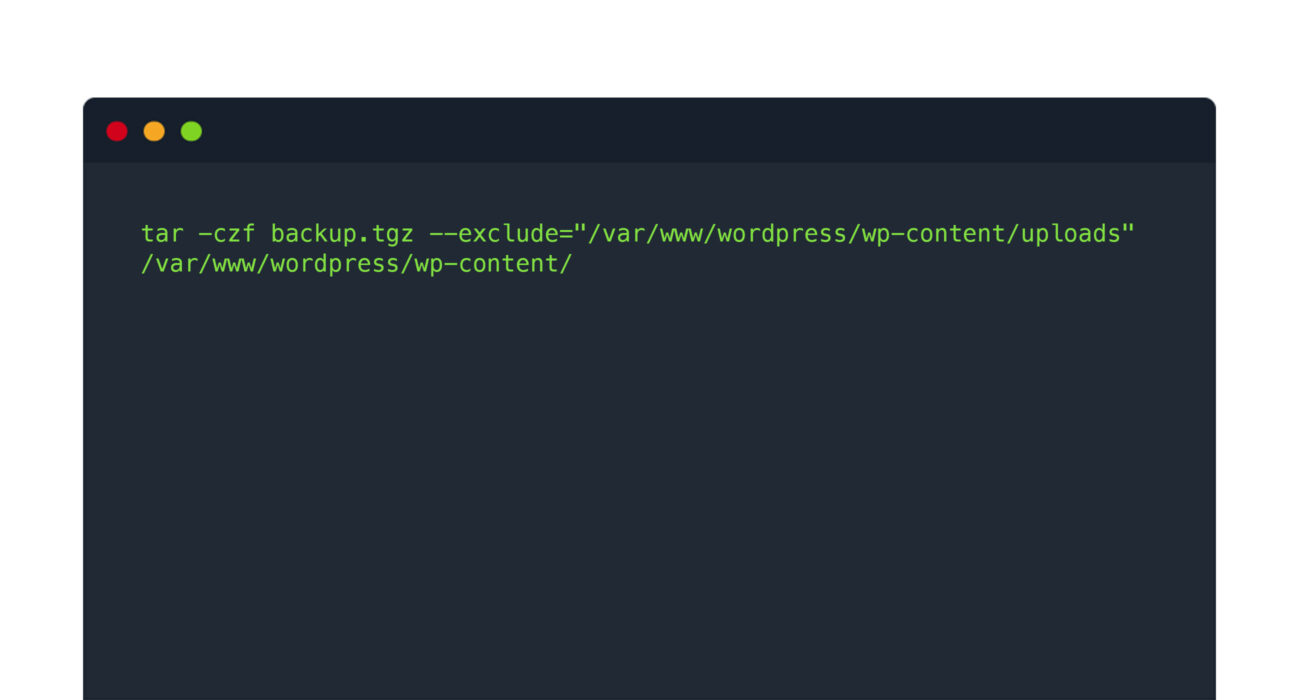
Mastering the tar command exclude directory option is crucial for efficient and streamlined data backups. This powerful utility allows users to create archives while deliberately omitting specific folders or files. Understanding how to effectively use `tar` with exclusion patterns ensures your archives are lean, relevant, and free from unnecessary data. This guide will walk you through the essential techniques for excluding directories, helping you optimize your archiving processes.
Understanding `tar` and the Need to Exclude Directories
The `tar` command, short for tape archive, is a fundamental utility in Unix-like operating systems. It is primarily used for collecting many files into a single archive file, often called a tarball. This archive can then be compressed, moved, or backed up easily. `tar` is indispensable for system administrators and developers alike.
What is `tar` and its primary uses?
The `tar` command bundles multiple files and directories into one archive file. This simplifies operations like backups, data migration, and software distribution. While `tar` itself doesn’t compress, it often works in conjunction with compression utilities like `gzip` or `bzip2`. GNU Tar is the most common implementation, offering robust features for archiving.
Why is excluding directories important for backups?
Excluding directories is vital for creating efficient and clean backups. Imagine backing up a web server; you likely don’t need temporary cache files or large log directories. Omitting these unnecessary elements reduces archive size, saves storage space, and speeds up the Backup process. Furthermore, it prevents sensitive or irrelevant data from being included.
Common scenarios for `tar` directory exclusion
Several situations benefit from using the tar command exclude directory feature. Developers often exclude version control folders like `.git` or dependency directories such as `node_modules`. System backups frequently omit `/tmp`, `/proc`, or `/sys` directories. Additionally, users might want to exclude large media files or temporary downloads from personal archives. Effective exclusion ensures focused and optimized backups.
Mastering the `tar` Command Exclude Directory Option (`–exclude`)
The `–exclude` option is the primary method for telling `tar` which directories or files to omit. This powerful flag can be used multiple times within a single command. It offers flexibility for various exclusion requirements. Learning its proper syntax is key to successful archiving.
Basic-syntax-for-exclude-with-tar">Basic syntax for `–exclude` with `tar`
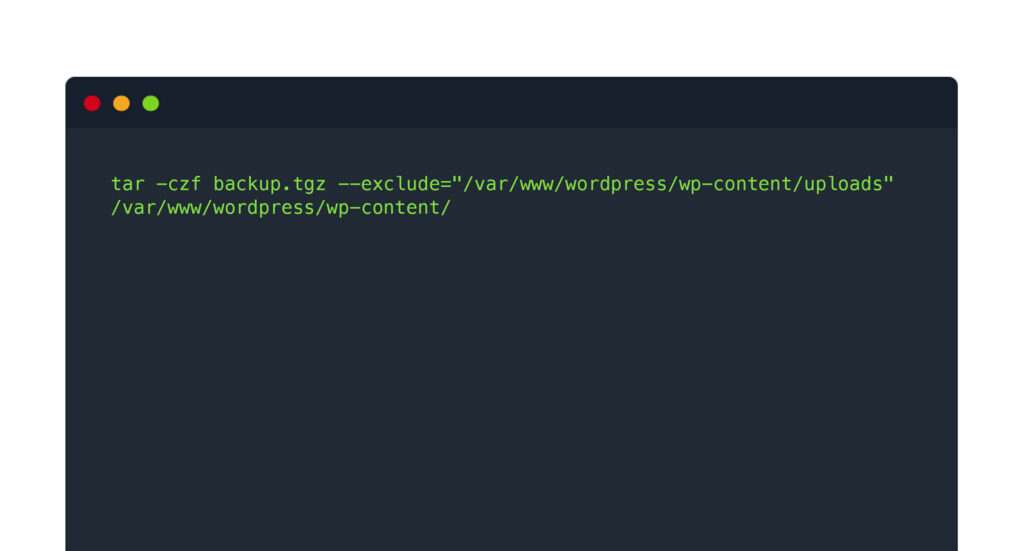
The fundamental syntax for excluding a directory is straightforward. You specify `–exclude` followed by the path to the directory you wish to omit. The general structure looks like `tar -cvf archive.tar –exclude=’path/to/exclude’ /path/to/source`. Remember to quote the exclusion path, especially if it contains spaces or special characters. This prevents shell expansion issues.
Excluding single directories from a `tar` archive
To exclude a single directory, you simply add the `–exclude` option once. For instance, if you are archiving your home directory but want to skip your `Downloads` folder, the command would be `tar -cvf myhome.tar –exclude=’~/Downloads’ ~`. This creates an archive of your home directory without including any files from the Downloads folder. It’s a very common use case.
Excluding multiple directories using the `tar` command
When you need to exclude several directories, you can use the `–exclude` option multiple times. Each instance specifies a different path to be omitted. Consider archiving a project directory while excluding both `node_modules` and `.git` folders. The command would look like this:
- `tar -cvf project.tar –exclude=’project/node_modules’ –exclude=’project/.git’ project/`
- This ensures both specified directories are completely ignored.
- Always double-check your paths for accuracy.
This method is highly effective for complex projects with many subdirectories that should not be archived. Therefore, using multiple `–exclude` flags is a robust solution.
Advanced `tar` Exclude Directory Techniques with Patterns and Wildcards
Beyond simple path exclusions, `tar` allows for more sophisticated pattern matching. This capability is incredibly useful for dynamic environments or when you need to exclude items based on naming conventions. Wildcards and pattern lists significantly enhance the power of the tar command exclude directory feature.
Using wildcards (`*`, `?`) in `tar` exclusion patterns
Wildcards provide powerful flexibility for exclusion patterns. The asterisk (``) matches any sequence of characters, while the question mark (`?`) matches any single character. For example, to exclude all directories named `cache` anywhere within your source path, you might use `–exclude=’/cache’`. This pattern matches `dir1/cache`, `dir2/subdir/cache`, and so on. Furthermore, `tar` evaluates these patterns relative to the current directory or the specified source path.
Excluding directories by name, regardless of path
Sometimes you want to exclude a directory by its name, no matter where it appears in the hierarchy. `tar` handles this effectively. For instance, to exclude all `tmp` directories, you could use `–exclude=’*/tmp’`. This pattern ensures that any directory named `tmp` at any level within the archived path is skipped. It’s a powerful way to keep archives clean from common temporary folders.
Leveraging `–exclude-from` for extensive `tar` exclusion lists
For very long lists of exclusions, typing multiple `–exclude` options becomes cumbersome. The `–exclude-from` option solves this problem by allowing you to specify a file containing all your exclusion patterns. Each pattern should be on a new line within the file. Here’s how to use it:
- Create a text file (e.g., `exclude_list.txt`).
- List each directory or pattern to exclude on a new line.
- Run `tar -cvf archive.tar –exclude-from=exclude_list.txt /source/path`.
This method is highly recommended for complex backup scripts or when managing many exclusion rules. It keeps your `tar` commands clean and manageable. You can find more details on `tar` options in the official GNU Tar manual: GNU Tar Manual.
Practical `tar` Exclude Directory Examples for Common Use Cases
Applying the tar command exclude directory in real-world scenarios demonstrates its utility. These examples cover common situations faced by developers and system administrators. They highlight how specific exclusion patterns can save time and disk space.
Excluding development files (e.g., `node_modules`, `.git`)
When backing up a software project, certain directories are typically not needed in the archive. These include dependency folders like `node_modules` in JavaScript projects or version control metadata like `.git`. A common command would be: `tar -czvf myproject.tar.gz –exclude=’./node_modules’ –exclude=’./.git’ ./myproject`. This command creates a compressed archive without these development-specific folders.
Excluding temporary files and caches (`/tmp`, `/var/cache`)
System backups should always exclude temporary and cache directories. These often contain volatile data that is not necessary for restoration. Examples include `/tmp`, `/var/tmp`, and `/var/cache`. A typical backup command might look like: `tar -czvf system_backup.tar.gz –exclude=’/tmp/‘ –exclude=’/var/cache/‘ –exclude=’/var/tmp/‘ /`. Note the use of `` to exclude contents within the directories. This ensures a cleaner system backup.
Excluding specific file types within a directory using `tar`
Sometimes, you want to archive a directory but exclude specific file types from within it. You can achieve this using wildcards with file extensions. For instance, to archive a directory but exclude all `.log` files, you would use: `tar -cvf data.tar –exclude=’*.log’ ./data`. This powerful feature allows for granular control over what gets included in your archives. Additionally, you can combine this with directory exclusions.
Troubleshooting and Best Practices for `tar` Command Exclusions
Even with a clear understanding, using `tar` exclusions can sometimes lead to unexpected results. Knowing common pitfalls and following best practices will help you avoid issues. Proper verification is always a good idea before committing to a large archive operation.
Common pitfalls: relative vs. absolute paths in `tar` exclude
One frequent mistake involves the use of relative versus absolute paths in `–exclude` patterns. `tar` interprets exclusion patterns relative to the directory being archived. If you are archiving `/home/user`, an `–exclude=’/home/user/Downloads’` will not work as expected. Instead, use `–exclude=’./Downloads’` or simply `–exclude=’Downloads’` if `Downloads` is directly inside `/home/user`. Always consider the context of your source path.
Verifying exclusions before final `tar` archive creation
Before creating a large archive, it’s wise to perform a dry run to verify your exclusions. You can do this by using the `-v` (verbose) option without the `-f` (file) option, or by listing the contents to standard output. For example, `tar -cv –exclude=’*/tmp’ /source/path | less` will show you what would be included, allowing you to spot any missed exclusions. This step saves significant time and effort.
Performance considerations for large archives with exclusions
While exclusions optimize archive size, parsing many complex exclusion patterns can impact performance. For extremely large archives with numerous exclusions, consider organizing your data to naturally separate excluded content. Using `–exclude-from` is generally more efficient than many individual `–exclude` flags. Always test performance on representative data sets. This ensures your backup strategy remains efficient.
Frequently Asked Questions
How to exclude only empty directories using `tar`?
The `tar` command does not have a direct option to exclude only empty directories. However, you can achieve this by first finding empty directories using `find` and then piping them to `tar` with `–exclude-from`. For example, `find /path/to/archive -empty -type d > empty_dirs.txt` followed by `tar -cvf archive.tar –exclude-from=empty_dirs.txt /path/to/archive`. This two-step process effectively handles empty directory exclusion.
Can I exclude files and directories simultaneously with `tar`?
Yes, absolutely. The `–exclude` option works for both files and directories. You simply specify the path or pattern for each item you wish to omit. For instance, `tar -cvf backup.tar –exclude=’*.log’ –exclude=’temp_dir’ /source/path` will exclude all `.log` files and the `temp_dir` directory. This flexibility makes the tar command exclude directory feature incredibly versatile.
What’s the difference between `–exclude` and `–exclude-from` in `tar`?
The `–exclude` option is used to specify a single exclusion pattern directly on the command line. You can use it multiple times for several exclusions. In contrast, `–exclude-from` takes a file as an argument, where that file contains a list of exclusion patterns, one per line. `–exclude-from` is ideal for managing many exclusions, making your command cleaner and more maintainable. Both options serve to implement the tar command exclude directory functionality.
Conclusion: Streamline Your Backups with `tar` Exclusion Mastery
Mastering the tar command exclude directory options is an invaluable skill for anyone managing data on Unix-like systems. By effectively using `–exclude` and `–exclude-from`, you can create smaller, more relevant, and faster archives. This not only saves disk space but also streamlines your backup and recovery processes. Implement these techniques today to optimize your data management. Share your favorite `tar` exclusion tips in the comments below!
