
Understanding how to effectively manage services is crucial for any Linux user or system administrator. Specifically, knowing how to systemctl list running services provides immediate insight into your system’s operational status. This powerful command helps you monitor, troubleshoot, and optimize your Linux environment efficiently. Before diving in, let’s clarify what `systemctl list running services` actually means and why it’s an indispensable tool for system oversight.
Introduction: Understanding `systemctl` and Service Management
Linux systems rely heavily on services, which are background processes that perform specific functions. These can range from networking daemons to web servers and database services. `systemctl` is the primary command-line utility for controlling the systemd init system, which manages these services on modern Linux distributions. It offers a standardized way to interact with your system’s various components.
What is `systemctl` and Why List Services?
`systemctl` acts as an interface to systemd, the initialization system and service manager. Systemd replaced older init systems like SysVinit and Upstart, becoming the default on most contemporary Linux distributions. Using `systemctl` allows you to start, stop, enable, disable, and crucially, query the status of services. Listing running services helps you quickly identify active processes and understand resource usage.
The Importance of Monitoring Running Services
Monitoring running services is vital for maintaining system health and security. It enables administrators to detect unauthorized processes, identify resource hogs, and ensure critical applications are operational. Furthermore, regular checks can prevent system instability and performance degradation. Therefore, mastering commands like `systemctl list running services` is a fundamental skill for effective system administration.
Grasping Systemd and `systemctl` for Linux Service Control
Systemd is much more than just an init system; it’s a comprehensive suite of management tools. It handles everything from system startup to service management and logging. `systemctl` is your direct communication channel with this powerful system. Consequently, understanding its role is key to efficient Linux administration.
The Evolution of Init Systems: From SysVinit to Systemd
Historically, Linux distributions used SysVinit, a simpler init system that started services sequentially. Systemd, however, introduced parallel service startup, dependency management, and on-demand service activation. This significantly improved boot times and system responsiveness. Modern systems, therefore, almost exclusively rely on systemd for service orchestration.
How `systemctl` Interacts with Systemd Units
Systemd manages “units,” which are configuration files describing system resources. Services are just one type of unit, alongside sockets, devices, mount points, and timers. `systemctl` commands operate on these units. When you use `systemctl list running services`, you are querying service units specifically. This interaction provides a granular level of control over your system’s operations.
The Core Command: How to `systemctl list running services`
To see which services are currently active and running on your system, `systemctl` offers a straightforward command. This command is essential for quick diagnostics and system oversight. It provides a clear, concise output that is easy to interpret. Mastering this specific command allows for immediate insights into your Linux machine’s operational state.
Syntax and Breakdown: `systemctl list-units –type=service –state=running`
The most precise way to systemctl list running services is by combining specific options. You use `list-units` to display loaded units, `–type=service` to filter for service units, and `–state=running` to show only those that are actively executing. This combination ensures you get exactly the information you need. For instance, the full command is `systemctl list-units –type=service –state=running`.
Alternatively, a common and often sufficient shorthand is `systemctl –type=service –state=running`. Both commands achieve the same result. They provide a snapshot of your system’s active service landscape. Understanding these options is critical for effective service management.
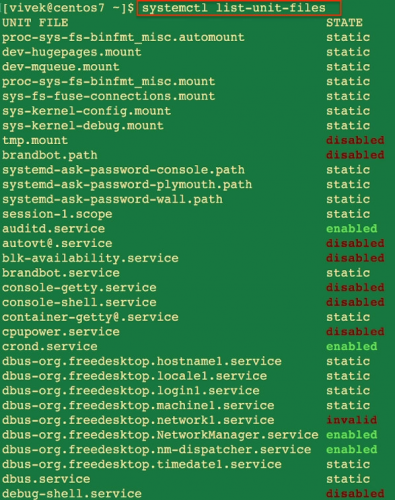
Deciphering the Output: What Each Column Means
When you execute `systemctl list-units –type=service –state=running`, the output typically includes several columns:
- UNIT: The name of the service unit (e.g., `apache2.service`, `sshd.service`).
- LOAD: Indicates if the unit configuration was successfully loaded.
- ACTIVE: Shows the high-level activation state (e.g., `active`).
- SUB: Provides a more detailed, low-level activation state (e.g., `running`, `exited`).
- DESCRIPTION: A brief explanation of what the service does.
The `ACTIVE` column will consistently show `active` and the `SUB` column will show `running` for the services you are querying. This makes it easy to confirm their operational status. Furthermore, this structured output aids in quick identification of services.
Practical Examples of Listing Active Services
Let’s look at some practical applications of the command. For example, to simply see all running services, you would type:
systemctl list-units --type=service --state=runningThis command will output a list similar to this:
- `auditd.service` loaded active running Security Auditing Service
- `cron.service` loaded active running Regular background program processing daemon
- `sshd.service` loaded active running OpenSSH daemon
- `apache2.service` loaded active running The Apache HTTP Server
This immediate feedback helps administrators verify critical services are up and running. Therefore, it is a powerful first step in any troubleshooting process.
Advanced Filtering and Display Options for `systemctl` Output
While `systemctl list running services` provides a general overview, you often need more specific information. `systemctl` can be combined with other Linux utilities to refine its output. This allows for highly targeted analysis of your system’s services. Consequently, these advanced techniques enhance diagnostic capabilities.
Filtering Services by Name, Status, or Type with `grep`
To find a specific service or a group of services, you can pipe the `systemctl` output to `grep`. For instance, to check if the Apache web server is running, you could use:
systemctl list-units --type=service --state=running | grep apacheThis command filters the output to show only lines containing “apache.” This is incredibly useful for quickly locating specific services among many. Additionally, `grep` can be used with regular expressions for more complex pattern matching.
Viewing Detailed Information for Specific Running Services
Once you’ve identified a service, you might need more details about its status, configuration, and logs. The `systemctl status` command provides this comprehensive information. For example, to check the status of the SSH daemon:
systemctl status sshd.serviceThis command will display its current state, recent log entries, and other relevant details. It’s an invaluable tool for diagnosing issues. Furthermore, it helps in understanding service dependencies and resource usage.
Listing Failed or Inactive Services for Troubleshooting
Beyond just listing running services, `systemctl` also helps identify problems. You can easily list services that have failed or are inactive. For example, to see all failed service units:
systemctl list-units --type=service --state=failedThis command is crucial for troubleshooting. It immediately highlights services that are not operating correctly. Identifying these quickly allows for prompt corrective action. For additional insights, you might consult the official systemd documentation on freedesktop.org to understand different unit states and their meanings. Learn more about systemd units here.
Common Use Cases: Why Monitor `systemctl` Running Services?
Regularly checking `systemctl list running services` isn’t just a technical exercise; it’s a cornerstone of proactive system management. It empowers administrators to maintain optimal performance and security. Therefore, understanding its practical applications is essential for any Linux professional.
System Health Checks and Performance Monitoring
Monitoring running services helps in conducting routine system health checks. You can quickly identify if essential services like networking, logging, or web servers are operational. This proactive approach prevents small issues from escalating into major system failures. Moreover, it contributes significantly to overall system stability.
Identifying and Managing Unnecessary Background Processes
Over time, unnecessary services might accumulate, consuming valuable system resources. Using `systemctl list running services` allows you to spot these dormant or redundant processes. You can then stop or disable them, freeing up memory and CPU cycles. This optimization improves overall system performance and responsiveness.
Diagnosing Service-Related Issues and Dependencies
When an application isn’t working, the first step is often to check its underlying services. By listing running services, you can verify if all required components are active. If a service is missing or in a failed state, it points directly to the source of the problem. Furthermore, `systemctl status` can reveal dependency issues.
Beyond Listing: Managing Services with `systemctl`
While `systemctl list running services` is excellent for observation, `systemctl` offers a full suite of commands for active service management. These commands allow you to control the lifecycle of your system’s processes. Mastering them is vital for maintaining a healthy and responsive Linux environment.
Starting, Stopping, and Restarting Services Effectively
To control a service, you use simple, intuitive commands. For example, to start a service like Apache, you’d use `sudo systemctl start apache2.service`. To stop it, `sudo systemctl stop apache2.service`. Restarting combines both actions: `sudo systemctl restart apache2.service`. These commands are fundamental for service maintenance and troubleshooting.
Enabling and Disabling Services for Boot-Time Control
Services can be configured to start automatically at boot. To ensure a service starts with the system, use `sudo systemctl enable service_name`. Conversely, to prevent a service from starting automatically, use `sudo systemctl disable service_name`. This control over boot behavior is crucial for system security and resource management. It ensures only necessary services consume resources during startup.
Reloading Service Configurations Without Downtime
Sometimes, you need to apply new configuration changes to a service without fully stopping and restarting it. The `reload` command is perfect for this. For instance, `sudo systemctl reload apache2.service` will instruct Apache to re-read its configuration files. This minimizes downtime and ensures continuous service availability. Not all services support `reload`, however; some require a full restart.
Troubleshooting Tips for `systemctl` and Service Management
Even with a clear understanding of `systemctl list running services`, issues can arise. Knowing how to troubleshoot common problems is just as important as knowing the commands themselves. These tips will help you diagnose and resolve service-related challenges efficiently. Therefore, they are essential for maintaining system stability.
Common Permissions Issues and `sudo` Usage
Many `systemctl` commands, especially those that modify service states, require root privileges. If you encounter “permission denied” errors, ensure you are prefixing your commands with `sudo`. For example, `sudo systemctl start service_name`. Incorrect permissions on service unit files can also cause issues. Always check file ownership and permissions if a service fails to start unexpectedly.
Interpreting `systemctl status` Output for Errors
When a service isn’t working, `systemctl status service_name` is your go-to command. Look for red text indicating errors, especially in the “Active:” line and the recent log entries. Error messages often provide direct clues about what went wrong. Pay attention to dependency failures or configuration syntax errors. This detailed output is invaluable for pinpointing problems.
What to Do When a Service Fails to Start
If a service fails to start, first check `systemctl status service_name` for error messages. Next, examine the system journal using `journalctl -xe` to see more detailed logs related to the service. Look for resource conflicts, incorrect configuration files, or missing dependencies. Correcting these underlying issues is key to getting the service operational.
Frequently Asked Questions
What’s the difference between `active` and `running` in `systemctl`?
In `systemctl` output, `active` describes the high-level state of a unit, meaning it’s enabled and functioning. `Running` is a more specific `SUB` state, indicating that the service’s main process is actively executing. Therefore, when you `systemctl list running services`, you’re looking for units that are both `active` and specifically in the `running` sub-state, signifying full operation.
How can I list services that are not running?
To list services that are not running, you can use `systemctl list-units –type=service –state=inactive`. This will show services that are loaded but currently stopped. Alternatively, you can use `systemctl list-units –type=service –state=failed` to specifically find services that attempted to start but encountered an error. This helps identify problematic services quickly.
Can I use `systemctl` to list services for a remote machine?
Yes, `systemctl` supports remote operations via SSH. You can use the `-H` or `–host` option followed by the username and hostname/IP address. For example, `systemctl -H user@remote_host list-units –type=service –state=running`. This allows for centralized management and monitoring of multiple Linux servers. However, SSH access and proper authentication are required.
Why might `systemctl` show a service as `running` but it’s not working?
A service might appear `active (running)` in `systemctl` output even if its application isn’t fully functional. This often means the main process started successfully, but there might be internal application errors, incorrect configurations, or dependency issues within the service itself. Always check `systemctl status service_name` and `journalctl -u service_name` for detailed application-level logs and errors. This provides deeper insight beyond just the process state.
Conclusion: Mastering `systemctl` to List and Manage Services
The ability to effectively `systemctl list running services` is a foundational skill for any Linux user or administrator. It provides immediate visibility into your system’s health, helps in troubleshooting, and aids in resource optimization. By understanding the commands and their outputs, you gain significant control over your Linux environment. This knowledge is crucial for maintaining stable and high-performing systems.
Key Takeaways for Efficient Service Management
Remember that `systemctl list-units –type=service –state=running` is your go-to command for checking active services. Combine it with `grep` for filtering and `systemctl status` for detailed diagnostics. Proactive monitoring helps prevent issues and ensures critical services are always operational. Furthermore, understanding the `active` and `sub` states provides deeper insights into service conditions.
Further Resources and Next Steps
To further enhance your `systemctl` expertise, explore other unit types like `target` and `socket` units. Experiment with enabling and disabling services, and practice interpreting `journalctl` output. Share your experiences and tips in the comments below. What are your favorite `systemctl` commands? Continue learning and mastering these essential Linux administration tools!
