
The `Sudo Command in Linux` is a fundamental utility for system administrators and users alike, enabling the execution of commands with the security privileges of another user, most commonly the superuser (root). Understanding its functionality is crucial for managing Linux systems securely and efficiently. This powerful command allows authorized users to perform administrative tasks without logging in as root directly. Therefore, it significantly enhances system security by limiting direct root access.
Understanding the Sudo Command in Linux: What It Is and Why It Matters
The `sudo` command, an acronym for “superuser do” or “substitute user do,” allows a permitted user to execute a command as the superuser or another user, as specified by the security policy. This policy is typically configured in the `/etc/sudoers` file. Essentially, it provides a controlled way to grant elevated privileges to specific users for specific tasks.
Purpose and Core Functionality of sudo
The primary purpose of `sudo` is to provide granular control over administrative access. Instead of sharing the root password, which is highly insecure, administrators can grant individual users permission to run specific commands with root privileges. This prevents accidental system damage and malicious activity, as users only have elevated access when explicitly needed.
Why sudo is Essential for Linux System Administration
For any Linux system administrator, `sudo` is an indispensable tool. It allows for daily maintenance, software installation, and system configuration without compromising overall security. Furthermore, it logs all `sudo` commands, providing an audit trail of administrative actions. This accountability is vital in multi-user environments and for compliance purposes.
Brief History and Evolution of sudo
The `sudo` utility has been a cornerstone of Unix-like operating systems for decades, originating in the late 1980s. Its design aimed to address the security shortcomings of the `su` command, which requires sharing the root password. Over time, `sudo` has evolved, incorporating more sophisticated configuration options and security features, making it the de facto standard for privilege escalation in Linux.
How to Effectively Use the Sudo Command in Linux
Using the `sudo` command is straightforward once a user has been granted permission in the `sudoers` file. When a user prefixes a command with `sudo`, the system prompts for their own password, not the root password. This authentication process ensures that only authorized users can execute privileged commands.
Basic-syntax-and-common-sudo-command-examples">Basic Syntax and Common Sudo Command Examples
The basic syntax for the `sudo command in Linux` is simple: `sudo [command]`. For instance, to update your system’s package list, you would use `sudo apt update`. Here are some common examples:
- `sudo apt install [package_name]`: Installs new software packages.
- `sudo systemctl restart [service_name]`: Restarts a system service, like a web server.
- `sudo nano /etc/hosts`: Edits a system configuration file with root privileges.
- `sudo reboot`: Initiates a system reboot.
Remember, always exercise caution when using `sudo`, as incorrect commands can have significant system-wide impacts.
Running Commands as Another User (sudo -u)
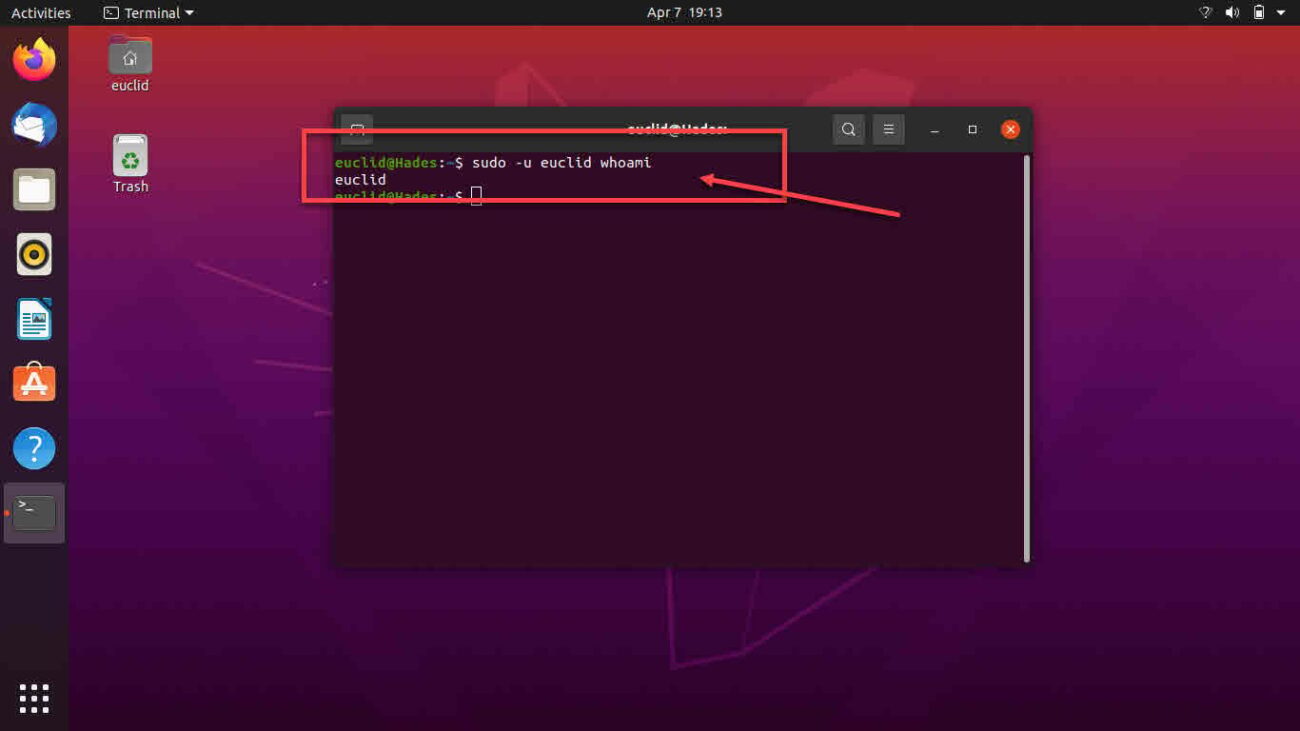
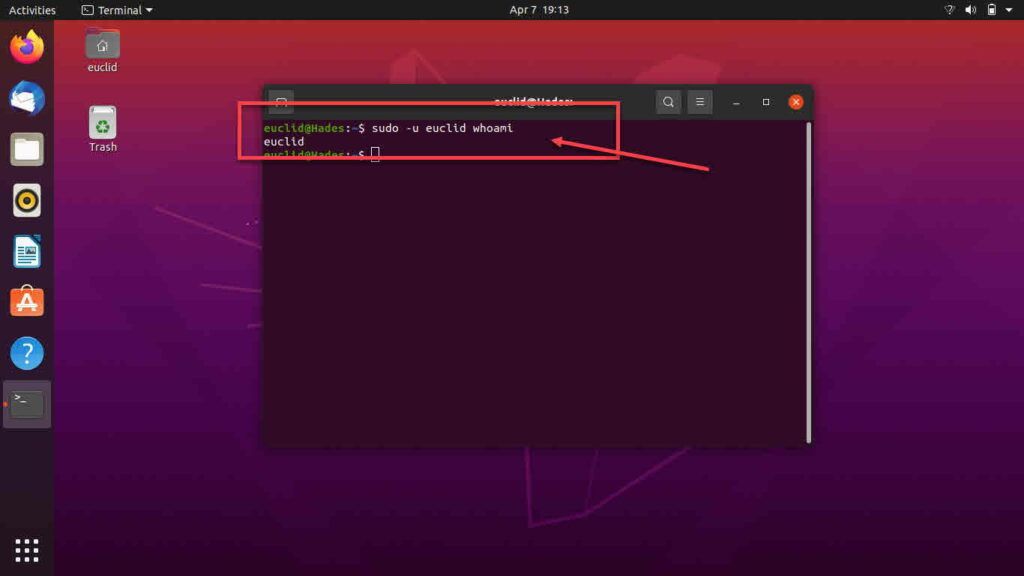
While `sudo` typically runs commands as the root user, it can also execute commands as any other user on the system. This is achieved using the `-u` option, followed by the target username. For example, `sudo -u www-data touch /var/www/html/test.txt` would create a file as the `www-data` user.
Executing Commands with Root Privileges
The most common use case for `sudo` is to execute commands with root privileges. This allows users to perform tasks that modify system-wide settings, install software, or manage services. When you run `sudo ls /root`, for instance, you are viewing the contents of the root user’s home directory, which normally requires root access.
Configuring Sudoers: Granting and Revoking Sudo Privileges
The core of `sudo` security lies in its configuration file, `/etc/sudoers`. This file dictates who can use `sudo`, what commands they can run, and under what conditions. Managing this file correctly is paramount for maintaining system integrity and security.
Understanding the /etc/sudoers File
The `/etc/sudoers` file is a critical configuration file that defines the rules for `sudo` access. It specifies which users or groups can execute commands as other users, often including root. Each entry in this file follows a specific syntax, defining user, host, and command permissions. This file is highly sensitive, and any syntax errors can lock out all `sudo` users.
Using visudo for Safe and Valid Sudoers Editing
Editing the `/etc/sudoers` file directly with a text editor is strongly discouraged due to the risk of syntax errors. Instead, the `visudo` command should always be used. `visudo` opens the `sudoers` file in a safe editor (usually `vi` or `nano`), checks for syntax errors upon saving, and prevents multiple simultaneous edits. This utility is essential for preventing system lockout.
Granting Specific User and Group Permissions with sudo
Administrators can grant permissions to individual users or entire groups. For example, to allow a user named ‘john’ to run all commands with `sudo`, an entry like `john ALL=(ALL:ALL) ALL` would be added. Similarly, to grant a group named ‘admin_team’ the same privileges, you would use `%admin_team ALL=(ALL:ALL) ALL`. This flexibility allows for fine-grained access control.
Here are common ways to grant permissions:
- Individual User: `username ALL=(ALL) ALL`
- User with NOPASSWD: `username ALL=(ALL) NOPASSWD: ALL`
- Group Permission: `%groupname ALL=(ALL) ALL`
Sudo Security Best Practices and Considerations
While the `sudo command in Linux` is powerful, its misuse can lead to significant security vulnerabilities. Implementing best practices is crucial to leverage its benefits without compromising system security. This involves careful configuration and ongoing monitoring.
Minimizing Sudo Privileges and the Principle of Least Privilege
A fundamental security principle is the “Principle of Least Privilege.” This means users should only be granted the minimum necessary permissions to perform their job functions. Instead of `ALL=(ALL) ALL`, consider granting access to specific commands only. For instance, `user ALL=/usr/bin/apt update, /usr/bin/apt upgrade` provides more restricted access.
Configuring Password Policies and Sudo Timeout Settings
The `sudoers` file also allows configuration of password policies. For example, `Defaults passwd_timeout=15` sets a timeout of 15 minutes before `sudo` requires the user’s password again. Furthermore, enforcing strong password requirements for all users, including those with `sudo` access, is critical. This adds another layer of security.
Logging and Auditing Sudo Usage for Security
All `sudo` commands are logged, typically in `/var/log/auth.log` or `/var/log/secure`. Regularly reviewing these logs is vital for detecting unauthorized activity or potential misuse of privileges. Tools like `grep` can help filter these logs for specific `sudo` entries, aiding in security audits. You can learn more about `sudo` logging on Wikipedia: Sudo on Wikipedia.
Advanced Sudo Features and Troubleshooting Common Issues
Beyond basic usage, `sudo` offers advanced features that can further streamline administration and enhance security. Understanding these can help in complex environments, while knowing how to troubleshoot common errors ensures smooth operations.
Exploring NOPASSWD Option and its Security Implications
The `NOPASSWD` option in the `sudoers` file allows a user to run specific commands without entering a password. While convenient for automation or specific applications, it carries significant security risks. It should only be used for very specific, low-risk commands, as it bypasses a critical security layer. Therefore, careful consideration is required before implementation.
Utilizing Aliases and Defaults in sudoers Configuration
The `sudoers` file supports aliases for users, runas users, hosts, and commands, which simplify complex configurations. Command aliases, for example, allow grouping multiple commands under a single name. Additionally, `Defaults` entries can set global or user-specific parameters, such as `Defaults logfile=/var/log/sudo.log` to customize logging.
Here are some useful aliases and defaults:
- Command Alias: `Cmnd_Alias PKG_MGMT = /usr/bin/apt update, /usr/bin/apt install`
- User Alias: `User_Alias ADMINS = user1, user2`
- Defaults for Logging: `Defaults log_input, log_output`
Common Sudo Errors and How to Resolve Them
Users often encounter errors like “user is not in the sudoers file” or “incorrect password.” The former means the user lacks `sudo` permissions and needs to be added to the `sudoers` file or an appropriate group. The latter indicates a wrong password entry. Checking `/var/log/auth.log` can provide more detailed error messages for effective troubleshooting.
Frequently Asked Questions
What is the difference between sudo and su?
The `su` command (substitute user) allows you to switch to another user account, typically root, by providing that user’s password. In contrast, `sudo` allows you to run a single command with another user’s privileges, usually root, by providing your own password. `sudo` offers more granular control and better logging than `su`.
How do I add a user to the sudoers file?
To add a user to the `sudoers` file, you should use the `visudo` command. Open the file with `sudo visudo` and add an entry like `username ALL=(ALL:ALL) ALL` for full root privileges. Alternatively, on many distributions, you can add the user to a pre-configured `sudo` or `wheel` group using `sudo usermod -aG sudo username`.
Is it safe to use sudo NOPASSWD?
Using `NOPASSWD` is generally not safe for interactive use, as it bypasses password authentication, a critical security layer. It should only be used in highly controlled environments for specific, low-risk automated tasks or scripts where user interaction is not possible. Always weigh the convenience against the security implications.
Why am I getting ‘user is not in the sudoers file’?
This error means your user account does not have permission to use the `sudo command in Linux`. To resolve this, a user with existing `sudo` privileges (or the root user) must add your account to the `sudoers` file or to a group that has `sudo` access, such as the `sudo` or `wheel` group, typically using `visudo` or `usermod`.
Can I run graphical applications with sudo?
While technically possible, running graphical applications with `sudo` (e.g., `sudo gedit`) is generally discouraged due to potential security risks and environment variable issues. It can lead to corrupted configuration files in your home directory or expose your graphical session to root privileges. Use `pkexec` or specific administrative tools designed for privilege escalation instead, if available.
Conclusion: Mastering the Sudo Command for Secure Linux Management
The `Sudo Command in Linux` is an incredibly powerful and essential tool for secure system administration. By understanding its core functionality, proper usage, and configuration through the `sudoers` file, users can effectively manage their systems while adhering to best security practices. Always remember to grant the least privilege necessary and regularly audit `sudo` usage. Mastering `sudo` empowers you to maintain a robust and secure Linux environment, making you a more effective administrator. Share your favorite `sudo` tips in the comments below!
