

The `su` command in Linux (Switch User) is a fundamental utility for managing user privileges and accessing different user accounts from a single terminal session. This powerful command allows system administrators and advanced users to temporarily switch to another user’s identity, including the highly privileged root user. Understanding its proper usage is crucial for maintaining system security and performing various administrative tasks efficiently.
Introduction to the Su Command in Linux
The `su` command, short for “substitute user” or “switch user,” enables a user to run commands with the privileges of another user. It is a core component of Linux and Unix-like operating systems. This command is essential for tasks requiring elevated permissions, such as installing software or modifying system configurations. Furthermore, it provides a secure way to operate as a different user without logging out and back in.
What is the `su` command and its core purpose?
The primary purpose of the `su` command is to change the current user ID to that of another user. When executed, `su` prompts for the password of the target user. Upon successful authentication, the shell session adopts the permissions and environment of the new user. Consequently, this allows for seamless transitions between user contexts.
administration">Why user switching is vital for Linux system administration
User switching is a cornerstone of robust Linux system administration. It prevents the need to constantly log in and out for different tasks. For example, an administrator might log in as a regular user for daily work. Then, they can use the `su` command to temporarily gain root privileges for system maintenance. This practice significantly enhances security by limiting prolonged root access.
Basic-usage">Understanding Su Command in Linux (Switch User) Syntax and Basic Usage
Mastering the `su` command in Linux (Switch User) begins with understanding its syntax and common applications. The command’s flexibility allows for various scenarios, from simply switching to root to executing specific commands as another user. Proper syntax ensures successful and secure user transitions. Therefore, knowing the correct options is paramount.
The fundamental `su` command syntax: `su [OPTIONS] [USER]`
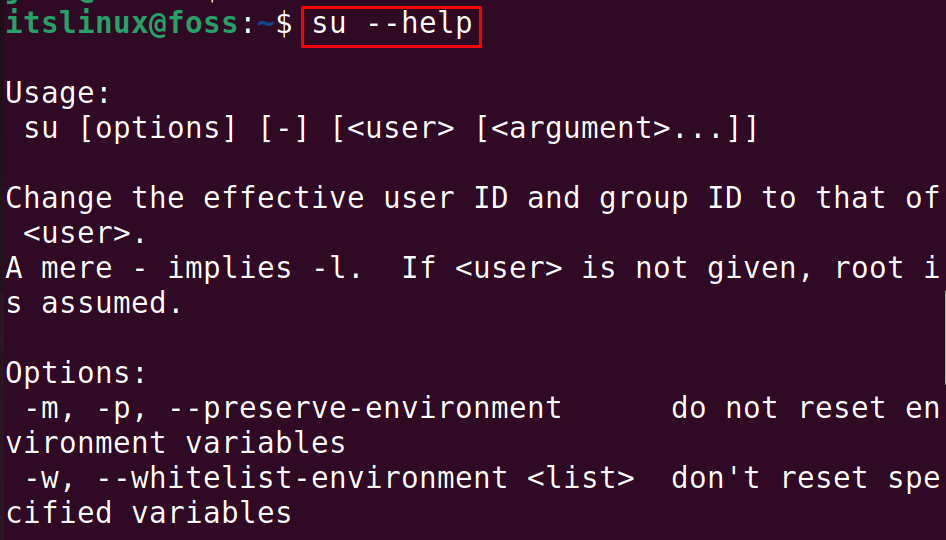
The basic syntax for the `su` command is straightforward. You type `su` followed by optional parameters and the target username. If no username is specified, `su` defaults to the root user. The command then requests the password for the user you wish to switch to. This simple structure makes it easy to remember and use.
How to switch to the root user with `su`
Switching to the root user is the most common use case for `su`. To do this, simply type `su` in your terminal and press Enter. The system will then ask for the root password. After providing the correct password, your current shell will transform into a root shell. You will notice the prompt change, often indicating root access with a `#` symbol. This grants you full administrative control.
Switching to another specific user account using `su`
To switch to a user other than root, specify their username after the `su` command. For instance, to switch to a user named “john”, you would type `su john`. The system will then prompt you for “john’s” password. Upon successful authentication, your shell environment will change to reflect “john’s” user context. This is useful for testing configurations or running applications as a specific user.

Distinguishing Su from Sudo: Key Differences and Use Cases
While both `su` and `sudo` facilitate privilege escalation in Linux, they operate differently and serve distinct purposes. Understanding these differences is vital for secure and efficient system management. Many users often confuse the two, but their underlying mechanisms are quite separate. Consequently, choosing the right command depends on the specific task and security policy.
Authentication mechanisms: `su` vs. `sudo` explained
The primary difference lies in authentication. The `su` command requires the password of the target user (e.g., root’s password). Conversely, `sudo` requires the password of the current user. If the current user is listed in the `/etc/sudoers` file and permitted to run the command, `sudo` grants temporary elevated privileges. This distinction is fundamental to their security models. For more details on `su` command, refer to its man page: Su Command Man Page.
When to use `su` versus `sudo` for administrative tasks
Use `su` when you need a full interactive shell as another user, typically root. This is suitable for extended administrative sessions. Conversely, use `sudo` for executing single commands with elevated privileges. `sudo` is generally preferred for daily administrative tasks due to its granular control and auditing capabilities. It also avoids sharing the root password directly.
Impact on environment variables: a crucial distinction
The `su` command, by default, preserves much of the original user’s environment variables. This can sometimes lead to unexpected behavior or security risks. However, `su -` (with a hyphen) simulates a full login, loading the target user’s environment completely. `sudo`, on the other hand, typically resets and sanitizes the environment for the executed command. This behavior ensures a cleaner and more predictable execution context. Therefore, always consider the environment when choosing between `su` and `sudo`.
Advanced Su Command Options and Practical Examples
Beyond its basic usage, the `su` command in Linux (Switch User) offers several options that enhance its functionality and security. These options provide greater control over the user switching process, allowing administrators to tailor its behavior to specific needs. Learning these advanced features can significantly improve your command-line efficiency. Furthermore, they help in maintaining a secure environment.
Preserving the environment with `su -` (login shell)
Using `su -` (with a hyphen) is crucial for a clean switch. This option instructs `su` to start a login shell for the target user. It means that the new user’s environment variables, home directory, and shell startup files (like `.bashrc` or `.profile`) are loaded. This provides a completely fresh and predictable environment, mimicking a direct login. It’s often the recommended way to switch to root for administrative tasks.
Executing a single command as another user with `su -c`
The `-c` option allows you to execute a single command as the target user without fully switching to their shell. For example, `su -c “ls /root”` will list the contents of the `/root` directory as the root user. After the command completes, you return to your original user session. This is incredibly useful for quick, non-interactive tasks. It minimizes the time spent in an elevated privilege state.
Using `su` with different shell environments (e.g., `bash`, `sh`)
You can specify the shell to be used by the target user with the `-s` option. For instance, `su -s /bin/sh root` will switch to the root user but launch the `/bin/sh` shell instead of the default. This is beneficial when a specific script requires a particular shell or for testing purposes. It offers flexibility in managing different shell environments. Always ensure the specified shell exists on the system.
- `su`: Switches to root, keeping the current environment.
- `su -`: Switches to root, creating a full login environment.
- `su username`: Switches to a specified user, keeping the current environment.
- `su – username`: Switches to a specified user, creating a full login environment.
Security Best Practices for Using the Su Command
Employing the `su` command in Linux (Switch User) requires adherence to strict security protocols. Misuse or lax security practices can expose your system to significant vulnerabilities. Therefore, understanding and implementing best practices is non-negotiable. These measures help protect sensitive data and maintain system integrity. Always prioritize security when dealing with user privileges.
Importance of strong passwords for root and user accounts
The foundation of `su` security is strong, unique passwords for all user accounts, especially the root account. A weak root password makes it trivial for attackers to gain full system control. Regular users should also have strong passwords, as their accounts can be entry points. Implement password policies requiring complexity and regular changes. This proactive approach significantly reduces brute-force attack risks.
Limiting `su` access and managing the `wheel` group
By default, `su` can be used by any user if they know the target user’s password. However, you can restrict `su` access to specific groups, such as the `wheel` or `sudo` group. Edit `/etc/pam.d/su` or `/etc/login.defs` to enforce this. Adding users only to these authorized groups significantly tightens security. This prevents unauthorized users from even attempting to switch to root. It’s a critical step in privilege management.
Auditing and logging `su` command usage for security
Logging `su` command usage is essential for security auditing and incident response. Most Linux distributions log `su` attempts to `/var/log/auth.log` or a similar file. Regularly review these logs for suspicious activity, such as failed login attempts or `su` usage outside of expected hours. Implement a robust logging solution to track who used `su`, when, and to which user. This historical data is invaluable for forensic analysis.
- Use `su -` for a clean environment.
- Employ strong, unique passwords.
- Restrict `su` access to trusted groups.
- Regularly review `su` command logs.
Troubleshooting Common Su Command Issues
Even with careful usage, you might encounter issues when using the `su` command in Linux (Switch User). Understanding common problems and their solutions can save significant time and frustration. These issues often stem from incorrect passwords, permission settings, or environment variable conflicts. Knowing how to diagnose them is a valuable skill for any Linux user. Furthermore, quick troubleshooting ensures minimal downtime.
Resolving ‘Authentication failure’ errors
The most frequent error is “Authentication failure.” This almost always means you entered an incorrect password for the target user. Double-check your typing and ensure Caps Lock is off. If you suspect the root password has been forgotten, you might need to reboot into single-user mode to reset it. Always verify the password before assuming a deeper problem. This simple check resolves most “Authentication failure” messages.
Addressing ‘su: sorry’ and permission problems
The message “su: sorry” often indicates that the current user is not permitted to use `su`. This typically happens when `su` access is restricted to specific groups, like `wheel`. Check if your user account is a member of the authorized `su` group. You might need to contact a system administrator to add your user to the appropriate group. Additionally, ensure the `su` binary itself has correct permissions (usually `rwsr-xr-x`).
Dealing with PATH and environment variable discrepancies
Sometimes, after using `su`, commands might not be found, leading to “command not found” errors. This usually means the `PATH` environment variable is incorrect. Remember that `su` by default preserves the original user’s environment. Use `su -` (with a hyphen) to get a clean login environment for the target user. This loads the target user’s `PATH` and other variables correctly. Always prefer `su -` for administrative tasks to avoid these issues.
Frequently Asked Questions (FAQs) about the Su Command
Many users have questions about the `su` command in Linux (Switch User), especially regarding its nuances and security implications. This section addresses some of the most common queries. Understanding these answers will deepen your knowledge and confidence in using this essential Linux utility. We aim to clarify any lingering doubts you might have. These FAQs cover critical aspects of `su` usage.
What’s the difference between `su` and `su -`?
The main difference lies in the environment loaded. `su` (without the hyphen) switches to the target user but largely preserves the current user’s environment variables. This means the `PATH`, `HOME`, and other settings might not be what the target user expects. Conversely, `su -` performs a full login, loading the target user’s complete environment, including their home directory, `PATH`, and shell-specific startup files. It provides a clean, predictable session. Therefore, `su -` is generally recommended for administrative tasks.
Can I use `su` without providing a password?
No, by default, the `su` command always requires the password of the target user. This is a fundamental security measure to prevent unauthorized privilege escalation. There are no built-in options to bypass this password prompt directly for security reasons. If you need to run commands as another user without a password, `sudo` with proper configuration in `/etc/sudoers` is the intended and more secure method. `sudo` allows specific users to run specific commands as other users without needing their password, only the current user’s password.
Is `su` considered less secure than `sudo` for daily tasks?
For daily administrative tasks, `sudo` is generally considered more secure than `su`. With `su`, you directly expose the root password, which can be a security risk if it’s compromised or shared. `sudo`, however, allows for granular control, letting administrators specify exactly which commands a user can run with elevated privileges. It also logs each `sudo` command, providing a clear audit trail. This makes `sudo` a more robust and auditable solution for routine privilege escalation. However, `su` remains valuable for full interactive root sessions.
Conclusion: Mastering User Switching with the Su Command
The `su` command in Linux (Switch User) is an indispensable tool for anyone managing a Linux system. It provides a straightforward method for switching user contexts, essential for administrative tasks and maintaining system security. By understanding its syntax, options like `su -`, and distinguishing it from `sudo`, you can leverage its power effectively. Always prioritize security by using strong passwords and restricting access. This ensures your system remains robust and protected.
Summary of key takeaways for effective `su` usage in Linux
Remember to use `su -` for a clean login environment, especially when performing critical system administration. Always provide strong, unique passwords for all user accounts, particularly root. Furthermore, consider restricting `su` access to a select group of trusted users. Regularly reviewing system logs for `su` command usage can also help identify and mitigate potential security threats. These practices form the backbone of secure user switching.
Next steps for secure and efficient Linux administration
To further enhance your Linux administration skills, explore the `sudo` command in depth and understand how to configure `/etc/sudoers` for fine-grained privilege control. Practice using both `su` and `sudo` in various scenarios to solidify your understanding. Continuously educate yourself on Linux security best practices and stay updated with the latest security advisories. Your journey into secure and efficient Linux management is ongoing. Consider sharing your favorite `su` tips in the comments below!
