
Are you looking to take control of your personal data and create your own private cloud? Setting up a self hosted Nextcloud Docker environment offers an excellent solution. This powerful combination allows you to manage files, calendars, contacts, and more, all from your own server. We will guide you through the process, ensuring a secure and efficient setup.
Introduction to Self-Hosted Nextcloud with Docker
Embracing a self-hosted solution provides unparalleled privacy and control over your digital life. Nextcloud is a leading open-source file synchronization and sharing platform. It empowers users to store, share, and collaborate on data securely. This setup puts you in charge, moving away from third-party cloud providers.
What is Nextcloud and Why Self-Host Your Data?
Nextcloud functions much like popular cloud services such as Google Drive or Dropbox. However, it gives you the power to host it on your own hardware. This means your data resides entirely under your control. Self-hosting Nextcloud eliminates concerns about corporate data policies or potential breaches. It ensures your information remains private.
Many individuals and small businesses choose to self-host for various reasons. Data sovereignty is a primary motivator. Furthermore, you gain complete customization options. You can integrate specific apps and tailor the experience to your exact needs. This level of control is simply not available with commercial cloud offerings.
The Advantages of Using Docker for Nextcloud Deployment
Docker revolutionized how applications are deployed and managed. It packages software into standardized units called containers. These containers include everything needed to run the application. Using Docker for Nextcloud simplifies installation and maintenance significantly. It isolates Nextcloud from your host system.
Key benefits of using Docker for your self hosted Nextcloud Docker setup include portability and consistency. Your Nextcloud instance will run identically across different environments. Updates become much easier and less prone to conflicts. Docker also allows for quick scaling and efficient resource utilization. This makes it an ideal choice for many users.
Essential Preparations for Your Self-Hosted Nextcloud Docker Server
Before diving into the installation, some crucial preparatory steps are necessary. Proper planning ensures a smooth and successful deployment. This includes selecting the right hardware and setting up your network. A well-prepared foundation prevents future headaches.
Choosing Your Server Hardware and Operating System
Your choice of server hardware depends on your expected usage. A Raspberry Pi can suffice for light personal use. However, a dedicated mini-PC or virtual private server (VPS) offers more power. Consider factors like CPU, RAM, and storage. For the operating system, Linux distributions like Ubuntu Server or Debian are popular choices. They offer stability and robust community support.
For most users, 4GB of RAM and a dual-core processor are good starting points. Storage should be ample, considering your data growth. Furthermore, solid-state drives (SSDs) significantly improve performance. They make file access much faster. Always ensure your chosen OS is up-to-date.
Installing Docker and Docker Compose on Your Host
Docker is the backbone of your self hosted Nextcloud Docker setup. Installation typically involves adding Docker’s official repository and then installing the packages. Docker Compose is equally important. It allows you to define and run multi-container Docker applications. This tool simplifies complex setups. For instance, it manages Nextcloud alongside its database.
Here are the general steps to install Docker and Docker Compose:
- Update your system’s package index.
- Install necessary packages for Docker.
- Add Docker’s official GPG key.
- Set up the stable Docker repository.
- Install Docker Engine, containerd, and Docker Compose.
- Verify Docker installation by running a test container.
Refer to the official Docker documentation for specific commands for your OS. Docker’s official installation guide provides detailed instructions. This ensures a correct and secure installation.
Setting Up Domain Names and Network Configuration
To access your Nextcloud instance from anywhere, you need a domain name. This provides a user-friendly address instead of an IP. You also need to configure your router for port forwarding. This directs incoming web traffic to your server. Typically, ports 80 (HTTP) and 443 (HTTPS) are forwarded. A dynamic DNS service might be useful if your home IP address changes frequently.
Ensuring proper network configuration is vital for accessibility and security. Always use HTTPS for secure communication. This encrypts data transmitted between your browser and the Nextcloud server. Furthermore, consider setting up a firewall on your server. This adds an extra layer of protection. It controls incoming and outgoing network traffic effectively.
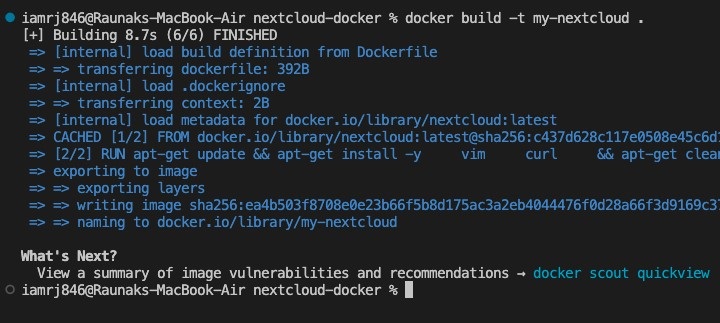
Step-by-Step Guide to Self-Hosted Nextcloud Docker Setup
With the groundwork laid, we can now proceed to the core setup of your Nextcloud instance. This involves selecting the right Docker images and configuring them. The Docker Compose file will orchestrate everything. This structured approach simplifies the entire deployment.
Selecting the Right Nextcloud Docker Image and Database
Nextcloud offers official Docker images on Docker Hub. These images are well-maintained and secure. You’ll typically choose between an Apache or FPM-based image. For the database, PostgreSQL and MariaDB (a MySQL fork) are popular choices. Both have official Docker images. PostgreSQL is often preferred for its robustness and performance. MariaDB is also a solid, widely used option.
Consider the `nextcloud:latest` image for general use. For more control, you might specify a version, like `nextcloud:28-apache`. Similarly, use `mariadb:latest` or `postgres:latest` for your database. Always ensure compatibility between your Nextcloud version and the chosen database. Reviewing the official documentation is always a good idea.
Crafting Your Docker Compose File for Nextcloud
The `docker-compose.yml` file defines your Nextcloud and database services. This file specifies images, volumes, environment variables, and network settings. It ensures all components work together seamlessly. A typical setup includes a Nextcloud service, a database service, and potentially a reverse proxy. This file is central to your self hosted Nextcloud Docker deployment.
Here’s a simplified example of services you might define:
- Nextcloud Service: Uses the Nextcloud Docker image.
- Database Service: Uses MariaDB or PostgreSQL image.
- Redis Service: For caching, improving performance.
- Reverse Proxy Service: Nginx or Caddy for HTTPS termination.
Each service will have specific configurations. These include port mappings and volume mounts. Volumes are crucial for persistent data storage. They ensure your Nextcloud data and database information are not lost when containers are recreated. This is a critical aspect of containerized deployments.
Initial Deployment and Accessing Your Nextcloud Instance
Once your `docker-compose.yml` file is ready, deployment is straightforward. Navigate to the directory containing your file in the terminal. Then, run `docker compose up -d`. This command starts all defined services in detached mode. You can monitor the logs with `docker compose logs -f` to ensure everything starts correctly. This command brings your self hosted Nextcloud Docker environment to life.
After successful deployment, open your web browser. Navigate to your domain name. You should be greeted by the Nextcloud setup wizard. Here, you’ll create an admin account and configure your database connection. Provide the database credentials defined in your `docker-compose.yml` file. Complete the wizard to finalize your Nextcloud installation. You are now ready to use your private cloud.
Securing Your Self-Hosted Nextcloud Docker Environment
Security is paramount for any self-hosted service, especially one handling personal data. Implementing robust security measures protects your information. It also safeguards your server from unauthorized access. A secure setup builds trust and peace of mind.
Implementing HTTPS with a Reverse Proxy (Nginx/Caddy)
HTTPS encryption is non-negotiable for a secure Nextcloud instance. A reverse proxy like Nginx or Caddy handles SSL/TLS termination. It forwards encrypted traffic to your Nextcloud container. Caddy is particularly user-friendly, offering automatic HTTPS with Let’s Encrypt. Nginx provides extensive configuration options. Both are excellent choices for securing your self hosted Nextcloud Docker setup.
The reverse proxy sits in front of your Nextcloud container. It manages incoming connections. This setup also allows you to host multiple services on a single IP address. It adds an extra layer of security and flexibility. Always ensure your SSL certificates are valid and up-to-date. This prevents browser warnings and maintains trust.
Hardening Nextcloud Security & User Management
Beyond HTTPS, further steps can harden your Nextcloud installation. Regularly review Nextcloud’s security and setup warnings in the admin panel. Implement strong password policies for all users. Enable two-factor authentication (2FA) for enhanced login security. Consider using a strong Content Security Policy (CSP) to mitigate cross-site scripting attacks. These measures significantly boost your security posture.
Effective user management is also critical. Create separate user accounts for different individuals. Assign appropriate permissions to each user. Avoid using the admin account for daily tasks. Regularly audit user activity and access logs. This proactive approach helps identify and address potential security issues promptly.
Developing a Robust Backup and Restore Strategy
Data loss is a serious concern. A comprehensive backup strategy is essential for your self hosted Nextcloud Docker. This should include both your Nextcloud data directory and your database. automate backups to a separate storage location. Off-site backups are highly recommended for disaster recovery. Tools like `rsync` or specialized backup solutions can facilitate this.
Regularly test your restore process. This ensures that your backups are viable and can be recovered successfully. A good strategy involves incremental backups. These save changes since the last full backup. This reduces storage space and backup time. Remember, a backup isn’t truly a backup until it’s been successfully restored.
Maintaining and Optimizing Your Nextcloud Docker Installation
Once deployed, ongoing maintenance ensures your Nextcloud instance remains secure and performs optimally. Regular updates and monitoring are key. This proactive approach prevents issues before they escalate. It also keeps your system running smoothly.
Updating Nextcloud and Docker Containers Safely
Keeping Nextcloud and its Docker containers updated is crucial for security and performance. New versions often include bug fixes, security patches, and new features. For Docker containers, pulling the latest image and recreating the container is usually sufficient. Always back up your data before performing major updates. This provides a safety net if anything goes wrong.
For Nextcloud specifically, follow the official upgrade guide. This often involves placing Nextcloud into maintenance mode. Then, update the Docker image and run the upgrade command. Use `docker compose pull` to get the latest images. Then, `docker compose up -d` to apply them. This process is generally straightforward with Docker. Always read release notes carefully.
Monitoring Performance and Troubleshooting Common Issues
Monitoring your server’s resources helps identify performance bottlenecks. Keep an eye on CPU, RAM, and disk I/O usage. Nextcloud’s admin panel also provides valuable insights into its health. Logs from your Docker containers can reveal errors or warnings. Tools like `htop` or ` glances` offer real-time system monitoring. These insights are invaluable for maintaining a healthy system.
Common issues include insufficient disk space or misconfigured database connections. Check Docker container logs first for specific error messages. The Nextcloud community forums are also a great resource for troubleshooting. A proactive approach to monitoring helps you address issues quickly. This minimizes downtime and ensures a smooth user experience.
Integrating External Storage and Essential Apps
Nextcloud’s extensibility is one of its greatest strengths. You can integrate various external storage solutions. These include S3-compatible object storage, FTP, or local network shares. This expands your storage capacity without increasing your server’s internal disk. Furthermore, the Nextcloud App Store offers hundreds of applications. These extend functionality significantly.
Popular apps include calendar, contacts, mail, and office document editing. Install apps directly from the Nextcloud interface. Ensure compatibility with your Nextcloud version. External storage integration allows for flexible data management. This makes your self hosted Nextcloud Docker setup even more powerful. It transforms it into a true personal cloud hub.
Advanced Self-Hosted Nextcloud Docker Configurations
For users with more demanding needs, advanced configurations can further enhance a Nextcloud Docker setup. These options cater to high availability, scalability, and robust disaster recovery. They provide greater resilience and performance.
High Availability and Scalability Considerations
For critical environments, a single Nextcloud instance might not be enough. High availability (HA) ensures continuous service even if one component fails. This often involves running multiple Nextcloud containers behind a load balancer. A shared storage solution, like a clustered file system, is also necessary. Database replication further enhances HA. These setups are more complex but offer superior uptime.
Scalability allows your Nextcloud to handle increasing user loads. Docker Swarm or Kubernetes can orchestrate multiple Nextcloud containers. This distributes the workload efficiently. Object storage backends are also crucial for scalable file storage. Planning for HA and scalability from the start is beneficial. It prevents major reconfigurations later on.
Integrating Object Storage (S3, MinIO)
Integrating object storage like Amazon S3 or a self-hosted MinIO instance offers immense benefits. It provides virtually unlimited, highly scalable, and durable storage for your Nextcloud files. This offloads storage from your primary server. It also improves performance for large file operations. Nextcloud natively supports S3-compatible storage. This makes integration straightforward.
Using object storage is particularly advantageous for large deployments. It separates your application logic from your data storage. This simplifies backups and disaster recovery. MinIO, for example, allows you to run an S3-compatible storage solution on your own hardware. This maintains data sovereignty while gaining scalability benefits. It’s a powerful combination for your self hosted Nextcloud Docker.
Automating Backups and Disaster Recovery
Manual backups can be prone to errors and easily forgotten. Automating your backup process is critical for a robust disaster recovery plan. Use cron jobs or dedicated backup tools within Docker containers. These can regularly snapshot your database and data directory. Store these backups securely, ideally off-site. This ensures data availability even in catastrophic events.
A well-defined disaster recovery plan outlines steps to restore services quickly. This includes documented procedures for restoring from backups. Regularly test this plan to ensure its effectiveness. Automation reduces human error. It provides peace of mind that your data is protected. This is a cornerstone of any reliable self-hosted system.
Frequently Asked Questions
Is self-hosting Nextcloud with Docker suitable for beginners?
While some technical knowledge is beneficial, Docker significantly simplifies the process. Beginners can follow detailed guides and tutorials. The containerized approach isolates complexities. This makes it more approachable than traditional installations. Many resources are available to help you get started successfully.
What are the minimum hardware requirements for Nextcloud Docker?
For a small personal instance with a few users, a Raspberry Pi 4 (4GB RAM) or a low-end VPS with 2 CPU cores and 4GB RAM is often sufficient. Storage needs depend on your data. However, 100GB is a reasonable starting point. More users or heavier usage will require more powerful hardware. Always consider future growth.
How do I ensure my self-hosted Nextcloud Docker is secure?
Key steps include implementing HTTPS with a reverse proxy, using strong passwords, and enabling 2FA. Regularly update Nextcloud and all Docker containers. Configure a firewall and maintain a robust backup strategy. Monitor logs for unusual activity. These practices collectively enhance your security posture significantly.
Can I migrate existing Nextcloud data to a Docker setup?
Yes, migration is generally possible. You would typically back up your existing Nextcloud data directory and database. Then, restore these into the corresponding volumes of your new Dockerized Nextcloud instance. Always follow official Nextcloud migration guides carefully. Thorough testing after migration is crucial to ensure data integrity.
What’s the best way to update my Nextcloud Docker instance?
The safest way is to first back up your data and database. Then, put Nextcloud into maintenance mode. Pull the latest Nextcloud Docker image using `docker compose pull`. Finally, recreate the containers with `docker compose up -d`. After the containers restart, run the Nextcloud upgrade command. Always consult the official Nextcloud upgrade documentation for specific version instructions.
Conclusion: Embrace Your Own Self-Hosted Nextcloud Docker
Setting up your own self hosted Nextcloud Docker instance offers unparalleled control and privacy. You gain a powerful personal cloud solution. This empowers you to manage your data on your terms. The benefits of data sovereignty are immense. Furthermore, Docker simplifies the deployment and maintenance process. It makes self-hosting more accessible than ever before.
The Freedom and Control of Your Personal Cloud
Imagine a world where your files, photos, and calendars are truly yours. Nextcloud provides this freedom. It removes reliance on commercial entities. You control the security, features, and destiny of your data. This personal cloud solution is robust and highly customizable. It evolves with your needs, offering peace of mind.
Start Building Your Secure Nextcloud Docker Setup Today!
The journey to a secure, private cloud begins now. Follow this guide to build your own self-hosted Nextcloud Docker environment. Take the first step towards digital independence. Share your experiences and tips in the comments below. What features are you most excited to use? We’d love to hear from you!
