
Mastering your daily schedule is crucial for productivity, and for many professionals, scheduling with Outlook Calendar is an indispensable skill. This powerful tool, integrated seamlessly within the Microsoft ecosystem, offers a robust platform for managing appointments, organizing meetings, and coordinating with colleagues. By leveraging its comprehensive features, you can transform a chaotic agenda into a streamlined, efficient workflow, ensuring you never miss an important event or deadline.
See also: Complete Guide to Cron, Cron Job Syntax: Mastering Crontab Scheduling, How to Create, Edit, and Delete Cron Jobs, Resolving Cron Job Environment Variable and PATH Issues, Troubleshooting Cron Jobs: Why Your Scheduled Tasks Aren't Running.Getting Started: Navigating Your Outlook Calendar
Accessing your Outlook Calendar is typically straightforward, whether through the desktop application or the web version. Upon opening, you’ll be greeted by your default calendar view, which usually displays the current day or week. Familiarizing yourself with the layout, including the navigation pane on the left and the main calendar grid, is the first step towards effective scheduling.Outlook provides several flexible calendar views to suit your planning preferences, including Day, Work Week, Week, and Month. Switching between these views allows you to gain different perspectives on your commitments, from a granular hourly breakdown to a broad overview of your entire month. Understanding how to quickly toggle these options will significantly enhance your ability to visualize and manage your schedule. For more detailed guidance, Microsoft offers extensive support on navigating Outlook. You can find helpful resources directly from their official site: Microsoft Outlook Support.
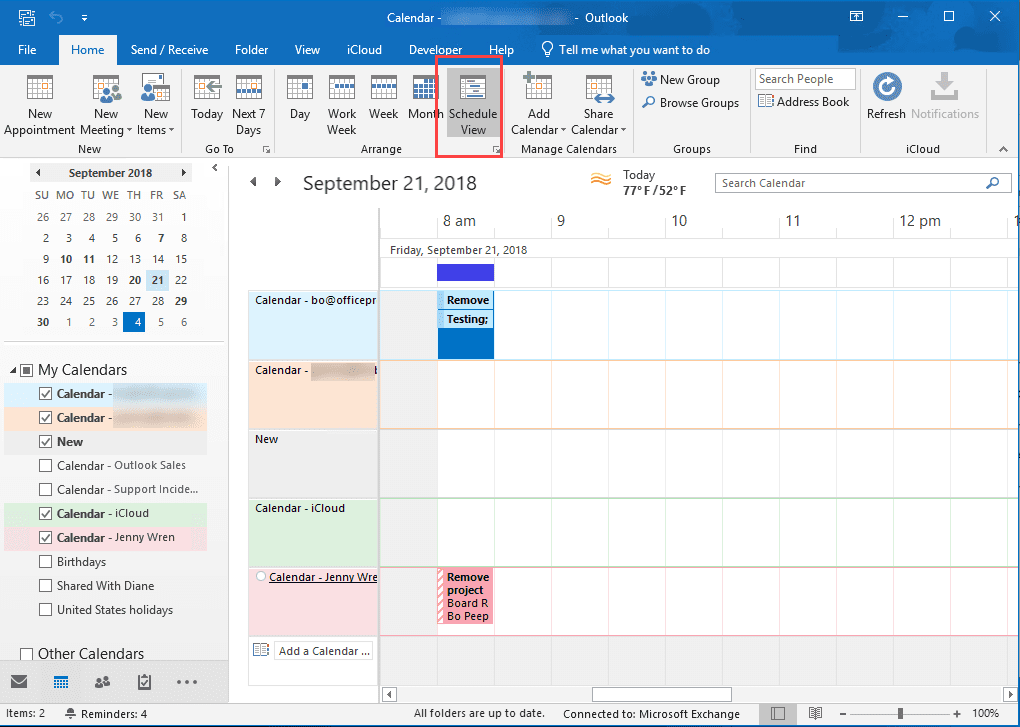
Furthermore, Outlook allows you to manage multiple calendars simultaneously, which is incredibly useful for balancing personal and professional commitments. You can create separate calendars for specific projects, teams, or personal events, and even overlay them to see all your engagements in one consolidated view. This feature is particularly beneficial for those juggling various roles or responsibilities, making scheduling with Outlook Calendar a highly adaptable solution.
Creating and Managing Appointments & Meetings
Creating a new appointment in Outlook Calendar is a fundamental task that can be accomplished with just a few clicks. You can simply double-click on an empty time slot in your calendar or use the “New Appointment” button, typically found in the ribbon. This action opens a detailed window where you can input essential information such as the subject, location, start and end times, and any relevant notes for your personal record.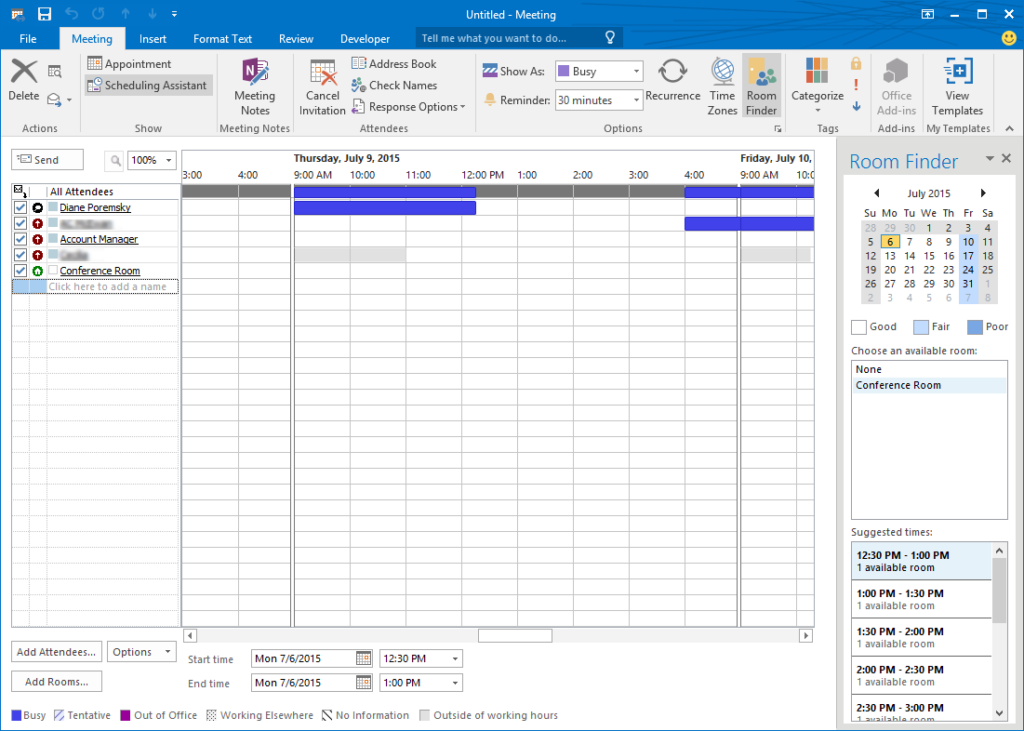
For events involving others, setting up a meeting is a core function when scheduling with Outlook Calendar. The “New Meeting” option allows you to invite attendees, set a date and time, and even specify a location or virtual meeting link. Outlook’s intelligent features will also help you check the availability of invitees, making the coordination process much smoother and more efficient for everyone involved.
Once an appointment or meeting is created, you retain full control over its management. You can easily modify event details like time, date, or attendees, or even cancel the event entirely if circumstances change. Additionally, when you receive meeting invitations, Outlook provides clear options to Accept, Tentative, or Decline, often with the ability to propose a new time, fostering dynamic communication and collaboration.
Scheduling Recurring Events
Many aspects of our lives involve repetitive tasks or regular meetings, and Outlook Calendar makes scheduling these recurring events effortless. Instead of creating individual entries, you can set up an appointment or meeting to repeat daily, weekly, monthly, or even annually. This feature is ideal for weekly team meetings, daily stand-ups, or annual performance reviews, saving you considerable time and effort.When creating a new event, simply look for the “Recurrence” option, which allows you to define the pattern and duration of the repetition. You can specify an end date for the recurrence or have it continue indefinitely, providing immense flexibility for long-term planning. Utilizing this functionality is a cornerstone of efficient scheduling with Outlook Calendar, helping to automate your routine tasks and reduce manual entry errors.
Advanced Features for collaborative scheduling
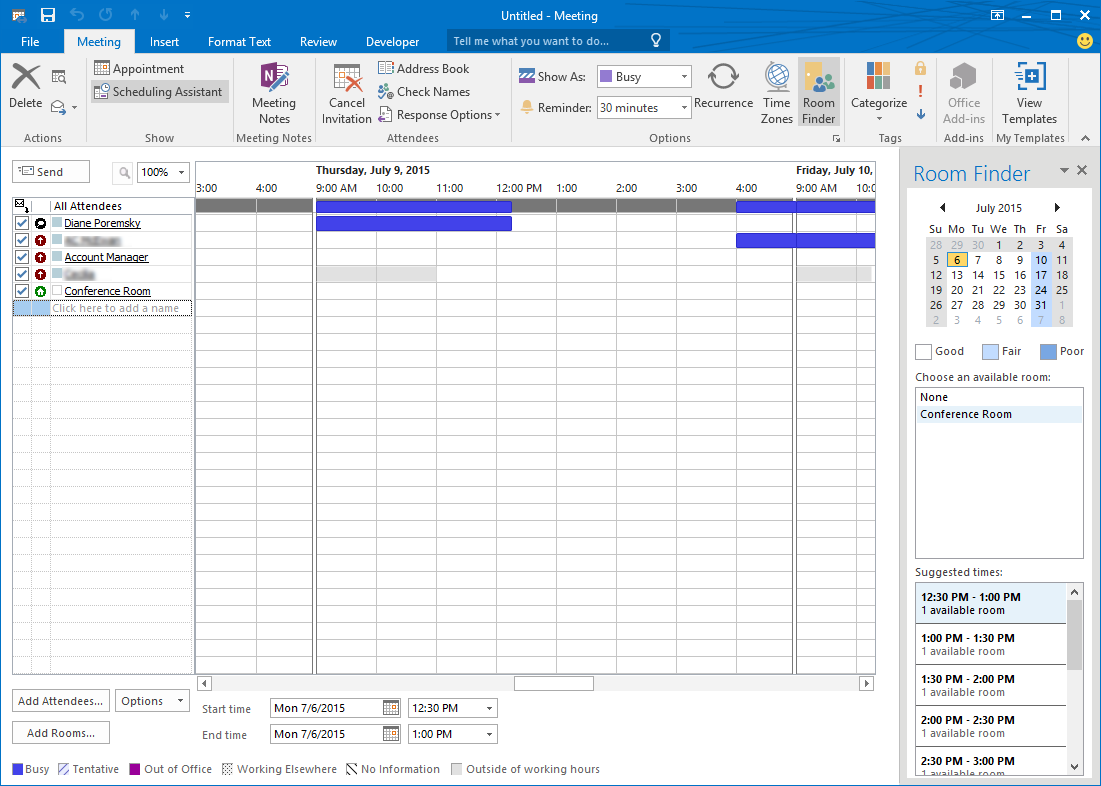
Outlook Calendar truly shines when it comes to collaborative scheduling, offering tools designed to streamline group coordination. The Scheduling Assistant is an invaluable feature that allows you to quickly view the free/busy status of all invited attendees and even available meeting rooms. This graphical interface makes it simple to find the optimal time slot where everyone can participate, significantly reducing the back-and-forth emails traditionally associated with meeting arrangements.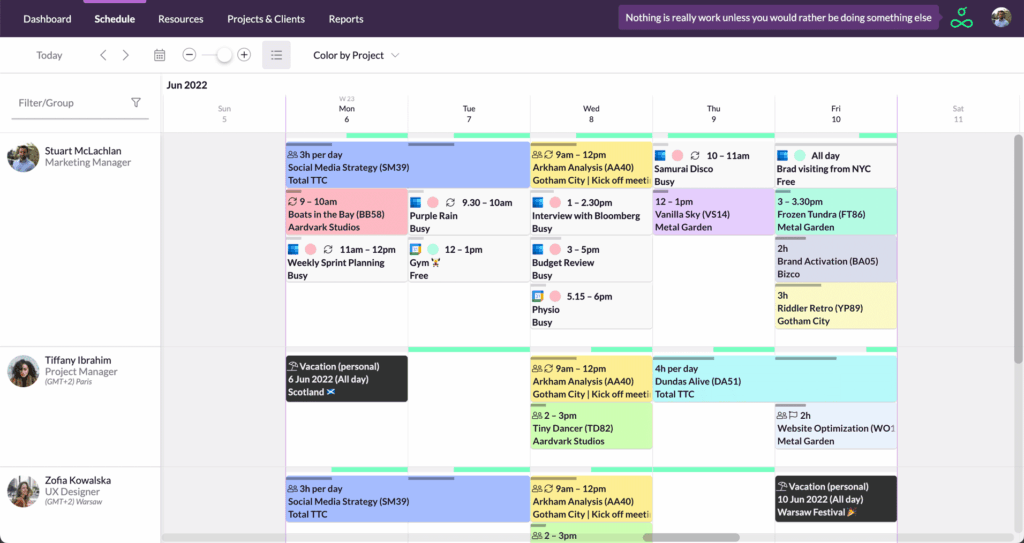
Sharing your calendar with colleagues is another powerful feature that enhances team collaboration. You can grant various levels of permission, from simply viewing your free/busy times to full editing access, depending on your team’s needs. This transparency helps everyone stay informed about team members’ availability, fostering better planning and preventing scheduling conflicts before they arise.
Beyond individual calendar sharing, Outlook supports the creation of Group Calendars, which are perfect for project teams or departments. These shared calendars allow multiple individuals to view and add events, making it easy to track team milestones, project deadlines, and shared resources. This centralized approach to scheduling with Outlook Calendar ensures that everyone is on the same page and working towards common goals.
Leveraging Meeting Insights and Room Finder
Outlook continually evolves to offer smarter scheduling solutions, and features like Meeting Insights provide valuable data to optimize your meeting habits. These insights can help you understand how much time you spend in meetings, who you meet with most frequently, and suggest ways to make your meetings more effective. This analytical approach can lead to more productive workdays and better time management.For organizations with multiple physical meeting spaces, the Room Finder feature simplifies the process of booking appropriate venues. Integrated directly into the meeting creation window, Room Finder allows you to browse available rooms based on capacity, equipment, and location. This eliminates the need to manually check room availability, ensuring that your meetings are always held in the right place at the right time.
 Guide" class="wp-image-421"/>
Tips for Optimizing Your Outlook Scheduling Workflow
To truly master scheduling with Outlook Calendar, consider implementing strategies like time blocking and color-coding. Time blocking involves dedicating specific blocks of time in your calendar for focused work, projects, or even breaks, treating them as non-negotiable appointments. Color-coding, on the other hand, allows you to visually categorize different types of events (e.g., green for client meetings, blue for internal tasks), making your calendar easier to scan and interpret at a glance.Leveraging keyboard shortcuts and quick actions can dramatically speed up your calendar management. Learning a few essential shortcuts for creating new appointments, switching views, or navigating dates will save you countless clicks throughout the day. Additionally, Outlook’s quick actions allow you to perform common tasks, such as responding to invitations, with minimal effort.
Best Practices for Effective Calendar Management
Effective calendar management goes beyond just inputting events; it involves a proactive approach to your time. Regularly reviewing your calendar at the start and end of each day helps you stay organized and prepare for upcoming commitments. This habit ensures you’re always aware of what’s next and can adjust your priorities as needed, preventing last-minute rushes.Setting clear boundaries is also crucial for maintaining a healthy work-life balance when scheduling with Outlook Calendar. Don’t be afraid to block out personal time, lunch breaks, or focus time to protect your productivity and well-being. Communicating your availability clearly to colleagues helps manage expectations and ensures that your calendar truly reflects your capacity.
