
Understanding how to automate tasks on servers is a fundamental skill for developers and system administrators alike. At the heart of this automation lies Cron, a powerful utility that allows you to schedule commands or scripts to run periodically at fixed times, dates, or intervals. To harness its full potential, mastering the scheduled cron format is absolutely essential; it’s the language you speak to Cron to tell it precisely when to execute your desired operations. A clear grasp of this syntax ensures your automated jobs run flawlessly, preventing errors and maintaining system efficiency.
See also: Complete Guide to Cron, Cron Job Syntax: Mastering Crontab Scheduling, How to Create, Edit, and Delete Cron Jobs, Resolving Cron Job Environment Variable and PATH Issues, Troubleshooting Cron Jobs: Why Your Scheduled Tasks Aren't Running.What is Cron and Why is its Format Crucial?
Cron is a time-based job scheduler in Unix-like computer operating systems. It enables users to schedule commands or scripts to run automatically at a specified date and time. These scheduled jobs, often referred to as “cron jobs,” are incredibly useful for routine administrative tasks such as backups, log rotation, system maintenance, and custom script execution, making server management far more efficient and reliable.
The Configuration for these jobs is stored in a special file called a `crontab` (cron table). Within this file, each line represents a single cron job, defined by a specific scheduled cron format. Understanding this format is paramount because any mistake in the syntax can lead to jobs not running as expected, running at the wrong time, or even causing unintended system behavior. Precision in the cron format directly translates to precision in your automation.
Deconstructing the Cron Format: Understanding the Five Fields
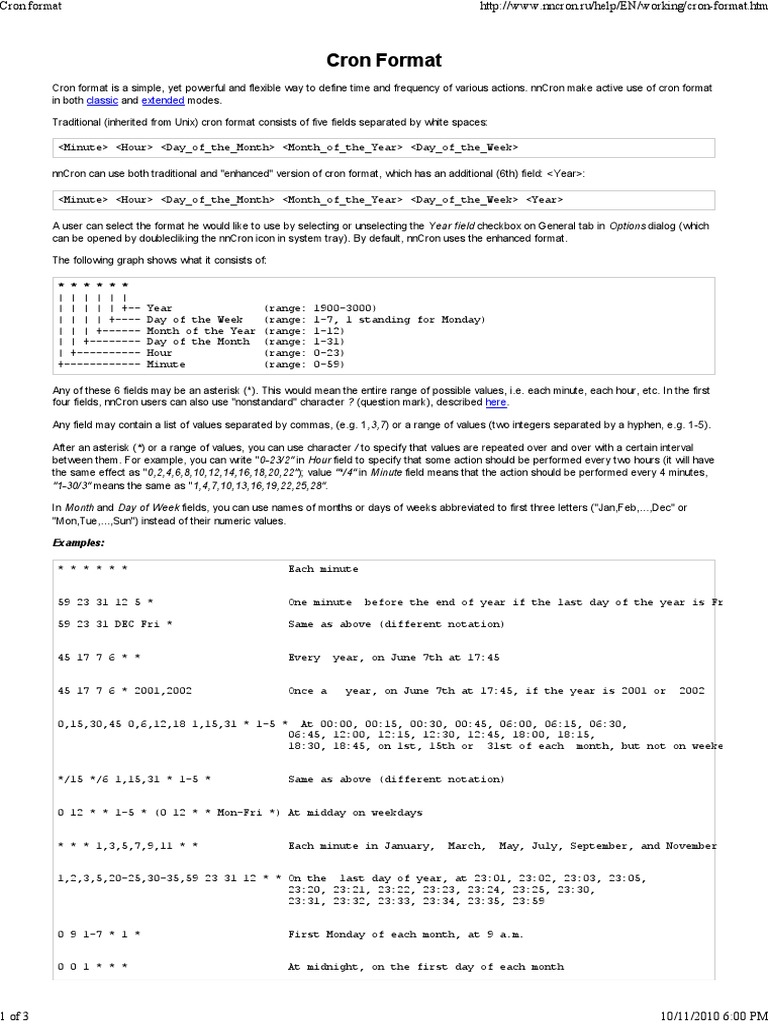
The standard scheduled cron format consists of five fields, followed by the command to be executed. Each field represents a unit of time, defining when the command should run. These fields are separated by spaces and must be specified in a precise order for Cron to interpret them correctly. Mastering these individual fields is the cornerstone of effective cron scheduling.
The five fields, from left to right, specify the minute, hour, day of the month, month, and day of the week. Each field accepts specific numerical ranges or special characters to define the schedule. Getting familiar with these ranges is crucial for accurate task automation and avoiding syntax errors in your `crontab` entries.
-
Minute (0-59): This field dictates the minute of the hour when the command will run. A value of `0` means at the start of the hour, while `30` means at half past the hour. For example, `15` would schedule the job for 15 minutes past the hour.
-
Hour (0-23): This field specifies the hour of the day using a 24-hour clock format. `0` represents midnight (12 AM), and `12` represents noon (12 PM). Therefore, `9` would schedule the job for 9 AM, and `17` for 5 PM.
-
Day of Month (1-31): This field determines the day of the month on which the job will execute. You can specify any day from the 1st to the 31st. For instance, `1` means the first day of the month, and `15` means the fifteenth day.
-
Month (1-12 or Jan-Dec): This field defines the month of the year. You can use numerical values (1 for January, 12 for December) or the first three letters of the month name (e.g., `Jan`, `Feb`, `Dec`). `6` or `Jun` would schedule the job for June.
-
Day of Week (0-7 or Sun-Sat): This field specifies the day of the week. Both `0` and `7` represent Sunday, while `1` is Monday, `2` is Tuesday, and so on. Similarly, you can use the first three letters of the day name (e.g., `Sun`, `Mon`, `Sat`).
Mastering Cron Special Characters: Wildcards, Ranges, and Steps
Beyond simple numbers, the scheduled cron format supports several special characters that provide immense flexibility in defining schedules. These characters allow you to specify multiple times, ranges, or intervals within a single field, making complex scheduling scenarios manageable and concise. Understanding how to leverage these effectively is key to advanced cron usage.
The Asterisk (*) Wildcard
The asterisk `` is a wildcard character that essentially means “every” or “all possible values” for that particular field. If you place an `` in the minute field, it means the job will run every minute. If it’s in the hour field, it means every hour, and so forth. This is incredibly useful for jobs that need to run continuously or without specific time constraints within a larger schedule.
Hyphen (-) for Ranges

The hyphen `-` is used to specify a range of values. For example, in the hour field, `9-17` would mean every hour from 9 AM to 5 PM (inclusive). In the day of week field, `Mon-Fri` would schedule the job for every weekday. This character simplifies scheduling tasks that need to occur within specific blocks of time or days.
Comma (,) for Lists
The comma `,` allows you to specify a list of discrete values. For instance, `0,15,30,45` in the minute field would schedule the job to run at the 0th, 15th, 30th, and 45th minute of the hour. Similarly, `Mon,Wed,Fri` in the day of week field would schedule the job only on Mondays, Wednesdays, and Fridays. This offers precise control over specific execution times.
Slash (/) for Step Values
The slash `/` is used to define step values, allowing you to run a job at regular intervals within a range. For example, `*/5` in the minute field means “every 5 minutes.” `0-23/2` in the hour field means “every other hour” (i.e., 0, 2, 4, … 22). This character is perfect for tasks that need to run at fixed, repeating intervals.
Practical Cron Examples and Best Practices for Reliable Scheduling

Putting all these elements together, you can create powerful and precise schedules using the scheduled cron format. Let’s look at a few practical examples to illustrate how these fields and special characters combine to define real-world automation tasks. Remember that the command part of the cron job typically includes the full path to the script or executable for robustness.
Here are some common cron job examples:
-
Run a script every day at 3:00 AM:
0 3 * /path/to/daily_backup.sh -
Execute a command every 15 minutes:
/15 * /usr/bin/php /var/www/html/artisan schedule:run -
Run a job every Monday at 9:00 AM:
0 9 Mon /path/to/weekly_report.py -
Schedule a task on the 1st and 15th of every month at midnight:
0 0 1,15 /path/to/monthly_cleanup.sh
When working with cron jobs, adhering to best practices is crucial for reliable and maintainable automation. Always use absolute paths for your commands and scripts to avoid issues with the cron environment’s PATH variable. Redirect standard output and error to log files (e.g., `command > /path/to/log.log 2>&1`) so you can monitor job execution and troubleshoot problems effectively.
It’s also highly recommended to test your cron jobs in a development environment before deploying them to production. Using tools like crontab.guru can help you quickly verify the syntax and understand the execution schedule of your cron expressions. Proper error handling within your scripts and setting appropriate user permissions for cron jobs are additional layers of security and stability.
