
The Rm Command in Linux is a fundamental utility for managing files and directories. It allows users to remove objects from the filesystem efficiently. Understanding its proper usage is crucial for anyone working with Linux, from beginners to system administrators. This powerful command, however, requires careful handling due to its permanent nature. Therefore, mastering its options and best practices is essential to prevent accidental data loss.
Introduction to the Rm Command in Linux
The rm command, short for “remove,” is a core utility in Unix-like operating systems, including Linux. It serves the primary function of deleting files and directories. This command is indispensable for maintaining a clean and organized filesystem. Furthermore, it helps free up disk space by removing unnecessary data.
What is the rm Command and Why is it Essential?
The rm command permanently deletes files and directories from your system. It does not move items to a “trash” or “recycle bin.” Consequently, once a file is removed, it is generally unrecoverable without specialized data recovery tools. Its essential nature stems from the need to manage storage and remove obsolete data. System administrators frequently use it for routine cleanup tasks.
Understanding File and Directory Deletion in Linux
Linux treats files and directories somewhat differently when it comes to deletion. While rm can delete both, directories often require an additional option. Empty directories can sometimes be removed with rmdir, but rm offers more flexibility. However, it also carries greater risk. Proper understanding prevents unintended consequences.
Basic-syntax-and-usage-of-the-rm-command-in-linux">Basic Syntax and Usage of the Rm Command in Linux
The basic syntax for the Rm Command in Linux is straightforward. You simply type rm followed by the name of the file or directory you wish to delete. However, various options can modify its behavior. Learning these options enhances both efficiency and safety when performing deletions.
Deleting Single Files with rm
To delete a single file, you provide its name as an argument to the rm command. For example, rm myfile.txt will remove the file named “myfile.txt” from the current directory. This is the simplest form of the command. Always double-check the filename before execution.
Deleting Multiple Files Simultaneously
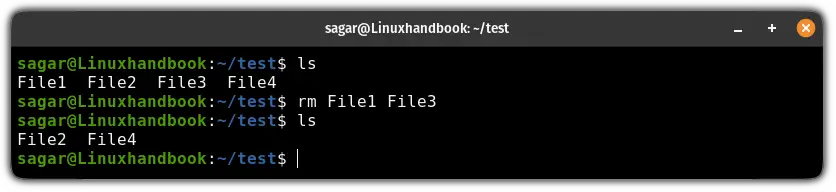
You can delete several files at once by listing them after the rm command. For instance, rm file1.txt file2.log document.pdf will remove all three specified files. This method is efficient for batch deletions. Moreover, it saves time compared to deleting each file individually.
Confirming Deletions with the -i Option
The -i option stands for “interactive.” When used, rm will prompt you for confirmation before deleting each file. This is a vital safety feature. For example, rm -i important_document.txt will ask “remove regular file ‘important_document.txt’?” before proceeding. Always consider using this option for critical files.
Essential rm Command Options for Effective File Management
Beyond basic deletion, the Rm Command in Linux offers several powerful options. These options allow for more complex and efficient file management. However, they also increase the command’s destructive potential. Therefore, understanding each option’s impact is paramount.
Force Deletion with -f (No Prompt)
The -f option, short for “force,” deletes files without prompting for confirmation. It also ignores non-existent files. For example, rm -f stubborn_file.txt will delete the file immediately. Use this option with extreme caution, as it bypasses safety checks. It can lead to irreversible data loss if misused.
Recursive Deletion of Directories using -r or -R
To delete a directory and its entire contents (subdirectories and files), you must use the -r or -R option, which stands for “recursive.” For instance, rm -r mydirectory/ will remove “mydirectory” and everything inside it. This is a very powerful and dangerous option. Always verify the directory path twice.
Verbose Output with -v
The -v option provides “verbose” output. It prints the name of each file as it is being deleted. This can be useful for confirming which files are actually being removed. For example, rm -v file1.txt file2.txt will show “removed ‘file1.txt'” and “removed ‘file2.txt'”. It offers transparency during batch operations.
Advanced Techniques with the Rm Command in Linux
The Rm Command in Linux can be combined with other shell features for highly targeted deletions. These advanced techniques provide flexibility but also demand a deeper understanding of shell behavior. Using them incorrectly can have severe consequences. Therefore, practice in a safe environment first.
Using Wildcards (*, ?) for Pattern-Based Deletion
Wildcards are powerful characters for pattern matching. The asterisk () matches any sequence of characters, while the question mark (?) matches any single character. For example, rm .log deletes all files ending with “.log”. Similarly, rm document?.txt removes “document1.txt”, “documentA.txt”, etc. Always test wildcard patterns with ls first.
Deleting Files with Special Characters or Leading Hyphens
Files with special characters (like spaces) or leading hyphens can be tricky to delete. You should enclose such filenames in single or double quotes, e.g., rm "my file with spaces.txt". For files starting with a hyphen, use -- to signify the end of options, like rm -- -filename.txt. This prevents the filename from being interpreted as an option.
Combining rm with find for Targeted Deletion
The find command can locate files based on various criteria, and then execute rm on them. This is incredibly powerful for complex deletion tasks. Here’s a common pattern:
- First, identify files older than 7 days:
find /path/to/dir -type f -mtime +7 - Then, add the
-deleteoption directly to `find` (safer):find /path/to/dir -type f -mtime +7 -delete - Alternatively, execute `rm` on found files (use with caution):
find /path/to/dir -type f -mtime +7 -exec rm {} ;
Always test the find command without -delete or -exec rm first. This ensures it selects the correct files.
Safety Measures and Best Practices When Using rm
Given the destructive nature of the Rm Command in Linux, adopting robust safety measures is non-negotiable. Prevention is always better than attempting recovery. Following best practices significantly reduces the risk of accidental data loss. Always proceed with caution.
The Dangers of rm -rf / and How to Avoid It
The command rm -rf / is arguably the most dangerous command in Linux. It recursively and forcefully deletes everything from the root directory. This effectively wipes your entire operating system. Never run this command unless you fully understand its implications and accept complete data loss. Modern systems often have safeguards, but mistakes can still happen.
Using trash-cli as a Safer Alternative to rm
For everyday deletions, consider using trash-cli. This utility sends files to a user-specific trash bin, similar to graphical environments. It provides a safety net, allowing you to recover accidentally deleted items. Install it using your distribution’s package manager, e.g., sudo apt install trash-cli. Then, use trash filename instead of rm filename.
Regular Backups: Your Last Line of Defense Against Data Loss
Regardless of how careful you are, accidents can still occur. Therefore, regular backups are your most critical defense against data loss. Implement a robust Backup strategy for all important data. This ensures you can restore your system or files if an irreversible deletion happens. Consider these points:
- Automate backup processes.
- Store backups in multiple locations.
- Regularly test your backup restoration process.
Recovering Accidentally Deleted Files in Linux
Accidentally deleting a crucial file with the Rm Command in Linux can be a nightmare. While recovery is often challenging, it’s not always impossible. Understanding the limitations and available tools can offer a glimmer of hope. However, success is never guaranteed.
Understanding Data Recovery Limitations
When rm deletes a file, it removes the pointer to the data, not necessarily the data itself immediately. However, the space becomes marked as free and can be overwritten by new data. The longer you wait, or the more you use the system, the lower the chances of recovery. Therefore, act quickly if you realize a mistake.
Introduction to Tools like extundelete or foremost
Several specialized tools exist for data recovery in Linux. extundelete can recover files from ext3/ext4 filesystems. foremost is a forensic tool that can recover files based on their headers and footers, working across various filesystems. These tools often require unmounting the affected filesystem to prevent further data corruption. For more details, refer to the Wikipedia page on data recovery software: Data Recovery Software on Wikipedia.
Preventative Measures for Data Loss
The best recovery strategy is prevention. Always use the -i option for critical deletions. Employ version control systems for code and important documents. Furthermore, maintain up-to-date backups of all essential data. These proactive steps drastically reduce the impact of accidental deletions.
Frequently Asked Questions (FAQs) About the rm Command
Users often have specific questions about the behavior and safety of the rm command. Addressing these common queries helps clarify its usage. Understanding these nuances is key to becoming proficient with this powerful tool.
How do I delete a directory that is not empty using rm?
To delete a directory that contains files or subdirectories, you must use the -r (recursive) option with the rm command. For example, rm -r my_full_directory/ will remove the directory and all its contents. Be extremely cautious when using this option, especially with the -f (force) option.
Can I undo the rm command in Linux?
Generally, no, you cannot easily undo the rm command in Linux. Unlike graphical interfaces, rm does not move files to a trash bin. Once deleted, the data is marked as free space and can be overwritten. Data recovery is possible but difficult and not guaranteed. Always use caution and backups.
What is the difference between rm and rmdir?
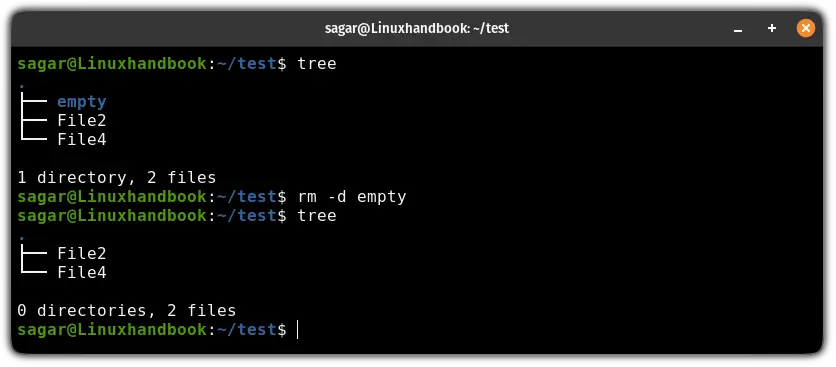
The main difference lies in their functionality. The rmdir command can only delete empty directories. If a directory contains any files or subdirectories, rmdir will fail. In contrast, the rm command, when used with the -r (recursive) option, can delete non-empty directories along with all their contents. Therefore, rm -r is more powerful but also riskier.
Conclusion: Mastering File Deletion with the Rm Command
The Rm Command in Linux is an incredibly powerful and essential tool for managing your filesystem. It allows for quick and efficient deletion of files and directories. However, its power comes with significant responsibility. Misuse can lead to irreversible data loss. Therefore, always approach it with caution and a clear understanding of its options.
Summary of Key rm Command Takeaways
Remember to use rm for file deletion, and rm -r for directories. The -i option provides a crucial safety net by prompting for confirmation. Furthermore, wildcards offer flexibility for pattern-based deletions. Always prioritize safety, backups, and careful command execution. Understanding these aspects will make you a more confident Linux user.
Call to Action: Practice Safely and Explore Further Linux Commands
We encourage you to practice using the rm command in a safe, non-critical environment, perhaps a virtual machine or a dedicated test directory. Experiment with its options to fully grasp their behavior. Furthermore, continue exploring other fundamental Linux commands. Share your experiences or questions in the comments below, and let’s keep learning together!
