
Mastering your nginx reverse proxy config is a fundamental skill for modern web infrastructure. This configuration allows Nginx to act as an intermediary, directing client requests to the appropriate backend servers. Understanding how to set up and optimize this powerful feature is crucial for enhancing security, performance, and scalability. This article will guide you through the essentials, from Basic setup to advanced configurations.
Core Concepts: What is an Nginx Reverse Proxy?
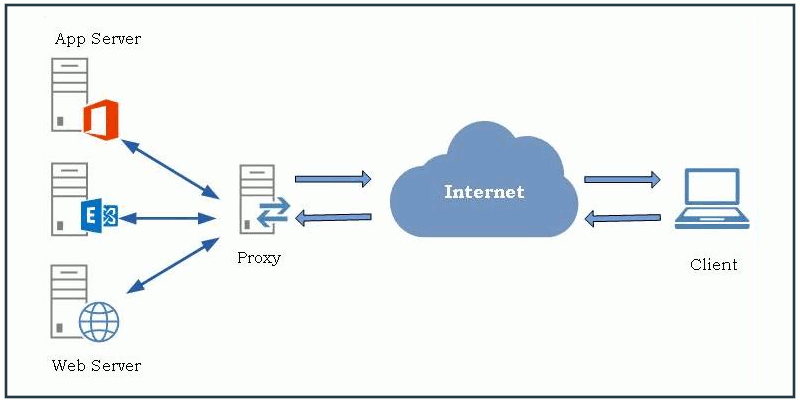
An Nginx reverse proxy sits in front of your web servers, forwarding client requests to them. It receives requests from the internet and then intelligently routes them to one or more internal servers. This setup provides a single public interface for multiple backend services. Furthermore, it adds a layer of abstraction between clients and your actual application servers.
How Reverse Proxies Work
When a client sends a request, it first hits the Nginx reverse proxy. The proxy then inspects the request headers and URL path. Based on its configuration, it decides which backend server should handle the request. Finally, the proxy forwards the request to that server and returns the server’s response back to the client. This entire process happens seamlessly from the client’s perspective.
Benefits of Nginx as a Reverse Proxy
Nginx offers numerous advantages when configured as a reverse proxy. It significantly improves security by hiding backend server details from direct public access. Additionally, Nginx excels at load balancing, distributing traffic efficiently across multiple servers. This prevents any single server from becoming overwhelmed. Moreover, it enhances performance through caching and SSL/TLS termination, offloading intensive tasks from backend applications.
- Enhanced Security: Hides backend server IP addresses and details.
- Load Balancing: Distributes traffic to prevent server overload.
- Improved Performance: Caches content and handles SSL/TLS encryption.
- Scalability: Easily add or remove backend servers without client impact.
- Centralized Logging: Simplifies monitoring and troubleshooting.
Key Nginx Directives for Reverse Proxy Configuration
Several directives are essential when crafting your nginx reverse proxy config. The `proxy_pass` directive is the most critical, specifying the backend server’s address. Other important directives include `proxy_set_header`, which allows you to modify or add headers to requests forwarded to backend servers. This is vital for preserving original client IP addresses and hostnames. Furthermore, `proxy_buffering` and `proxy_cache` manage how Nginx handles responses and stores cached content.
Setting Up Your First Nginx Reverse Proxy Configuration
Getting started with your initial nginx reverse proxy config is straightforward. This section will walk you through the necessary steps. You will learn how to install Nginx and create a basic configuration to proxy requests to a simple backend service. This foundation is crucial for more complex setups later on.
Prerequisites and Nginx Installation
Before configuring Nginx, ensure you have a Linux server ready. You will need root access or `sudo` privileges. Install Nginx using your system’s package manager. For Debian/Ubuntu systems, use `sudo apt update && sudo apt install nginx`. On CentOS/RHEL, use `sudo yum install nginx` or `sudo dnf install nginx`. Once installed, start the Nginx service and verify its status.
Basic Nginx Reverse Proxy Config Example (Proxy Pass)
A simple Nginx reverse proxy configuration involves defining a `server` block and a `location` block. Inside the `location` block, the `proxy_pass` directive points to your backend application. For instance, if your application runs on `http://localhost:8080`, your configuration would look like this:
server {
    listen 80;
    server_name example.com;

    location / {
        proxy_pass http://localhost:8080;
        proxy_set_header Host $host;
        proxy_set_header X-Real-IP $remote_addr;
        proxy_set_header X-Forwarded-For $proxy_add_x_forwarded_for;
        proxy_set_header X-Forwarded-Proto $scheme;
    }
}
Remember to replace `example.com` with your actual domain name. The `proxy_set_header` directives ensure the backend server receives correct client information. This basic setup forms the core of any Nginx reverse proxy config.
Testing and Verifying Your Nginx Reverse Proxy Setup
After modifying your Nginx configuration file, always test it for syntax errors. Run `sudo nginx -t` to check the configuration. If the test passes, reload Nginx with `sudo systemctl reload nginx` to apply the changes. Finally, open your web browser and navigate to your domain (`example.com`). You should see the content served by your backend application, confirming your reverse proxy is working correctly.
Advanced Nginx Reverse Proxy Configurations
Beyond basic proxying, Nginx offers robust features for more complex scenarios. These advanced configurations can significantly improve your application’s resilience and speed. Understanding them helps you leverage Nginx to its full potential. Furthermore, they are crucial for handling high traffic and diverse application requirements.
Implementing Load Balancing with Nginx
Nginx excels at distributing incoming traffic across multiple backend servers. This is achieved using the `upstream` block in your nginx reverse proxy config. You define a group of servers, and Nginx uses various methods (e.g., round-robin, least-connected) to distribute requests among them. This ensures high availability and better resource utilization. For example:
upstream backend_servers {
    server backend1.example.com;
    server backend2.example.com;
    # Add more servers as needed
}

server {
    listen 80;
    server_name myapp.com;

    location / {
        proxy_pass http://backend_servers;
        # ... other proxy directives
    }
}
This setup automatically directs traffic to the available backend servers, enhancing reliability. This is a powerful aspect of any advanced Nginx proxy configuration.
Caching Strategies for Performance
Nginx can significantly speed up your website by caching responses from backend servers. Implement caching by defining a `proxy_cache_path` and then using `proxy_cache` within your `location` block. This reduces the load on your backend servers and delivers content faster to clients. Consider caching static assets like images, CSS, and JavaScript, as well as dynamic content that doesn’t change frequently.
- Define a Cache zone: `proxy_cache_path /var/cache/nginx levels=1:2 keys_zone=my_cache:10m inactive=60m;`
- Enable caching in your server block: `proxy_cache my_cache;`
- Configure cache keys and validity: `proxy_cache_valid 200 302 10m;`
Careful caching greatly improves user experience and server efficiency. It’s a key optimization for any Nginx reverse proxy config.
Proxying WebSockets and Other Protocols
Nginx can also proxy non-HTTP protocols, including WebSockets. To proxy WebSockets, you need to configure specific headers to handle the upgrade request. These headers include `Upgrade` and `Connection`. This allows real-time, bidirectional communication between clients and your backend applications. Furthermore, Nginx can handle other TCP/UDP proxying, extending its utility beyond standard web traffic.
location /ws/ {
    proxy_pass http://backend_websocket_server;
    proxy_http_version 1.1;
    proxy_set_header Upgrade $http_upgrade;
    proxy_set_header Connection "upgrade";
    proxy_read_timeout 86400s; # For long-lived WebSocket connections
}
This ensures seamless operation for applications relying on WebSockets. Therefore, Nginx is a versatile solution for various application architectures.
Securing Your Nginx Reverse Proxy with SSL/TLS
Security is paramount for any public-facing service. Configuring SSL/TLS on your Nginx reverse proxy encrypts communication between clients and the proxy. This protects sensitive data and builds trust with your users. Moreover, it’s a mandatory requirement for modern web standards and SEO.
Obtaining and Installing SSL Certificates
To enable HTTPS, you need an SSL/TLS certificate. You can obtain free certificates from Let’s Encrypt using Certbot, or purchase them from a Certificate Authority. Once you have your certificate files (e.g., `fullchain.pem` and `privkey.pem`), store them securely on your server. Certbot often handles the installation and renewal process automatically, simplifying certificate management.
Configuring HTTPS for Your Nginx Reverse Proxy
Integrate your SSL certificate into your Nginx configuration. This involves creating a `server` block that listens on port 443 (HTTPS). You will specify the paths to your SSL certificate and key files. Additionally, define the SSL protocols and ciphers to use for secure connections. This robust configuration enhances the security of your nginx reverse proxy config.
server {
    listen 443 ssl;
    server_name example.com;

    ssl_certificate /etc/letsencrypt/live/example.com/fullchain.pem;
    ssl_certificate_key /etc/letsencrypt/live/example.com/privkey.pem;
    ssl_protocols TLSv1.2 TLSv1.3;
    ssl_ciphers 'TLS_AES_256_GCM_SHA384:TLS_CHACHA20_POLY1305_SHA256:TLS_AES_128_GCM_SHA256:ECDHE-RSA-AES256-GCM-SHA384:ECDHE-RSA-AES128-GCM-SHA256';
    ssl_prefer_server_ciphers on;

    location / {
        proxy_pass http://localhost:8080;
        # ... other proxy directives
    }
}
This setup encrypts all traffic between clients and your Nginx proxy. It is a critical step for modern web deployments.
Enforcing Secure Connections (HSTS, Redirection)
To ensure all traffic uses HTTPS, implement a redirect from HTTP to HTTPS. Create a separate `server` block listening on port 80 that permanently redirects to the HTTPS version of your site. Furthermore, enable HTTP Strict Transport Security (HSTS) to instruct browsers to only connect via HTTPS in the future. This provides an additional layer of security against protocol downgrade attacks. For more details on Nginx SSL configuration, you can refer to the official Nginx documentation here.
server {
    listen 80;
    server_name example.com;
    return 301 https://$host$request_uri;
}

server {
    listen 443 ssl;
    server_name example.com;
    add_header Strict-Transport-Security "max-age=31536000; includeSubDomains" always;
    # ... SSL config and proxy_pass
}
These measures collectively strengthen your web application’s security posture. They are essential for a robust Nginx reverse proxy config.
Troubleshooting Common Nginx Reverse Proxy Issues
Even with careful configuration, issues can arise. Knowing how to diagnose and resolve them is vital. This section covers common problems and effective troubleshooting techniques. It helps maintain the reliability of your Nginx setup. Therefore, understanding these steps is crucial for any administrator.
Diagnosing Configuration Errors
The first step in troubleshooting is always checking your Nginx configuration syntax. Use `sudo nginx -t` to identify any syntax errors or typos. If the test fails, Nginx will provide specific line numbers and descriptions of the errors. Correct these errors and re-test until the configuration passes. This simple command prevents many common deployment failures.
Understanding Nginx Logs for Debugging
Nginx generates access and error logs that are invaluable for debugging. The error log (`/var/log/nginx/error.log`) records critical issues, while the access log (`/var/log/nginx/access.log`) shows all incoming requests. Review these logs to pinpoint problems like incorrect `proxy_pass` destinations or backend server issues. Tail the error log (`tail -f /var/log/nginx/error.log`) while replicating the problem to see real-time errors. This provides immediate feedback on your Nginx reverse proxy config.
Performance Bottlenecks and Optimization
If your reverse proxy is experiencing performance issues, several areas need examination. Check your backend server’s response times and resource utilization. Optimize Nginx settings like `worker_processes`, `worker_connections`, and `proxy_buffer_size`. Implement caching effectively to reduce backend load. Additionally, consider using Nginx’s `stub_status` module to monitor current activity and identify bottlenecks. Proper optimization ensures your Nginx reverse proxy config handles traffic efficiently.
Frequently Asked Questions
What’s the difference between a reverse proxy and a load balancer?
A reverse proxy acts as a single entry point for multiple backend servers, forwarding client requests to the appropriate one. A load balancer is a type of reverse proxy specifically designed to distribute network traffic evenly across a group of servers. While all load balancers are reverse proxies, not all reverse proxies perform load balancing. Nginx can function as both, depending on its configuration.
How do I handle multiple domains with a single Nginx reverse proxy?
You can handle multiple domains by creating separate `server` blocks within your Nginx configuration. Each `server` block specifies a `server_name` directive for a particular domain. Inside each block, you then configure the `proxy_pass` directive to point to the correct backend application for that domain. This allows one Nginx instance to serve many different websites or applications, each with its own nginx reverse proxy config.
Can Nginx reverse proxy static files, or just dynamic content?
Yes, Nginx can reverse proxy both static files and dynamic content. In fact, it’s common practice to configure Nginx to serve static files directly from its own server, rather than proxying them to a backend. This offloads static file serving from application servers, significantly improving performance. For dynamic content, Nginx proxies requests to the appropriate backend. This dual capability makes Nginx extremely versatile.
Conclusion: Optimizing Your Nginx Reverse Proxy Setup
A well-configured nginx reverse proxy config is a cornerstone of robust web architecture. It enhances security, boosts performance, and provides excellent scalability for your applications. By understanding the core concepts, implementing advanced features like load balancing and caching, and securing your setup with SSL/TLS, you can build a highly efficient and reliable system. Continuously monitor your Nginx logs and fine-tune your configuration for optimal performance. Share your experiences or ask questions in the comments below to further refine your Nginx expertise!
