
Understanding the Linux file system is crucial for efficient system administration and development. A powerful utility for managing file system objects is the Ln Command in Linux (Create Symbolic Links). This command allows users to establish connections between files and directories, offering flexibility and organization. Before diving in, let’s clarify what the Ln Command in Linux (Create Symbolic Links) actually means and how it can streamline your workflow.
Introduction to the Ln Command in Linux (Create Symbolic Links)
The ln command, short for “link,” is a fundamental utility in Unix-like operating systems, including Linux. Its primary function is to create links between files. These links essentially act as pointers to other files or directories. Learning to use the ln command effectively can significantly enhance your command-line proficiency.
Furthermore, mastering this command is essential for tasks ranging from simplifying file paths to managing different versions of software. It provides a robust mechanism for referencing data without duplicating it. Therefore, understanding its nuances is a valuable skill for any Linux user.
Understanding Linux Links: Hard Links vs. Symbolic Links
When discussing the ln command, it’s vital to differentiate between the two main types of links: hard links and symbolic links. Each type serves distinct purposes and behaves differently within the file system. Knowing these differences helps in choosing the appropriate link for your specific needs.
What are Hard Links?
A hard link is essentially another name for an existing file. It points directly to the same inode as the original file. An inode is a data structure on a Unix-like file system that stores information about a file or directory. Consequently, a hard link shares the same data block as the original file.
If you delete the original file, the data remains accessible through its hard links. The file data is only removed from the disk when all hard links pointing to its inode are deleted. Hard links cannot span across different file systems and cannot link to directories.
What are Symbolic Links (Soft Links)?
Symbolic links, often called soft links, are more flexible. They are special files that contain a text string of the path to another file or directory. This means a symbolic link points to the name of the original file, not its inode. Think of it as a shortcut in Windows.
If the original file or directory is moved or deleted, the symbolic link will break. It will then point to a non-existent target. However, symbolic links can span across different file systems and can link to directories. This makes them incredibly versatile for various applications.
Key Differences and Practical Implications
The distinction between hard and symbolic links has significant practical implications. Hard links offer data persistence, as deleting the original file does not delete the data itself. Conversely, symbolic links provide greater flexibility in linking across file systems and to directories.
- Data Persistence: Hard links share the same inode; data persists until all links are removed.
- Cross-Filesystem: Symbolic links can link across different file systems; hard links cannot.
- Directory Linking: Symbolic links can link to directories; hard links cannot.
- Broken Links: Symbolic links break if the target is moved or deleted.
Basic-syntax-and-usage-of-the-ln-command">Basic Syntax and Usage of the `ln` Command
The fundamental usage of the ln command is straightforward. You specify the target file or directory and then the name for your new link. Understanding this basic structure is the first step to leveraging its power. The command’s simplicity belies its utility.
The Fundamental Structure of `ln`
The general syntax for creating a link is `ln [OPTIONS] TARGET LINK_NAME`. Here, `TARGET` is the existing file or directory you want to link to. `LINK_NAME` is the name you want to give your new link. For symbolic links, you almost always use the `-s` option.
Without the `-s` option, ln creates a hard link by default. Therefore, remember to include `-s` when your intention is to create a symbolic link. This distinction is critical for predictable behavior.
Creating Your First Symbolic Link
To create a symbolic link, you will use the `-s` option. For example, to create a symbolic link named `mylink.txt` that points to an existing file `original.txt`, you would type: `ln -s original.txt mylink.txt`. This creates a new file entry that acts as a pointer.
You can also specify full paths. For instance, `ln -s /home/user/documents/report.pdf /tmp/report_shortcut.pdf` creates a symbolic link in `/tmp`. This link points to the `report.pdf` file located in the user’s documents directory. It simplifies access to frequently used files.
Verifying Link Creation and Properties
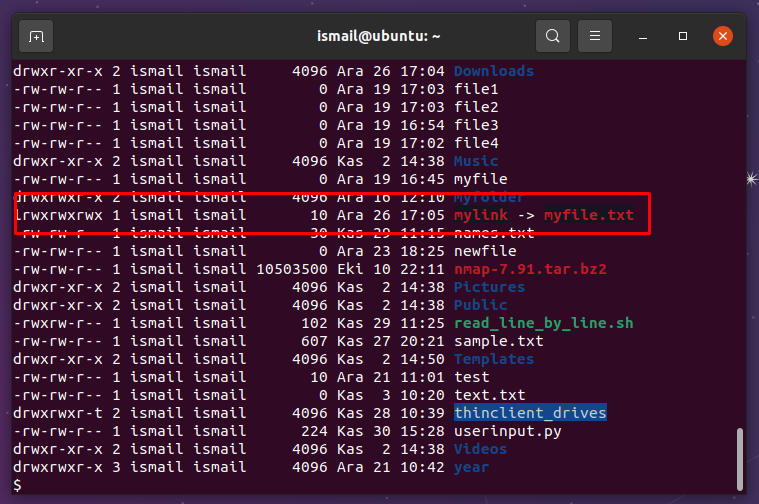
After creating a link, it’s good practice to verify its existence and properties. The `ls -l` command is perfect for this. When you run `ls -l`, symbolic links are easily identifiable. They typically show an `l` at the beginning of the permissions field.
Furthermore, `ls -l` will display the link’s name followed by an arrow (`->`) pointing to its target. For example, `mylink.txt -> original.txt` confirms the link. You can also use the `readlink` command to see where a symbolic link points: `readlink mylink.txt`.
Practical Examples: Using the Ln Command in Linux to Create Symbolic Links
The versatility of the Ln Command in Linux (Create Symbolic Links) truly shines through practical examples. It allows for flexible file organization and access. These scenarios demonstrate how symbolic links can solve common file management challenges.
Linking Files Across Directories
One common use case is creating a symbolic link to a file located in another directory. This avoids copying the file, saving disk space and ensuring you always access the latest version. Imagine needing quick access to a configuration file from a different project directory.
For example, if you have a file `/opt/app/config/settings.conf` and you want to access it directly from your home directory, you can create a link: `ln -s /opt/app/config/settings.conf ~/app_settings.conf`. Now, `~/app_settings.conf` acts as a direct portal to the original file. This is incredibly useful for developers.
Creating Symbolic Links to Directories
Symbolic links are particularly powerful when linking to directories. This allows you to create a “shortcut” to a deeply nested folder or a directory on a different partition. For instance, `ln -s /mnt/data/backups /home/user/my_backups` creates a link to a backup directory.
Navigating to `/home/user/my_backups` will effectively take you to `/mnt/data/backups`. This simplifies directory structures and provides easier access to frequently used locations. It is a common practice in system administration to manage storage.
Relative vs. Absolute Paths in Symbolic Links
When creating symbolic links, you can use either absolute or relative paths. An absolute path specifies the full path from the root directory. A relative path specifies the path relative to the current working directory where the link is created.
Consider creating a link `link_to_file.txt` to `../data/file.txt` from `/home/user/project`. This is a relative link. If you move `link_to_file.txt` to a different directory, it might break. Absolute links, like `ln -s /path/to/target /path/to/link`, are generally more robust as they always point to the same location, regardless of where the link itself is moved. For more details on Linux file systems, you can refer to Wikipedia’s Filesystem Hierarchy Standard.
Managing and Deleting Symbolic Links in Linux
Creating symbolic links is only part of the process; you also need to know how to manage and remove them. Proper management ensures your file system remains clean and functional. Incorrectly handling links can lead to confusion or broken references.
Identifying Existing Symbolic Links
As mentioned, the `ls -l` command is your primary tool for identifying symbolic links. It clearly indicates which entries are links and where they point. This command provides a detailed listing of file types and permissions.
Additionally, you can use the `find` command to locate all symbolic links within a directory tree. For example, `find . -type l` will list all symbolic links in the current directory and its subdirectories. This is useful for auditing your file system.

Removing Symbolic Links Safely
To remove a symbolic link, you simply use the `rm` command, just as you would with a regular file. For instance, `rm mylink.txt` will delete the symbolic link `mylink.txt`. Importantly, this command only removes the link itself, not the original target file or directory.
It is crucial to remember that `rm` on a symbolic link does not affect the source. Always double-check that you are deleting the link and not accidentally the target. This prevents unintended data loss.
Dealing with Broken Symbolic Links
A symbolic link becomes “broken” if its target file or directory is moved, renamed, or deleted. When you try to access a broken link, you will typically get an error like “No such file or directory.” Identifying and fixing these is important for system health.
- Identify Broken Links: Use `find . -xtype l` to list all broken symbolic links in the current directory.
- Recreate the Link: If the target was moved, recreate the link pointing to the new location using `ln -s NEW_TARGET LINK_NAME`.
- Remove Broken Links: If the target is permanently gone, simply remove the broken link with `rm LINK_NAME`.
Advanced `ln` Command Options and Scenarios
Beyond basic creation, the `ln` command offers several options for more advanced scenarios. These options provide greater control and feedback during link creation. Understanding them can make your linking tasks more efficient.
Using `-s` (Symbolic) and `-f` (Force)
The `-s` option, as we’ve seen, is essential for creating symbolic links. The `-f` (force) option is useful when you want to overwrite an existing destination file or link. If `mylink.txt` already exists, `ln -sf original.txt mylink.txt` will replace it without prompting.
However, exercise caution when using `-f`, as it can overwrite important files without warning. Always confirm your target before using the force option. It is a powerful tool but requires careful handling.
The `-v` (Verbose) Option for Feedback
The `-v` (verbose) option provides output for every link created. This is particularly helpful when creating multiple links or when you want confirmation. For example, `ln -sv original.txt mylink.txt` will output something like `’mylink.txt’ -> ‘original.txt’`. This visual feedback is reassuring.
When scripting or performing complex operations, verbose output can be invaluable for debugging and verification. It ensures that you know exactly what actions the command is performing. This helps maintain clarity in your operations.
Creating Hard Links with `ln` (Brief Overview)
While this article focuses on symbolic links, it’s worth noting that `ln` without the `-s` option creates hard links. For instance, `ln original.txt hardlink.txt` creates a hard link. Remember, hard links cannot link to directories or span file systems.
Hard links are less commonly used than symbolic links due to their limitations. However, they are useful when you need multiple file names to refer to the exact same data on the same file system, ensuring data integrity even if one name is removed. They offer a unique form of data redundancy.
Common Use Cases for Symbolic Links
Symbolic links are incredibly versatile and find applications in various aspects of Linux usage. They are not just for basic file management but also for more complex system configurations. Recognizing these common use cases helps you apply the `ln` command effectively.
Simplifying Long File Paths and Navigation
One of the most immediate benefits is simplifying access to files and directories with long, complex paths. Instead of typing `/home/user/projects/development/frontend/src/components/button/index.js`, you can create a link like `ln -s /long/path/to/index.js ~/button_component.js`. This saves time and reduces typing errors.
This technique is especially useful for developers or users who frequently access files deep within a directory structure. It creates a convenient alias for quick navigation. Consequently, it boosts productivity significantly.
Version Management and Deployment Strategies
Symbolic links are excellent for version control and application deployment. You can have multiple versions of an application installed, for example, `/opt/app/v1.0`, `/opt/app/v1.1`. Then, create a symbolic link `/opt/app/current` that points to the active version, e.g., `ln -s /opt/app/v1.1 /opt/app/current`.
To update the application, you simply change the target of the `current` link to the new version. This allows for seamless updates and easy rollbacks without downtime. It is a robust strategy for managing software releases.
System Administration and Configuration
System administrators frequently use symbolic links to manage configuration files. For instance, a common practice is to keep configuration files in a central location (e.g., `/etc/apache2/sites-available/mysite.conf`) and then create a symbolic link in an “enabled” directory (e.g., `/etc/apache2/sites-enabled/mysite.conf`).
Enabling or disabling a site then becomes as simple as creating or removing a symbolic link. This modular approach simplifies server configuration and maintenance. It is a cornerstone of efficient system management.
Frequently Asked Questions
Can I create a symbolic link to a directory?
Yes, absolutely. Symbolic links are commonly used to create shortcuts to directories. This allows you to navigate to a directory from a different location without moving the original directory. It is a very powerful feature for organizing your file system.
What happens if the original file or directory is deleted?
If the original file or directory that a symbolic link points to is deleted, the symbolic link becomes “broken.” It will no longer point to a valid target. Attempting to access a broken link will result in an error, typically “No such file or directory.”
How do I fix or update a broken symbolic link?
To fix a broken symbolic link, you have two main options. If the original target was simply moved, you can delete the old link and create a new one pointing to the correct, updated location. Alternatively, you can remove the broken link if its target is permanently gone.
Conclusion: Mastering Linux File Linking with `ln`
The Ln Command in Linux (Create Symbolic Links) is an indispensable tool for any Linux user, system administrator, or developer. It provides a flexible and efficient way to manage files and directories without duplication. By understanding the differences between hard and symbolic links, mastering the syntax, and exploring practical examples, you can significantly enhance your command-line productivity.
Embrace the power of symbolic links to simplify paths, manage software versions, and streamline system configurations. Start incorporating the `ln` command into your daily workflow today. Share your favorite `ln` command tips or use cases in the comments below!
