

Navigating the Linux command line effectively requires a deep understanding of its powerful utilities. Among these, the Linux Which Command stands out as an indispensable tool for locating executable files. This command helps users quickly identify the full path of a command they intend to run. Furthermore, it clarifies exactly which version of a program the system will execute when you type its name. Understanding its functionality is crucial for both beginners and seasoned Linux users.
Understanding the Linux Which Command: Core Concepts
The `which` command is a fundamental utility in Unix-like operating systems, including Linux. It searches the directories listed in your shell’s `PATH` environment variable. Consequently, it prints the full path of the executable that would be run if the command name were entered. This process helps prevent confusion when multiple versions of a program might exist on your system.
What is the `which` Command and How Does It Work?
At its core, the `which` command acts as a path resolver for executables. When you execute a command like `ls` or `python`, your shell looks through a series of directories defined in the `PATH` variable. The `which` command essentially simulates this search. It returns the first executable file it finds that matches the given command name in those directories. This ensures you know the precise binary being invoked.
The Purpose of `which` in Linux Environments
The primary purpose of the Linux Which Command is to provide clarity and control over command execution. It helps administrators and developers verify that they are using the correct version of a tool. For instance, if you have multiple Python installations, `which python` tells you which one is currently active. Moreover, it’s invaluable for debugging “command not found” errors, indicating if a program is simply not in your `PATH`.
`which` vs. `type` vs. `whereis`: Key Differences
While `which` is excellent for locating executables, Linux offers other similar commands with distinct functionalities. It is important to understand these differences for effective command-line usage. Each command serves a specific purpose in identifying files and commands within the system.
- `which`: Specifically finds executable programs in your `PATH`. It does not locate aliases or shell built-ins.
- `type`: A shell built-in that describes how a command name is interpreted. It can identify aliases, functions, built-ins, and executables.
- `whereis`: Locates the binary, source, and manual page files for a command. It searches a fixed set of standard locations, not necessarily your `PATH`.
Basic-usage-of-the-which-command-in-linux">Basic Usage of the `which` Command in Linux
Using the Linux Which Command is straightforward, making it one of the first utilities many new users learn. Its simple syntax allows for quick retrieval of executable paths. You simply type `which` followed by the command name you are interested in. This will provide immediate feedback about its location.

Finding Executables with `which`
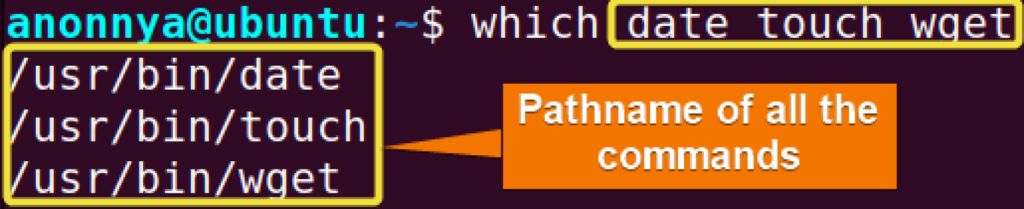
To find the location of a standard command, just type `which` followed by the command’s name. For example, to find the `grep` utility, you would enter `which grep`. The output will typically be a full path, such as `/usr/bin/grep`. This path indicates the exact file that the system will execute.
Consider another example: if you want to know where the `python3` executable resides, you would use `which python3`. This command will display the path, perhaps `/usr/bin/python3`, confirming its location. This simple query provides essential information for scripting and system administration tasks.
Locating Multiple Instances of a Command
Sometimes, different versions of a command might be installed in various directories within your `PATH`. By default, `which` only shows the first one it finds. However, you can use the `-a` option to display all matching executables. For example, `which -a python` might show `/usr/bin/python` and `/usr/local/bin/python` if both exist.
This capability is particularly useful for developers managing multiple software environments. It helps ensure that the correct version of a compiler or interpreter is being referenced. Therefore, the `-a` option provides a comprehensive view of all available command instances on your system.
Interpreting the Output of `which`
The output of the Linux Which Command is the absolute path to the executable file. For instance, `/usr/bin/ls` means the `ls` command is located in the `/usr/bin` directory. This path is crucial because it dictates which specific program binary gets executed. If `which` returns no output, it means the command is not found in any directory listed in your `PATH` variable.
Advanced Techniques with the `which` Command
Beyond its basic function, the `which` command can be integrated into more complex workflows. Understanding these advanced techniques enhances your command-line proficiency. These methods allow for greater flexibility and diagnostic power within your Linux environment.
Using `which` with Aliases and Functions
It’s important to remember that `which` does not resolve shell aliases or functions. If you have an alias like `alias ll=’ls -al’`, `which ll` will not return anything. In such cases, the `type` command is more appropriate. For example, `type ll` would reveal that `ll` is an alias for `ls -al`.
Similarly, if you define a shell function, `which` will not locate it. The `type` command, however, will correctly identify it as a function. Therefore, when dealing with shell-specific definitions, `type` provides a more accurate and complete picture of how a command name is interpreted by your shell.
Integrating `which` into Shell Scripts
The Linux Which Command is highly valuable within shell scripts for robust command execution. Scripts can use `which` to verify the presence of necessary tools before proceeding. This prevents script failures due to missing dependencies. For example, a script might check `if which git > /dev/null; then …` to ensure Git is installed.
Furthermore, scripts can dynamically use the output of `which` to call specific versions of programs. This ensures consistent behavior across different environments. By incorporating `which`, scripts become more resilient and adaptable to varying system configurations. This makes them more reliable for automated tasks.
Troubleshooting Path Issues Using `which`
When you encounter a “command not found” error, `which` is your first line of defense. If `which` doesn’t return a path for a command you know is installed, it indicates a `PATH` variable issue. Perhaps the directory containing the executable is not included in your `PATH`. You can then add the directory to your `PATH` or specify the full path to the command.
- Check `PATH` variable: Use `echo $PATH` to see the directories being searched.
- Verify executable existence: Manually check if the command binary exists in an expected directory.
- Add to `PATH`: If found, add the directory to your `PATH` in your shell configuration file (e.g., `.bashrc`).
- Source configuration: Run `source ~/.bashrc` to apply changes immediately.
Common Scenarios and Best Practices for `which`
The `which` command is not just for finding executables; it’s a tool for maintaining system integrity and security. Its utility extends to various everyday tasks, helping users ensure their systems behave predictably. Adopting best practices for its use can significantly improve your command-line experience.
Verifying Command Availability and Security
Before running a critical command, especially one downloaded from external sources, it’s wise to use `which`. This confirms you are executing the intended binary and not a malicious substitute. Moreover, knowing the exact path helps in setting appropriate file permissions. This contributes to overall system security. The Linux Which Command provides transparency in your command execution.
Ensuring Correct Program Execution Paths
In environments with multiple users or complex software setups, different versions of the same program might exist. Using `which` helps guarantee that your scripts and commands always invoke the correct version. This prevents unexpected behavior or compatibility issues. For instance, specific project requirements might demand a particular compiler version, which `which` can help verify.
Best Practices for Efficiently Using `which`
To maximize the utility of the `which` command, consider these best practices. Always double-check the output, especially in shared environments. Use `which -a` when you suspect multiple installations of a program. Furthermore, integrate `which` into your shell scripts for robust error handling and dependency checks. This proactive approach saves time and prevents potential issues.
For more detailed information on the `which` command and its options, consult the official Linux man pages or resources like Wikipedia’s entry on the `which` command. These resources offer comprehensive documentation for advanced usage.
Frequently Asked Questions
Why might `which` not find a command?
The `which` command might not find a command for several reasons. Primarily, the executable file might not exist in any of the directories listed in your shell’s `PATH` environment variable. Additionally, the command could be a shell built-in, an alias, or a function, which `which` does not resolve. In these cases, the `type` command is a more suitable alternative for identification.
Can `which` find built-in shell commands?
No, the Linux Which Command cannot find built-in shell commands. Commands like `cd`, `echo`, or `pwd` are integral parts of your shell (e.g., Bash or Zsh) and do not have separate executable files on the filesystem. To determine if a command is a built-in, an alias, or an external executable, you should use the `type` command instead.
Is `which` available on all Unix-like systems?
The `which` command is widely available on most Unix-like systems, including various Linux distributions. However, its exact implementation or default behavior might vary slightly between systems or shells. While it’s a common utility, some systems might prefer `command -v` or `type` for similar functionality. Nevertheless, `which` remains a standard tool for locating executables.
Conclusion: Mastering Command Location with Linux `which`
The Linux Which Command is an essential tool for anyone working in a Linux environment. It provides clarity by revealing the exact path of executable programs. This command empowers users to troubleshoot path issues, verify command integrity, and write more robust shell scripts. By understanding its functionality and limitations, you gain greater control over your system’s command execution. Embrace the power of `which` to enhance your command-line proficiency and ensure smooth operations.
We encourage you to experiment with `which` and its related commands like `type` and `whereis`. Share your experiences or ask further questions in the comments below. Mastering these fundamental utilities will undoubtedly make your Linux journey more efficient and enjoyable.
