
Mastering the Linux Tee Command with Examples is crucial for efficient command-line operations. This powerful utility allows users to view command output on the screen while simultaneously saving it to a file. Before diving in, let’s clarify what the Linux Tee Command with Examples actually means and why it’s an indispensable tool for developers and system administrators alike. It effectively splits the output stream, making data handling more flexible.
Understanding the Linux Tee Command with Examples
The `tee` command in Linux is a utility that reads standard input and writes it to both standard output and one or more files. This dual functionality is incredibly useful for various scripting and administrative tasks. It essentially acts like a “T” junction in a pipeline, directing data in two directions. Consequently, you can monitor real-time output while keeping a permanent record.
What is the Tee Command?
The `tee` command is named after the T-splitter used in plumbing, reflecting its function of splitting a data stream. It operates within the shell environment, taking input from a pipe or another command. Furthermore, it then outputs this data to the console and simultaneously to specified files. This makes it a fundamental tool for logging and data duplication.
Why Use the Tee Command?
Using the `tee` command offers significant advantages over simple redirection. It allows for immediate feedback on the terminal while ensuring that the data is also preserved. This is particularly useful when debugging scripts or monitoring long-running processes. Therefore, it prevents the need to run commands twice, once for viewing and once for saving.
Basic-syntax-of-tee">Basic Syntax of Tee
The fundamental syntax for the `tee` command is straightforward. You typically pipe the output of another command into `tee`, followed by the filename where you want to save the output. For instance, `command | tee filename.txt` is the most common usage. Understanding this basic structure is the first step in leveraging the Linux Tee Command with Examples effectively.
- `command`: Any Linux command that produces standard output.
- `|`: The pipe operator, which sends the output of `command` as input to `tee`.
- `tee`: The tee command itself.
- `filename.txt`: The file where the output will be saved.
Basic Usage of Linux Tee Command with Examples
Let’s explore some fundamental ways to use the `tee` command with practical examples. These examples will illustrate how to redirect output, display it, and handle file overwriting. Understanding these basic scenarios is key to mastering the Linux Tee Command with Examples. Consequently, you can apply these techniques to your daily command-line tasks.
Redirecting Output to a File
The primary use of `tee` is to redirect output to a file while also displaying it on the screen. Consider a simple `ls -l` command, which lists directory contents. Piping this into `tee` allows you to see the list and save it. For example, `ls -l | tee file_list.txt` will show the list and save it to `file_list.txt`. This is a core function of the Linux Tee Command with Examples.
Displaying Output on Screen and File
This is the default behavior of `tee`. When you execute `echo “Hello Tee” | tee output.txt`, “Hello Tee” will appear on your terminal. Simultaneously, the same string will be written to `output.txt`. This concurrent display and saving mechanism is what makes the `tee` command so versatile. It ensures visibility and persistence of data. Furthermore, it streamlines your workflow.
Overwriting Files with Tee
By default, the `tee` command will overwrite the contents of the specified file if it already exists. This is an important behavior to remember to avoid accidental data loss. For instance, if `output.txt` already contains data, running `echo “New content” | tee output.txt` will replace the old content. Therefore, always be mindful of existing files when using `tee` without additional options.
Advanced Linux Tee Command Examples and Options
Beyond its basic functionality, the `tee` command offers powerful options for more complex scenarios. These advanced uses enhance its utility for scripting and system administration. Exploring these advanced Linux Tee Command Examples will broaden your understanding. Consequently, you can handle diverse data manipulation tasks more effectively.
Appending Output to a File (-a option)
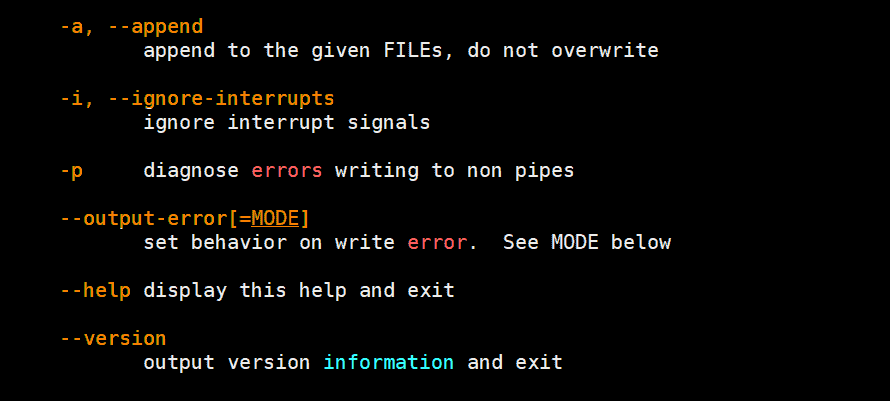
To prevent `tee` from overwriting an existing file, you can use the `-a` or `–append` option. This tells `tee` to add the new output to the end of the file. For example, `echo “Additional line” | tee -a output.txt` will append “Additional line” to `output.txt`. This is extremely useful for creating log files or accumulating data over time. It’s a critical aspect of the Linux Tee Command with Examples.
Handling Standard Error with Tee
By default, `tee` only processes standard output (stdout). To capture standard error (stderr) as well, you need to redirect stderr to stdout before piping it to `tee`. This is typically done using `2>&1`. For example, `command 2>&1 | tee error_log.txt` will send both stdout and stderr to `error_log.txt`. Understanding this redirection is vital for comprehensive logging. Learn more about standard streams on Wikipedia: Standard Streams.
Using Tee with Pipes and Other Commands
The true power of `tee` comes from its ability to integrate seamlessly with other commands via pipes. You can use it to filter data, transform it, and then save it. For instance, `ps aux | grep firefox | tee firefox_processes.txt` will list Firefox processes, display them, and save them. This demonstrates the versatility of the Linux Tee Command with Examples in complex pipelines.
- Run an initial command (e.g., `ls -l`).
- Pipe its output to `tee` to save it and display it.
- Optionally, pipe `tee`’s standard output to another command for further processing.
- This creates a flexible data flow for various tasks.
Practical Scenarios for the Linux Tee Command
The `tee` command finds its place in numerous real-world applications, from simple logging to complex system management. These practical scenarios highlight why the Linux Tee Command with Examples is a staple in any administrator’s toolkit. They showcase its flexibility and efficiency in handling diverse operational needs. Furthermore, these examples provide actionable insights.
Logging Script Output
When running shell scripts, it’s often necessary to log all output for auditing or debugging purposes. By piping the entire script’s execution into `tee`, you can achieve this easily. For example, `./my_script.sh | tee -a script_log.txt` will append all script output to `script_log.txt`. This ensures a complete record of the script’s execution. It’s an excellent way to manage the Linux Tee Command with Examples.
Simultaneous Output to Multiple Files
The `tee` command can write to multiple files concurrently. Simply list all desired filenames after the `tee` command. For instance, `echo “Data to multiple files” | tee file1.txt file2.txt file3.txt` will write the string to all three files. This capability is incredibly useful for duplicating data or creating backups instantly. It expands the utility of the Linux Tee Command with Examples significantly.
Combining Tee with Sudo for Restricted Files
Writing directly to a file that requires root privileges using redirection (`>`) can be tricky. However, `tee` can be combined with `sudo` to overcome this. For example, `echo “new line” | sudo tee -a /etc/hosts` allows you to append to `/etc/hosts` without needing to open an editor. This is a powerful and secure way to modify system files. Consequently, it demonstrates an advanced application of the Linux Tee Command with Examples.
Frequently Asked Questions
What is the primary function of the tee command?
The primary function of the `tee` command is to read standard input and simultaneously write it to both standard output (the screen) and one or more files. This allows users to view data in real-time while also saving a copy. It’s ideal for logging and monitoring command execution.
How does tee differ from simple redirection?
Simple redirection (`>` or `>>`) only sends output to a file, suppressing its display on the terminal. In contrast, `tee` sends the output to both the terminal and the specified file. Therefore, `tee` offers the advantage of immediate feedback while still preserving the data.
Can tee write to multiple files simultaneously?
Yes, the `tee` command can write to multiple files at the same time. You simply list all the desired filenames after the `tee` command in the syntax. For example, `command | tee file1.txt file2.txt` will output to both `file1.txt` and `file2.txt` simultaneously.
Conclusion: Mastering the Linux Tee Command
The Linux Tee Command with Examples is an incredibly versatile and powerful utility for anyone working in a Linux environment. Its ability to split output streams for simultaneous display and saving simplifies many tasks. From basic file redirection to advanced logging and system administration, `tee` proves invaluable. By understanding its core functionalities and advanced options, you can significantly enhance your command-line efficiency. We encourage you to experiment with these Linux Tee Command Examples to solidify your understanding. Share your favorite `tee` command tricks in the comments below!
