
When automating tasks or managing processes on a Linux system, the ability to pause a script is often invaluable. This is precisely where the Linux Sleep Command (Pause a Bash Script) becomes a fundamental tool for system administrators and developers alike. Understanding how to effectively implement delays can prevent resource exhaustion, manage API rate limits, and ensure proper sequencing of operations. Therefore, mastering the `sleep` command is crucial for writing robust and reliable shell scripts.
Introduction to the Linux Sleep Command
The `sleep` command is a simple yet powerful utility in the Linux environment. It allows a script or command-line process to pause execution for a specified duration. This delay can be critical for various reasons, ensuring that subsequent actions occur only after a certain period has elapsed. Furthermore, it helps in orchestrating complex sequences of commands efficiently.
What is the `sleep` Command and Its Core Purpose?
At its core, the `sleep` command instructs the operating system to halt the current process for a designated amount of time. This time is typically measured in seconds, but it can also be specified in minutes, hours, or even days. The primary purpose is to introduce controlled delays, preventing scripts from running too quickly or overwhelming system resources. Consequently, it contributes significantly to system stability.
Why Pausing a Bash Script is Essential: Common Scenarios
Pausing a Bash script is essential for many practical applications. For instance, it can be used to wait for a service to start, to space out requests to an external API, or to allow files to be fully written before being processed. Moreover, it’s a common technique in polling mechanisms, where a script repeatedly checks for a condition to be met. These scenarios highlight the command’s versatility.
- Resource Management: Prevents overwhelming CPU or network resources.
- API Rate Limiting: Ensures compliance with external service request limits.
- Process Synchronization: Allows time for dependent processes or services to initialize.
- User Experience: Provides natural pauses in interactive scripts.
Understanding the Linux Sleep Command Syntax and Usage
The syntax for the `sleep` command is straightforward, making it easy to integrate into any Bash script. You simply specify the duration you wish the script to pause. However, there are nuances in how you define these durations, particularly when dealing with different time units. This flexibility enhances its utility in diverse scripting contexts.
Basic-sleep-command-sleep">Basic `sleep` Command: `sleep `
The most basic usage of the `sleep` command involves providing a single number, which defaults to seconds. For example, `sleep 5` will pause the script for five seconds. This simple form is frequently used for short, fixed delays. Therefore, it’s often the first method learned by new users. For more details, you can consult the Wikipedia page on the sleep command.
Consider this simple example:
echo "Starting task..."
sleep 3
echo "Task resumed after 3 seconds."
This script will print the first message, pause for three seconds, and then print the second message. It demonstrates the immediate impact of the `sleep` command.
Specifying Time Units: Seconds, Minutes, Hours, and Days
The `sleep` command also supports various suffixes to denote different time units. These suffixes make it much easier to specify longer durations without complex calculations. You can use ‘s’ for seconds, ‘m’ for minutes, ‘h’ for hours, and ‘d’ for days. This feature significantly improves readability and reduces potential errors.
Here are some examples:
- `sleep 10s`: Pauses for 10 seconds.
- `sleep 2m`: Pauses for 2 minutes.
- `sleep 1h`: Pauses for 1 hour.
- `sleep 0.5`: Pauses for half a second (fractional seconds are supported).
Using these suffixes ensures clarity, especially when dealing with longer delays in your scripts. It’s a best practice to include them for maintainability.
Combining Multiple `sleep` Arguments for Precise Delays
While less common, the `sleep` command can accept multiple arguments, which are then summed to determine the total delay. For instance, `sleep 1m 30s` will pause the script for one minute and thirty seconds. This can be useful for expressing complex durations in a more human-readable format. However, it’s often simpler to calculate the total seconds directly.
echo "Waiting for 1 minute and 15 seconds..."
sleep 1m 15s
echo "Wait complete."
This method provides an alternative way to define specific pause lengths. Nevertheless, direct calculation to total seconds is generally preferred for consistency.
Practical Applications of the `sleep` Command in Bash Scripts
The utility of the Linux Sleep Command (Pause a Bash Script) extends across numerous practical scenarios. From simple task automation to complex system monitoring, `sleep` provides the necessary control over script execution timing. These applications highlight its versatility in real-world scripting. Developers frequently leverage `sleep` to manage asynchronous operations effectively.
Implementing Delays Between Sequential Commands
One of the most common uses of `sleep` is to introduce delays between commands that must run in a specific order. This ensures that a preceding command has fully completed its operation before the next one begins. For example, waiting for a database to start or a file to be processed. Therefore, it’s a cornerstone of reliable sequential execution.
#!/bin/bash
echo "Starting web server..."
systemctl start apache2
sleep 5 # Give Apache time to fully initialize
echo "Checking server status..."
systemctl status apache2 | grep Active
This script demonstrates how `sleep` can prevent race conditions. It ensures that the status check happens only after the server has had a chance to become active.
Polling for Resource Availability or Process Completion
Scripts often need to wait for a particular resource to become available or for another process to finish. The `sleep` command facilitates polling loops, where the script repeatedly checks a condition and pauses between checks. This is a common pattern in automation for tasks like waiting for a file to appear or a network connection to establish. It’s an efficient way to handle dynamic environments.
#!/bin/bash
FILE="/tmp/my_data.txt"
while [ ! -f "$FILE" ]; do
    echo "Waiting for $FILE to appear..."
    sleep 10
done
echo "$FILE found! Processing data..."
cat "$FILE" #
This loop will continue to execute every 10 seconds until the specified file exists. It’s a robust method for managing dependencies.
Rate Limiting API Requests and Network Operations
When interacting with external APIs or performing network operations, it’s crucial to respect rate limits to avoid being blocked. The `sleep` command is perfectly suited for this purpose, allowing scripts to introduce delays between requests. This ensures that your script adheres to the API’s usage policies. Consequently, it maintains a good relationship with external services.
- Fetch data from API.
- Process the received data.
- `sleep` for a few seconds (e.g., `sleep 2`) to respect rate limits.
- Repeat the process for the next request.
This numbered list illustrates a typical workflow for rate-limited operations. It’s a simple yet effective strategy for managing API interactions.
Advanced Techniques and Considerations for `sleep` in Shell Scripts
While the basic usage of the Linux Sleep Command (Pause a Bash Script) is straightforward, there are advanced techniques that can enhance its utility in more complex scripting scenarios. Understanding these methods allows for greater control and flexibility. Moreover, it helps in building more sophisticated and resilient automation solutions.
Running `sleep` in the Background and Managing Processes
Sometimes you need to introduce a delay without halting the entire script’s execution. You can run `sleep` in the background using the `&` operator. This allows the script to continue with other tasks while the `sleep` command counts down. Later, you can use the `wait` command to pause until all background processes, including `sleep`, have completed. This technique is valuable for concurrent operations.
echo "Starting background task..."
( sleep 10; echo "Background task finished after 10 seconds." ) &
echo "Main script continues immediately."
wait # Wait for all background jobs to complete
echo "All tasks complete."
This example shows how to decouple a delay from the main script’s flow. It’s a powerful way to manage parallel execution.
Using Variables and Command Substitution with `sleep`
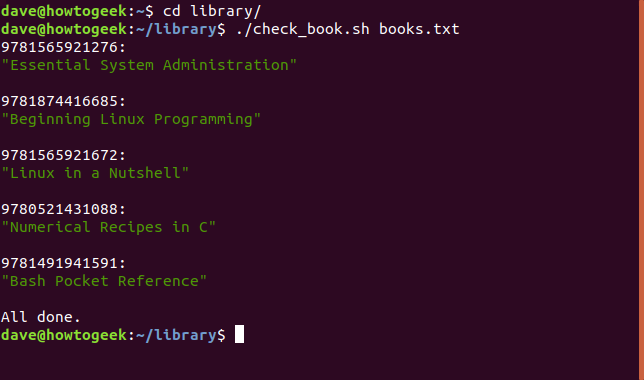
For dynamic delays, you can use shell variables or command substitution with `sleep`. This allows the pause duration to be determined at runtime, based on script logic or external factors. For instance, a script might calculate an optimal delay based on system load. This adds a layer of intelligence to your automation. It makes scripts more adaptable to changing conditions.
#!/bin/bash
DELAY_SECONDS=5
echo "Pausing for $DELAY_SECONDS seconds..."
sleep "$DELAY_SECONDS"
echo "Continuing."

Example with command substitution
RANDOM_DELAY=$(shuf -i 1-5 -n 1) # Generate random delay between 1 and 5 seconds
echo "Random pause for $RANDOM_DELAY seconds..."
sleep "$RANDOM_DELAY"
echo "Resumed after random delay."
Using variables makes your scripts more configurable and robust. It’s a best practice for managing dynamic parameters.
Handling Interruptions and Signals (e.g., `Ctrl+C`) During `sleep`
By default, `sleep` can be interrupted by signals like `Ctrl+C` (SIGINT). In some cases, you might want to gracefully handle such interruptions or prevent them entirely. The `trap` command can be used to catch signals and execute specific actions before exiting or resuming. This is crucial for maintaining script integrity during unexpected terminations. It ensures a cleaner shutdown process.
#!/bin/bash
trap "echo 'Script interrupted! Cleaning up...'; exit 1" SIGINT SIGTERM
echo "Sleeping for a long time (try Ctrl+C)..."
sleep 60
echo "Sleep finished naturally."
This script will catch `Ctrl+C` and print a cleanup message before exiting. It’s an important consideration for production scripts.
Best Practices for Using the Linux Sleep Command Effectively
To maximize the benefits of the Linux Sleep Command (Pause a Bash Script), it’s important to follow certain best practices. These guidelines ensure that your scripts are not only functional but also efficient, readable, and maintainable. Adhering to these principles will lead to more robust automation solutions. It also helps in avoiding common pitfalls.
Choosing Appropriate Delay Durations for Optimal Performance
Selecting the right delay duration is crucial. Too short a delay might lead to race conditions or resource contention, while too long a delay can make your script inefficient. Consider the specific requirements of the task and the expected timing of external events. Often, a bit of experimentation is necessary to find the sweet spot. Balance responsiveness with system load.
Factors to consider include:
- Network latency for external API calls.
- Startup times for services or applications.
- Processing time for previous commands.
- Resource availability on the system.
Thoughtful consideration of these factors will result in more effective `sleep` implementations.
When to Use `sleep` vs. Alternative Delay Mechanisms
While `sleep` is versatile, sometimes other tools might be more appropriate. For very short, sub-second delays, `usleep` (though often deprecated in favor of `sleep` with fractional seconds) or even busy-waiting loops might be considered in specific, performance-critical scenarios. For waiting on processes, `wait` or `inotifywait` (for file changes) can be more efficient than polling with `sleep`. Choose the tool best suited for the job.
For example:
- Use `sleep` for general-purpose, fixed-duration delays.
- Consider `wait` for specific background process completion.
- Explore `inotifywait` for event-driven file system monitoring.
Understanding these alternatives ensures you pick the most efficient method.
Debugging Bash Scripts with Strategic `sleep` Placements
The `sleep` command can be an excellent debugging tool. By strategically placing `sleep` calls in your script, you can slow down execution to observe intermediate states, variable values, or log outputs. This allows you to pinpoint exactly where an issue might be occurring. It provides a window into the script’s flow. Consequently, it simplifies the debugging process significantly.
#!/bin/bash
echo "Step 1: Initializing..."
VAR="test_value"
sleep 2 # Pause to check logs or variable state
echo "Step 2: Processing with VAR=$VAR"
... more commands ...
sleep 3 # Another pause before critical operation
echo "Step 3: Finalizing."
These temporary `sleep` commands can be removed once the script is stable. They are invaluable during development.
Frequently Asked Questions about the Linux Sleep Command
Users often have specific questions regarding the nuances and capabilities of the `sleep` command. Addressing these common queries helps clarify its behavior and best practices. This section aims to provide concise answers to frequently encountered issues. It ensures a deeper understanding of this essential utility.
How to achieve sub-second or millisecond delays with `sleep`?
The `sleep` command supports fractional seconds. You can specify delays like `sleep 0.5` for half a second or `sleep 0.01` for one hundredth of a second. However, the actual precision might depend on your system’s clock resolution and kernel scheduling. For extremely precise, real-time millisecond delays, other programming languages or specialized utilities might be more suitable. Nevertheless, `sleep` is generally sufficient for most script-level needs.
Can the `sleep` command be interrupted by user input or signals?
Yes, by default, the `sleep` command can be interrupted by various signals, most commonly SIGINT (generated by `Ctrl+C`) or SIGTERM. When interrupted, `sleep` will terminate prematurely, and the script will continue from the next command or exit, depending on your script’s signal handling. You can use the `trap` command in Bash to catch these signals and define custom actions, such as performing cleanup operations before exiting. This allows for more robust script behavior.
What are the maximum and minimum duration limitations for `sleep`?
The `sleep` command can handle very long durations, theoretically up to an extremely large number of seconds (e.g., `sleep 1000000000000d` is possible, though impractical). The minimum duration for `sleep` is effectively zero, but due to system overhead and scheduling, a practical minimum is typically in the order of milliseconds. While `sleep 0.001` might be specified, the actual pause might be slightly longer or shorter based on the operating system’s scheduler. For general scripting, `sleep` is reliable for durations from fractions of a second up to days.
Conclusion: Mastering Script Delays with the `sleep` Command
The Linux Sleep Command (Pause a Bash Script) is an indispensable tool for anyone working with shell scripting. It provides the crucial ability to introduce controlled delays, which is vital for managing resource usage, synchronizing processes, and adhering to external service constraints. By understanding its basic syntax, time unit options, and advanced techniques, you can write more robust, efficient, and reliable scripts. Furthermore, incorporating best practices ensures optimal performance and maintainability.
Embrace the power of `sleep` to fine-tune your automation workflows. Experiment with different durations and explore its applications in your own projects. What creative ways have you found to use the `sleep` command in your Bash scripts? Share your insights and questions in the comments below, and let’s continue to build better, smarter automation together!
