
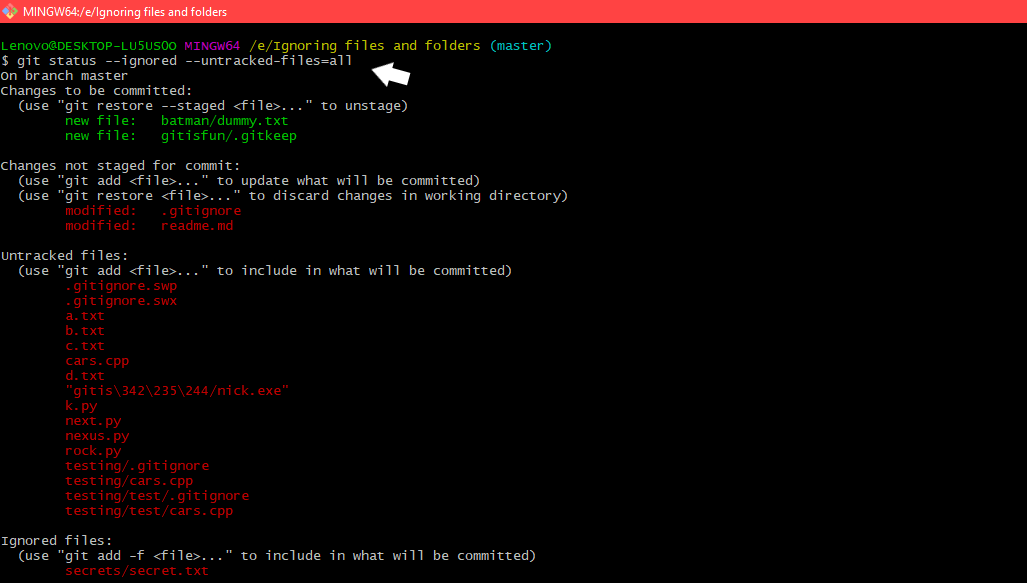
Managing your codebase effectively in Git is crucial for any developer. A common challenge involves preventing unnecessary or sensitive files from being tracked by your version control system. This is where Ignoring Files and Directories in Git (.gitignore) becomes an indispensable tool. Understanding how to properly configure this file streamlines your workflow, keeps your repository clean, and enhances collaboration among team members. Let’s delve into the specifics of this powerful Git feature.
Understanding Ignoring Files and Directories in Git (.gitignore)
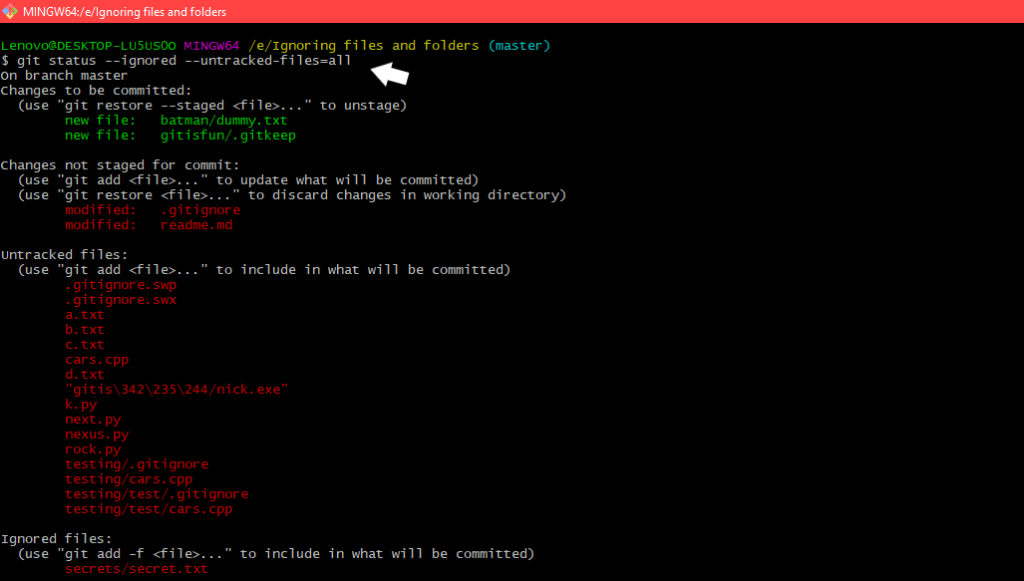
The `.gitignore` file serves as a powerful instruction manual for Git. It tells Git which files and directories to intentionally disregard. This means Git will not track changes to these specified items. Consequently, they will not appear as untracked files when you run `git status`.
The Problem of Untracked and Unnecessary Files
Developers often generate many temporary files, build artifacts, or Configuration files containing sensitive data. These items are typically specific to a local development environment. Including them in your repository clutters the commit history. Furthermore, it can lead to merge conflicts or expose confidential information.
Benefits of Effectively Using .gitignore in Your Workflow
Properly configuring your `.gitignore` file offers numerous advantages. Firstly, it keeps your repository focused solely on relevant source code and project assets. Secondly, it prevents accidental commits of large or irrelevant files. This significantly improves repository performance and reduces storage overhead. Ultimately, Ignoring Files and Directories in Git (.gitignore) fosters a cleaner, more efficient development environment for everyone involved.
The Anatomy of a .gitignore File: Core Concepts and Placement
A `.gitignore` file is a plain text file containing patterns that Git uses to decide which files or directories to ignore. These patterns can be simple filenames, directory names, or more complex expressions using wildcards. Its placement within your project structure dictates its scope and influence over your repository.
What Exactly is a .gitignore File?
Essentially, a `.gitignore` file lists patterns for files and folders Git should ignore. Git reads this file when performing operations like `git add` or `git status`. It then filters out any items matching the defined patterns. This ensures only relevant project files are considered for version control.
Where to Place Your .gitignore Files (Project vs. Subdirectory)
You can place `.gitignore` files at various levels within your repository. A common practice is to have one at the root of your project. This root `.gitignore` applies to the entire repository. However, you can also place `.gitignore` files in subdirectories. In such cases, the rules in a subdirectory’s `.gitignore` apply only to that directory and its children. This hierarchical approach offers granular control over ignored items.
Basic-syntax-rules-for-ignoring-files-and-directories">Basic Syntax: Rules for Ignoring Files and Directories
The syntax for `.gitignore` is straightforward yet flexible. Each line in the file represents a pattern. Blank lines are ignored, and lines starting with `#` are comments. Here are some fundamental rules:
- `file.txt`: Ignores `file.txt` in the same directory as the `.gitignore` or any subdirectory.
- `/file.txt`: Ignores `file.txt` only in the same directory as the `.gitignore`.
- `directory/`: Ignores all contents of `directory/`.
- `*.log`: Ignores all files ending with `.log`.
- `!important.txt`: Negates a previous ignore pattern, meaning `important.txt` will not be ignored.
Practical Guide: How to Ignore Files and Directories in Git
Implementing `.gitignore` effectively involves understanding how to craft patterns for various scenarios. This section will guide you through common patterns and address specific use cases. Mastering these techniques is key to successfully Ignoring Files and Directories in Git (.gitignore).
Ignoring Specific Files and Folders with Exact Matches
For precise control, you can specify exact filenames or directory names. This is useful for development-specific configuration files or build output folders. For instance, to ignore a local settings file, you would simply add its name to `.gitignore`. Similarly, a folder named `build/` can be ignored by adding `build/` to the file.
Consider these examples:
- `my_local_config.json`
- `node_modules/`
- `target/`
These entries prevent Git from tracking these specific items across your project. This keeps your repository clean and focused on essential source code. Therefore, exact matches are a foundational aspect of `.gitignore` usage.
Utilizing Wildcards and Advanced Pattern Matching
Wildcards provide flexibility when you need to ignore multiple files matching a certain pattern. The `` wildcard matches zero or more characters. The `?` wildcard matches a single character. Double asterisks `` can match directories recursively. For example, `.tmp` will ignore all files ending with `.tmp` anywhere in the repository. Additionally, `docs//*.pdf` ignores all `.pdf` files within the `docs` directory or any of its subdirectories.
Ignoring Files Already Tracked by Git (and How to Untrack Them)
Sometimes, you might add a file to `.gitignore` that Git is already tracking. In this scenario, Git will continue to track the file. The `.gitignore` file only prevents new untracked files from being added. To untrack an already committed file, you must first remove it from Git’s index. This can be done using the `git rm –cached
- Add the file’s pattern to your `.gitignore` file.
- Run `git rm –cached
` to remove it from Git’s tracking. - Commit the `.gitignore` change and the untracked file removal.
Advanced Strategies for Ignoring Files and Directories in Git
Beyond project-specific `.gitignore` files, Git offers more advanced mechanisms for ignoring files. These include global ignore files and repository-specific exclusions. Employing these strategies provides even greater control over what Git tracks. This ensures a consistent and personalized development experience.
Configuring a Global .gitignore File for All Repositories
A global `.gitignore` file is incredibly useful for ignoring files across all your Git repositories. This is ideal for operating system-specific files (like `.DS_Store` on macOS) or common IDE temporary files. To set this up, you first create a `.gitignore` file in your home directory (e.g., `~/.gitignore_global`). Then, you tell Git to use it with `git config –global core.excludesfile ~/.gitignore_global`. This command permanently configures Git to consult this global file, simplifying your workflow significantly.
For example, a global `.gitignore` might include:
- `.DS_Store`
- `Thumbs.db`
- `*.swp`
- `.vscode/`
This ensures these common nuisance files are never accidentally committed, regardless of the project. Therefore, a global ignore file is a powerful tool for maintaining clean repositories.
Ignoring Files for Specific Users or Local Environments (.git/info/exclude)
Sometimes, you need to ignore files locally without affecting other collaborators or the shared `.gitignore` file. The `.git/info/exclude` file is perfect for this purpose. This file follows the same pattern rules as `.gitignore`. However, it is never committed to the repository. It resides within the `.git` directory itself. This makes it ideal for personal configurations or temporary files that only you need to ignore. For instance, you might use it to ignore a local database configuration file. Further information on Git’s ignore rules can be found in the official Git documentation: Git SCM Documentation.
Troubleshooting Common .gitignore Issues and Conflicts
Despite its utility, `.gitignore` can sometimes lead to confusion. A common issue is Git still tracking a file you thought was ignored. This usually happens if the file was committed before being added to `.gitignore`. Another problem arises from conflicting patterns. More specific patterns higher up in the file or in a more specific `.gitignore` (e.g., subdirectory) can override broader patterns. Always check `git check-ignore -v
Best Practices for Managing Ignored Files and Directories in Git
Effective management of your `.gitignore` file is crucial for long-term project health. Adhering to best practices ensures consistency, reduces errors, and improves collaboration. This section outlines key strategies for maintaining an optimal `.gitignore` file. Ultimately, it helps in effectively Ignoring Files and Directories in Git (.gitignore).
Keeping Your .gitignore Clean, Organized, and Versioned
Treat your `.gitignore` file as part of your project’s codebase. Keep it organized by grouping similar patterns together. Add comments to explain complex rules. Always commit your project-level `.gitignore` file to version control. This ensures all collaborators share the same ignore rules. A well-maintained `.gitignore` prevents confusion and maintains a consistent environment for everyone. Therefore, organization is key to its effectiveness.
Leveraging .gitignore Templates for Different Technologies
Many programming languages, frameworks, and IDEs have standard files that should always be ignored. Instead of creating a `.gitignore` from scratch, leverage existing templates. Websites like GitHub’s `.gitignore` templates repository offer comprehensive starting points. These templates cover common ignore patterns for Python, Node.js, Java, Ruby, and many other technologies. Using a template saves time and ensures you don’t miss crucial ignore patterns. This practice significantly enhances productivity.
When NOT to Ignore a File (and Alternative Strategies)
While `.gitignore` is powerful, not every file should be ignored. Configuration files vital for project setup should typically be versioned. However, sensitive data within those files (e.g., API keys, database credentials) should never be committed. For such cases, consider using environment variables. Alternatively, you can use a placeholder configuration file that gets copied and modified locally. Another strategy involves using a secrets management system. These methods protect sensitive information while keeping essential configurations tracked. This balance is critical for secure development.
Frequently Asked Questions About Ignoring Files in Git
What if I accidentally committed a file I wanted to ignore?
If you accidentally commit a file that should be ignored, you need to remove it from Git’s history. First, add the file’s pattern to your `.gitignore`. Then, use `git rm –cached
Can I have multiple .gitignore files in a single repository?
Yes, you can have multiple `.gitignore` files. Git processes `.gitignore` files hierarchically. A `.gitignore` file in a subdirectory will apply its rules to that directory and its subdirectories. Rules in a subdirectory’s `.gitignore` override rules from parent `.gitignore` files for files within that subdirectory. This allows for very granular control over what gets ignored.
How do I make Git ignore changes to a tracked file locally without untracking it?
For a file that Git is already tracking, but you want to ignore local changes (e.g., a configuration file that you’ve personalized), you can use `git update-index –assume-unchanged
Conclusion: Streamlining Your Workflow by Ignoring Files in Git
Mastering Ignoring Files and Directories in Git (.gitignore) is a fundamental skill for any developer. It ensures your repositories remain clean, focused, and free from unnecessary clutter. By strategically using `.gitignore` files, you prevent accidental commits of temporary files, build artifacts, and sensitive data. This practice significantly enhances collaboration and maintains the integrity of your version control history.
Key Takeaways for Effective .gitignore Usage
Remember to place `.gitignore` files thoughtfully, utilize wildcards effectively, and untrack previously committed files when necessary. Leverage global `.gitignore` for common system files and consider templates for different technologies. Furthermore, understand when not to ignore a file and opt for alternative strategies for sensitive data. These practices collectively contribute to a more efficient and professional development workflow.
Next Steps: Optimize Your Git Workflow and Collaboration
Now that you understand the power of `.gitignore`, take the time to review your existing projects. Identify any untracked or unnecessary files that could benefit from being ignored. Implement a robust `.gitignore` strategy across all your repositories. Share your optimized `.gitignore` files with your team to foster consistent practices. Your contributions will make your development process smoother and more productive. Explore more advanced Git features to further refine your version control skills!
