

Navigating the Linux command line efficiently often involves managing files and directories, and a crucial skill for any user is understanding how to zip files and directories in Linux. File compression helps save disk space and makes transferring multiple files much simpler. This comprehensive guide will walk you through the essential commands and best practices for using the `zip` utility. By the end, you will confidently compress and decompress your data, streamlining your workflow significantly.
Introduction: Mastering File Compression in Linux
File compression is an indispensable technique for modern computing, particularly within the Linux environment. It allows users to reduce the size of files and folders, which is beneficial for storage and network transmission. Furthermore, bundling multiple items into a single archive simplifies organization and backup procedures.
Why File Compression Matters for Linux Users
For Linux users, file compression offers several distinct advantages. It helps in optimizing disk usage, especially on systems with limited storage capacity. Moreover, when sharing data over networks or via email, smaller file sizes result in faster uploads and downloads. This efficiency is critical for developers, system administrators, and everyday users alike.
Overview of Linux Compression Tools and the `zip` Utility
Linux provides various powerful compression tools, each with specific strengths. While utilities like `tar` combined with `gzip` or `bzip2` are popular for creating compressed archives, the `zip` utility stands out for its widespread compatibility. The `zip` format is universally recognized, making it ideal for sharing files across different operating systems, including Windows and macOS. Therefore, mastering the `zip` command is a valuable skill.
Understanding the `zip` Command in Linux
The `zip` command is a fundamental utility for creating compressed archives in the `.zip` format. It is part of the Info-ZIP project, which provides portable command-line tools for handling zip files. This tool is highly versatile, allowing you to compress single files, multiple files, or entire directories with ease.
What is the `zip` Utility and Its Purpose?
The `zip` utility serves to compress files and directories into a single archive file. Its primary purpose is to reduce the overall size of data and to consolidate multiple items into one manageable package. This makes it incredibly useful for backups, data transfer, and general file organization. Understanding its core function is key to mastering file management.
apt-yum-dnf">Installing `zip` on Different Linux Distributions (APT, YUM, DNF)
While `zip` and `unzip` are often pre-installed on many Linux distributions, you might need to install them if they are missing. The installation process is straightforward, varying slightly based on your distribution’s package manager. Here are the common commands for installing these essential utilities:
- Debian/Ubuntu (APT): Open your terminal and run `sudo apt update && sudo apt install zip unzip`.
- CentOS/RHEL (YUM): Use the command `sudo yum install zip unzip`.
- Fedora (DNF): Execute `sudo dnf install zip unzip` in your terminal.
After installation, you can verify by typing `zip –version` or `unzip –version` to see the installed version. This ensures you are ready to start compressing and decompressing files.
Basic-syntax-of-the-zip-command">Basic Syntax of the `zip` Command
The basic syntax for the `zip` command is quite simple, yet powerful. It generally follows the pattern `zip [options] archive_name file1 file2 directory/`. The `archive_name` is the name you want to give your new zip file, typically ending with `.zip`. Furthermore, `file1`, `file2`, and `directory/` represent the items you wish to include in the archive. You can specify various options to control the compression process.

How to Zip Files in Linux: Basic Operations
Learning how to zip files and directories in Linux begins with understanding basic file compression. The `zip` command offers straightforward methods to archive individual files or groups of files. These operations are fundamental for daily file management tasks and data sharing.
Zipping a Single File in Linux
To zip a single file, you simply specify the desired archive name and the file you want to compress. For example, if you have a file named `document.txt`, you would use the command `zip archive.zip document.txt`. This action creates `archive.zip` in your current directory, containing only `document.txt`. The original file remains untouched.
Zipping Multiple Files into One Archive
Compressing several files into a single archive is just as easy. You list all the files you want to include after the archive name. For instance, to zip `report.pdf`, `image.jpg`, and `notes.txt` into `my_files.zip`, you would type `zip my_files.zip report.pdf image.jpg notes.txt`. This creates a single `.zip` file containing all specified items, making them easy to manage.
Viewing the Contents of a Zip Archive
Before extracting or for verification, you might want to inspect the contents of a zip archive without fully decompressing it. The `unzip -l` command allows you to list the files within an archive. For example, `unzip -l my_archive.zip` will display a list of all files and directories stored inside `my_archive.zip`. This is a quick way to check what an archive contains.
How to Zip Directories in Linux: Compressing Folders
Compressing entire directories is a common requirement, especially when dealing with projects or collections of related files. The `zip` command handles this efficiently, allowing you to include all subdirectories and files recursively. This capability is essential for comprehensive data archiving.
Zipping a Single Directory Recursively
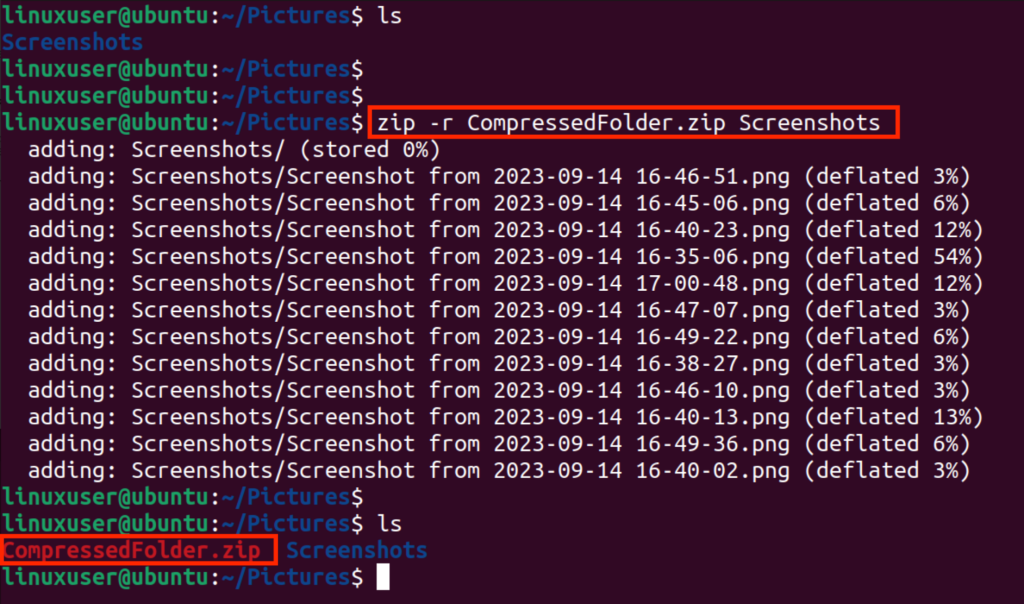
When you want to zip a directory, you must use the `-r` (recursive) option to ensure all its contents, including subdirectories and files, are included. To zip a directory named `my_project` into `project_archive.zip`, the command is `zip -r project_archive.zip my_project/`. Remember to include the trailing slash or explicitly state the directory name. This command creates a complete archive of your project.
Zipping Multiple Directories Simultaneously
You can also compress multiple directories into a single zip file. Simply list each directory after the archive name, ensuring you use the `-r` option. For example, `zip -r combined_archives.zip folder1/ folder2/`. This creates `combined_archives.zip` containing both `folder1` and `folder2` with all their respective contents. This method is highly convenient for grouping related projects.
Including or Excluding Specific Files/Subdirectories
The `zip` command provides options to fine-tune what gets included or excluded from your archive. You can use the `-i` option to include only specific patterns or the `-x` option to exclude them. For instance, `zip -r project.zip my_project/ -x “.log”` will zip `my_project` but exclude all `.log` files. This level of control is invaluable for creating clean archives. Furthermore, you can exclude specific directories like `zip -r project.zip my_project/ -x “my_project/temp/“`. This ensures only relevant data is archived.
Advanced `zip` Options for Linux Users
Beyond basic compression, the `zip` utility offers several advanced features that enhance its functionality. These options provide greater control over archive management, security, and compression efficiency. Leveraging these features can significantly improve your file handling capabilities.
Adding Files to an Existing Zip Archive
You can easily add new files to an already existing zip archive using the `-u` (update) option. If the file already exists in the archive, it will be updated; otherwise, it will be added. For example, `zip -u my_archive.zip new_document.txt` will add `new_document.txt` to `my_archive.zip`. This is useful for incrementally building archives.
Removing Files from a Zip Archive
To remove files from an existing zip archive, you use the `-d` (delete) option. This allows you to clean up archives by removing unnecessary items. For instance, `zip -d my_archive.zip old_log.txt` will delete `old_log.txt` from `my_archive.zip`. This helps in maintaining lean and relevant archives.
Password Protecting Zip Files for Security
Security is paramount, and `zip` allows you to password-protect your archives using the `-e` (encrypt) option. When you run `zip -e secure.zip sensitive_data.txt`, the command will prompt you to enter and verify a password. This encrypts the contents, ensuring that only those with the password can access the information. This is a critical step for protecting sensitive data.
Specifying Compression Levels for Optimal Size
The `zip` command also lets you control the compression level, ranging from 0 (no compression, faster) to 9 (maximum compression, slower). The default level is typically -6. For example, `zip -9 extreme.zip large_file.bin` will attempt to achieve the smallest possible file size, though it will take longer. Conversely, `zip -0 no_compress.zip image.png` will create an archive quickly without much compression. Choosing the right level balances speed and file size.
Unzipping Files and Directories in Linux
Just as important as zipping is the ability to extract compressed files. The `unzip` command is the counterpart to `zip`, allowing you to decompress archives created with the `zip` utility. Understanding its usage is crucial for accessing archived data.
Basic `unzip` Command Usage
The most basic way to unzip an archive is to simply provide the archive’s name to the `unzip` command. For example, `unzip my_archive.zip` will extract all its contents into the current directory. This command is straightforward and effective for quick decompression tasks. All files and folders within the archive will be recreated in your current location.
Unzipping to a Specific Destination Directory
Often, you’ll want to extract files to a different location than your current working directory. The `-d` option allows you to specify a destination directory. For instance, `unzip my_archive.zip -d /path/to/destination/` will extract the contents of `my_archive.zip` into the `/path/to/destination/` folder. This helps keep your file system organized and prevents clutter.
Handling Password-Protected Zip Archives
When encountering a password-protected zip file, the `unzip` command will automatically prompt you for the password. Simply type `unzip secure.zip` and enter the correct password when requested. If the password is correct, the files will be extracted normally. Incorrect passwords will result in an error message, preventing access to the encrypted contents. This security feature ensures data confidentiality.
Best Practices for Managing Zipped Files in Linux
Effective file management extends beyond knowing the commands; it involves adopting best practices that improve organization and data integrity. Following these guidelines will ensure your zipped files are easy to find, reliable, and appropriate for their intended use. This is crucial for maintaining a clean and efficient system.
Choosing Appropriate Archive Naming Conventions
Consistent and descriptive naming conventions are vital for managing your archives. Consider including the date, version number, or a clear description in the filename, such as `project_backup_2023-10-27.zip` or `report_v2.zip`. Good naming helps you quickly identify the contents and purpose of each archive without needing to inspect it. This practice saves time and prevents confusion.
Verifying the Integrity of Your Zip Archives
After creating a zip archive, it’s good practice to verify its integrity to ensure no data corruption occurred during compression. The `unzip -t archive.zip` command tests the archive’s integrity without actually extracting its contents. If the test passes, you can be confident that your archive is sound. This step is particularly important for critical backups or long-term storage.
When to Use `zip` vs. Other Compression Tools (e.g., `tar.gz`)
While `zip` is excellent for cross-platform compatibility, other tools like `tar` combined with `gzip` (`.tar.gz` or `.tgz`) or `bzip2` (`.tar.bz2` or `.tbz2`) are often preferred in native Linux environments. Here are some considerations:
- `zip`: Best for sharing files with Windows/macOS users due to universal compatibility. Excellent for single-file compression.
- `tar.gz` (`tar -czvf`): Ideal for archiving entire directories and maintaining file permissions and ownership within Linux. Often offers better compression ratios for large datasets.
- `tar.bz2` (`tar -cjvf`): Provides even better compression than `gzip` but is generally slower. Useful for maximum space saving on very large archives.
Choose the tool that best fits your specific needs, considering compatibility, compression ratio, and speed. For more details on `tar`, you can refer to external resources like the GNU Tar manual.
Frequently Asked Questions About Zipping in Linux
Users often have specific questions when learning how to zip files and directories in Linux. This section addresses some common queries to further enhance your understanding and troubleshooting capabilities. These answers provide quick solutions to frequent challenges.
What is the maximum file size `zip` can handle?
The `zip` format, particularly its modern implementations, can handle very large files, typically up to 16 exabytes (16 billion gigabytes). However, practical limitations might arise from your file system or available memory. For most users, `zip` will easily handle files and directories of considerable size without issues.
Can I zip hidden files and directories in Linux?
Yes, the `zip` command can include hidden files and directories (those starting with a dot, like `.bashrc` or `.config/`). When you use the recursive option (`-r`) on a directory, it will automatically include all hidden files and subdirectories within it. For example, `zip -r archive.zip .config/` will zip the hidden `.config` directory.
How do I check the size of a zip file without extracting it?
You can check the compressed size of a zip file using standard Linux commands like `ls -lh`. To see the uncompressed size of the contents within the zip file, use `unzip -l archive.zip`. This command will display a list of files along with their uncompressed sizes and the total uncompressed size. This is useful for estimating disk space requirements.
What should I do if a zip file is corrupted?
If a zip file is corrupted, you might encounter errors during extraction. First, try to re-download or obtain a new copy of the archive if possible. If not, some tools like `zip -F` (fix) or `zip -FF` (fix thoroughly) can attempt to repair minor corruptions. However, severe corruption might render the data unrecoverable. Always verify important archives after creation.
Conclusion: Efficient File Management with Linux `zip`
Mastering how to zip files and directories in Linux is an indispensable skill for efficient file management. The `zip` utility provides a powerful yet user-friendly way to compress, archive, and secure your data. From basic file compression to advanced options like password protection and selective archiving, `zip` empowers you to handle your digital assets effectively. Its cross-platform compatibility further solidifies its position as a go-to tool for Linux users.
Key Takeaways for Zipping Files and Directories in Linux
Remember to use the `-r` option for directories and consider `-e` for security. Always choose descriptive names and verify your archives, especially for important data. By integrating these practices, you will maintain a well-organized and secure file system. The `zip` command is a versatile tool that significantly enhances your Linux experience.
Further Resources and Next Steps for Linux File Management
To deepen your understanding, explore the `man zip` and `man unzip` pages for a complete list of options. Consider experimenting with `tar` and `gzip` for native Linux archiving needs. Continue practicing these commands to build muscle memory and become proficient in Linux file management. Share your experiences and tips in the comments below, or explore our other guides on advanced Linux commands.
