
Navigating large text files efficiently is a fundamental skill for any Linux user. Understanding how to use the less command in Linux can significantly streamline your workflow. This powerful pager allows you to view file content without loading the entire file into memory, making it ideal for extremely large documents or log files. Furthermore, it offers robust search and navigation capabilities far beyond simpler tools. Therefore, mastering less is crucial for effective command-line interaction.
Introduction to the `less` Command in Linux
The less command is a versatile utility designed for viewing text file content. It displays files one screenful at a time, providing a comfortable reading experience. Unlike some older pagers, less allows both forward and backward movement through the file. Consequently, users can easily review information without restarting the command. This flexibility makes it an indispensable tool for system administrators and developers alike.
What is the `less` command and its purpose?
At its core, less is a program for viewing (but not modifying) text files. It is a pager, meaning it presents content page by page. Its primary purpose is to allow users to inspect large files efficiently. For instance, you can examine lengthy configuration files or system logs without performance issues. The command offers a non-intrusive way to read data.
Additionally, less is highly interactive. You can search for specific text, jump to different sections, and even follow file changes in real-time. This makes it much more than a simple file viewer. It truly enhances productivity on the command line.
Why choose `less` over `cat` or `more` for file viewing?
While cat and more also display file content, less offers superior functionality. The cat command prints the entire file to the screen at once, which is impractical for large files. Conversely, more provides Basic paging but lacks backward navigation. This limitation can be very frustrating.
Here are key advantages of using less:
- Backward Navigation: Move up and down through the file.
- Efficient Handling: Opens files quickly, even very large ones.
- Powerful Search: Find text patterns with regular expressions.
- Real-time Updates: Monitor growing files, like logs, dynamically.
Therefore, less combines the best features of its predecessors with advanced capabilities. It truly stands out as the preferred pager for most Linux users.
Getting Started with How to Use the `less` Command in Linux
Learning the basic operations of less is straightforward and quick. You can open files, navigate through their content, and exit the program with simple key presses. This section will guide you through the initial steps. Furthermore, understanding these fundamentals is crucial for unlocking its full potential. Mastering these basics will significantly improve your command-line efficiency.
Basic Syntax and Opening Files with `less`
To begin, the fundamental syntax for less is very simple. You just type less followed by the filename. For example, to view a file named my_document.txt, you would enter less my_document.txt. This command instantly opens the file in the less pager.
You can also pipe the output of other commands into less. This is incredibly useful for viewing lengthy command outputs. For instance, ls -l /var | less will display the directory listing of /var page by page. This method helps manage extensive data streams effectively.
Navigating Content: Scrolling, Paging, and Jumping
Once a file is open in less, you have several navigation options. You can scroll line by line or page by page. This flexibility allows you to quickly find relevant information. Moreover, these commands are intuitive and easy to remember.
Common navigation keys include:
- Spacebar or
f: Move forward one screen. b: Move backward one screen.Down Arroworj: Scroll down one line.Up Arrowork: Scroll up one line.g: Go to the beginning of the file.G: Go to the end of the file.
These commands provide comprehensive control over your viewing position. Consequently, you can navigate even the longest files with ease. Understanding these basic movements is key to effective file inspection.
Exiting the `less` Pager
Exiting less is as simple as pressing a single key. When you are finished viewing a file, simply press q. This command immediately closes the pager and returns you to your terminal prompt. Therefore, you can quickly move on to your next task.
There are no complex procedures or confirmations required. The q key ensures a swift and clean exit. This simplicity contributes to the overall user-friendliness of the less command.
Advanced Navigation and Searching in `less`
Beyond basic scrolling, less offers powerful features for finding specific information within files. These advanced capabilities include sophisticated search patterns and quick jumps to marked locations. Learning these commands will significantly enhance your ability to analyze large datasets. Furthermore, they are essential for efficient debugging and log file analysis.
Searching for Text Patterns (Forward and Backward)
Searching for text is one of the most powerful features of less. You can search forwards or backwards through the file. This functionality is crucial when looking for specific error messages or configuration parameters. Indeed, it saves a tremendous amount of time.
To search forward, type / followed by your search pattern, then press Enter. For example, /error will find the next occurrence of “error”. To search backward, use ? instead of /. After an initial search, press n to find the next occurrence or N to find the previous one. This iterative searching is incredibly efficient.
Jumping to Specific Lines, Percentages, and File End/Beginning
less provides several ways to jump directly to specific parts of a file. This is particularly useful when you know approximately where the information you need is located. For instance, you might want to quickly review the last few lines of a log.
You can jump by:
- Line Number: Type a number followed by
g(e.g.,100gto go to line 100). - Percentage: Type a number followed by
%(e.g.,50%to go to the middle of the file). - Beginning/End: Use
gfor the start andGfor the end.
These commands offer precise control over your position within the document. Consequently, you can navigate large files with remarkable speed and accuracy. This capability is a significant advantage over simpler pagers.
Using Marks for Quick Navigation
For even faster navigation, less allows you to set “marks” within a file. These marks act like bookmarks, letting you quickly return to specific points. This feature is invaluable when comparing different sections of a document. You can set multiple marks and jump between them effortlessly.
To set a mark, type m followed by a lowercase letter (e.g., ma to set mark ‘a’). To jump back to a mark, type ' (single quote) followed by the letter (e.g., 'a to jump to mark ‘a’). This powerful feature significantly boosts productivity when reviewing complex files. It truly transforms how to use the less command in Linux for detailed analysis.
Customizing the `less` Command for Efficiency
The less command is highly customizable, allowing users to tailor its behavior to their specific needs. By utilizing command-line options and environment variables, you can optimize your viewing experience. These customizations can significantly improve efficiency, especially for repetitive tasks. Therefore, exploring these options is a worthwhile endeavor for any power user.
Exploring Useful Command-Line Options (e.g., -N, -S, -i)
less offers a rich set of command-line options that modify its default behavior. These options are specified when you invoke the command. Each option serves a distinct purpose, enhancing usability in various scenarios. For instance, some options improve readability, while others aid in data analysis.
Some particularly useful options include:
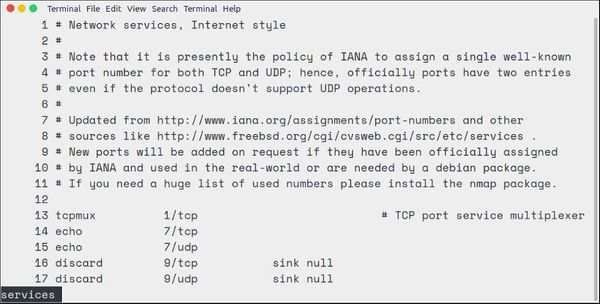
-N: Displays line numbers at the beginning of each line. This is excellent for debugging or referencing specific lines.-S: Chops long lines instead of wrapping them. This prevents horizontal scrolling and improves readability for wide output.-i: Performs case-insensitive searches by default. This saves you from repeatedly adding the-iflag during searches.
These options provide fine-grained control over how less presents information. Consequently, you can adapt it to suit almost any viewing requirement. Remember to consult the man less page for a complete list of options.
Leveraging Environment Variables (`LESS`, `LESSOPEN`, `LESSCLOSE`)
For persistent customization, less supports several environment variables. These variables allow you to set default options without typing them every time. This approach ensures consistent behavior across all your less sessions. Therefore, it’s a great way to personalize your command-line environment.
Key environment variables include:
LESS: Sets default command-line options. For example,export LESS="-iN"will always enable case-insensitive search and line numbers.LESSOPENandLESSCLOSE: These variables define commands to preprocess files before opening and after closing. They are incredibly powerful for viewing compressed files seamlessly.
By configuring these variables, you can automate common tasks and preferences. This makes your interaction with less even more efficient. It is a powerful aspect of how to use the less command in Linux effectively.
Viewing Multiple Files and Directories with `less`
The less command can also handle multiple files simultaneously. This feature is incredibly useful when comparing different versions of a file or reviewing a series of related documents. You can easily switch between files without exiting the pager. This capability streamlines multi-file workflows.
To open multiple files, simply list them after the less command: less file1.txt file2.txt file3.txt. Once inside less, use :n to move to the next file and :p to move to the previous file. You can also view the contents of a directory by piping ls output into less, like ls -F | less. This allows for quick browsing of directory structures.
Practical Applications of the `less` Command in Linux
The utility of less extends far beyond simple file viewing. Its robust features make it invaluable for various practical tasks in a Linux environment. From system administration to development, knowing how to use the less command in Linux effectively can solve many common challenges. These applications highlight its versatility and power.
Analyzing Log Files and System Output in Real-Time
One of the most common and critical uses of less is for analyzing log files. System logs can grow very large, making direct viewing difficult. However, less handles these files with ease. You can open a log file and search for specific events or errors. This is essential for troubleshooting system issues.
Furthermore, less has a special mode for viewing files that are actively being written to. By pressing F (Shift+f) while in less, it will continuously display new data as it’s appended to the file. This “follow” mode is perfect for monitoring live system logs. It provides real-time insights into system behavior.
Pipelining `less` with Other Commands (e.g., `ps`, `ls`, `grep`)
The true power of less often comes from its integration with other command-line tools. By pipelining the output of other commands into less, you can manage extensive data streams. This technique is fundamental to efficient command-line operations. It allows you to process and then comfortably view large amounts of information.
Consider these practical examples:
ps aux | less: View a paginated list of all running processes.ls -lR / | less: Browse a recursive listing of the entire file system.grep -r "error" /var/log | less: Search for “error” in all log files and view the results page by page.
These combinations demonstrate how less acts as a powerful final stage for many command-line pipelines. It ensures that even complex outputs remain readable and navigable. This is a core aspect of how to use the less command in Linux for advanced tasks.
Viewing Compressed Files and Archives
Surprisingly, less can also be configured to view the contents of compressed files without explicitly decompressing them. This capability saves disk space and time. It’s particularly useful when you need to quickly inspect a file within a .gz or .zip archive. This seamless integration is achieved through the LESSOPEN environment variable.
For example, if LESSOPEN is set correctly (often by default in modern Linux distributions), you can simply type less file.txt.gz. The system automatically decompresses the file on the fly and pipes its content to less. This feature makes working with compressed data as easy as working with plain text files. For more details on this, you can refer to the official GNU Less Manual.
Tips, Tricks, and Troubleshooting for `less` Users
Becoming proficient with less involves more than just knowing the basic commands. There are several tips and tricks that can further enhance your experience. Additionally, understanding common issues and their solutions can save you time. This section aims to provide insights for both new and experienced users. It will help you truly master how to use the less command in Linux.
Handling Extremely Large Files Efficiently
While less is designed for large files, extremely massive ones (gigabytes in size) can still present challenges. However, certain strategies can improve performance. For instance, avoid searching for very common, short strings across the entire file. This can be resource-intensive.
Consider piping only a portion of the file to less if you know the approximate location. Commands like head or tail combined with less can be very effective. For example, tail -n 10000 large_log.txt | less will only load the last 10,000 lines. This significantly reduces the data less needs to process, making it faster.
Understanding the `less` Status Bar and Prompts
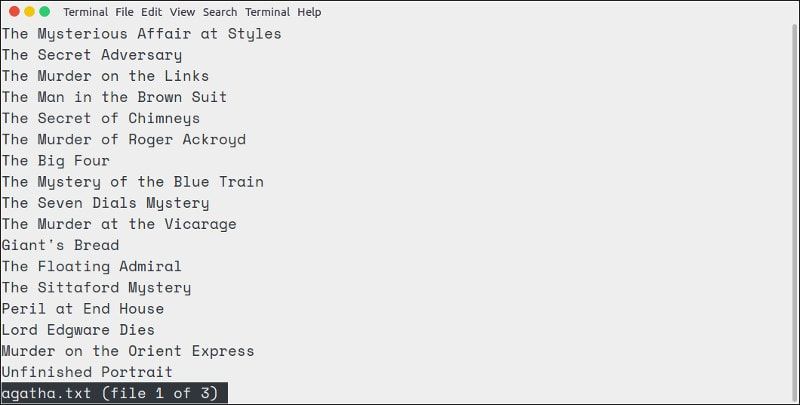
The status bar at the bottom of the less screen provides valuable information. It typically shows the filename and your current position within the file (as a percentage). This visual feedback helps you stay oriented. It also displays search prompts and error messages.
When you type a search command (/ or ?), the prompt appears on this line. Similarly, when you use commands like :n or :p for multiple files, the status bar indicates the current file. Paying attention to this area helps you understand less‘s current state and respond appropriately. It is a vital part of how to use the less command in Linux effectively.
A Quick Reference for Keybindings and Commands
Memorizing all less commands can be daunting initially. However, a quick reference can be incredibly helpful. Keep a list of the most frequently used keybindings handy. This will accelerate your learning process. Over time, these commands will become second nature.
Here’s a summary of essential commands:
Space/f: Next pageb: Previous pageg: Go to beginningG: Go to end/pattern: Search forward?pattern: Search backwardn/N: Next/previous search matchq: Quit
For a complete list, always refer to the man less page in your terminal. This comprehensive manual details every option and keybinding available. It is an invaluable resource for advanced usage.
Frequently Asked Questions about the `less` Command
What are the key differences between `less` and `more`?
The primary difference is that less allows you to scroll both forward and backward through a file, while more only allows forward movement. Additionally, less starts faster with large files because it doesn’t read the entire file into memory. It also offers more powerful search capabilities and can handle multiple files, making it generally more versatile and preferred.
How do I open a file directly at the end in `less`?
To open a file directly at its end, use the +G option with the less command. For example, less +G my_log_file.log will immediately display the last page of the file. This is particularly useful for quickly checking the latest entries in a log file. You can then scroll up to view older content.
Can `less` be used to modify file content?
No, less is strictly a file viewer and cannot be used to modify file content. Its purpose is to display text, not to edit it. If you need to make changes to a file, you should use a text editor like vi, nano, or emacs. less prioritizes safe, read-only inspection of files.
Conclusion: Mastering the `less` Command for Linux Productivity
In conclusion, understanding how to use the less command in Linux is an essential skill for anyone working in a command-line environment. Its superior navigation, powerful search features, and efficient handling of large files make it an indispensable tool. From basic file viewing to advanced log analysis, less offers unparalleled flexibility. It significantly enhances productivity and streamlines many common tasks.
We have covered its basic syntax, advanced navigation, customization options, and practical applications. By integrating less into your daily workflow, you will find yourself navigating files with greater ease and efficiency. Therefore, continue practicing these commands and exploring its full potential. Embrace the power of less to truly master your Linux command line experience.
