
Transferring files between computers securely is a fundamental task for system administrators and developers alike. Learning how to use SCP command to securely transfer files is essential for maintaining data integrity and confidentiality. This guide will walk you through the SCP (Secure Copy Protocol) command, providing practical examples and best practices. You will discover how to move files efficiently and safely across networks, ensuring your data remains protected.
Introduction to Secure File Transfers with SCP
The Secure Copy Protocol (SCP) is a network protocol that facilitates the secure transfer of computer files between a local host and a remote host, or between two remote hosts. It utilizes the Secure Shell (SSH) protocol for data transfer and authentication. Consequently, SCP benefits from the robust encryption and authentication mechanisms of SSH, making it a highly secure choice for file operations.
SCP is widely available on Unix-like operating systems, including Linux and macOS. It is a command-line utility, meaning users interact with it via a terminal. Understanding its syntax and various options allows for powerful and flexible file management. Furthermore, its simplicity and security make it a preferred tool for many professionals.
What is SCP and Why Use It?
SCP is essentially a file transfer program that operates over SSH. It provides a secure method to copy files and directories. Therefore, any data transferred via SCP is encrypted, preventing eavesdropping and unauthorized access. This security aspect is paramount when dealing with sensitive information or transferring files over untrusted networks.
Moreover, SCP is known for its speed and efficiency. It is often faster than other secure transfer protocols for simple file copies, especially when transferring large files. Its command-line nature also allows for easy scripting and automation of file transfer tasks. For these reasons, many prefer to use SCP for secure data movement.
Basic-scp-command-syntax">Understanding the Basic SCP Command Syntax
To effectively use SCP, understanding its fundamental syntax is crucial. The command follows a logical structure that specifies the source and destination of your files. This structure allows for clear and precise instructions for file transfers. Mastering this basic syntax is the first step in learning how to use SCP command to securely transfer files.
General Structure: `scp [OPTIONS] [SOURCE] [DESTINATION]`
The basic SCP command structure is straightforward. You specify any desired options, followed by the path to the source file or directory, and then the path to the destination. Both source and destination paths can be local or remote. The remote paths typically include a username and hostname.
For instance, a common format for a remote path is `user@host:path/to/file`. This clearly indicates which user on which server owns the file. Understanding this format is key to successful remote transfers. You can find more details on SSH syntax variations.
Specifying Local and Remote Paths
When specifying paths, local files are simply referenced by their path on your current machine. Remote files, however, require additional information. You must include the username and hostname of the remote server. For example, `scp /local/path/file.txt [email protected]:/remote/path/` would copy a local file to a remote server.
Conversely, to copy from a remote server to your local machine, the remote path comes first. For instance, `scp [email protected]:/remote/path/file.txt /local/path/` achieves this. Always ensure correct syntax to avoid errors. This distinction is vital for accurate file transfers.
Key Options and Flags for SCP
SCP offers several useful options to modify its behavior. These flags enhance functionality and control over the transfer process. Understanding them allows for more flexible and powerful file operations. Here are some commonly used options:
-r: Recursively copy entire directories. This is essential for transferring folders.-P port: Specifies the remote host’s port number for SSH. Use this if SSH is not on the default port 22.-p: Preserves modification times, access times, and modes from the original file. This maintains file metadata.-q: Suppresses the progress meter and non-error messages. This is useful for scripting.-v: Verbose mode, which prints debugging messages. This helps in troubleshooting connection issues.
How to Use SCP Command to Securely Transfer Files: Practical Examples
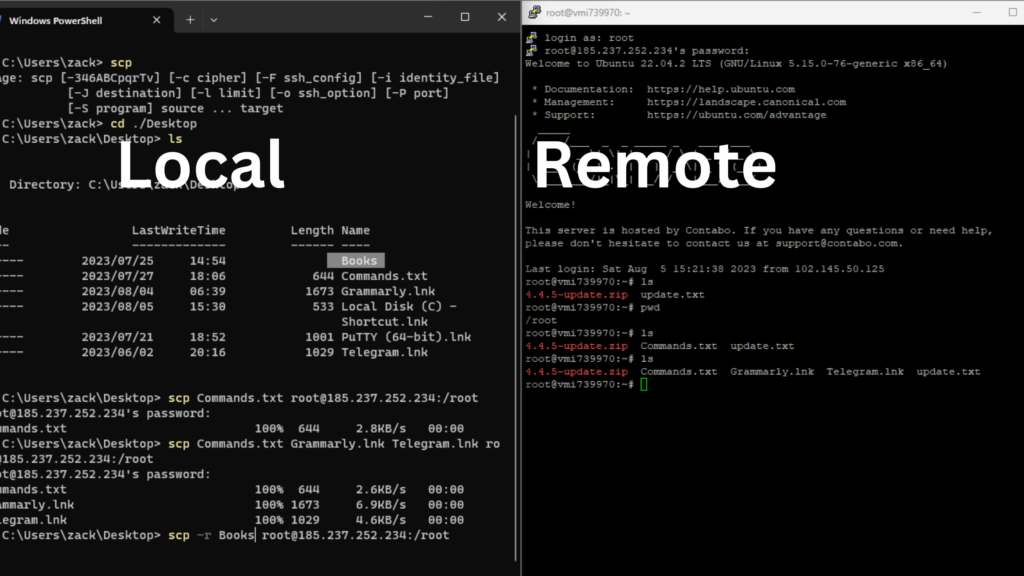
Let’s dive into practical scenarios to demonstrate how to use SCP command to securely transfer files. These examples cover the most common use cases. Following these steps will help you gain confidence in using SCP for your daily tasks. Always double-check your paths before executing commands.
Transferring a File from Local to Remote Server
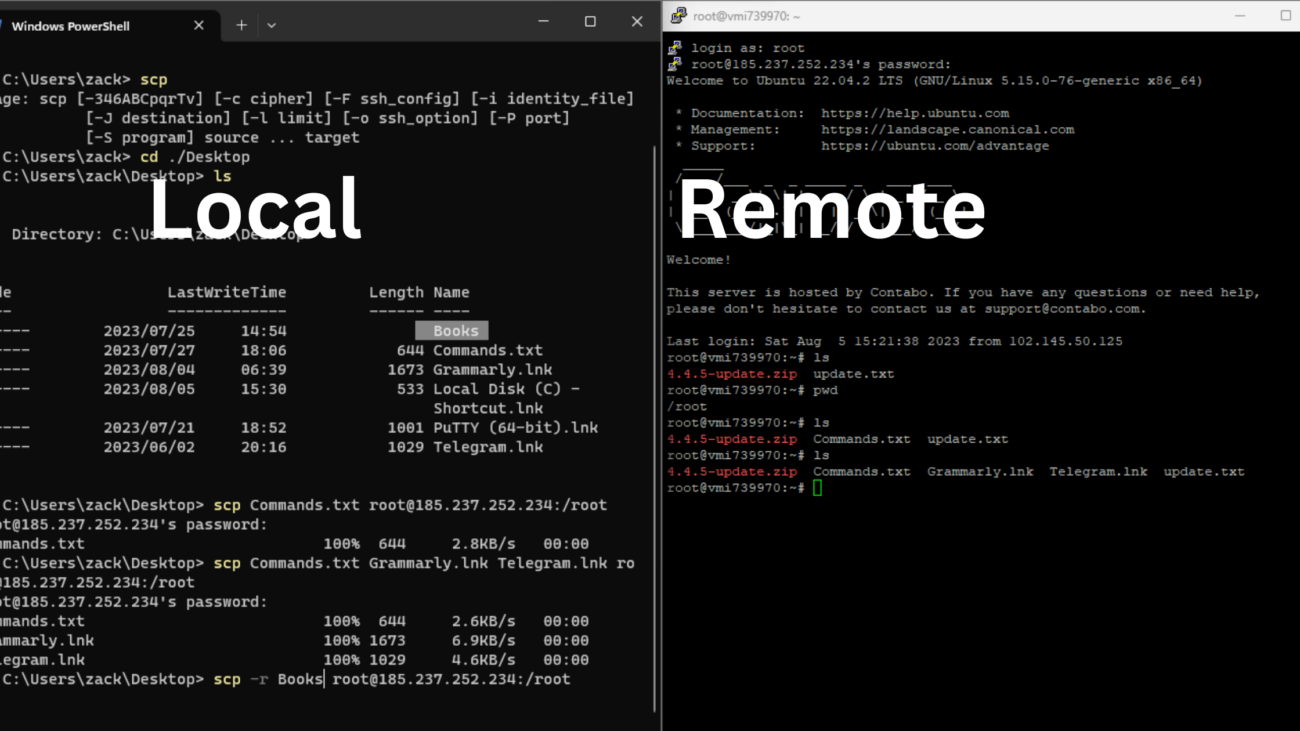
To copy a single file from your local machine to a remote server, use the following command structure. You will need the remote username, hostname, and the destination path. The system will prompt you for the remote user’s password.
scp /path/to/local/file.txt username@remote_host:/path/to/remote/directory/For example, to send `document.pdf` from your current directory to the `/home/user/documents/` folder on `server.example.com` as `john`, you would type: `scp document.pdf [email protected]:/home/john/documents/`. This command initiates the secure transfer. The file will then be safely moved to the specified remote location.
Copying a File from Remote Server to Local Machine
Conversely, to retrieve a file from a remote server to your local machine, simply reverse the source and destination. The remote file path becomes the source, and your local path becomes the destination. This is incredibly useful for downloading logs or configuration files.
scp username@remote_host:/path/to/remote/file.txt /path/to/local/directory/For example, to download `log.txt` from `/var/log/` on `server.example.com` to your current local directory, you would use: `scp [email protected]:/var/log/log.txt .` (the dot `.` signifies the current directory). This action securely pulls the file to your local system.
Securely Transferring Entire Directories with SCP
Transferring an entire directory, including all its subdirectories and files, requires the recursive option (`-r`). This flag tells SCP to copy the contents of the directory. It is an indispensable feature for migrating projects or backups.
scp -r /path/to/local/directory username@remote_host:/path/to/remote/destination/For instance, to copy your entire `my_project` folder to the remote server’s `/var/www/` directory, you would execute: `scp -r my_project/ [email protected]:/var/www/`. Remember the trailing slash on the source directory is optional, but it’s good practice to include it if you want the directory itself copied. This ensures all nested files are included.
Using SCP with a Non-Standard SSH Port
Sometimes, SSH services run on a port other than the default port 22 for security reasons. In such cases, you must specify the port number using the `-P` option. This ensures SCP connects to the correct service. Always verify the port if you encounter connection issues.
scp -P 2222 /path/to/local/file.txt username@remote_host:/path/to/remote/directory/If your remote server uses port 2222 for SSH, to transfer a file, you would type: `scp -P 2222 local_file.txt [email protected]:/remote/path/`. This command explicitly directs SCP to use port 2222 for the connection. Without this, the transfer would fail.
Advanced SCP Techniques and Best Practices for Secure Transfers
Beyond basic file transfers, SCP offers advanced features and best practices that further enhance security and efficiency. Implementing these techniques can streamline your workflow. They also provide additional layers of protection for your data. Consider these methods to optimize your secure file transfers.
Authenticating with SSH Keys for Passwordless SCP
Using SSH keys for authentication is a superior and more secure alternative to passwords. It eliminates the need to type a password for every transfer. This method involves generating a public/private key pair and placing the public key on the remote server. Consequently, SCP can authenticate without manual password entry.
First, generate your SSH key pair using `ssh-keygen`. Then, copy your public key to the remote server using `ssh-copy-id username@remote_host`. Once configured, SCP commands will execute without prompting for a password. This significantly improves automation and security. You can learn more about SSH keys on SSH.com.
Limiting Bandwidth During SCP Operations
For large file transfers, SCP can consume significant network bandwidth, potentially impacting other services. The `-l` option allows you to limit the bandwidth used by SCP. This is particularly useful in shared network environments. You specify the limit in kilobits per second.
scp -l 800 -r large_directory/ user@remote_host:/destination/For example, `scp -l 800 large_file.zip user@remote_host:/destination/` would limit the transfer to 800 kilobits per second. This prevents SCP from monopolizing your network connection. Adjust the value based on your available bandwidth and needs. It helps maintain network stability.
Enhancing Security: Permissions and Ownership
After transferring files, it’s crucial to ensure they have the correct permissions and ownership on the remote server. Incorrect permissions can expose sensitive data or prevent legitimate access. Always verify these settings post-transfer. The `-p` option helps preserve original permissions.
However, you might need to adjust them manually using `chmod` and `chown` commands on the remote server. For instance, `chmod 644 /path/to/file.txt` sets read/write for owner and read-only for others. This is a critical step for maintaining security. Always apply the principle of least privilege.
Troubleshooting Common Issues When Using SCP Command
Even with careful planning, you might encounter issues when using SCP. Knowing how to troubleshoot these common problems saves time and frustration. Many errors stem from incorrect paths, permissions, or network configurations. Here are some frequent challenges and their solutions.
Resolving “Permission Denied” Errors
A “Permission denied” error typically indicates one of two things. Either the user you are connecting as does not have read/write permissions on the source/destination path, or there’s an issue with SSH key authentication. First, verify the user’s permissions on both ends. Ensure the remote user has write access to the destination directory.
Additionally, check your SSH key permissions (`chmod 600 ~/.ssh/id_rsa`). If using passwords, ensure you’re entering the correct one. The `ssh -v username@remote_host` command can provide verbose output to diagnose SSH authentication issues. This detailed output often reveals the root cause.
Addressing “Connection Refused” and Network Issues
“Connection refused” usually points to a problem with the remote SSH server or network connectivity. First, ensure the remote server is online and reachable. You can test this with `ping remote_host`.
Next, verify that the SSH daemon is running on the remote server. Also, check if a firewall is blocking the connection, either on your local machine or the remote server. Remember to use the `-P` option if the remote SSH server uses a non-standard port. These steps often resolve network-related problems quickly.
Dealing with “No such file or directory” Errors
This error means that SCP cannot find the specified source file or destination directory. Carefully recheck the paths you provided in the command. Ensure there are no typos and that the file/directory actually exists at that location. Remember that paths are case-sensitive on Linux systems.
If transferring to a remote host, ensure the destination directory exists before attempting the transfer. You might need to create it first using `ssh username@remote_host ‘mkdir -p /path/to/new/directory’`. Always verify both source and destination paths for accuracy. This simple check prevents many common errors.
Frequently Asked Questions
Is SCP truly secure for sensitive data?
Yes, SCP is considered highly secure for sensitive data transfers because it relies on the SSH protocol. SSH encrypts all data transmitted, including passwords, commands, and the files themselves. This encryption prevents eavesdropping and tampering during transit. However, the overall security also depends on strong passwords or SSH keys and proper server configuration. Always use best practices for SSH security.
What are the alternatives to SCP (SFTP, Rsync)?
While SCP is excellent for simple file transfers, other tools offer different advantages. SFTP (SSH File Transfer Protocol) is another secure option, providing more robust file management capabilities like listing directories, resuming interrupted transfers, and deleting remote files. Rsync is highly efficient for synchronizing files and directories, especially when only small changes have occurred, as it only transfers the differences. Each tool has its specific strengths, so choose based on your needs.
Can I transfer multiple files simultaneously with SCP?
Yes, you can transfer multiple files simultaneously with SCP. You can specify multiple source files in a single command, provided they are all going to the same destination directory. For example: `scp file1.txt file2.pdf username@remote_host:/path/to/remote/directory/`. To transfer multiple files from a remote host, you can use wildcards (e.g., `*.log`) or list them explicitly. This makes SCP very versatile for batch operations.
Conclusion: Mastering Secure File Transfers with SCP
Understanding how to use SCP command to securely transfer files is an invaluable skill in today’s interconnected world. You have learned the basic syntax, explored practical examples, and discovered advanced techniques. SCP provides a robust and secure method for moving data between systems. Its reliance on SSH ensures that your sensitive information remains protected during transit.
By implementing best practices like SSH key authentication and proper permission management, you can further enhance your file transfer security. We encourage you to practice these commands and explore SCP’s full potential. Continue to refine your skills to ensure efficient and secure data handling in all your operations. Share your favorite SCP tips in the comments below!
