
Learning How to Use Nano, the Linux Command Line Text Editor is a fundamental skill for anyone working within a Linux environment. This user-friendly editor offers a straightforward approach to file manipulation directly from your terminal. Understanding Nano allows you to quickly edit configuration files, write scripts, or simply view text documents without leaving the command line. Therefore, mastering its Basic commands and features significantly boosts your productivity.
Mastering Nano: How to Use Nano, the Linux Command Line Text Editor
Nano stands out as an accessible and intuitive text editor for the Linux command line. Unlike more complex editors, Nano prioritizes ease of use, making it perfect for Beginners. Furthermore, its simple interface displays common commands at the bottom of the screen, reducing the learning curve. This makes Nano an excellent choice for quick edits and everyday tasks.
What is Nano and Why Use It?
Nano is a small, free, and friendly text editor for Unix-like operating systems. It was designed to emulate the popular Pico editor, providing a simpler alternative to powerful but steeper-learning-curve editors like Vim or Emacs. Consequently, its primary appeal lies in its simplicity and directness. Many users prefer Nano for its minimal overhead and clear, uncluttered interface.
There are several compelling reasons to choose Nano for your text editing needs. For instance, it is almost universally pre-installed on most Linux distributions, ensuring immediate availability. Additionally, its intuitive keyboard shortcuts are easy to remember, especially with the on-screen help. Thus, Nano is ideal for system administrators, developers, and casual users alike who need to make quick changes.
Brief History and Philosophy of Nano
Nano originated in 1999 as a free software replacement for Pico, which was part of the Pine email client. Chris Allegretta developed it with the goal of providing a simple, open-source editor that anyone could use without extensive training. The GNU Project later adopted Nano, solidifying its place in the open-source community. Its philosophy centers on user-friendliness and efficiency for common text editing tasks.
The name “Nano” itself is a recursive acronym for “Nano’s ANOther editor.” This playful naming reflects its humble yet effective design. Over the years, Nano has received continuous updates, enhancing its features while retaining its core simplicity. It remains a testament to the power of straightforward design in complex environments.
Getting Started with Nano: How to Use Nano, the Linux Command Line Text Editor
Beginning your journey with Nano is incredibly simple, often requiring no installation at all. However, knowing the basic commands for opening, editing, and saving files is crucial. These foundational steps will allow you to confidently navigate and modify text documents. Therefore, understanding these initial commands is key to effective use.
Installing Nano on Various Linux Distributions
Nano is usually pre-installed on most modern Linux distributions. However, if it’s missing, installation is straightforward. You can easily install Nano using your distribution’s package manager. This ensures you have the latest version readily available.
- Debian/Ubuntu: Open your terminal and type
sudo apt update && sudo apt install nano. - Fedora: Use the command
sudo dnf install nano. - Arch Linux: Install with
sudo pacman -S nano.
These commands will quickly add Nano to your system, allowing you to start editing immediately. Always ensure your package lists are updated before installing new software. This prevents potential dependency issues.
Opening and Creating Files with Nano
To open an existing file or create a new one, simply type nano followed by the filename in your terminal. For example, nano myfile.txt will either open ‘myfile.txt’ if it exists or create it if it doesn’t. You will then see the Nano interface, ready for your input.
When creating a new file, Nano will display an empty buffer. You can start typing immediately to add content. Conversely, when opening an existing file, its contents will be displayed for editing. This direct approach makes file management very efficient.
Saving Changes and Exiting Nano
Saving your work and exiting Nano involves using specific keyboard shortcuts. These commands are conveniently displayed at the bottom of the Nano interface. Learning these few combinations is essential for managing your files effectively.
- Press
Ctrl + O(Write Out) to save your current changes. Nano will prompt you to confirm the filename; pressEnterto accept. - After saving, press
Ctrl + X(Exit) to close Nano and return to your command line. - If you try to exit without saving, Nano will ask if you want to save the modified buffer. Press
Yfor Yes,Nfor No, orCtrl + Cto cancel.
These simple steps ensure your modifications are preserved before you leave the editor. Always remember to save regularly to prevent data loss. This is a crucial habit for any text editor user.
Navigating and Editing Files in Nano
Once inside Nano, efficient navigation and editing are paramount for productivity. Understanding how to move the cursor, select text, and perform basic editing operations will streamline your workflow. Nano provides intuitive shortcuts for these common tasks.
Basic Cursor Movement and Scrolling
Moving around a document in Nano is straightforward, primarily using the arrow keys. You can move character by character, line by line, or even jump by words. Furthermore, scrolling through larger files is also simple.
- Arrow Keys: Move the cursor up, down, left, or right.
- Ctrl + A: Move to the beginning of the current line.
- Ctrl + E: Move to the end of the current line.
- Ctrl + V (Page Down): Scroll down one screen.
- Ctrl + Y (Page Up): Scroll up one screen.
These shortcuts allow for quick and precise cursor placement. Therefore, practicing these movements will significantly speed up your editing process. Efficient navigation is a cornerstone of effective text editing.

Selecting, Copying, Cutting, and Pasting Text
Nano provides a simple method for selecting blocks of text, often referred to as “marking.” Once marked, you can easily copy, cut, or paste the selected content. This functionality is vital for reorganizing text within your files.
- Ctrl + Shift + 6 (or Alt + A): Start marking text. Move the cursor with arrow keys to select.
- Alt + 6 (or Ctrl + K after marking): Copy the marked text to the clipboard.
- Ctrl + K: Cut the current line or marked text.
- Ctrl + U: Paste text from the clipboard at the cursor’s position.
These commands are incredibly useful for moving paragraphs or snippets of code. Practicing these combinations will make you much more efficient. Consequently, your ability to manipulate text will greatly improve.
Undoing and Redoing Actions
Mistakes happen, and Nano offers a convenient way to revert or reapply changes. The undo and redo features are essential safety nets during the editing process. They allow you to experiment with confidence, knowing you can always go back.
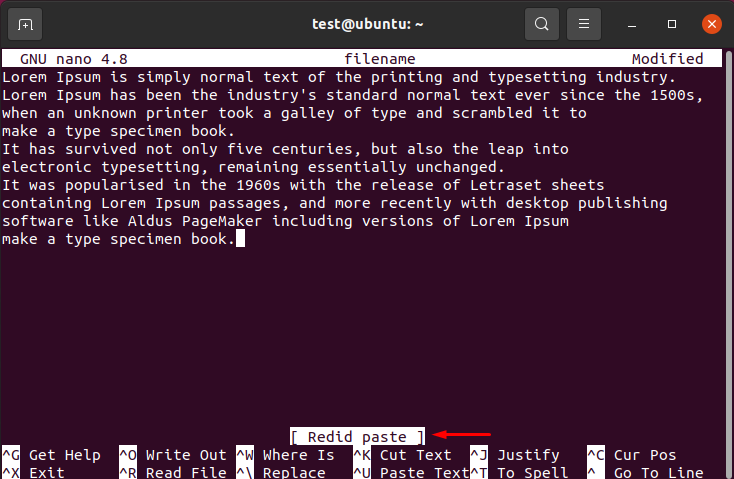
To undo your last action, press Alt + U. If you’ve undone too much, you can reapply the undone action by pressing Alt + E (Redo). These commands provide flexibility and reduce the stress of making errors. Therefore, always remember these shortcuts for a smoother editing experience.
Advanced Nano Features for Efficient Editing
Beyond basic editing, Nano offers several powerful features that enhance productivity. These tools allow for more complex operations, such as finding specific text or checking spelling. Leveraging these advanced capabilities can greatly improve your efficiency when you use Nano, the Linux command line text editor.
Searching and Replacing Text
Finding and replacing text is a common task in any editor, and Nano handles it effectively. This feature is particularly useful for making global changes or locating specific phrases. It saves considerable time compared to manual searching.
- Ctrl + W (Where Is): Initiates a search. Type your search term and press
Enter. - Alt + W: Find the next occurrence of the search term.
- Alt + R: Initiates a search and replace operation. Nano will prompt for the search string, then the replacement string. It will then ask for confirmation for each instance or to replace all.
These search and replace functions are invaluable for large files or repetitive edits. They provide precision and speed for text manipulation. Furthermore, they are intuitive to use, even for new users.
Spell Checking and Syntax Highlighting
Nano can assist with proofreading and code readability. Its integrated spell checker helps catch typos, while syntax highlighting improves the visual organization of code. These features contribute to producing cleaner, more professional content.
To perform a spell check, press Ctrl + T. Nano will highlight misspelled words and suggest corrections. Additionally, Nano automatically applies syntax highlighting for many file types, such as shell scripts or Python code. This visual aid makes code easier to read and debug, especially when you use Nano, the Linux command line text editor for programming tasks. You can often enable or disable these features through the .nanorc configuration file.
Working with Multiple Buffers and Files
While Nano is known for its simplicity, it also supports working with multiple files simultaneously, albeit in a more basic way than some other editors. This capability allows you to switch between different open documents. This can be very useful for cross-referencing or copying content between files.
You can open multiple files by listing them when you start Nano, e.g., nano file1.txt file2.txt. Then, use Alt + > and Alt + < to cycle through the open buffers. This feature, while not as robust as tabbed editing, still offers a practical way to manage several documents. It enhances your ability to use Nano, the Linux command line text editor for more complex projects.
Customizing Nano: Configuration and Preferences
Nano's default settings are suitable for most users, but you can tailor its behavior to better suit your preferences. Customization allows you to enable or disable features, change key bindings, and modify its appearance. This personalization can significantly enhance your editing experience.
Understanding the .nanorc Configuration File
Nano's configuration is managed through a file named .nanorc, typically located in your home directory (~/.nanorc). This plain text file contains various directives that control Nano's behavior. If it doesn't exist, you can simply create it. Editing this file is how you personalize your Nano experience.
Each line in .nanorc represents a specific setting or command. For example, you can enable line numbers or set default syntax highlighting. After making changes to .nanorc, save the file and restart Nano for the new settings
