
Navigating text editors effectively is crucial for productivity, especially for developers and system administrators. Understanding how to undo and redo in Vim / Vi can significantly enhance your workflow. This guide provides a comprehensive overview of Vim’s powerful history management, ensuring you can revert errors or reapply changes with ease. We will delve into the fundamental commands and advanced techniques, making your editing sessions more efficient and less stressful.
Introduction to Vim’s Undo and Redo Capabilities
Vim, a highly configurable text editor, offers robust undo and redo functionalities. These features are essential for any editing task, allowing users to correct mistakes without losing significant progress. Unlike simpler editors, Vim maintains a sophisticated undo tree, which provides granular control over your editing history. Therefore, mastering these commands is a cornerstone of efficient Vim usage.
The ability to undo and redo changes is not just about fixing errors; it is also about exploring different editing paths. You can experiment with various modifications, knowing that you can always revert to a previous state. This flexibility empowers users to be more creative and less hesitant during complex coding or Configuration tasks. Furthermore, Vim’s history management goes beyond simple linear undo, offering a powerful way to navigate through your edits.
The Fundamentals of Undo in Vim / Vi
Vim’s undo system is more advanced than many users realize. It allows you to step back through every change made to a file. This capability is vital for maintaining accuracy and recovering from accidental deletions or modifications. Understanding the basics of undo is the first step towards truly mastering Vim.
Why Undo is Crucial for Efficient Editing
Undo functionality serves as a safety net, protecting your work from unintended alterations. Imagine accidentally deleting a crucial line of code; without undo, you would have to retype it, wasting valuable time. Consequently, undo commands save countless hours and prevent frustration. They allow for a fluid editing experience, where mistakes are merely temporary.
Moreover, undo helps in refactoring and experimentation. You can try out different approaches to a problem, knowing that you can easily revert if a particular change doesn’t work. This iterative process is fundamental to effective development. Therefore, a solid grasp of how to undo and redo in Vim / Vi is indispensable for any serious user.
Vim’s Undo Tree Explained: A Visual Analogy
Vim doesn’t just have a linear undo history; it uses an “undo tree.” Think of it like a version control system for your current buffer. Every time you make a change, a new branch might be created if you’ve already undone something and then made a new change. This tree structure allows you to revisit any previous state of the file, not just the most recent linear path.
This non-linear history is incredibly powerful. You can undo a series of changes, then make a new change, and still be able to go back to the original “branch” of history. This flexibility is a key differentiator for Vim, setting it apart from simpler text editors. It truly enables a form of “time travel” within your document.
Understanding Normal Mode vs. Insert Mode Undo
Vim operates in different modes, and these modes affect how undo commands behave. Most undo operations are performed from Normal mode. When you are in Insert mode, typing characters is considered a single change for undo purposes once you exit Insert mode. For instance, if you type several words in Insert mode and then press <Esc>, pressing u in Normal mode will undo all those words at once.
This distinction is important for predicting how much an undo command will revert. A single `u` command typically undoes the last “change” as defined by Vim, which could be a single character, a word, a line, or even a block of text entered in Insert mode. Always remember to switch back to Normal mode (by pressing <Esc>) before attempting to undo your edits.
Executing Undo Commands in Vim and Vi
The core of managing your editing history lies in knowing the specific commands. Vim offers several ways to undo changes, catering to different scenarios. These commands are simple yet incredibly powerful when used correctly.
Basic-undo-the-u-command-for-reversion">Basic Undo: The ‘u’ Command for Reversion
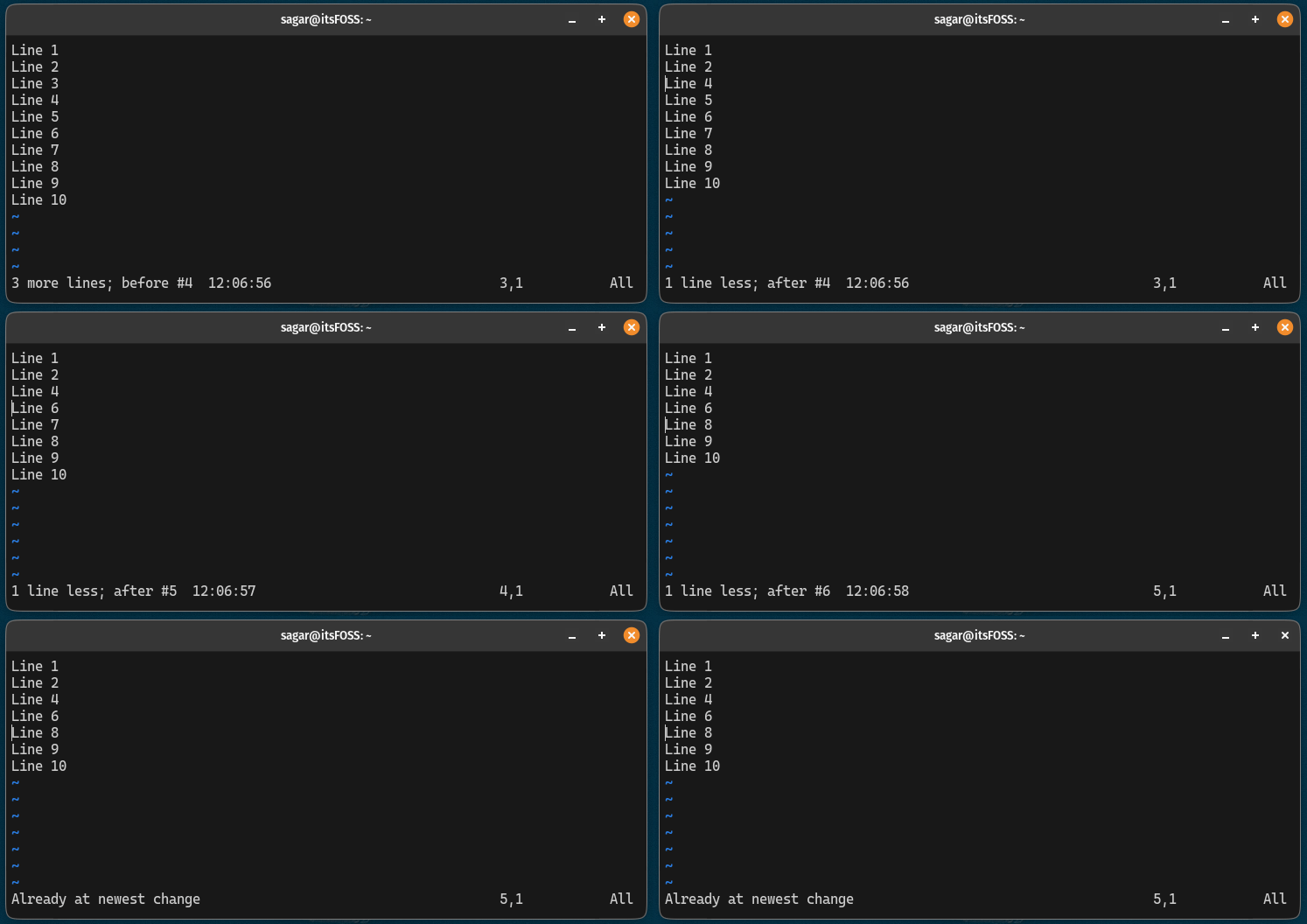
The most fundamental command for undoing changes in Vim is u. When you are in Normal mode, simply pressing u will revert the last change you made. You can press u multiple times to step further back through your editing history. This command is your primary tool for quickly correcting mistakes.
For example, if you delete a line with dd, pressing u will bring that line back. If you then type some text in Insert mode and exit, pressing u again will undo that entire typing session. It’s a straightforward and intuitive way to manage your recent edits.
Undoing a Whole Line: The ‘U’ Command
While u undoes the last change, the capital ‘U’ command (U) has a more specific function. It undoes all the latest changes made on the current line since you moved to it. This can be incredibly useful if you’ve made several modifications to a single line and want to revert them all quickly without affecting other lines.
Consider a scenario where you’ve edited a line extensively, adding, deleting, and changing words. Instead of pressing u multiple times, a single U command will restore the line to its state when you first entered it or last moved your cursor to it. This command offers a quick reset for the current line, streamlining your editing process.
Navigating Through Undo History with ‘g-‘ and ‘g+’
Vim’s undo history isn’t just a simple stack; it’s a tree. You can navigate this tree using g- and g+. The g- command moves you backward in the undo history, similar to u but with more flexibility. Conversely, g+ moves you forward in the undo history, effectively redoing changes.
These commands are particularly useful when you want to explore different versions of your file. You can step through each individual change, seeing how the document evolved. Furthermore, you can prefix these commands with a count, such as 5g- to undo five changes. This granular control over your history is a hallmark of Vim’s power.
Mastering Redo Functionality in Vim / Vi
Just as important as undoing changes is the ability to redo them. Redo allows you to reapply changes that you have previously undone. This is crucial for comparing different versions or restoring edits after an accidental undo.
Basic Redo: Using ‘Ctrl-r’ for Reversion
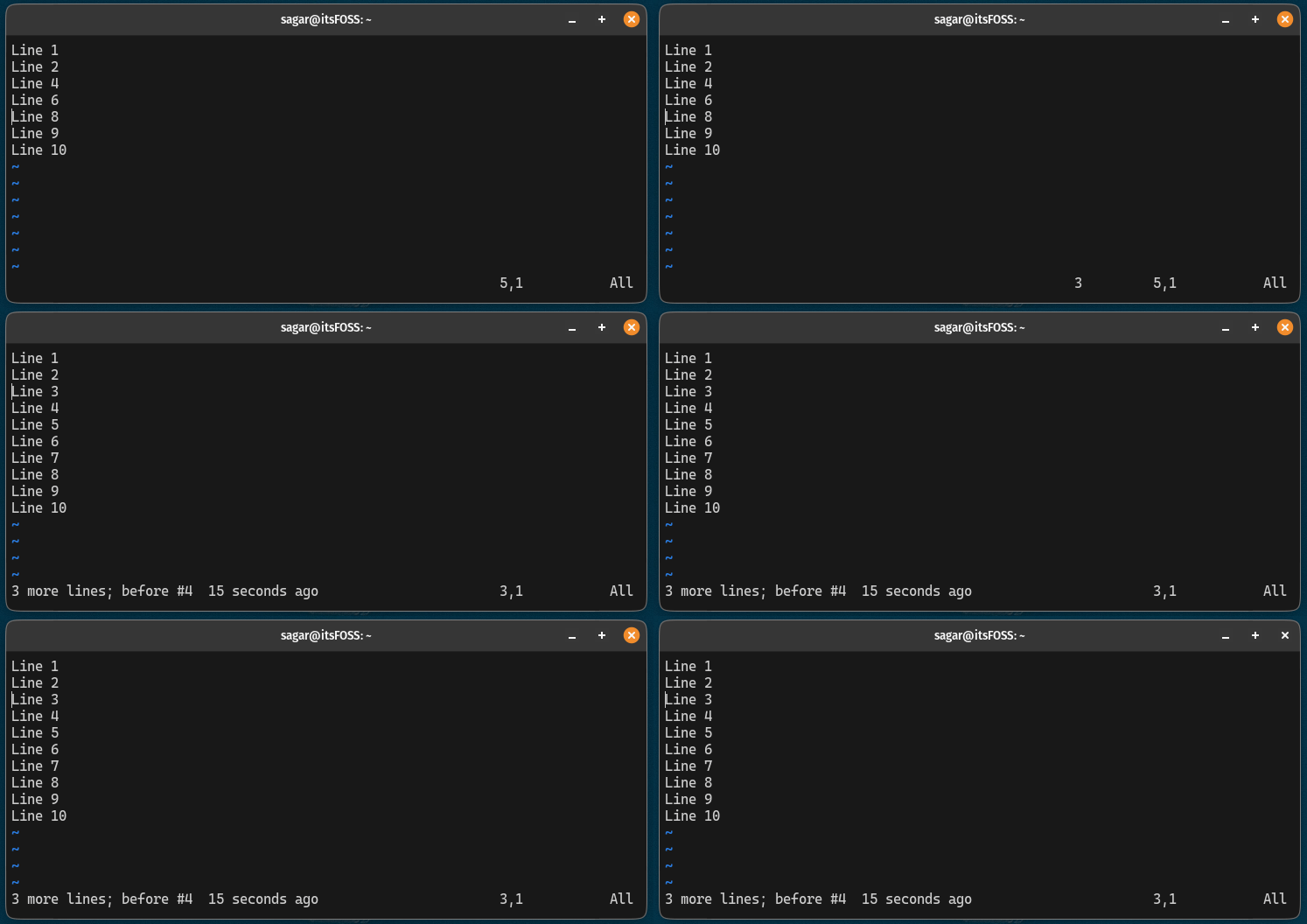
The primary command for redoing changes in Vim is <C-r> (Ctrl-r). After you have undone one or more changes using u, pressing <C-r> will reapply the last undone change. You can press <C-r> multiple times to step forward through your undo history, bringing back changes you previously reverted.
This command works in conjunction with u, forming a powerful pair for navigating your editing history. It allows you to toggle between undone and redone states, giving you full control over your document’s evolution. Therefore, understanding how to undo and redo in Vim / Vi effectively means mastering both u and <C-r>.
Repeating Last Change with the ‘.’ (Dot) Command
The . (dot) command is another powerful tool, though it’s distinct from redo. It repeats the last change you made. For example, if you deleted a word with dw, pressing . will delete the next word. If you inserted text, pressing . will insert the same text again at the current cursor position.
While not strictly a redo command, . is incredibly useful for repetitive tasks. It significantly speeds up editing by allowing you to quickly apply the same modification multiple times. Many Vim users leverage the dot command heavily for its efficiency, making it an essential part of their workflow.
Understanding the Redo Stack and Its Interaction with Undo
When you use u, changes are moved from the undo history to a redo history. When you use <C-r>, changes are moved back from the redo history to the undo history. This interaction is what allows you to seamlessly move back and forth between states. However, if you undo changes and then make a new change, the redo history for that branch is typically cleared.
This behavior is part of Vim’s undo tree. Making a new change after an undo effectively creates a new branch in the tree. This means you might not be able to “redo” changes that were on a different branch. Consequently, it’s important to be mindful of when you introduce new edits after undoing, as it can affect your ability to redo previous actions.
Advanced Undo and Redo Management in Vim
Beyond the basic commands, Vim offers advanced features for managing your undo history. These capabilities provide even greater control, allowing for persistent history and complex navigation.
Persistent Undo: Never Lose Your Changes Across Sessions
By default, Vim’s undo history is lost when you close a file. However, you can enable persistent undo, which saves the undo history to a file on disk. This means you can close Vim, reopen the same file later, and still be able to undo changes made in previous sessions. This feature is incredibly valuable for long-term projects or when you need to revisit older edits.
To enable persistent undo, you typically add a few lines to your .vimrc file. This involves setting an undo directory and enabling the feature. For example: set undofile and set undodir=~/.vim/undodir. This ensures that Vim automatically saves and loads your undo history, making your editing experience truly robust. You can find more details on configuring this feature in the official Vim documentation here.
Exploring the Undo Tree for Specific States
Vim’s undo tree can be visualized and navigated explicitly. The :undolist command shows you a list of all changes and their corresponding change numbers. You can then use the :undo <number> command to jump directly to a specific state in the undo history. This is far more powerful than simply stepping back one change at a time.
Furthermore, plugins like undotree provide a graphical representation of your undo history, making it even easier to visualize and navigate. This allows you to pinpoint exact moments in your editing process and revert to them instantly. Exploring the undo tree is a more advanced aspect of how to undo and redo in Vim / Vi, but it offers unparalleled control.
Branching Undo History and Time Travel with :earlier/:later
The undo tree allows for branching, meaning you can undo, make a new change, and still access the original path. Commands like :earlier <time> and :later <time> allow you to jump to a state based on time. For instance, :earlier 1h will revert your file to its state one hour ago. This is true “time travel” for your document.
You can specify time in seconds, minutes, hours, or days. For example, :earlier 5m will take you back five minutes. This capability is incredibly useful for recovering from significant mistakes or for reviewing the evolution of a file over time. It demonstrates the depth of Vim’s history management system.
Troubleshooting Common Undo/Redo Issues in Vim
While Vim’s undo and redo features are powerful, users sometimes encounter unexpected behavior. Knowing how to diagnose and resolve these issues can save time and frustration, ensuring a smooth editing experience.
When Undo Doesn’t Seem to Work as Expected
Occasionally, users might find that u doesn’t undo what they expect. This often happens if they’ve made a new change after an undo, effectively creating a new branch in the undo tree and potentially clearing the redo history for the previous branch. Always ensure you are in Normal mode before issuing undo commands.
Another common reason is confusion between ‘u’ and ‘U’. Remember that ‘U’ specifically targets the current line. If you’re trying to undo a change on a different line, ‘U’ won’t work as intended. Understanding the nuances of each command is key to avoiding these misunderstandings.
Dealing with Accidental Redos and How to Recover
Accidentally pressing <C-r> can sometimes reapply changes you didn’t intend to keep. The simplest way to recover from an accidental redo is to immediately press u. This will undo the redo action, reverting your file to the state before the accidental redo occurred. This quick recovery mechanism is built into Vim’s history system.
If you’ve performed multiple accidental redos, you can press u multiple times to step back through each one. The key is to act quickly before making any new changes that might alter the undo tree. Being mindful of your commands helps prevent these minor setbacks.
Managing Large Undo Histories and Performance Considerations
For very large files or long editing sessions, the undo history can become substantial. While Vim is highly optimized, an extremely deep undo tree could theoretically impact performance, especially if persistent undo is enabled and saving large files. However, for most users and typical file sizes, this is rarely an issue.
If you do notice performance degradation, you might consider adjusting your undolevels setting in your .vimrc, though this is generally not recommended as it limits your history. A more practical approach is to occasionally save your file and restart Vim if you’ve had an extraordinarily long and complex editing session, which effectively “resets” the current session’s undo history.
Frequently Asked Questions About Vim Undo/Redo
What is the difference between ‘u’ and ‘U’ in Vim?
The ‘u’ command in Vim undoes the last change made, regardless of where the cursor is or what type of change it was. It steps back through the global editing history. In contrast, the ‘U’ command specifically undoes all the latest changes made on the current line since the cursor last moved to it. ‘U’ is a line-specific undo, while ‘u’ is a global, sequential undo.
How do I enable persistent undo in Vim and where is the undo file stored?
To enable persistent undo, add set undofile to your .vimrc file. You can also specify a directory for undo files by adding set undodir=~/.vim/undodir (replace ~/.vim/undodir with your preferred path). Vim will then store undo history in files named after your edited files, typically in the specified undodir, allowing you to undo changes across different Vim sessions.
Can I undo changes made in a previous Vim session?
Yes, you can undo changes made in a previous Vim session, but only if you have enabled persistent undo. With set undofile configured in your .vimrc, Vim saves the undo history to a file. When you reopen the same file, Vim automatically loads this history, allowing you to use u and <C-r> to navigate changes from past editing sessions.
Conclusion: Mastering Undo and Redo in Vim / Vi for Efficient Editing
Understanding how to undo and redo in Vim / Vi is fundamental to becoming a proficient user. From the basic u and <C-r> commands to advanced features like persistent undo and navigating the undo tree, Vim provides unparalleled control over your editing history. These capabilities not only act as a safety net but also empower you to experiment and refactor with confidence.
By integrating these powerful commands into your daily workflow, you will significantly boost your productivity and reduce potential frustration. Continue practicing these techniques to make them second nature. What are your favorite undo/redo tricks in Vim? Share your insights in the comments below!
