
Navigating code or Configuration files in Vim or Vi can be significantly enhanced by understanding how to show line numbers in Vim / Vi. Displaying line numbers helps with debugging, code reviews, and precise navigation within your documents. This comprehensive guide will walk you through various methods to enable, customize, and troubleshoot line number display in your favorite terminal-based text editor. We will cover temporary settings, permanent configurations, and advanced features to optimize your workflow.
Introduction: Understanding Line Numbers in Vim/Vi
Line numbers serve as essential navigational aids for anyone working with text files, especially developers and system administrators. They provide a quick reference point, making it easier to jump to specific lines or discuss code with colleagues. Knowing how to show line numbers in Vim / Vi is a fundamental skill that significantly boosts productivity and accuracy.
What are Line Numbers and Why Are They Useful?
Line numbers are sequential integers displayed alongside each line of text in an editor. They offer a clear, unambiguous way to identify any given line within a file. Their utility spans various tasks, from debugging code by referencing error messages to collaborating on documents. Furthermore, they are crucial for precise editing operations.
- Debugging: Quickly locate error lines reported by compilers or interpreters.
- Navigation: Jump to specific lines using commands like `G` (go to line).
- Collaboration: Easily refer to parts of a document when discussing with others.
- Code Review: Streamline the process of reviewing changes or identifying code blocks.
A Brief History of Vim/Vi and Its Customization
Vim, standing for “Vi IMproved,” is a highly configurable text editor built upon the legacy of Vi. Developed by Bram Moolenaar, Vim offers extensive customization options through its configuration file, `.vimrc`. This powerful extensibility allows users to tailor nearly every aspect of the editor, including the display of line numbers. Understanding its history highlights why such flexibility is central to its design.
Prerequisites: Opening Files in Vim/Vi
Before you can display line numbers, you need to open a file in Vim or Vi. You can achieve this by typing `vim filename.txt` or `vi filename.txt` in your terminal. Once the file is open, you will be in “Normal mode,” which is the default state for executing commands. All line number commands are executed from this mode.
Quickly Display Line Numbers in Vim/Vi (Temporary)
For immediate needs, Vim offers simple commands to display line numbers temporarily. These settings apply only to the current Vim session and will not persist once you close the editor. This method is perfect for quick edits or when you only need line numbers for a brief period. It’s a fundamental step in learning how to show line numbers in Vim / Vi on the fly.
Using the `:set number` Command
The most straightforward way to enable absolute line numbers is by using the `:set number` command. To execute this, first ensure you are in Normal mode. Then, type a colon (`:`) to enter Command-line mode, followed by `set number`, and press Enter. You will immediately see line numbers appear on the left side of your buffer.
Using the `:set nu` Shorthand
Vim provides a convenient shorthand for many commands, and `:set number` is no exception. You can simply type `:set nu` in Command-line mode and press Enter to achieve the same result. This abbreviated command is widely used for its efficiency. Therefore, many Vim users prefer `:set nu` for quick activation.
Understanding the Scope of Temporary Settings
It is important to remember that commands like `:set number` only affect the current Vim session. If you close Vim and reopen the same file, the line numbers will disappear. This temporary nature is useful for specific tasks but requires a different approach for permanent display. Consequently, for persistent line numbers, you will need to modify your configuration file.
Making Line Numbers Permanent in Vim/Vi with .vimrc
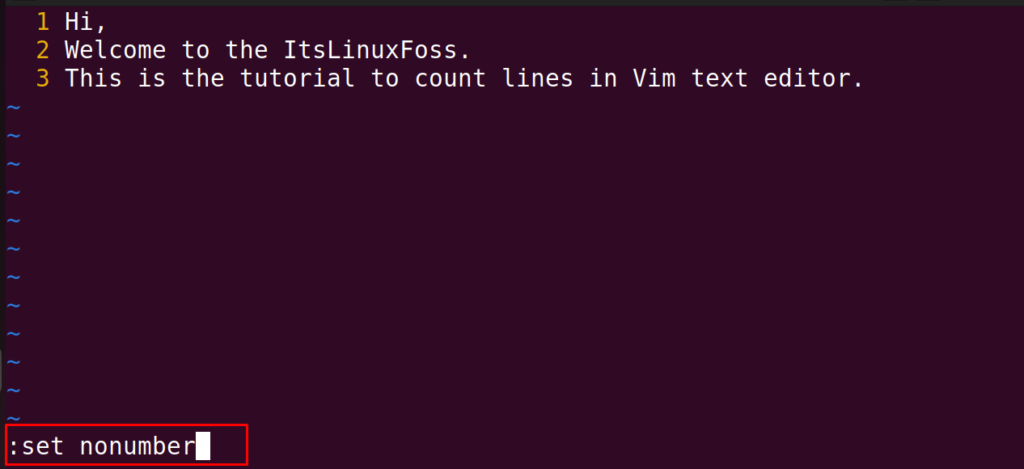
To ensure line numbers are always visible whenever you open Vim, you need to configure your `.vimrc` file. This file acts as Vim’s personal configuration script, executing commands every time Vim starts. Learning to modify `.vimrc` is crucial for anyone wanting to master how to show line numbers in Vim / Vi persistently.
Locating and Creating Your `.vimrc` File
Your `.vimrc` file is typically located in your home directory (`~/.vimrc`). If it doesn’t exist, you can simply create it using Vim itself: `vim ~/.vimrc`. This file is where you store all your personalized Vim settings. Furthermore, it allows for consistent behavior across all your editing sessions.
Adding `set number` to `.vimrc` for Persistent Display
To make line numbers permanent, open your `.vimrc` file and add the line `set number` to it. Save the file by typing `:w` and then exit Vim with `:q`. From now on, every time you open Vim, line numbers will be displayed automatically. This simple addition significantly enhances your default editing environment.
" .vimrc example
set number
Applying Changes and Reloading `.vimrc`
After modifying your `.vimrc` file, the changes will take effect the next time you open Vim. However, if you want to apply the changes to your current session without restarting, you can source the file. Type `:source ~/.vimrc` in Command-line mode and press Enter. This command reloads your configuration, applying any new settings instantly.
Exploring Relative Line Numbers in Vim/Vi
Beyond absolute line numbers, Vim offers “relative line numbers,” which display the distance from the current cursor position. This feature is incredibly powerful for navigation and movement commands. Understanding this option is key to advanced usage of how to show line numbers in Vim / Vi for efficient coding.
What are Relative Line Numbers and Their Benefits?
Relative line numbers show “0” for the current line, “1” for the line above and below, “2” for two lines above and below, and so on. This makes it easy to use Vim’s movement commands like `j` (down) and `k` (up) with a count. For instance, `5j` moves down 5 lines, which is easily visible with relative numbers.
- Faster Navigation: Quickly jump to lines without counting manually.
- Efficient Movement: Combine with Vim’s powerful motion commands.
- Improved Context: Understand your position relative to surrounding code.
Activating Relative Line Numbers with `:set relativenumber`
To enable relative line numbers, use the command `:set relativenumber` (or its shorthand `:set rnu`) in Command-line mode. This will replace the absolute line numbers with relative ones. You can also add `set relativenumber` to your `.vimrc` file for permanent activation. This setting is particularly popular among experienced Vim users.
Combining Absolute and Relative Line Numbers
Interestingly, you can display both absolute and relative line numbers simultaneously in modern Vim versions. When both `set number` and `set relativenumber` are active, Vim displays the absolute line number for the current line and relative numbers for all other lines. This provides the best of both worlds, offering both global context and local navigation efficiency. This combined display is a powerful feature for how to show line numbers in Vim / Vi effectively.
Toggling Line Numbers On/Off in Vim/Vi
Sometimes you might want to quickly switch between displaying line numbers and hiding them. Vim provides commands for this flexibility. Knowing how to toggle these settings is an important aspect of mastering how to show line numbers in Vim / Vi for various editing scenarios.
Switching Between `number`, `relativenumber`, and `nonumber`
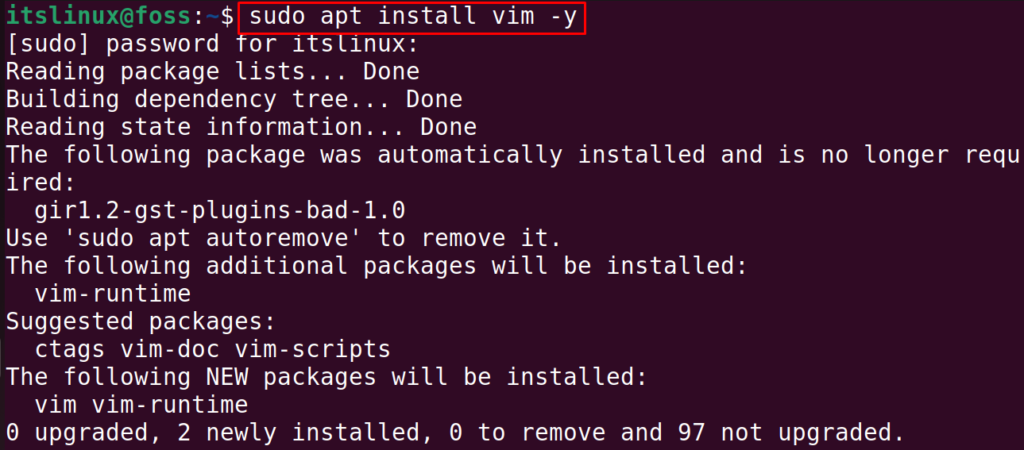
To disable line numbers, whether absolute or relative, use the command `:set nonumber` (or `:set nonu`). This will hide all line numbers from the buffer. You can then re-enable them with `:set number` or `:set relativenumber` as needed. This flexibility allows you to adapt your display based on your current task.
Creating Custom Mappings for Quick Toggling
For even faster toggling, you can create custom key mappings in your `.vimrc` file. For example, you could map a key to switch between `number` and `nonumber`. A common mapping uses “ to toggle line numbers. Add `nnoremap :set invnumber` to your `.vimrc` to enable this functionality. This saves time and streamlines your workflow.
Practical Scenarios for Toggling Line Numbers
Toggling line numbers is useful in several situations. For instance, when presenting code, you might want to hide line numbers for a cleaner look. Conversely, during a debugging session, you’ll want them prominently displayed. Furthermore, some users prefer a completely clean editor interface for writing prose. Therefore, mastering the toggle is highly beneficial.
Troubleshooting Common Vim/Vi Line Number Issues
While enabling line numbers is generally straightforward, you might occasionally encounter issues. Understanding common pitfalls and how to resolve them is part of effectively learning how to show line numbers in Vim / Vi. This section will help you diagnose and fix problems quickly.
Line Numbers Not Showing: Common Pitfalls
If line numbers are not appearing, first check if you are in Command-line mode when typing the commands. Ensure you press Enter after the command. Also, verify that your `.vimrc` file is correctly saved and sourced if you’re expecting permanent changes. Typos in commands are a frequent cause of issues.
Conflicts with Other Vim Plugins or Settings
Occasionally, other Vim plugins or settings in your `.vimrc` might conflict with line number display. Some plugins, especially those related to status lines or visual appearance, could override default behaviors. Try temporarily disabling plugins or commenting out other settings in your `.vimrc` to isolate the problem. This diagnostic step is very effective.
Verifying Your `.vimrc` Configuration
Always double-check your `.vimrc` file for syntax errors or incorrect commands. Ensure that `set number` or `set relativenumber` is correctly spelled and not commented out (lines starting with `”` are comments). You can also use `:set` in Vim to see all current settings and confirm if `number` or `relativenumber` is enabled. This verification process is crucial for persistent settings.
Advanced Tips for Vim/Vi Line Number Usage
Beyond Basic display, Vim offers advanced features that integrate with line numbers to further enhance navigation and readability. These tips can help you get even more out of how to show line numbers in Vim / Vi for a truly optimized editing experience. They provide deeper customization options for power users.
Highlighting the Current Line Number
You can make the current line number stand out by combining `set number` or `set relativenumber` with syntax highlighting. While Vim doesn’t have a direct command to highlight only the line number, you can highlight the entire current line. This draws attention to your exact position within the file, making it easier to track.
Using `set cursorline` with Line Numbers
The `set cursorline` command highlights the entire line where your cursor is currently positioned. When used in conjunction with line numbers, it makes your current location highly visible. Add `set cursorline` to your `.vimrc` for a persistent visual cue. This feature is particularly helpful in large files or when quickly scanning code.
" .vimrc example with cursorline
set number
set cursorline
Integrating with Other Vim Features for Enhanced Navigation
Line numbers become even more powerful when combined with other Vim features. For example, using `:` to jump directly to a line, or `G` (go to end of file) and `gg` (go to beginning of file). Furthermore, marking positions with `m` followed by a letter, then jumping back with `’` followed by the letter, works seamlessly with visible line numbers. This integration truly elevates your navigation capabilities.
Frequently Asked Questions
Here are some common questions about how to show line numbers in Vim / Vi and their practical answers. These FAQs address typical user queries and provide quick solutions for everyday use. Understanding these points will solidify your grasp of Vim’s line number functionality.
How do I turn off line numbers in Vim?
To turn off line numbers, simply enter Command-line mode by typing `:` and then execute the command `set nonumber` (or `set nonu`). This will immediately hide all line numbers in your current Vim session. If you have `set number` in your `.vimrc`, you’ll need to remove or comment it out for permanent removal.
Why are my line numbers not permanent?
Line numbers are not permanent if you are only using the `:set number` command in an active session. For permanent display, you must add `set number` (or `set relativenumber`) to your `.vimrc` configuration file. Remember to save the `.vimrc` file and restart Vim, or source it with `:source ~/.vimrc` for changes to take effect.
Can I have both absolute and relative line numbers at the same time?
Yes, modern Vim versions allow you to display both absolute and relative line numbers simultaneously. When you have both `set number` and `set relativenumber` enabled (either in your session or `.vimrc`), Vim will show the absolute line number for the current line and relative numbers for all other lines. This hybrid display offers excellent navigational benefits.
For more detailed information on Vim’s settings, you can refer to the official Vim documentation Vim Help Files.
Conclusion: Mastering How to Show Line Numbers in Vim / Vi
Mastering how to show line numbers in Vim / Vi is a crucial step towards becoming a more efficient and productive text editor user. Whether you need temporary line numbers for quick tasks or a permanent setup for daily coding, Vim offers flexible solutions. From basic commands to advanced configurations and troubleshooting, you now have the knowledge to tailor your Vim environment.
Recap of Key Methods and Best Practices
We’ve covered temporary activation with `:set number`, permanent configuration via `.vimrc`, and the powerful `set relativenumber` for enhanced navigation. Remember to use `set nonumber` to toggle them off when not needed. Always verify your `.vimrc` for persistent settings and consider custom mappings for convenience. These practices will ensure a smooth workflow.
Further Customization and Learning Resources
Vim’s customization capabilities are vast. Explore other `.vimrc` settings, discover useful plugins, and delve deeper into Vim’s extensive help system by typing `:help` in Command-line mode. The Vim community is also a great resource for learning new tricks and optimizing your setup. Continuous learning will unlock even more potential.
Call to Action: Enhance Your Vim/Vi Workflow Today!
Now that you understand how to show line numbers in Vim / Vi, implement these techniques into your daily workflow. Experiment with absolute, relative, and combined line numbers to find what works best for you. Share your favorite line number configurations or any advanced tips you discover in the comments below! Your enhanced Vim experience starts now.
