
Navigating the command-line interface can initially feel daunting, especially when dealing with text editors. One common challenge users face is understanding how to save and exit in Nano, a popular and user-friendly terminal-based text editor. This guide provides clear, step-by-step instructions to help you confidently manage your files. We will cover all essential commands, ensuring your work is always saved correctly before you leave the editor.
Understanding How to Save and Exit in Nano
The Nano text editor is a staple for many Linux and Unix users. It offers a simpler alternative to more complex editors like Vim or Emacs. Learning how to save and exit in Nano is fundamental for anyone working with configuration files, scripts, or plain text documents directly from the terminal. This Basic skill ensures you can make changes and preserve them effectively.
What is the Nano Text Editor?
Nano is a command-line text editor known for its ease of use. It displays common commands at the bottom of the screen, making it accessible for Beginners. Many Linux distributions, such as Ubuntu and Fedora, include Nano by default. It is an excellent tool for quick edits and basic file creation.
Why Master Saving and Exiting in Nano?
Mastering these commands prevents data loss and streamlines your workflow. Incorrectly exiting Nano can lead to unsaved changes being lost forever. Therefore, understanding the proper sequence for saving and exiting is crucial. This knowledge empowers you to manipulate files efficiently within the terminal environment.
Getting Started: Opening and Editing Files in Nano
Before you can learn how to save and exit in Nano, you must first open a file. This process is straightforward and initiates your editing session. Once inside, you can begin making necessary modifications to your text. Understanding the initial steps sets the stage for successful file management.
Launching Nano from the Command Line
To open a file with Nano, simply type `nano` followed by the filename in your terminal. If the file does not exist, Nano will create a new, empty file for you. For example, you would type `nano myfile.txt` to open or create a file named “myfile.txt”.
Basic Text Input and Navigation within Nano
Once Nano is open, you can type directly into the editor. Use your arrow keys to move the cursor around the text. Nano also supports basic copy, cut, and paste operations, which are displayed as commands at the bottom of the screen. These commands typically involve the `Ctrl` key.
- Ctrl+G: Get Help (displays a list of commands)
- Ctrl+K: Cut Line (cuts the current line)
- Ctrl+U: Uncut (pastes the cut text)
- Ctrl+W: Where Is (searches for text)
The Essential ‘Write Out’ Command: How to Save in Nano
Saving your work is the most critical step after making changes. Nano uses a specific command for this action, often referred to as “Write Out.” This ensures your modifications are permanently stored in the file. Learning this command is central to understanding how to save and exit in Nano.
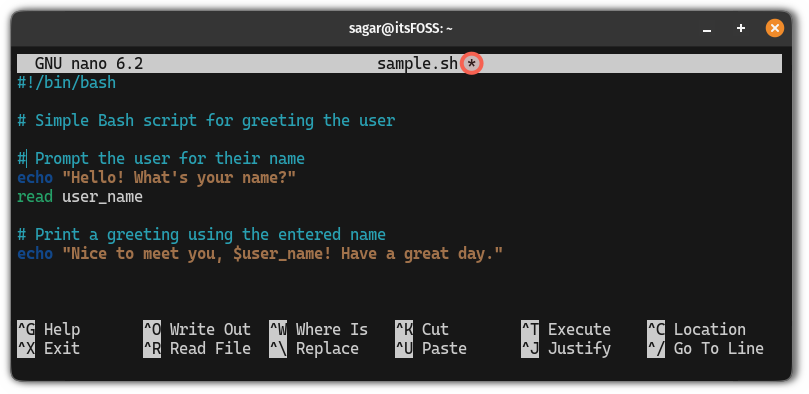
Understanding Ctrl+O for Saving Changes
To save your current changes in Nano, press Ctrl+O (Control + O). This command initiates the “Write Out” process. Nano will prompt you at the bottom of the screen to confirm the filename. This is your opportunity to save the file under its current name or choose a new one.
Confirming the Filename and Overwriting
After pressing Ctrl+O, Nano will display the current filename. You can simply press Enter to save the file with its existing name. If you wish to save it under a different name, type the new filename and then press Enter. Nano will then write the buffer to the specified file, preserving your edits.
Exiting Nano: The Simple Ctrl+X Method
Once you have saved your changes, or if you decide not to save, exiting Nano is the next step. The command to exit is straightforward and universally recognized within the editor. Proper exiting ensures Nano closes cleanly and your terminal is ready for the next command. This is another key part of how to save and exit in Nano.
Using Ctrl+X to Exit the Editor
To exit Nano, press Ctrl+X (Control + X). If you have made any changes since the last save, Nano will prompt you with a question. This prompt is a safeguard, preventing accidental loss of unsaved work. It is an important feature for data integrity.
Navigating the “Save Modified Buffer?” Prompt
When you press Ctrl+X with unsaved changes, Nano asks: “Save modified buffer? (Y/N/C)”. You have three options:
- Press Y (Yes) to save the changes before exiting.
- Press N (No) to discard changes and exit immediately.
- Press C (Cancel) to return to the editor without exiting.
Always consider your choice carefully to avoid losing valuable work. This prompt is crucial for managing your files effectively.
Saving and Exiting in One Go: A Combined Workflow
Often, you will want to save your file and exit Nano immediately afterward. There is an efficient sequence of commands that combines these two actions. This workflow is particularly useful for quick edits and helps streamline your command-line tasks. It’s a highly practical application of how to save and exit in Nano.
The Ctrl+X, Y, Enter Sequence Explained
The most common and efficient way to save and exit Nano is to press Ctrl+X. If you have made changes, Nano will ask if you want to save. Then, press Y for “Yes” to save the modified buffer. Finally, press Enter to confirm the filename. This three-step sequence completes the save and exit process quickly and reliably.
When to Use This Efficient Combination
This combined workflow is ideal when you are confident in your changes and simply want to close the file. It saves you an extra step compared to saving with Ctrl+O first and then exiting with Ctrl+X. For instance, after editing a configuration file, this sequence ensures your changes are applied swiftly. It truly simplifies how to save and exit in Nano.
Advanced Saving Techniques in Nano
Beyond the basic save, Nano offers more advanced options for managing your files. These techniques provide greater flexibility, allowing you to save files under different names or incorporate content from other files. Understanding these options enhances your overall proficiency with the editor.
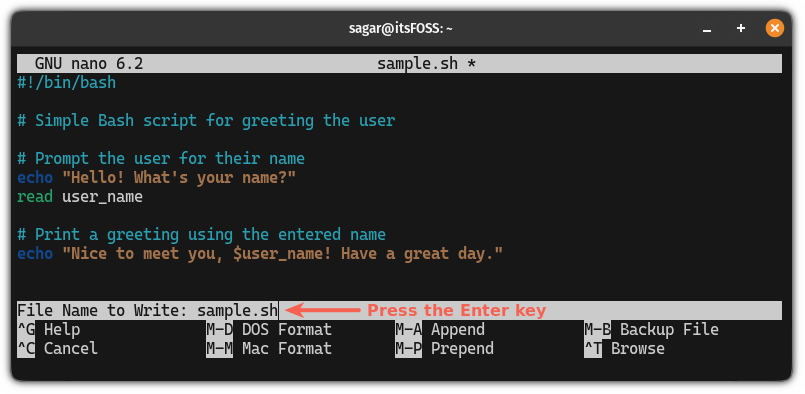
Saving to a Different Filename (Save As)
If you want to save your current file under a new name, effectively performing a “Save As” operation, press Ctrl+O. When Nano prompts you for the filename, simply type the new name you wish to use. Press Enter to confirm, and your current buffer will be saved to the new file. The original file remains untouched.
Inserting a File into the Current Buffer
Nano also allows you to insert the contents of another file into your current editing session. Press Ctrl+R (Read File) to activate this feature. Nano will then prompt you for the path to the file you want to insert. Type the path and press Enter, and the content will appear at your current cursor position. This is useful for combining documents.
Troubleshooting Common Nano Save & Exit Issues
Even with a user-friendly editor like Nano, you might encounter occasional issues. Knowing how to troubleshoot these problems can save you time and frustration. Addressing common errors ensures a smoother experience when you need to save and exit in Nano.
Dealing with “Permission Denied” Errors
A “Permission Denied” error often occurs when you try to save a file in a directory where you lack write permissions. To resolve this, you might need to use `sudo` to open Nano with administrative privileges (e.g., `sudo nano /etc/hosts`). Alternatively, save the file to a different location where you have permissions, such as your home directory. This is a common issue for new Linux users.
Recovering from Accidental Exits or Freezes
If you accidentally exit Nano without saving, your changes are unfortunately lost. However, if Nano freezes, you can often force quit using Ctrl+C. Be aware that this will terminate the process immediately, and any unsaved work will be lost. Always save frequently to prevent such data loss. This practice is key to mastering how to save and exit in Nano.
Best Practices for Efficient Nano Usage
Adopting good habits when using Nano can significantly improve your productivity. These best practices help you avoid common pitfalls and make your editing experience more reliable. Following these tips ensures you consistently save and exit in Nano without issues.
Developing a Habit of Regular Saving
The most important best practice is to save your work frequently. Pressing Ctrl+O periodically, especially after significant changes, can prevent major data loss in case of unexpected system issues or accidental exits. This simple habit protects your progress and reduces stress. Furthermore, it reinforces the core concept of how to save and exit in Nano.
Understanding Nano’s Command Prompts
Always pay attention to the prompts at the bottom of the Nano screen. They provide crucial information and guide you through operations like saving, searching, or exiting. Reading these prompts carefully helps you make informed decisions and avoid errors. They are designed to assist you in every step.
- Ctrl+O: “File Name to Write:”
- Ctrl+X: “Save modified buffer?”
- Ctrl+W: “Search:”
These prompts are your direct line of communication with the editor.
Frequently Asked Questions
How do I force quit Nano without saving changes?
To force quit Nano without saving, press Ctrl+X. When prompted “Save modified buffer? (Y/N/C)”, press N for “No.” This action will discard all unsaved changes and close the editor immediately. This is useful if you made changes you no longer want to keep.
Can I save a read-only file in Nano?
If a file is read-only, Nano will typically prevent you from saving changes directly. You might encounter a “Permission Denied” error. To save changes, you usually need to open the file with `sudo` (e.g., `sudo nano filename`) if you have administrative privileges, or save it to a new location where you have write permissions. For more information on file permissions, you can refer to Wikipedia’s article on file system permissions.
What does “Modified buffer” mean in Nano?
The term “modified buffer” refers to the current state of the file you are editing in Nano. If you see “Modified buffer?” it means you have made changes to the text since the last time you saved the file. Nano is asking if you want to write these changes to the disk before exiting. This prompt is a critical safeguard against losing your work.
What are the main commands for how to save and exit in Nano?
The main commands are Ctrl+O to save (Write Out) and Ctrl+X to exit. If you have unsaved changes when pressing Ctrl+X, Nano will prompt you to save first. This two-command sequence is fundamental for managing files within the editor.
Conclusion: Mastering Nano’s Save and Exit Commands
Mastering how to save and exit in Nano is an essential skill for anyone working in a command-line environment. By understanding the simple commands like Ctrl+O for saving and Ctrl+X for exiting, you can confidently manage your text files. Remember to always confirm your actions and pay attention to Nano’s prompts. These practices ensure your work is always preserved.
We encourage you to practice these commands regularly to build muscle memory. Furthermore, explore other Nano features to enhance your productivity further. With these foundational skills, you are well-equipped to handle text editing tasks efficiently within the terminal. Continue your learning journey to become a true command-line expert!
