
Understanding how to rename files and directories in Linux is a fundamental skill for any user navigating the command line interface. This guide will walk you through the essential commands and techniques required to efficiently manage your file system. Whether you’re a beginner or looking to refine your Linux administration skills, mastering file and directory renaming ensures better organization and workflow. We will cover both simple and advanced methods, providing clear examples for each scenario.
Introduction to Renaming Files and Directories in Linux
Renaming files and directories in Linux is a common task crucial for maintaining an organized and logical file system. It helps in improving clarity, avoiding confusion, and streamlining development or system administration efforts. Linux offers powerful command-line tools that provide granular control over these operations. Therefore, knowing these commands is essential for effective system management.
Why File and Directory Renaming Matters
Proper naming conventions significantly enhance productivity and collaboration. For instance, clearly named files are easier to locate and understand, especially in large projects. Furthermore, consistent directory structures simplify navigation and reduce errors. This practice ultimately contributes to a more efficient and less frustrating computing experience for everyone involved.
Mastering the `mv` Command for Renaming in Linux
The `mv` command is the primary tool for how to rename files and directories in Linux. Its versatility allows you to both move files between locations and rename them within the same directory. This command is straightforward yet incredibly powerful, making it indispensable for daily Linux operations. Understanding its syntax is the first step to effective file management.
Basic-syntax-renaming-a-single-file-or-directory">Basic Syntax: Renaming a Single File or Directory
To rename a single file or directory, you simply specify the current name and the new name. The `mv` command handles this operation with ease. For example, changing a file’s name requires only two arguments. This simplicity makes `mv` a go-to command for quick renaming tasks.
Here’s the basic syntax:
- `mv [options] old_name new_name`
For instance, to rename `report.txt` to `final_report.txt`, you would type:
mv report.txt final_report.txtSimilarly, renaming a directory follows the same pattern:
mv old_directory_name new_directory_nameUsing `mv` to Move and Rename Simultaneously
One of the most powerful features of the `mv` command is its ability to move a file or directory to a new location while also renaming it. This saves a step compared to moving and then renaming separately. Consequently, it streamlines your workflow significantly. You specify the source path and the destination path with the new name.
Consider moving `document.pdf` from the current directory to `/home/user/documents/` and renaming it to `project_doc.pdf`:
mv document.pdf /home/user/documents/project_doc.pdfThis command efficiently handles both tasks in one go. Therefore, it’s a highly utilized function of `mv` for organizing files.
Important `mv` Command Options and Considerations
The `mv` command offers several useful options that modify its behavior. These options provide greater control over the renaming process. For example, you can prevent overwriting existing files or get verbose output. Understanding these options is key to confident file manipulation.
Commonly used `mv` options include:
- `-i` (interactive): Prompts before overwriting an existing file.
- `-u` (update): Moves only when the source is newer than the destination or when the destination is missing.
- `-v` (verbose): Explains what is being done, showing each file as it’s moved or renamed.
- `-n` (no-clobber): Prevents overwriting an existing file, similar to `-i` but without prompting.
Using `mv -i file1.txt file2.txt` will ask for confirmation if `file2.txt` already exists. This prevents accidental data loss. Furthermore, always double-check your commands before execution, especially with sensitive files.

Efficiently Renaming Multiple Files with the `rename` Command
When you need to rename multiple files based on a specific pattern, the `mv` command becomes cumbersome. This is where the `rename` command shines, offering powerful batch renaming capabilities. It utilizes Perl regular expressions, providing immense flexibility. Thus, learning `rename` is crucial for advanced file management tasks.
Installing and Understanding the `rename` Utility
The `rename` utility is not always installed by default on all Linux distributions. However, it is readily available through most package managers. Once installed, it allows for sophisticated pattern-based renaming. This tool is invaluable for system administrators and developers alike.
To install `rename` on Debian/Ubuntu-based systems:
sudo apt install renameOn Fedora/CentOS systems, it might be part of `util-linux` or `perl-rename`:
sudo dnf install perl-renameThe `rename` command typically takes a Perl expression and a list of files as arguments. It applies the expression to each filename. Therefore, understanding basic regular expressions is beneficial for its effective use.
Practical Examples of Bulk Renaming with Regular Expressions
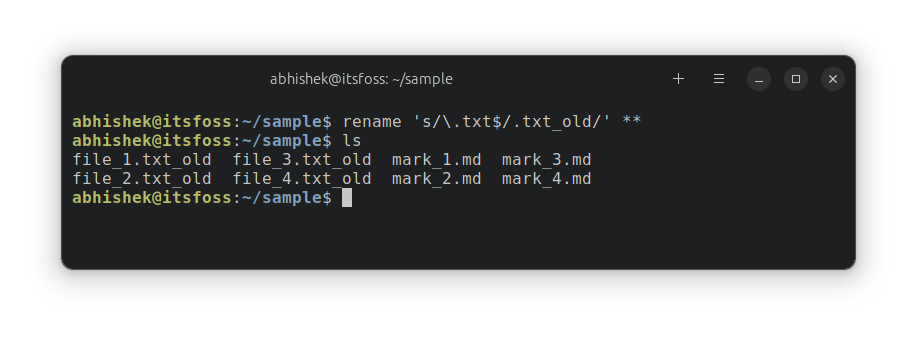
The `rename` command’s strength lies in its ability to use regular expressions for complex renaming operations. This allows you to perform actions like changing file extensions or adding prefixes to multiple files. Consequently, it saves significant time compared to manual renaming.
Here are some common scenarios:
- Change file extension: Rename all `.txt` files to `.md`.
rename 's/.txt$/.md/' *.txt - Add a prefix: Add `old_` to the beginning of all files.
rename 's/^/old_/' * - Remove a suffix: Remove `_backup` from filenames.
rename 's/_backup$//' _backup
These examples demonstrate the power and flexibility of `rename`. Mastering these patterns greatly enhances your ability to manage large sets of files. Furthermore, always test your regex patterns carefully before applying them to critical data.
Advanced Pattern Matching for Complex Renaming Tasks
For more intricate renaming needs, `rename` can handle sophisticated regular expressions. This includes capturing groups, conditional replacements, and character classes. Consequently, you can achieve highly specific renaming outcomes. Learning these advanced patterns unlocks the full potential of the `rename` utility.
For example, to replace spaces with underscores in filenames:
rename 's/ /_/g' *This command replaces all occurrences of a space (` `) with an underscore (`_`) globally (`g`) in all files. Another example is converting filenames to lowercase:
rename 'y/A-Z/a-z/' *The `y/A-Z/a-z/` expression performs a character transliteration, converting uppercase letters to lowercase. These advanced techniques are invaluable for maintaining consistent naming conventions across your system. For more details on Perl regular expressions, refer to the official Perl documentation on regex. Perl Regular Expressions.
Advanced Techniques for Renaming Files and Directories
Beyond `mv` and `rename`, Linux offers even more advanced methods for file system manipulation. These techniques often involve scripting with Bash or utilizing specialized tools. They are particularly useful for automated tasks or highly specific renaming requirements. Understanding these methods provides greater control over your system.
Scripting Renames Using Bash Loops and Wildcards
Bash scripting provides a robust way to automate renaming tasks, especially when `rename`’s regex capabilities aren’t sufficient or when you need to integrate other commands. Loops allow you to iterate through files and apply custom logic. Therefore, scripting is a powerful skill for any Linux user.
Here’s an example of adding a date prefix to all `.log` files:
for f in *.log; do mv "$f" "$(date +%Y%m%d)_$f"; doneThis script iterates through each `.log` file, generates a date string, and prepends it to the filename. Similarly, you can perform more complex operations within the loop. Always use double quotes around variables like `”$f”` to handle filenames with spaces correctly.
Renaming Files Based on Content or Metadata (e.g., Exiftool)
Sometimes, you might need to rename files based on their internal content or metadata, such as image EXIF data or document properties. Specialized tools like `exiftool` are perfect for these scenarios. They extract information that can then be used in a renaming script. This method is incredibly powerful for media organization.
For instance, renaming photos based on their creation date from EXIF data:
exiftool '-FileNameThis command renames image files in the current directory using their `CreateDate` metadata. It formats the date and time, then appends the original file extension. Such tools extend your renaming capabilities far beyond simple filename patterns. This approach is invaluable for photographers and media enthusiasts.
Handling Special Characters and Spaces in File Names
Filenames in Linux can contain various characters, including spaces, hyphens, and underscores. However, special characters like spaces can cause issues when working on the command line if not handled properly. Therefore, it's crucial to know how to escape or quote these names. This ensures your commands execute as intended.
When dealing with spaces, always enclose the filename in double quotes:
mv "My Document.txt" "My_Document_Final.txt"Alternatively, you can escape spaces with a backslash:
mv My Document.txt My_Document_Final.txtUsing quotes is generally safer and more readable. Furthermore, avoiding special characters like `*`, `?`, `&`, `|`, `;`, `(` `)` in filenames is a good practice to prevent command-line interpretation issues. This makes your filenames more robust and easier to manage.
Best Practices and Troubleshooting When Renaming in Linux
Renaming files and directories, especially in bulk, carries inherent risks. A single mistake can lead to data loss or system instability. Therefore, adopting best practices and knowing how to troubleshoot common issues is paramount. This section helps you perform renaming operations safely and effectively. It ensures you maintain control over your file system.
Understanding Permissions and Ownership Impacts on Renaming
Linux file permissions and ownership play a critical role in whether you can rename a file or directory. You must have write permissions in the directory containing the item you wish to rename. Without these permissions, the `mv` or `rename` commands will fail. Understanding these concepts prevents permission-related errors.
To check permissions, use `ls -l`. If you encounter "Permission denied" errors, you may need to:
- Change the file's owner using `chown`.
- Modify file permissions using `chmod`.
- Execute the command with `sudo` if you have administrative privileges.
Always be cautious when using `sudo`, as it grants elevated permissions. Incorrect use can lead to unintended system changes. Therefore, verify your target directory's permissions before attempting a rename.
Always Test Before Executing Mass Renames (Dry Runs)
Before executing any command that renames multiple files, especially with regular expressions or scripts, always perform a "dry run." A dry run simulates the command without actually making changes. This allows you to verify that your pattern or script will behave as expected. It is a critical step to prevent irreversible errors.
For the `rename` command, you can often use the `-n` (no-act) or `-v` (verbose) options:
rename -n 's/.txt$/.md/' *.txtThis command will show you what would be renamed without actually performing the action. For Bash scripts, you can echo the commands instead of executing them. This simple precaution can save you from significant headaches and data recovery efforts. Always prioritize safety over speed in such operations.
Common Errors and How to Resolve Renaming Issues
Even with careful planning, you might encounter errors when renaming files or directories. Common issues include "No such file or directory," "Permission denied," or incorrect pattern matching. Knowing how to diagnose and resolve these problems is crucial for efficient troubleshooting.
Here are some common errors and their solutions:
- "No such file or directory": Double-check the spelling of the filename or path. Ensure you are in the correct directory.
- "Permission denied": Verify your user has write permissions in the parent directory. Use `ls -ld` for directories.
- Incorrect renaming (e.g., wrong part of filename changed): Review your regular expression or script logic carefully. Use dry run options (`-n` with `rename`) to test.
Additionally, remember that Linux is case-sensitive. `file.txt` is different from `File.txt`. Paying attention to these details will help you quickly resolve most renaming problems. Furthermore, consulting `man` pages for `mv` and `rename` can provide deeper insights into their usage.
Frequently Asked Questions About How to Rename Files and Directories in Linux
Can I undo a rename operation in Linux?
Unfortunately, there is no built-in "undo" command for renaming files in Linux. Once a file or directory is renamed, the original name is lost. Therefore, it is critical to be careful and double-check your commands before execution. If you rename a file incorrectly, you would need to manually rename it back to its desired name.
How do I rename a file without changing its directory?
You can rename a file without changing its directory using the `mv` command. Simply provide the current filename and the new filename, ensuring both are in the same path. For example, `mv oldname.txt newname.txt` will rename the file within its current location. This is the most common use case for `mv`.
What is the main difference between `mv` and `rename`?
The `mv` command is primarily used for renaming or moving single files and directories, or a small number of files. In contrast, the `rename` command is designed for batch renaming multiple files based on complex patterns using regular expressions. While `mv` is for individual operations, `rename` excels at automating mass changes. Both are essential tools for managing files in Linux.
Conclusion: Confidently Renaming Files and Directories in Linux
Mastering how to rename files and directories in Linux is an indispensable skill for efficient system management and organization. We have explored the versatile `mv` command for single file operations and the powerful `rename` utility for bulk tasks. Additionally, we discussed advanced scripting techniques and crucial best practices like permission management and dry runs. By applying these methods, you can confidently manage your Linux file system.
Continue practicing these commands in a safe environment to build your proficiency. Your ability to effectively rename and organize files will significantly enhance your productivity. We encourage you to experiment with the commands and explore their man pages for deeper understanding. Share your favorite renaming tips in the comments below!
