
Navigating the Linux file system is a fundamental skill for any user or administrator. One common task involves managing directories. Understanding how to remove (delete) a directory in Linux is essential for maintaining a clean and organized environment. This guide will provide a comprehensive overview of the commands and best practices involved. We will cover both empty and non-empty directory deletion, ensuring you gain confidence in this critical operation.
Understanding the Core Commands to Remove (Delete) Directories in Linux
Efficient directory management is a cornerstone of a well-maintained Linux system. Removing old or unnecessary directories helps free up disk space and improves system organization. This section introduces the primary tools available for this purpose.
Why Directory Removal is Crucial for System Management
Regularly deleting unused directories prevents clutter and optimizes disk usage. Over time, temporary files and forgotten projects can accumulate, consuming valuable storage. Furthermore, a tidy file system enhances security by reducing potential attack vectors and simplifies navigation for users. Therefore, mastering directory removal is a vital administrative skill.
Overview of Linux Commands for Deleting Directories
Linux offers specific commands tailored for directory deletion. The choice depends on whether the directory is empty or contains files and subdirectories. We primarily use two commands: `rmdir` and `rm`. Each has distinct functionalities and safety considerations.
- `rmdir` (remove directory): This command is specifically designed for deleting empty directories. It acts as a safeguard against accidental data loss.
- `rm` (remove): This powerful command can delete files and, with the correct options, non-empty directories. It requires more caution due to its recursive capabilities.
Prerequisites and Important Considerations
Before attempting to delete any directory, ensure you have the necessary permissions. You must either own the directory or have appropriate write permissions in its parent directory. Using the `pwd` command can confirm your current working directory. Always double-check the directory path to avoid unintended deletions. Consider creating backups of critical data before performing large-scale deletions.
Deleting Empty Directories: The `rmdir` Command Explained
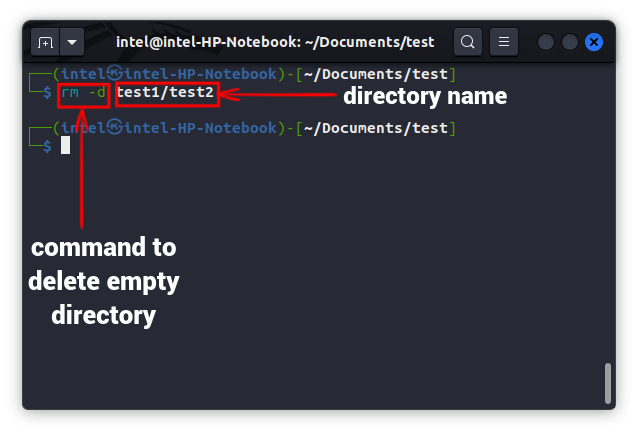
The `rmdir` command is the safest way to remove directories in Linux, but it comes with a strict condition. It will only delete a directory if it contains no files or subdirectories. This feature prevents accidental data loss, making it a preferred choice for simple cleanup tasks.
Basic-usage-of-rmdir">Syntax and Basic Usage of `rmdir`
The basic syntax for `rmdir` is straightforward. You simply type `rmdir` followed by the name of the directory you wish to remove. For instance, to delete an empty directory named `my_empty_folder`, you would use the command `rmdir my_empty_folder`. This command executes quickly if the directory is indeed empty.
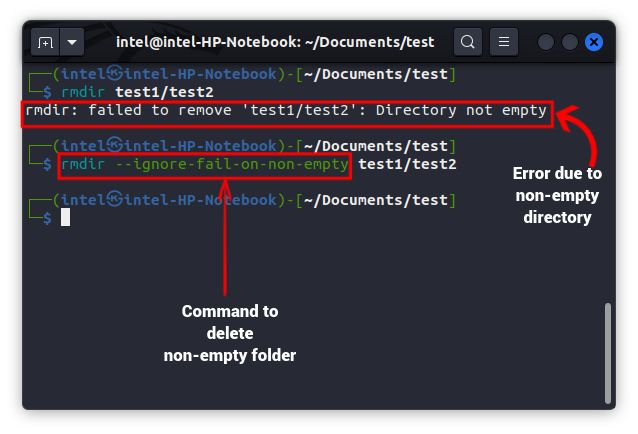
If the directory is not empty, `rmdir` will return an error message. It will typically state “Directory not empty” or a similar warning. This behavior is a built-in safety mechanism. Therefore, you can confidently use `rmdir` without fear of deleting valuable content.
Common Scenarios for Using `rmdir`
You might use `rmdir` after creating a temporary directory for a specific task. Perhaps you created a new project folder but decided against using it. Additionally, it’s useful for cleaning up automatically generated empty folders. Many applications might create placeholder directories during installation or setup. Using `rmdir` helps maintain a tidy file system. It is perfect for quick, safe cleanups.
Limitations of the `rmdir` Command
The primary limitation of `rmdir` is its inability to delete non-empty directories. If a directory contains even a single file or another subdirectory, `rmdir` will fail. This means you cannot use it for extensive cleanup operations involving populated folders. For such scenarios, you will need a more powerful command. This is where the `rm` command becomes indispensable. Therefore, understanding its usage is critical.
Removing Non-Empty Directories: Mastering `rm -r` and `rm -rf`
When you need to remove a directory that contains files or other subdirectories, the `rmdir` command is insufficient. This is where the `rm` command, combined with specific options, becomes necessary. The `rm` command is extremely powerful, so it requires careful use.
Recursively Deleting Directories with `rm -r`
To delete a non-empty directory, you must use the `rm` command with the `-r` (recursive) option. This option tells `rm` to delete the specified directory and all its contents, including subdirectories and files within them. The command `rm -r my_full_folder` will remove `my_full_folder` and everything inside it. This action is irreversible, so proceed with extreme caution.
The `-r` option works by traversing the directory tree, deleting files and empty subdirectories from the deepest levels upwards. It will typically prompt you for confirmation before deleting each item. This gives you a chance to review deletions. This interactive behavior adds a layer of safety.
Understanding the `-f` (Force) Option with `rm -rf`
Adding the `-f` (force) option to `rm -r` creates the `rm -rf` command. This combination forces the deletion without prompting for confirmation for each file or directory. The command `rm -rf my_full_folder` will delete `my_full_folder` and its entire contents immediately. This is a very dangerous command if used incorrectly. It bypasses all safety prompts, making it irreversible and potentially catastrophic. Therefore, use `rm -rf` with extreme care and only when absolutely certain of your actions.
Practical Examples of `rm -r` and `rm -rf`
Let’s walk through some practical examples to illustrate these commands. Always ensure you are in the correct directory or specify the full path. Practicing in a non-critical environment is highly recommended. These steps demonstrate how to remove (delete) a directory in Linux effectively.
- Deleting a non-empty directory with confirmation:
First, navigate to the parent directory. Then, execute `rm -r my_project_folder`. The system will ask “remove regular file ‘my_project_folder/file.txt’?” for each item. Type `y` and press Enter to confirm each deletion. This method provides a safety net.
- Forcibly deleting a non-empty directory without confirmation:
To bypass all prompts, use `rm -rf old_data_backup`. This command will delete the `old_data_backup` directory and all its contents immediately. There will be no warnings or opportunities to cancel. This is useful for automated scripts but extremely risky for manual operations. Be absolutely sure before using `rm -rf`.
Essential Safety Practices and Permissions for Directory Removal
Deleting directories in Linux is a powerful operation that can lead to data loss if not handled carefully. Implementing strong safety practices is paramount. Understanding file permissions and when to use elevated privileges are crucial components of this process. Always prioritize caution.
Checking Directory Contents Before Deletion
Before executing any `rm -r` or `rm -rf` command, always inspect the directory’s contents. Use `ls -l` to list files and subdirectories. For a more comprehensive view of the directory tree, the `tree` command is invaluable (you might need to install it: `sudo apt install tree` on Debian/Ubuntu systems). This step helps verify that you are deleting the correct directory and that it doesn’t contain any critical data you wish to keep. A quick check can prevent significant headaches.
Understanding File Permissions and `sudo`
Linux file permissions dictate who can read, write, or execute files and directories. If you encounter a “Permission denied” error when trying to remove a directory, it means you lack the necessary write permissions. In such cases, you might need to use `sudo` (SuperUser DO) to execute the command with administrative privileges. For example, `sudo rm -rf /var/log/old_logs`. However, using `sudo` amplifies the risk, as you are operating with root powers. Only use `sudo` when absolutely necessary and with extreme caution. You can learn more about Linux permissions on Wikipedia.
The Importance of Backup and Caution
The golden rule of system administration is to back up important data. Deleting directories, especially with `rm -rf`, is irreversible. Once removed, data recovery is often difficult or impossible without specialized tools and prior backups. Therefore, always back up critical files and directories before performing deletion operations. When in doubt, err on the side of caution. A moment of careful planning can save hours of recovery efforts. This is particularly true when learning how to remove (delete) a directory in Linux.
Advanced Techniques and Troubleshooting for Linux Directory Deletion
Beyond basic commands, Linux offers flexible ways to handle multiple directories or specific patterns. Knowing these advanced techniques can streamline your workflow. Furthermore, understanding common errors helps in quickly resolving issues.
Deleting Multiple Directories Simultaneously
You can remove several directories at once by listing their names after the `rmdir` or `rm -r` command. For instance, to delete three empty directories, you would type `rmdir folder1 folder2 folder3`. Similarly, for non-empty directories, use `rm -r project_alpha project_beta project_gamma`. This method saves time compared to deleting each directory individually. Ensure all listed directories are indeed intended for deletion.
Using Wildcards to Remove Directories by Pattern
Wildcards provide powerful pattern-matching capabilities for deleting directories. For example, `rm -r project_*` will delete all directories whose names start with “project_”. The asterisk (`*`) acts as a placeholder for any sequence of characters. Similarly, `rm -r _temp` would remove all directories ending with “_temp”. While convenient, wildcards are highly dangerous if misused. Always test your wildcard pattern with `ls` first (e.g., `ls project_`) to see what will be affected before executing the `rm` command. This precaution helps prevent accidental mass deletions.
Common Errors and How to Resolve Them
When you remove (delete) a directory in Linux, you might encounter a few common errors. Knowing how to troubleshoot them is crucial.
- “Directory not empty”: This error occurs when using `rmdir` on a directory that contains files or subdirectories. The solution is to use `rm -r` instead.
- “Permission denied”: This indicates you lack the necessary permissions to delete the directory. Try using `sudo rm -r directory_name`. Alternatively, you might need to change the directory’s ownership or permissions using `chown` or `chmod` first.
- “No such file or directory”: This error means the specified directory path is incorrect or the directory does not exist. Double-check the spelling and path. Use `ls` to verify the directory’s presence.
Frequently Asked Questions
Can I recover a deleted directory in Linux?
Generally, recovering a directory deleted with `rm` or `rm -r` in Linux is very difficult, often impossible, especially on modern file systems. These commands permanently remove data rather than moving it to a “recycle bin.” Recovery usually requires specialized data recovery tools and expertise, and success is not guaranteed. Therefore, always back up important data before deletion.
What’s the difference between `rmdir` and `rm -r`?
`rmdir` is used exclusively for deleting empty directories. It acts as a safety measure, preventing accidental deletion of populated folders. In contrast, `rm -r` (or `rm -rf`) is a more powerful command used to delete non-empty directories recursively. It removes the directory and all its contents, including files and subdirectories. `rm -r` is much more dangerous due to its recursive nature.
Is `rm -rf /` ever safe to use?
Absolutely NOT. The command `rm -rf /` is one of the most dangerous commands in Linux. It attempts to recursively and forcibly delete all files and directories starting from the root directory (`/`). Executing this command will effectively wipe out your entire operating system, rendering it unusable. It should never be used under any circumstances, even as a joke or experiment. Always be extremely careful with `rm -rf` and avoid using it on critical system paths.
How do I delete a directory with special characters in its name?
If a directory name contains spaces or special characters (like `!`, `$`, `&`), you need to either enclose the name in single or double quotes or escape the special characters with a backslash (“). For example, to delete a directory named “My New Folder!”, you would use `rm -r “My New Folder!”` or `rm -r My New Folder!`. Using quotes is generally simpler and less error-prone.
Conclusion: Confidently Manage Your Linux File System
Mastering how to remove (delete) a directory in Linux is a fundamental skill for effective system administration. You now understand the distinct roles of `rmdir` for empty directories and `rm -r` (or `rm -rf`) for non-empty ones. Remember, the power of these commands comes with significant responsibility. Always exercise extreme caution, especially when using the `-f` option or wildcards.
Prioritize checking directory contents, understanding permissions, and maintaining regular backups. By adhering to these best practices, you can confidently manage your Linux file system, keeping it organized and efficient. Continue practicing these commands in safe environments to build your expertise. Share your tips for safe directory deletion in the comments below!
