
Navigating the Linux file system is a fundamental skill for any user or administrator. Understanding How To Move Files And Directories In Linux (mv Command) is absolutely essential for efficient file management. This guide will thoroughly explain the `mv` command, providing clear examples and best practices. We aim to equip you with the knowledge to confidently organize your files and directories.
Introduction to Moving Files and Directories in Linux
Effective file management is crucial in any operating system, especially Linux. Users constantly need to reorganize their data. This involves moving files, renaming them, or relocating entire directories. The command line offers powerful tools for these tasks.
The Importance of File Management in Linux
Proper file organization enhances productivity and system efficiency. It helps in quickly locating necessary files. Furthermore, it prevents clutter and potential conflicts. A well-managed file system is a hallmark of a proficient Linux user. Therefore, mastering these operations is key.
Why the `mv` Command is Essential
The `mv` command stands for “move.” It is the primary utility for relocating files and directories within Linux. Additionally, it serves a dual purpose by allowing you to rename items. This single command is incredibly versatile. It streamlines many common file system tasks.
What You’ll Learn in This Guide
This comprehensive article will cover everything about the `mv` command. You will learn its Basic syntax and various practical applications. We will also explore advanced options and troubleshooting tips. Ultimately, you will gain a strong understanding of How to Move Files and Directories in Linux (mv Command) effectively.
Understanding the `mv` Command for Linux File Operations
The `mv` command is straightforward yet powerful. It allows you to move one or more files or directories from one location to another. Moreover, it can rename files or directories simultaneously. This flexibility makes it a cornerstone of Linux file management.
Basic `mv` Command Syntax Explained
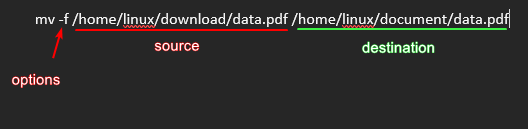
The fundamental syntax for the `mv` command is simple. It requires a source and a destination. You specify what you want to move and where it should go. Understanding this structure is the first step. It forms the basis for all `mv` operations.
mv [options] source destinationHere, source refers to the file or directory you wish to move. Conversely, destination is the target location or new name. Options modify the command’s behavior. For instance, they can prevent overwriting or provide verbose output.
Source and Destination Arguments
The source can be a single file, multiple files, or a directory. The destination can be a new directory path or a new file/directory name. If the destination is an existing directory, the source items are moved into it. However, if the destination is a non-existent file name, the source file is renamed. This behavior is crucial to remember.
Common `mv` Options Overview
Several options enhance the `mv` command’s functionality. These options provide greater control over the moving process. They can prevent accidental data loss. Furthermore, they offer more detailed feedback. Here are some frequently used options:
-i(interactive): Prompts before overwriting existing files.-u(update): Moves only when the source is newer than the destination file.-v(verbose): Explains what is being done.-n(no-clobber): Prevents overwriting existing files.

Practical Guide: How to Move Files Using `mv`
Moving files is a common task in Linux. The `mv` command handles this with ease. You can move individual files, rename them, or transfer multiple files at once. This section provides practical examples for these scenarios.
Moving a Single File to a New Location
To move a single file, specify its current path and the target directory. For example, to move report.txt from your current directory to ~/documents/, you would use the command below. This action relocates the file without changing its name.
mv report.txt ~/documents/Alternatively, you can specify the full path for both source and destination. This is useful when working from a different directory. Always double-check your paths to avoid errors. Remember, relative paths are often quicker for local operations.
Renaming a File During Movement
The `mv` command can also rename a file. If the destination is a new file name in the same directory, it acts as a rename operation. For instance, to rename old_name.txt to new_name.txt, execute the command below. This is a very common use case.
mv old_name.txt new_name.txtYou can combine moving and renaming. Simply specify a new path and a new file name at the destination. For example, mv file.txt ~/Backup/archive.txt moves and renames the file. This demonstrates the command’s versatility.
Moving Multiple Files and Handling Overwrites
To move several files, list them before the destination directory. Use spaces to separate each file name. For example, mv file1.txt file2.txt ~/data/ moves both files. When moving multiple items, be mindful of potential overwrites.
mv file1.txt file2.txt file3.txt /path/to/destination/Using the -i option prompts you before overwriting any existing files. This is a safety measure. Conversely, -n prevents any overwrites without prompting. Choose the option that best suits your needs for How to Move Files and Directories in Linux (mv Command).
Moving Directories in Linux with the `mv` Command
Just like files, directories can be moved and renamed using `mv`. This includes empty directories and those containing numerous files. The command treats directories similarly to files in terms of syntax. This consistency simplifies learning.
Relocating Empty Directories
Moving an empty directory is straightforward. You specify the directory’s current path and its new location. For example, to move an empty directory named temp_dir to ~/projects/, you would use the following command. The process is quick and efficient.
mv temp_dir ~/projects/If you want to rename it during the move, simply provide a new directory name at the destination. For instance, mv temp_dir ~/projects/new_temp_dir achieves both. This flexibility is a key advantage of `mv`.
Moving Non-Empty Directories and Their Contents
The `mv` command handles non-empty directories seamlessly. When you move a directory, all its contents—subdirectories and files—are moved along with it. There is no need for a recursive option like with `cp`. This makes directory relocation very simple.
mv my_project_folder /var/www/html/This command moves my_project_folder and everything inside it to the /var/www/html/ directory. Always ensure you have the necessary permissions. Moving large directories might take some time depending on their size. It’s important to understand this behavior when you How to Move Files and Directories in Linux (mv Command).
Renaming Directories with `mv`
Renaming a directory is identical to renaming a file. You simply specify the current directory name and the desired new name. This operation is performed in place. It does not involve moving the directory to a different parent path.
mv old_directory_name new_directory_nameThis command renames old_directory_name to new_directory_name within its current location. It is a quick way to keep your directory structure organized. Therefore, it’s a frequently used aspect of the `mv` command.
Advanced `mv` Options for Efficient File Management
Beyond basic moves, the `mv` command offers advanced options. These allow for more controlled and safer operations. They are particularly useful in scripting or when dealing with critical data. Understanding them improves your command-line proficiency.
Interactive and No Clobber Modes (`-i`, `-n`)
The -i (interactive) option prompts you before overwriting any existing file. This is a crucial safety feature. It prevents accidental data loss. Always consider using it when unsure about the destination content.
mv -i my_file.txt /destination/my_file.txtConversely, the -n (no-clobber) option prevents `mv` from overwriting existing files. It will simply skip the move if a file with the same name already exists at the destination. This is useful for batch operations where you want to preserve existing files. It’s another way to safely How to Move Files and Directories in Linux (mv Command).
Update and Verbose Options (`-u`, `-v`)
The -u (update) option moves a source file only if it’s newer than the destination file. It also moves if the destination file does not exist. This is excellent for synchronizing directories. It avoids unnecessary file transfers.
mv -u document.odt ~/backup/The -v (verbose) option provides detailed output. It shows each file or directory being moved. This is helpful for monitoring long operations. It confirms that the command is working as expected. Many users find it reassuring.
Moving Across Filesystems Considerations
When you move files within the same filesystem, `mv` simply updates the inode entry. This is a very fast operation. However, moving files across different filesystems is different. The `mv` command performs a copy operation followed by a delete. This can take longer for large files or directories. For more details on filesystem operations, you can refer to the Filesystem Hierarchy Standard.
Therefore, be aware of performance implications when moving between different partitions or network drives. It’s often more efficient to use tools like `rsync` for large cross-filesystem transfers. However, for smaller operations, `mv` remains perfectly suitable. Consider this when planning How to Move Files and Directories in Linux (mv Command).
Best Practices and Troubleshooting for `mv` Operations
To ensure smooth `mv` operations, follow certain best practices. Also, know how to troubleshoot common issues. This proactive approach minimizes errors and saves time. It helps maintain a stable Linux environment.
Addressing Permissions and Ownership Issues
Permission errors are common when using `mv`. If you cannot move a file or directory, check its permissions. Use `ls -l` to view them. You might need `sudo` to gain elevated privileges. Alternatively, adjust permissions with `chmod` or ownership with `chown` if appropriate.
Ensure you have write permissions in both the source and destination directories. Without these, `mv` will fail. Always be cautious when using `sudo` with `mv`. Incorrect usage can lead to unintended system changes. Therefore, verify your commands carefully.
Absolute vs. Relative Paths for `mv`
You can use both absolute and relative paths with `mv`. An absolute path starts from the root directory (/). It specifies the exact location regardless of your current directory. For example, /home/user/documents/report.txt is an absolute path.
A relative path is defined in relation to your current working directory. For instance, if you are in /home/user/, then documents/report.txt is a relative path. Use `pwd` to check your current directory. Choose the path type that offers the clearest and safest command for your task.
Troubleshooting Common `mv` Errors
- “No such file or directory”: This means the source path is incorrect or the file/directory doesn’t exist. Double-check your spelling and path.
- “Permission denied”: You lack the necessary read/write permissions. Use `sudo` or adjust permissions.
- “Is a directory”: You tried to move a directory to a file, or vice versa, incorrectly. Ensure your destination matches the source type.
Always read the error messages carefully. They often provide clear clues about the problem. Furthermore, using the `ls` command before `mv` can confirm file existence and permissions. This helps prevent many common mistakes when you How to Move Files and Directories in Linux (mv Command).
Frequently Asked Questions about How to Move Files and Directories in Linux (mv Command)
Can I use `mv` to move files across different file systems?
Yes, you can use `mv` to move files across different file systems. However, it’s important to understand the underlying process. When moving within the same filesystem, `mv` simply updates metadata, which is very fast. When moving across different filesystems, `mv` performs a copy operation to the new filesystem and then deletes the original file. This process can take longer, especially for large files or directories.
What is the difference between `mv` and `cp`?
The primary difference lies in their action: `mv` moves (or renames) files, effectively cutting them from one location and pasting them to another. It deletes the original file after the move. Conversely, `cp` copies files, creating a duplicate at the destination while leaving the original intact. Use `mv` when you want to relocate or rename, and `cp` when you need a duplicate.
How can I undo an `mv` command if I make a mistake?
The `mv` command does not have an “undo” feature. If you move a file to the wrong location or accidentally overwrite an important file, the original is gone. Therefore, it’s crucial to be careful. You might be able to recover overwritten files from backups. For accidental moves, you can simply use `mv` again to move the file back to its original location, assuming you remember it.
Conclusion: Mastering the `mv` Command for Linux File Management
Mastering How to Move Files and Directories in Linux (mv Command) is a fundamental skill. It empowers you to efficiently manage your Linux file system. We have explored its basic syntax, practical applications, and advanced options. From simple file moves to complex directory reorganizations, `mv` is your go-to tool.
Recap of `mv` Command Versatility
The `mv` command is incredibly versatile. It handles moving single files, multiple files, and entire directories. Furthermore, it serves as a powerful renaming utility for both files and directories. Its various options provide control and safety. This makes it an indispensable part of any Linux user’s toolkit.
Empowering Your Linux File Management Skills
By understanding and practicing the `mv` command, you gain significant control over your Linux environment. You can organize your projects, clean up downloads, and maintain a tidy system. This proficiency enhances your overall productivity. It also reduces the risk of file management errors.
Further Exploration and Practice
We encourage you to practice these commands in your own Linux environment. Experiment with different options and scenarios. The more you use `mv`, the more comfortable and efficient you will become. Continue exploring other Linux commands to further enhance your skills. Share your experiences in the comments below!
