
Understanding how to mount and unmount file systems in Linux is a fundamental skill for any user or administrator. This process allows your operating system to access data stored on various storage devices, from internal hard drives to USB sticks and network shares. We will guide you through the essential commands and best practices for managing your Linux file systems effectively. By the end of this article, you will confidently connect and disconnect storage resources, ensuring data integrity and system stability.
Understanding File Systems and the Mounting Process in Linux
File systems are the methods and data structures that an operating system uses to keep track of files on a storage device. They organize data efficiently, allowing for quick retrieval and storage. In Linux, all accessible files and directories are arranged in a single hierarchical tree, starting from the root directory (/). Therefore, connecting new storage to this tree is crucial.
What are File Systems and Why Mount Them in Linux?
A file system provides the structure for storing and retrieving data on a storage medium. Common types include ext4, XFS, and Btrfs, each with specific features and performance characteristics. Mounting is the process of attaching a storage device’s file system to a directory in the Linux file system tree. This action makes the data on that device accessible to the operating system and its users. Without mounting, the operating system cannot “see” or interact with the files on the device.
The Linux File System Hierarchy & Mount Points
The Linux file system hierarchy is a standardized directory structure defined by the Filesystem Hierarchy Standard (FHS). It dictates where system files, user data, and temporary files should reside. A mount point is simply an empty directory within this hierarchy where a file system is attached. For instance, a USB drive might be mounted to /mnt/usb or /media/username/usb_drive. This integration ensures a unified view of all storage.
How Mounting Connects Devices to the Directory Tree
When you mount a file system, you are essentially telling the Linux kernel to make the contents of a specific device available at a designated directory. The kernel then handles all read and write operations to that device through the specified mount point. This abstraction allows users to interact with files without needing to know the underlying hardware details. Furthermore, it ensures consistent access across different storage types.
How to Mount File Systems in Linux: The `mount` Command & Preparation
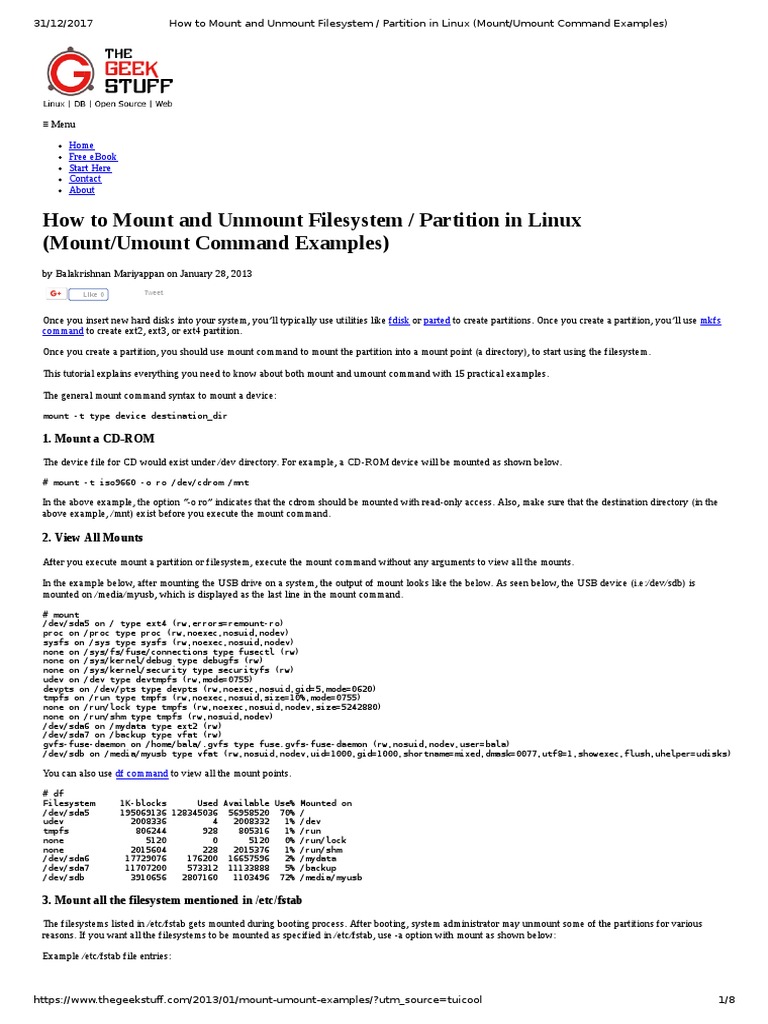
The primary command for attaching file systems in Linux is mount. Before executing this command, however, some preparation steps are necessary. You must identify the device you wish to mount and create a suitable mount point within your file system hierarchy. This preparation prevents errors and ensures a smooth mounting process.
Identifying Devices & Preparing Mount Points
First, identify your storage device using commands like lsblk or fdisk -l. These commands display block devices and their partitions, such as /dev/sdb1 for a USB drive partition. Next, create an empty directory to serve as your mount point. For example, sudo mkdir /mnt/myusb creates a new directory. This directory will become the gateway to your device’s contents.
Basic-mount-command-syntax-and-options">Basic `mount` Command Syntax and Options
The basic syntax for the mount command is sudo mount /dev/device_name /path/to/mount_point. For instance, to mount a USB drive, you might use sudo mount /dev/sdb1 /mnt/myusb. Important options include -t filesystem_type (e.g., -t ext4) to specify the file system type, and -o options for various behaviors like read-only (ro) or user permissions (uid, gid). Understanding these options is key to flexible mounting.
-t(type): Specifies the file system type (e.g., ext4, xfs, ntfs).-o(options): Provides additional mounting options (e.g.,rofor read-only,rwfor read-write).-r(read-only): Mounts the file system in read-only mode.-w(read-write): Mounts the file system in read-write mode (default).
Mounting Specific File System Types (e.g., USB, ISO, Network Shares)
Mounting various file system types requires specific approaches. For a typical USB drive (often FAT32 or ext4), the basic command usually suffices. ISO files, which are disk images, can be mounted using a loop device: sudo mount -o loop /path/to/image.iso /mnt/iso. Network shares, like NFS or SMB/CIFS, involve different utilities (mount.nfs, mount.cifs) and often require specific server addresses and credentials. Further information on NFS can be found on Wikipedia: Network File System.
How to Unmount File Systems in Linux: The `umount` Command
Just as important as mounting is knowing how to unmount file systems in Linux safely. Unmounting detaches the file system from its mount point, making it safe to remove the underlying storage device. Failing to unmount properly can lead to data corruption or system instability. Therefore, always unmount before disconnecting any device.
Understanding When and Why to Unmount
You should always unmount a file system before physically disconnecting the storage device. This action ensures that all pending write operations are completed and the file system metadata is properly updated. Unmounting also releases any locks on the device, preventing data loss or corruption. It’s a critical step for maintaining data integrity.
Basic `umount` Command Syntax and Examples
The command to unmount a file system is umount. You can unmount by specifying either the device name or the mount point. For example, sudo umount /dev/sdb1 or sudo umount /mnt/myusb will both detach the file system. It is generally safer to specify the mount point to avoid confusion if multiple partitions are on the same device. Always verify the unmount was successful.
- Identify the mount point or device: Use
df -hormountto see currently mounted file systems. - Execute the unmount command:
sudo umount /path/to/mount_point. - Verify unmount: Run
df -hagain to confirm the device is no longer listed.
Resolving “Device is Busy” Errors
Occasionally, you might encounter a “device is busy” error when trying to unmount. This usually means a process is still accessing files on the mounted device. To resolve this, first identify the processes using the file system with lsof /path/to/mount_point or fuser -m /path/to/mount_point. Then, you can either terminate those processes or close the applications accessing the files. Sometimes, a lazy unmount (umount -l) can work, but it’s less safe as it detaches the file system immediately, even if files are open.
Automating File System Mounts with `/etc/fstab`
For file systems that you want to be permanently available, such as additional internal drives or network shares, manually mounting them after every reboot is inconvenient. The /etc/fstab file provides a way to automate the mounting process. This configuration file instructs the system on which file systems to mount at boot time and how to mount them.
Structure and Purpose of the `/etc/fstab` File
The /etc/fstab file is a critical system configuration file that lists all available disk partitions and data sources. Each line in fstab describes a single file system and its mounting parameters. It includes fields for the device, mount point, file system type, mount options, and dump/pass settings. This file ensures consistent and automatic mounting, making system administration easier.
Adding Entries for Persistent Mounting
To add an entry, you’ll need the device’s UUID (Universally Unique Identifier) or its device path, the desired mount point, file system type, and appropriate options. Using UUIDs (found with blkid) is generally recommended for stability, as device paths like /dev/sdb1 can change. A typical entry might look like: UUID=your_uuid /mnt/data ext4 defaults 0 2. Always back up your fstab file before making changes.
Verifying and Applying `fstab` Changes
After editing /etc/fstab, it’s crucial to verify your changes without rebooting. You can test the new entries by running sudo mount -a. This command attempts to mount all file systems listed in fstab that are not already mounted. If there are errors, they will be reported, allowing you to correct them before a reboot potentially leaves your system unbootable. Correctly configuring fstab is essential for system stability.
Troubleshooting Common Mounting & Unmounting Problems
Even with careful preparation, you might encounter issues when trying to mount or unmount file systems. Understanding common problems and their solutions can save significant time and frustration. Many issues relate to incorrect paths, permissions, or active processes. Therefore, a systematic approach to troubleshooting is always best.
Diagnosing “Device Not Found” or “Mount Point Does Not Exist”
These errors typically indicate an incorrect device path or a missing mount point. Double-check the device name using lsblk or fdisk -l. Ensure the mount point directory exists by using ls -ld /path/to/mount_point. If it doesn’t, create it with sudo mkdir /path/to/mount_point. Correcting these fundamental issues is usually the first step in resolving mounting failures. Always verify your inputs.
Addressing Permission and Ownership Issues
After mounting, users might find they cannot write to the device due to permission issues. By default, mounted file systems are often owned by root. You can change ownership with sudo chown -R your_user:your_group /path/to/mount_point. Alternatively, specify user/group options (uid=user_id,gid=group_id) in the mount -o command or in /etc/fstab, especially for FAT32 or NTFS file systems. Proper permissions are vital for user access.
Handling “Device is Busy” and Read-Only File System Errors
We discussed “device is busy” errors earlier; use lsof or fuser to identify and terminate processes. A “read-only file system” error often occurs if the file system has corruption, and Linux mounts it in read-only mode to prevent further damage. You might need to run a file system check (e.g., fsck /dev/device) on the unmounted device to repair it. Occasionally, a device might be physically write-protected, like some SD cards. Always check for physical locks.
Frequently Asked Questions
What’s the difference between mounting and symlinking?
Mounting connects an entire file system (from a device or partition) to a specific directory, making its contents directly accessible as part of the main file system tree. Symlinking (symbolic linking) creates a pointer or shortcut to an existing file or directory elsewhere in the file system. A symlink does not attach a new file system; it merely references another location. Therefore, they serve distinct purposes in file system management.
Can I mount a partition without root privileges?
By default, mounting requires root privileges for security reasons. However, you can configure your system to allow non-root users to mount specific devices. This is typically done by adding the user or users option in the /etc/fstab entry for that device. Additionally, desktop environments often provide automatic mounting for removable media, handling the permissions behind the scenes. This allows for convenient access without elevated privileges.
How do I safely remove a USB drive after unmounting?
After successfully unmounting a USB drive using the umount command, you can safely remove it from your computer. The unmount operation ensures that all data has been written to the device and its file system is in a consistent state. There’s no additional “eject” command needed in Linux after a successful umount, unlike some other operating systems. Simply disconnect the physical device.
Conclusion
Mastering how to mount and unmount file systems in Linux is an indispensable skill that empowers you to manage your storage resources effectively. We’ve covered identifying devices, using the mount and umount commands, automating mounts with /etc/fstab, and troubleshooting common issues. These techniques ensure your data is accessible, secure, and properly managed. Therefore, practicing these commands will build your confidence and proficiency.
Continue your Linux journey by exploring advanced mounting options, different file system types, and network storage solutions. Understanding file system management is a cornerstone of Linux administration, paving the way for more complex system tasks. Share your experiences or ask further questions in the comments below to deepen your understanding!
