
Managing users is a fundamental aspect of Linux system administration. Understanding how to list users in Linux is crucial for security, auditing, and general system oversight. This guide will walk you through various methods, from simple file inspections to powerful command-line tools, ensuring you can efficiently identify all user accounts on your system.
Understanding User Accounts in Linux Systems
Linux systems are multi-user environments, meaning multiple individuals can access and utilize the same machine simultaneously. Each user account has specific permissions and access rights, dictating what they can and cannot do. Knowing how to enumerate these accounts is the first step in effective user management.
What Defines a Linux User?
A Linux user is an entity that can log into the system and execute commands. Every user has a unique username and password, along with a home directory for their personal files. These accounts are essential for maintaining system security and isolating user data.
Furthermore, users are typically assigned to one or more groups, which further define their permissions. This group-based permission system simplifies administration, allowing you to grant access to resources for multiple users simultaneously. Therefore, understanding both individual users and their group memberships is vital.
User IDs (UIDs) and Group IDs (GIDs) Explained
Behind every username, Linux uses a unique numerical identifier called a User ID (UID). Similarly, groups are identified by a Group ID (GID). These IDs are fundamental to how the operating system manages permissions and ownership of files and processes.
System users, like `root` or `daemon`, often have low UIDs (typically below 1000). Regular users, on the other hand, usually have UIDs starting from 1000 or higher. Knowing these distinctions helps in differentiating between human users and system processes.
The `/etc/passwd` File: Your Primary User Database
The `/etc/passwd` file is a plain text file that stores essential information about all user accounts on a Linux system. It’s the traditional and most direct way to find out how to list users in Linux. This file contains one line per user, with fields separated by colons.
While it contains user details, it does not store passwords directly for security reasons. Instead, password hashes are typically stored in the `/etc/shadow` file, which is only readable by the root user. This separation enhances system security significantly.
Decoding the `/etc/passwd` Structure
Each line in `/etc/passwd` follows a specific format. Understanding this structure is key to interpreting the output when you list users. Here’s what each field represents:
- Username: The user’s login name.
- Password Placeholder: Usually an ‘x’, indicating the actual password hash is in `/etc/shadow`.
- User ID (UID): A unique number identifying the user.
- Group ID (GID): The primary group ID for the user.
- User Info (GECOS): Optional field for full name, contact info, etc.
- Home Directory: The default directory where the user lands after logging in.
- Login Shell: The shell program executed when the user logs in (e.g., `/bin/bash`).
Viewing User Information with `cat` and `less`
You can easily view the contents of the `/etc/passwd` file using Basic command-line utilities. The `cat` command displays the entire file content to your terminal. For instance, typing cat /etc/passwd will show all user entries.
However, for longer files, `less` provides a more manageable way to browse. Using less /etc/passwd allows you to scroll through the file page by page, making it easier to inspect specific entries without overwhelming your screen. This method is often preferred for detailed examination.
Efficiently Listing All Users with `getent passwd`
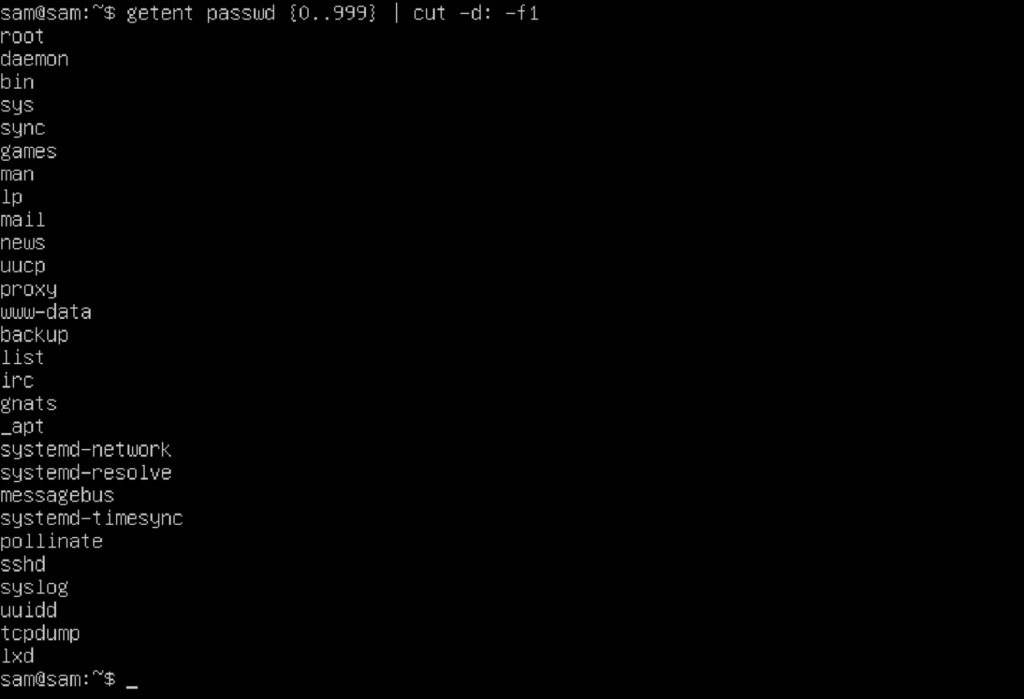
While `/etc/passwd` is the primary source, modern Linux systems can retrieve user information from various sources, including network services like LDAP or NIS. The `getent` command is the most reliable way to query these different databases and get a complete picture of how to list users in Linux.
This command ensures that you retrieve all users, regardless of whether their information resides locally or on a centralized directory service. Therefore, `getent passwd` is often considered a more robust method than simply reading `/etc/passwd` directly.
Basic Usage of the `getent` Command
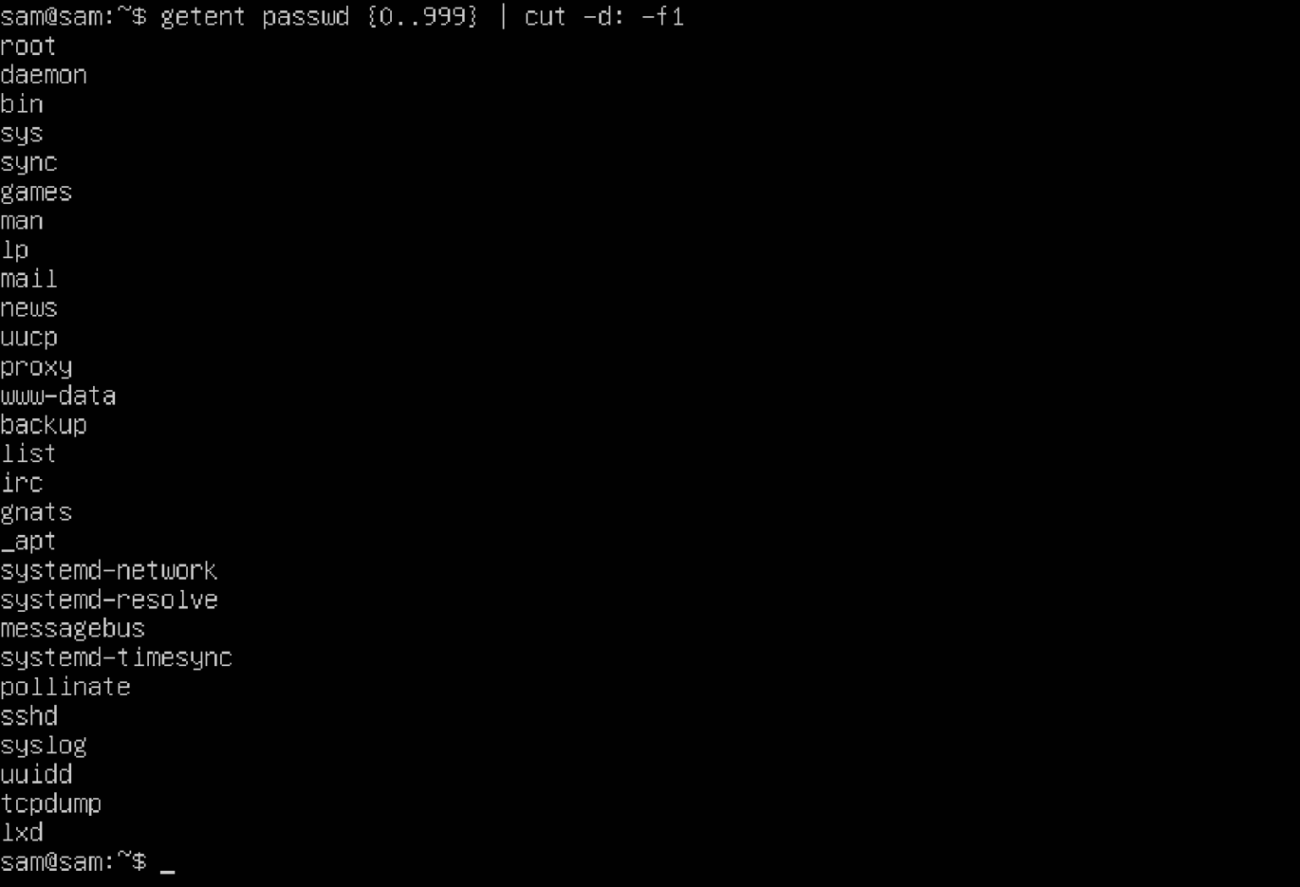
To list all users recognized by the system, simply execute getent passwd in your terminal. This command queries all configured name service databases for user entries. It will output entries in the same format as `/etc/passwd`, but it includes users from external sources too.
The output will typically include system accounts as well as regular user accounts. You can pipe this output to other commands for further processing, which significantly enhances its utility. For more on `getent`, refer to its official documentation.
Filtering `getent` Output for Specific Users
Often, you might only be interested in specific types of users. For instance, to list only regular users (those with UIDs typically 1000 and above), you can combine `getent` with `awk` or `grep`. A common approach is to filter by UID.
For example, getent passwd | awk -F: '$3 >= 1000 {print $1}' will display only the usernames of regular users. This command utilizes `awk` to set the field separator to a colon and then checks if the third field (UID) is greater than or equal to 1000, printing the first field (username) if it matches.
Advanced User Listing with `cut` and `awk` Commands
When you need to extract specific pieces of information from the user list, commands like `cut` and `awk` become invaluable. These tools allow for powerful text manipulation, helping you customize how to list users in Linux according to your precise needs.
They are particularly useful when you want to create concise reports or feed user data into scripts. Mastering these commands will significantly enhance your command-line proficiency and administrative capabilities.
Extracting Usernames Using `cut`
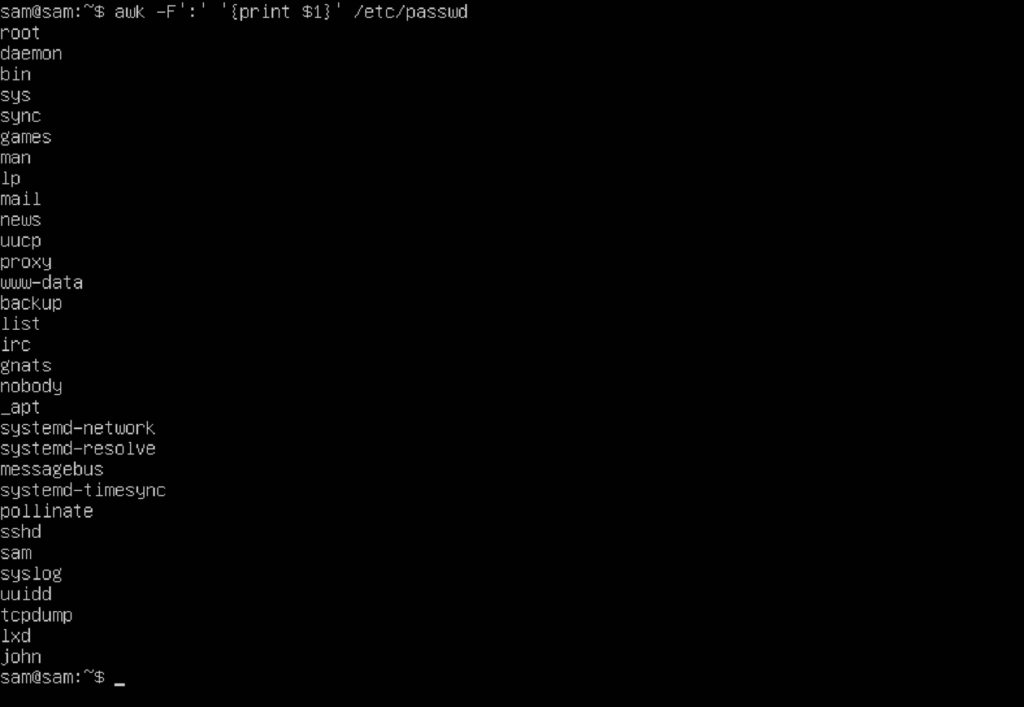
The `cut` command is excellent for extracting specific fields from delimited text. To get a simple list of all usernames from `/etc/passwd`, you can use: cut -d: -f1 /etc/passwd. Here, `-d:` specifies the colon as the delimiter, and `-f1` tells `cut` to output only the first field (the username).
Similarly, you could extract home directories by changing `-f1` to `-f6`. This command is straightforward and highly efficient for simple field extraction tasks. It provides a clean list, which is often exactly what is needed.
Powerful User Data Manipulation with `awk`
`awk` is a much more versatile text processing tool, capable of complex pattern matching and data reformatting. To list usernames and their home directories, you could use: awk -F: '{print $1, $6}' /etc/passwd. This command prints the first and sixth fields for each entry.
Furthermore, `awk` can perform conditional logic. For example, to list users whose shell is `/bin/bash`, you might use: awk -F: '$7 == "/bin/bash" {print $1}' /etc/passwd. This demonstrates `awk`’s power in filtering and presenting data dynamically.
Identifying Currently Logged-In Users in Linux
Beyond listing all potential user accounts, you often need to know who is actively using the system. Linux provides several commands to identify currently logged-in users, offering different levels of detail. This helps administrators monitor activity and manage resources effectively.
These commands are particularly useful for troubleshooting, security monitoring, or simply understanding system load. They provide real-time snapshots of user engagement with the system.
Using `who` to See Who is Logged In
The `who` command offers a quick overview of users currently logged into the system. When you type who, it typically displays the username, terminal line, login time, and the remote host from which they connected. This provides a concise summary of active sessions.
For example, you might see output like `john pts/0 2023-10-27 10:30 (192.168.1.10)`. This instantly tells you who is logged in and from where. It’s a simple yet effective command for immediate checks.
Detailed Login Information with `w` and `users`
The `w` command provides more detailed information than `who`. In addition to login details, it shows what each user is currently doing. This includes their login time, idle time, JCPU (job CPU time), PCPU (process CPU time), and the command they are executing.
For a minimal list of just usernames, the `users` command is the simplest option. It prints only the usernames of logged-in users, separated by spaces. This is useful when you need a very clean, unformatted list of active users.
Exploring User Groups and Their Members
Users in Linux are organized into groups, which simplify permission management. Understanding group memberships is just as important as knowing how to list users in Linux. Groups dictate access to files, directories, and other system resources.
Proper group management is a cornerstone of secure and efficient system administration. It allows for fine-grained control over who can access what, without having to set individual permissions for every user.
Listing All Groups and Their Members
The `/etc/group` file stores information about all groups on the system. To view all groups and their members, you can use cat /etc/group. Each line in this file represents a group, listing its name, GID, and a comma-separated list of its members.
Alternatively, the `getent group` command provides a more comprehensive list, similar to `getent passwd`, by querying all configured group databases. This ensures you capture groups from network services as well.
Finding Groups a Specific User Belongs To
To determine which groups a particular user belongs to, the `groups` command is very useful. For example, groups john will display all groups that the user ‘john’ is a member of. This includes their primary group and any secondary groups.
Another command, `id`, provides even more detailed information about a user, including their UID, primary GID, and all secondary GIDs. Running id john will show all this information, making it a comprehensive tool for user identity verification.
Practical Use Cases and Best Practices for Listing Users
Knowing how to list users in Linux is not just theoretical; it has many practical applications in daily system administration. From security audits to resource allocation, efficient user listing is a fundamental skill. Adopting best practices ensures accuracy and security.
Furthermore, automating these tasks can save significant time and reduce human error, especially in larger environments. Consider how these techniques can be integrated into your routine.
Differentiating System vs. Regular Users
When you list users, you’ll often see many accounts that are not associated with human users. These are system users (e.g., `daemon`, `nobody`, `www-data`), typically created by software packages for running services. They usually have UIDs below 1000 and often have `/sbin/nologin` or `/bin/false` as their shell.
Regular users, conversely, are those created for human interaction, typically with UIDs 1000 or greater and a standard shell like `/bin/bash`. Differentiating between these helps in security reviews and understanding system processes. You can filter based on UID or shell type.
automation">Scripting User Listing for Automation
For repetitive tasks, scripting user listing commands can be highly beneficial. You can combine `getent`, `awk`, `cut`, and `grep` within a shell script to generate custom reports. For instance, a script could list all users who haven’t logged in for a specific period.
- Define your objective: What specific user data do you need?
- Choose the right commands: Use `getent` for comprehensive data, `cut`/`awk` for parsing.
- Filter and format: Use `grep` for pattern matching and `awk` for custom output.
- Add error handling: Ensure your script gracefully handles unexpected output.
- Schedule automation: Use cron jobs to run your scripts regularly.
This approach allows for proactive monitoring and streamlined administrative workflows. Consider exploring Bash scripting documentation for advanced automation techniques.
Frequently Asked Questions About Listing Users in Linux
How do I list users without their shell or home directory?
You can use the `cut` command to extract only the username field from `/etc/passwd`. For example, cut -d: -f1 /etc/passwd will display a list of all usernames, omitting other details like their shell or home directory. This provides a clean and concise list.
What’s the difference between `who`, `w`, and `users`?
The `users` command simply lists the usernames of currently logged-in users. The `who` command provides more detail, including username, terminal, login time, and remote host. The `w` command offers the most extensive information, adding details about what each user is currently doing, their idle time, and CPU usage.
Why might `getent passwd` show more users than `/etc/passwd`?
`/etc/passwd` only contains local user accounts. However, `getent passwd` queries all configured name service databases. This includes local files, but also external sources like LDAP (Lightweight Directory Access Protocol) or NIS (Network Information Service). Therefore, `getent` provides a more complete list of all users known to the system, regardless of where their account information is stored.
Conclusion: Mastering Linux User Management
Effectively knowing how to list users in Linux is an indispensable skill for any system administrator. From basic file inspection to advanced command-line parsing, you now have a comprehensive toolkit at your disposal. This knowledge empowers you to maintain system security, perform audits, and manage resources with greater precision.
Continuously practicing these commands and exploring their various options will solidify your understanding. We encourage you to experiment with these tools on your own Linux environment and consider automating routine user listing tasks. Share your favorite user listing tricks in the comments below!
