
Understanding disk usage is crucial for maintaining a healthy Linux system. If you’re wondering how to get the size of a directory in Linux, you’ve come to the right place. This guide will walk you through the most effective commands and techniques. We will explore various methods, focusing on the powerful du command, to accurately assess directory sizes. Knowing your directory sizes helps manage disk space efficiently and troubleshoot storage issues.
Understanding Directory Sizes in Linux
Linux systems store data in a hierarchical directory structure. Each directory can contain files and other subdirectories. Over time, these directories can grow significantly, consuming valuable disk space. Therefore, checking their sizes becomes a routine administrative task. This process helps identify large data accumulations.
Why Monitor Directory Sizes?
Monitoring directory sizes offers several key benefits. Firstly, it prevents unexpected disk space depletion, which can halt critical services. Secondly, it helps in capacity planning for servers and workstations. Furthermore, understanding where space is being used assists in optimizing storage resources. Regularly checking sizes is a proactive approach to system health.
- Prevent system crashes due to full disks.
- Optimize storage allocation and resource planning.
- Identify potential data bloat or unnecessary files.
How to Get the Size of a Directory in Linux Using `du`
The du command, short for “disk usage,” is the primary utility for checking directory sizes in Linux. It estimates file space usage. This command recursively scans directories and their contents. Consequently, it provides a detailed breakdown of space consumption. Learning to use du effectively is fundamental for any Linux user or administrator.
The `du -sh` Command Explained
To quickly get the human-readable size of a specific directory, the du -sh command is your best friend. The -s option summarizes the total size for each argument. Additionally, the -h option displays sizes in a human-readable format (e.g., K, M, G). For instance, du -sh /var/log shows the total size of the /var/log directory. This command is fast and highly practical for quick checks.
Consider running du -sh . to check the size of your current working directory. This simple command provides an immediate overview. Moreover, it aggregates all subdirectories and files within. This makes it an excellent starting point for any investigation into disk usage. You can also specify multiple directories like du -sh /home/user1 /opt/data.
Interpreting `du` Output for Directory Sizes
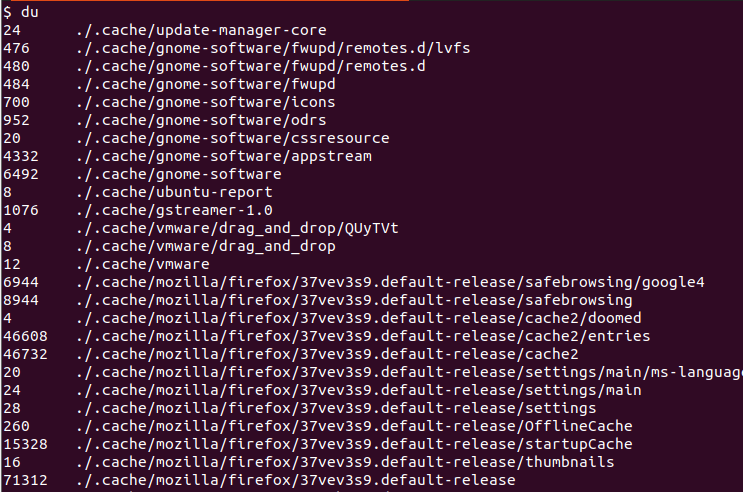
When you run du without any options, it lists the disk usage for every subdirectory and file. This output can be quite verbose. However, understanding the numbers is straightforward. By default, du reports sizes in 1KB blocks. Therefore, a value of 100 means 100 kilobytes. Adding the -h option makes these numbers much easier to grasp. For example, du -h /path/to/directory will show sizes like 4.0K, 12M, or 2.5G. This human-readable format is preferred for most tasks.
Comparing `du -h` vs. `du -sh` for Clarity
While both du -h and du -sh provide human-readable output, their scope differs. The du -h command lists the size of each subdirectory and file within the specified path. Conversely, du -sh provides only a grand total for the specified directory. For example, du -h /home/user/documents will show sizes for every folder inside ‘documents’. However, du -sh /home/user/documents will only show one line: the total size of ‘documents’. Choose -sh for a quick summary and -h for a detailed breakdown.

Advanced `du` Commands for Directory Size Analysis
Beyond the Basic usage, the du command offers powerful options for more granular analysis. These advanced features help you pinpoint specific usage patterns. They are invaluable for deeper investigations into disk space consumption. Mastering these commands will significantly enhance your Linux administration skills.
Including Individual File Sizes with `du -a`
By default, du only shows directory sizes. However, the -a option includes individual file sizes in its output. This can be particularly useful when you need to see how much space specific files are consuming within a directory. For instance, du -ah /path/to/directory will list both subdirectories and files with their respective human-readable sizes. This provides a complete picture of disk usage at all levels. It helps identify large individual files quickly.
Limiting Recursion Depth with `–max-depth`
Sometimes, you only need to see the sizes of immediate subdirectories, not the entire tree. The --max-depth option allows you to control the recursion level. For example, du -h --max-depth=1 /var will show the total size of /var and all its direct subdirectories. This is extremely helpful for getting a high-level overview without overwhelming detail. It provides a cleaner, more focused output.
Getting a Grand Total with `du -c`
If you want a total sum of all specified arguments, the -c option is perfect. When used with du -ch, it will list the sizes of all directories and then provide a cumulative total at the end. For example, du -ch /home/user/* will show the size of each item in the user’s home directory, followed by a grand total. This is excellent for summarizing multiple directory sizes. It offers a convenient way to aggregate information.
Identifying Large Directories in Linux with `du`
Finding the largest directories is a common task for disk space management. The du command, when combined with other Linux utilities, becomes very powerful. These combinations allow for sorting and filtering the output. Consequently, you can quickly identify the biggest space consumers. This is a critical step in freeing up disk space.
Combining `du` with `sort` for Ranking
To find the largest directories, combine du -h with the sort command. The command du -h /path/to/directory | sort -rh is highly effective. The -r option sorts in reverse order (largest first), and -h ensures human-readable sorting. This pipeline immediately shows you which directories are taking up the most space. It is a fundamental technique for disk space analysis.
- Navigate to the parent directory you want to analyze.
- Execute
du -h --max-depth=1 . | sort -rh. - Review the sorted list to identify large directories.
Using `head` and `tail` to Pinpoint Top Directories
After sorting, you might only be interested in the very top or bottom items. The head and tail commands help with this. To see the top 10 largest directories, use du -h --max-depth=1 . | sort -rh | head -n 10. Conversely, tail -n 10 would show the 10 smallest. These commands are excellent for quickly focusing on critical areas. They streamline the analysis process significantly.
Excluding Specific Directories from the Scan
Sometimes, you need to exclude certain directories from your du scan. The --exclude option handles this. For example, du -sh --exclude="/path/to/exclude" /path/to/scan will ignore the specified directory. This is useful for avoiding unnecessary scanning of known large directories. It helps focus the analysis on relevant areas. You can use multiple --exclude options if needed.
Other Ways to Check Directory Size in Linux
While du is the go-to command, other tools can also provide insights into directory sizes. These alternatives might be useful in specific scenarios or for different types of analysis. Exploring these options broadens your toolkit for disk management. They offer varying levels of detail and presentation.
Using `ls -lhR` (with Caveats)
The ls -lhR command lists files and directories recursively with human-readable sizes. However, it shows the size of individual files, not the aggregated size of directories. The “size” reported for a directory by ls is actually the size of the directory entry itself, not its contents. Therefore, ls -lhR is not suitable for getting the true size of a directory. It is better for viewing individual file sizes within a directory tree. Always use du for accurate directory size information.
Leveraging `find` for Specific File Types and Sizes
The find command can locate files based on various criteria, including size. While not directly reporting directory size, it can help identify large files that contribute to directory bloat. For example, find /path/to/directory -type f -size +1G -print0 | xargs -0 du -h finds files larger than 1GB and shows their sizes. This combination helps in targeted cleanup efforts. It’s powerful for advanced file management. For more details on find, refer to its man page: find man page.
Exploring Graphical Disk Usage Analyzers
For users who prefer a visual representation, several graphical tools are available. Applications like Baobab (Disk Usage Analyzer in GNOME) or K4DirStat (KDE) provide intuitive treemaps. These tools visually display disk space usage, making it easy to spot large directories. They offer a user-friendly alternative to command-line tools. Many Linux distributions include these utilities by default. They are particularly helpful for new users.
Common Issues When Checking Linux Directory Sizes
Even with powerful tools like du, users can encounter common issues. Understanding these challenges helps in accurate interpretation and troubleshooting. Addressing these points ensures you get the most reliable information. It also prevents misinterpretations of disk usage data.
Understanding ‘Permission Denied’ Errors
When running du, you might encounter “Permission denied” errors. This typically happens when the user running the command lacks read permissions for certain directories or files. To resolve this, you can either run the command with sudo (if you have administrative privileges) or change permissions. Using sudo du -sh /path/to/directory often provides a complete scan. However, be cautious when using sudo. Always understand the implications of elevated permissions.
Apparent Size vs. Disk Usage: What’s the Difference?
It’s important to differentiate between a file’s “apparent size” and its “disk usage.” Apparent size is the actual number of bytes in a file. Disk usage refers to the amount of disk space the file actually occupies. Due to filesystem block allocation, a small file might still consume a full block (e.g., 4KB) on disk. Therefore, a directory containing many small files might show a larger disk usage than the sum of their apparent sizes. The du command reports disk usage, which is generally what you need to know for space management. This distinction is crucial for understanding disk reports.
Best Practices for Regular Directory Size Monitoring
Regularly monitoring directory sizes is a key aspect of system maintenance. Schedule periodic checks, especially for critical directories like logs, temporary files, and user data. Consider automating these checks with cron jobs. Furthermore, establish thresholds for alerts when directories exceed certain sizes. This proactive approach helps prevent disk space emergencies. It ensures your Linux system runs smoothly and efficiently.
Frequently Asked Questions About Linux Directory Sizes
Many common questions arise when dealing with disk usage in Linux. Here, we address some of the most frequent inquiries. Understanding these nuances will further solidify your knowledge. These answers provide clarity on related commands and concepts.
What’s the Difference Between `du` and `df`?
The du command reports disk usage for files and directories. It calculates space consumed by traversing the filesystem. Conversely, df (disk free) reports filesystem disk space usage. It shows the total, used, and available space for mounted filesystems. Think of du as telling you “how much space this directory uses” and df as “how much space is left on this disk partition.” Both are essential but serve different purposes. They provide complementary information for disk management.
How Can I Find the Largest Files Within a Directory?
To find the largest files within a specific directory, you can combine find with du and sort. A common command is find /path/to/directory -type f -print0 | xargs -0 du -h | sort -rh | head -n 10. This command lists the top 10 largest files in human-readable format. It’s an effective way to pinpoint individual files consuming significant space. This helps in targeted cleanup efforts.
Why Does `du` Show a Different Size Than `ls` for a File?
As mentioned earlier, du reports the actual disk space allocated to a file (disk usage). In contrast, ls -l reports the file’s apparent size (the number of bytes in the file). Due to filesystem block allocation, a file might occupy more disk space than its actual size. For example, a 1-byte file on a filesystem with 4KB blocks will still consume 4KB of disk space. Therefore, du often shows a slightly larger size than ls -l for the same file. This difference is normal and expected. It reflects how files are stored on the disk.
Conclusion
Mastering how to get the size of a directory in Linux is a fundamental skill for effective system administration. The du command, with its various options, provides comprehensive insights into disk usage. By combining du with other utilities like sort, head, and find, you can efficiently identify and manage large directories. Regularly monitoring your disk space prevents issues and ensures optimal system performance. Start implementing these commands today to keep your Linux environment tidy and efficient. Share your favorite du tips in the comments below!
