
Mastering text editing is crucial for developers, system administrators, and anyone working with code or configuration files. A fundamental skill in this powerful editor is understanding how to delete lines in Vim / Vi efficiently. This comprehensive guide will walk you through various commands and techniques, helping you remove unwanted text with precision. We will cover everything from single-line deletions to complex pattern-based removals, ensuring you can confidently manage your files.
Introduction: Mastering Line Deletion in Vim/Vi
Vim and Vi are iconic text editors known for their efficiency and power, especially when navigated with keyboard commands. Learning how to delete lines in Vim / Vi is a core skill that significantly speeds up your workflow. It allows for quick cleanups, refactoring, and precise document manipulation. Furthermore, understanding these commands makes you a more proficient user.
Why Efficient Line Deletion is Crucial in Vim/Vi
Efficient line deletion saves valuable time, particularly when dealing with large files or repetitive tasks. Instead of manually selecting and backspacing, Vim’s commands offer instant execution. This precision helps maintain code integrity and reduces errors during editing sessions. Therefore, mastering these techniques is a worthwhile investment for any user.
Navigating This Guide: What You’ll Learn
This guide will take you from Basic single-line deletions to advanced pattern-matching techniques. You will learn about Vim’s different operating modes and how each impacts deletion commands. Additionally, we will explore practical scenarios and essential undo/redo functionalities. By the end, you’ll have a robust understanding of how to delete lines in Vim / Vi effectively.
Understanding Vim/Vi Modes: The Foundation for Deleting Lines
Vim operates in several modes, each serving a distinct purpose. Understanding these modes is paramount before you can effectively delete lines in Vim / Vi. Most deletion commands are executed from Normal mode, while Visual mode allows for selected block manipulation. Command-line mode, conversely, handles range-based and global deletions.
Normal Mode: The Command Center for Deletion
Normal mode is Vim’s default state and where most commands are issued. You enter Normal mode by pressing the Escape key. From here, single-character or entire-line deletions are straightforward. This mode truly empowers users to manipulate text quickly and effectively.
Visual Mode: Selecting Text for Precise Deletion
Visual mode allows you to select blocks of text before applying a command. This is incredibly useful for deleting specific sections that span multiple lines or columns. You can enter Visual mode by pressing ‘v’ for character-wise, ‘V’ for line-wise, or ‘Ctrl-v’ for block-wise selection. Once selected, pressing ‘d’ will delete the highlighted text.
Command-Line Mode: Powerful Range-Based Deletions
Command-line mode, also known as Ex mode, is accessed by pressing ‘:’ from Normal mode. This mode enables powerful, range-based operations, including deleting lines in Vim / Vi across specific line numbers or based on patterns. It provides a highly flexible way to manage large sections of a document. Furthermore, it’s essential for complex editing tasks.
Basic Commands to Delete a Single Line in Vim/Vi
Deleting a single line is one of the most frequent operations in Vim. Fortunately, Vim offers several intuitive commands for this task. These commands are executed from Normal mode and are incredibly efficient for quick edits. Mastering them will significantly boost your editing speed.
The ‘dd’ Command: Deleting the Current Line
The simplest way to delete the current line in Vim / Vi is by using the ‘dd’ command. Place your cursor anywhere on the line you wish to remove and press ‘dd’. This command removes the entire line and stores it in the default register, allowing you to paste it elsewhere if needed. It’s a fundamental command for quick cleanups.
Using ‘D’: Deleting from Cursor to End of Line
Sometimes, you only need to remove part of a line. The ‘D’ command (Shift + d) deletes all text from the current cursor position to the end of the line. This is particularly useful when you want to truncate a line without affecting its beginning. It provides more granular control than ‘dd’.
Character Deletion: ‘x’ and ‘X’ for Fine Control
For even finer control, Vim offers ‘x’ and ‘X’ for character deletion. Pressing ‘x’ deletes the character under the cursor. Conversely, ‘X’ (Shift + x) deletes the character before the cursor. These commands are perfect for minor corrections without entering Insert mode. They are indispensable for precise character-level edits.
Deleting Multiple Lines: Ranges and Visual Mode in Vim
When you need to remove more than just one line, Vim provides powerful commands for deleting multiple lines efficiently. These methods range from specifying a count to defining exact line ranges. They are essential for refactoring code or cleaning up large text blocks.
Deleting ‘N’ Number of Lines with ‘Ndd’
To delete a specific number of lines starting from the current cursor position, prefix ‘dd’ with a number. For instance, ‘5dd’ will delete the current line and the next four lines below it. This command is incredibly efficient for removing contiguous blocks of text. It saves time compared to repeated ‘dd’ presses.
Specifying Line Ranges with ‘:[start],[end]d’
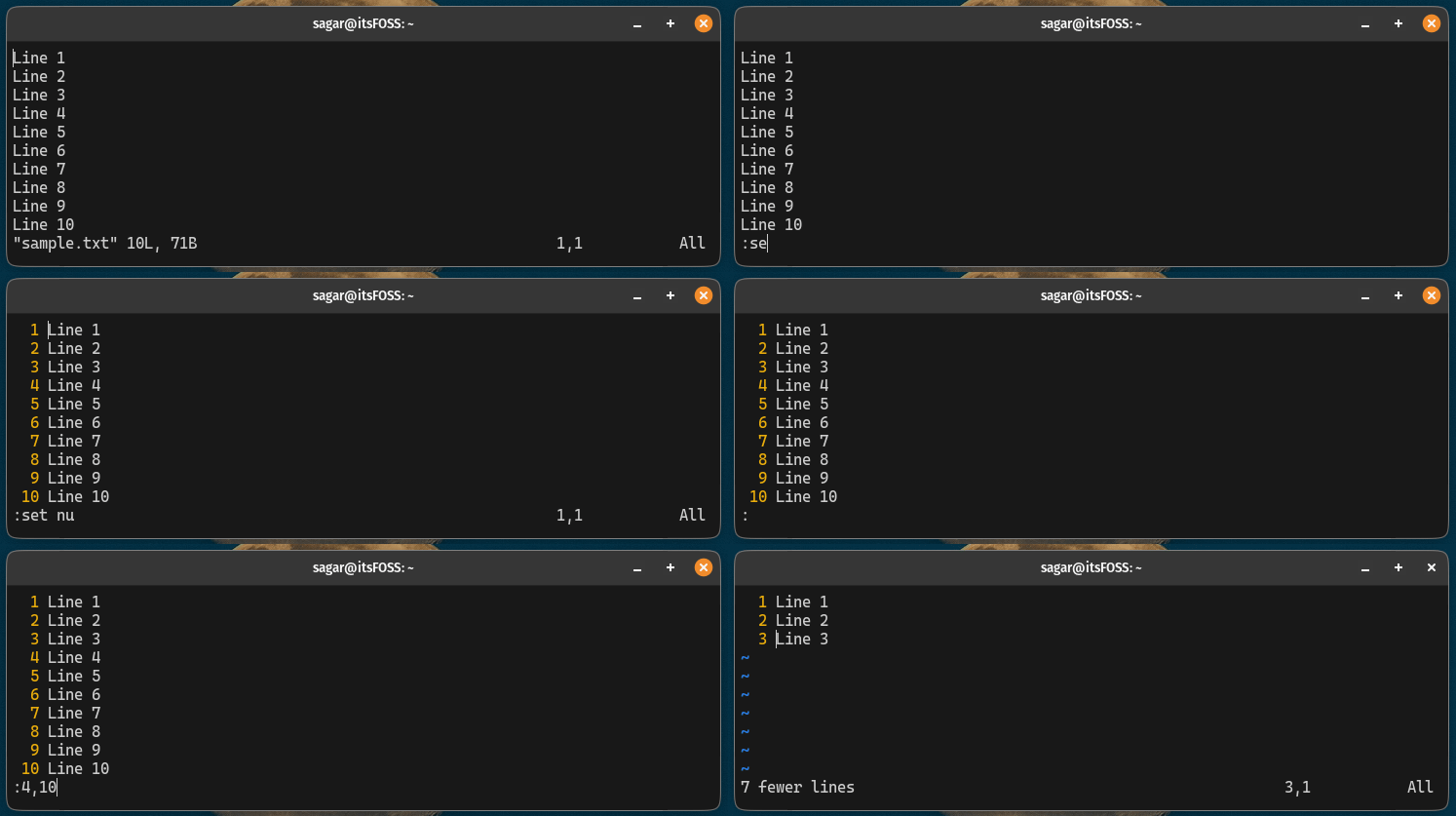
For deleting lines within a precise range, use Command-line mode. Type ‘:start_line,end_line d’ and press Enter. For example, ‘:10,20d’ deletes lines from 10 to 20. You can also use ‘.’ for the current line and ‘$’ for the last line. Therefore, ‘:.,$d’ deletes from the current line to the end of the file. This is a powerful way to delete lines in Vim / Vi across a document.
Here are some common range deletion examples:
- :1,$d: Deletes all lines in the file.
- :.,+5d: Deletes the current line and the next five lines.
- :10d: Deletes only line 10.
Visual Mode Deletion: Selecting and Deleting Blocks
Visual mode offers an intuitive way to delete arbitrary blocks of text. First, enter Visual Line mode by pressing ‘V’. Then, use the arrow keys to highlight the desired lines. Once the selection is made, simply press ‘d’ to delete the entire highlighted block. This method is excellent for visually identifying and removing sections of text.
Advanced Line Deletion Techniques and Patterns in Vim/Vi
Vim’s power truly shines with its advanced deletion capabilities, especially when dealing with patterns. You can delete lines based on specific text content or even remove blank lines. These techniques are invaluable for complex text manipulation and automation. They allow for highly targeted cleanups.
Deleting Lines Matching a Specific Pattern (‘:g/pattern/d’)
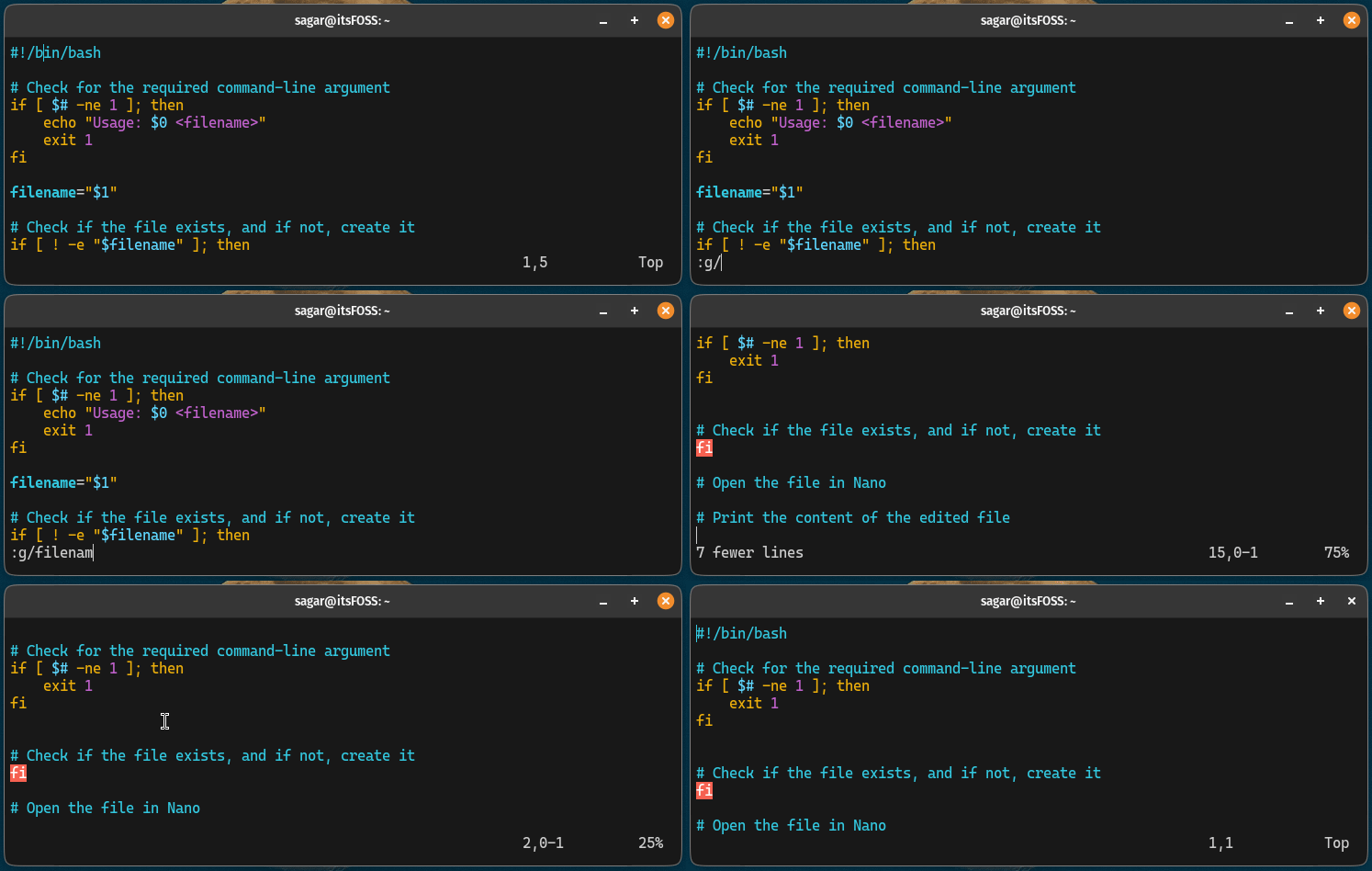
To delete all lines containing a specific pattern, use the global command: ‘:g/pattern/d’. For example, ‘:g/error/d’ will delete every line that contains the word “error”. This is an incredibly powerful command for cleaning up log files or removing specific comments. It leverages Vim’s regular expression engine.
Deleting Lines NOT Matching a Pattern (‘:v/pattern/d’)
Conversely, you might want to keep only lines that match a pattern and delete everything else. The ‘:v/pattern/d’ command (where ‘v’ stands for ‘invert match’) does exactly this. For instance, ‘:v/import/d’ deletes all lines that do NOT contain the word “import”. This is perfect for filtering files down to relevant content.
Removing Blank Lines or Empty Lines Efficiently
Blank lines can clutter a file, and Vim provides a simple way to remove them. Use the command ‘:g/^$/d’ to delete all entirely empty lines. If you also want to remove lines containing only whitespace, use ‘:g/^s*$/d’. This command efficiently tidies up your documents. It’s a quick win for readability.
Undoing and Redoing Deletions: Mastering Vim’s History
Accidents happen, especially when you’re learning how to delete lines in Vim / Vi. Fortunately, Vim has a robust undo and redo system that can save you from costly mistakes. Understanding these commands is just as important as knowing how to delete. They provide a safety net for all your editing actions.
The ‘u’ Command: Undoing Your Last Deletion
If you accidentally delete a line or a block of text, simply press ‘u’ (for undo) in Normal mode. This command reverts your last change. Vim maintains a history of changes, allowing you to undo multiple steps. It’s your first line of defense against errors.
Redoing Changes with ‘Ctrl-r’
Sometimes you undo too much, or you want to reapply a change that was previously undone. Pressing ‘Ctrl-r’ (Control + r) in Normal mode will redo the last undone change. Together, ‘u’ and ‘Ctrl-r’ provide complete control over your editing history. They ensure flexibility during your workflow.
Exploring the Undo Tree and Persistent Undo
Vim’s undo system is actually a tree, allowing you to navigate different branches of changes. For advanced users, ‘:earlier N’ and ‘:later N’ commands let you jump through history. Furthermore, Vim can save your undo history across sessions with persistent undo (e.g., using `set undofile`). This feature is incredibly powerful for complex projects. Learn more about Vim’s powerful features on its official documentation: Vim.org.
Practical Scenarios: Efficiently Deleting Lines in Vim
Knowing the commands is one thing; applying them effectively in real-world scenarios is another. Efficiently deleting lines in Vim / Vi can dramatically improve your productivity. Let’s explore some common situations where these deletion techniques prove invaluable. These examples highlight the versatility of Vim.
Cleaning Up Log Files and Configuration
Log files often contain repetitive or irrelevant information. Using commands like ‘:g/DEBUG/d’ can quickly remove all debug messages. Similarly, when editing configuration files, you might use ‘:v/^#/d’ to delete all commented-out lines, leaving only active configurations. This makes large files much more manageable.
Refactoring Code: Removing Obsolete Blocks
During code refactoring, you frequently need to remove old functions or blocks of code. Visual Line mode (‘V’) followed by ‘d’ is perfect for this. Alternatively, if you know the exact line numbers, ‘:start,end d’ offers precise removal. This ensures your codebase remains clean and up-to-date.
Automating Deletion with Macros and Scripts
For highly repetitive deletion tasks, Vim macros can automate the process. Record a sequence of deletion commands (e.g., ‘qq’ to start recording, then your deletion commands, then ‘q’ to stop). Then, replay the macro multiple times using ‘@q’ or ‘N@q’. This saves immense manual effort. It transforms tedious tasks into quick operations.
- Start recording a macro: Press ‘q’ followed by a register letter (e.g., ‘q’).
- Perform your deletion commands (e.g., ‘dd’ to delete a line).
- Stop recording: Press ‘q’ again.
- Execute the macro: Press ‘@q’ (or ‘@’ followed by your chosen register letter).
- Repeat the macro N times: Press ‘N@q’ (e.g., ’10@q’ to repeat 10 times).
Frequently Asked Questions
How do I delete all lines in Vim?
To delete all lines in Vim, switch to Command-line mode by pressing ‘:’, then type ‘1,$d’ and press Enter. This command instructs Vim to delete from the first line (1) to the last line ($) of the file. It’s the most straightforward way to clear an entire document quickly.
Can I delete lines without putting them in the register?
Yes, you can delete lines without storing them in Vim’s default register by using the “black hole” register. Prefix your deletion command with ‘”_d’. For example, ‘”_dd’ will delete the current line without affecting your paste buffer. This is useful when you don’t intend to paste the deleted content.
What’s the quickest way to delete from the current line to the end of the file?
The quickest way to delete from the current line to the end of the file is by using the Command-line mode command ‘:.,$d’. Here, ‘.’ represents the current line, and ‘$’ represents the last line of the file. This command removes all content from your current position to the very end. It’s highly efficient for truncating files.
Conclusion: Master Your Vim Deletion Skills
Learning how to delete lines in Vim / Vi is a foundational skill that significantly enhances your text editing capabilities. From simple ‘dd’ commands to complex pattern-based deletions, Vim offers a powerful toolkit for every scenario. We’ve explored various modes, basic and advanced commands, and crucial undo/redo functionalities. Furthermore, we covered practical applications to solidify your understanding.
Recap of Essential Vim/Vi Line Deletion Commands
Remember the core commands: ‘dd’ for a single line, ‘Ndd’ for multiple lines, and ‘:start,end d’ for specific ranges. Utilize Visual mode for block selections and Command-line mode with ‘:g/pattern/d’ for powerful pattern-based removals. These commands form the backbone of efficient Vim usage. Mastering them will make you a more productive editor.
Continuous Practice for Vim/Vi Proficiency
Like any skill, proficiency in Vim comes with practice. Regularly use these deletion commands in your daily workflow. Experiment with different techniques and explore Vim’s extensive help documentation. The more you use Vim, the more intuitive and powerful it becomes. Keep practicing to unlock its full potential.
Call to Action: Share Your Favorite Vim Deletion Tips
We hope this guide has empowered you to confidently delete lines in Vim / Vi. Do you have any favorite Vim deletion tricks or advanced commands not covered here? Share your insights and tips in the comments below! Your contributions can help other Vim users enhance their productivity. Let’s learn and grow together!
