
Back to main guide: Complete Guide To Cron
Automating routine tasks on your Linux or Unix-like system is a cornerstone of efficient system administration, and cron jobs are the powerful utility that makes this possible. If you’ve ever wished your computer could perform specific commands or scripts at predefined intervals without your intervention, then learning How To Create, Edit, And Delete Cron Jobs is an essential skill. This comprehensive guide will walk you through the process, ensuring you can confidently schedule and manage your automated tasks.
See also: Complete Guide to Cron, Cron Job Syntax: Mastering Crontab Scheduling.Understanding Cron Jobs: The Basics
Cron is a time-based job scheduler in Unix-like computer operating systems. It allows users to schedule commands or scripts to run automatically at a specified date and time. These scheduled tasks, known as cron jobs, are incredibly versatile, from running daily backups and updating software to sending out routine reports.The cron daemon (`crond`) is always running in the background, constantly checking for scheduled tasks. Each user has their own crontab (cron table) file, which contains the list of commands to be executed and their respective schedules. Understanding the syntax for these schedules is crucial for effective automation.
The Basic cron syntax consists of five time fields followed by the command to be executed: `minute hour day_of_month month day_of_week command_to_execute` For example, `0 2 * /path/to/script.sh` would execute `/path/to/script.sh` every day at 2:00 AM. Mastering this pattern is the first step in creating powerful automated routines.
Creating New Cron Jobs
To begin creating new cron jobs, you’ll use the `crontab` command with the `-e` option, which opens your user’s crontab file in a text editor, typically `nano` or `vi`. This command is the gateway to adding, modifying, and reviewing your scheduled tasks. If it’s your first time, the system might prompt you to choose your preferred editor.Once the editor opens, you’ll see a file that might contain comments (lines starting with `#`) explaining the cron syntax. You should add your new cron job entries on a fresh line at the end of the file. Each entry specifies when a command should run and what command it is.
For instance, to run a script called `backup.sh` located in your home directory every day at 3:30 AM, you would add the line: `30 3 * /home/yourusername/backup.sh`. After adding your desired cron jobs, save the file and exit the editor. The system will usually confirm that a new crontab has been installed, indicating your job is now scheduled.
Editing Existing Cron Jobs
Just like creating them, editing existing cron jobs also utilizes the `crontab -e` command. When you execute this command, your user’s crontab file will open in the default text editor, displaying all the cron jobs you currently have scheduled. This interface allows you to make any necessary modifications to your existing automated tasks.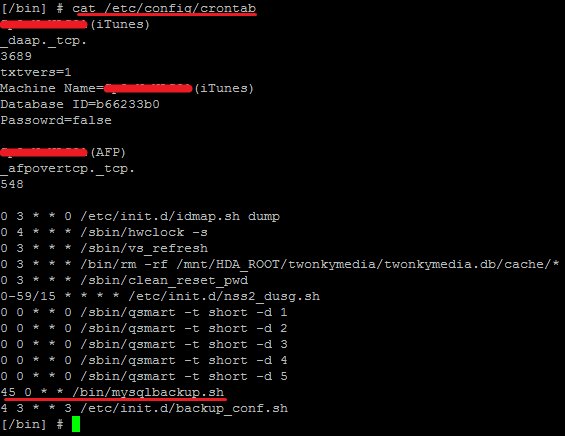
You can change the schedule of a job, modify the command it executes, or even add new commands directly within this editor. For example, if you previously scheduled a script to run daily and now want it to run only on weekdays, you would adjust the `day_of_week` field in its entry. Always double-check your changes for accuracy to avoid unintended consequences or errors in your automation.
After making your edits, save the file and exit the editor, just as you would when creating a new cron job. The cron daemon will automatically pick up the updated crontab file, and your changes will take effect immediately. To view your current cron jobs without opening the editor, you can use the command `crontab -l`, which lists all entries in your crontab.
Deleting Cron Jobs and Essential Best Practices
Managing your scheduled tasks effectively involves not only creating and editing them but also knowing how to safely remove them when they are no longer needed. Deleting cron jobs is straightforward, but it’s crucial to understand the different methods and their implications.Deleting Cron Jobs
To delete specific cron jobs, you should once again use the `crontab -e` command to open your crontab file in the text editor. Navigate to the line containing the cron job you wish to remove and simply delete that entire line. After deleting the line, save the file and exit the editor, and the specific job will no longer be scheduled.
Be extremely cautious with the `crontab -r` command. This command will immediately and silently delete all cron jobs for your user without any confirmation prompt. While it’s an effective way to clear your entire crontab, it should only be used when you are absolutely certain you want to remove all scheduled tasks. Always prefer `crontab -e` for targeted deletions to prevent accidental loss of important automation.
Essential Best Practices
When working with cron jobs, adhering to best practices can prevent common issues and ensure your automated tasks run smoothly and reliably. These guidelines help in debugging, maintaining, and securing your scheduled operations.-
Use Absolute Paths: Always specify the full path to your scripts and commands (e.g., `/usr/bin/php` instead of `php`, and `/home/user/myscript.sh` instead of `myscript.sh`). Cron’s environment might not have the same PATH variables as your interactive shell, leading to “command not found” errors.
-
Redirect Output: By default, cron emails any output (stdout and stderr) from your commands to the user. To prevent a deluge of emails, especially for frequently running jobs, redirect output to a log file or `/dev/null`. For example: ` * /path/to/command > /var/log/myjob.log 2>&1`.
-
Test Scripts Thoroughly: Before scheduling any script with cron, run it manually from the command line to ensure it executes correctly and produces the expected results. This helps catch errors that might otherwise go unnoticed when automated.
-
Add Comments: Use `#` to add comments to your crontab entries, explaining what each job does, its purpose, and who created it. This is invaluable for future maintenance and collaboration, especially in complex environments.
-
Set Environment Variables: If your script relies on specific environment variables, define them directly within the crontab file before your job entries, or ensure they are sourced within your script. For example: `MAILTO=”[email protected]”`.
-
Security Considerations: Be mindful of the permissions of scripts executed by cron. Ensure they are not writable by unauthorized users. Also, consider the principle of least privilege for the user account running the cron job.
-
Consult Documentation: For more in-depth information on cron and its various functionalities, including system-wide cron jobs, refer to the official Linux man pages or reputable online resources. A good starting point is the Wikipedia page on Cron, which provides a solid overview of its history and usage.
