
Learning How to Create a Directory in Linux Using mkdir Command is a fundamental skill for any Linux user. This powerful command allows you to organize your files efficiently within the Linux file system. Understanding its various options helps manage your workspace effectively. Therefore, mastering the mkdir command is crucial for command-line proficiency.
Introduction to Directory Creation in Linux
The Linux operating system relies heavily on a hierarchical file system, similar to folders on other operating systems. Directories, also known as folders, are essential for storing and organizing files logically. Properly structured directories improve navigation and overall system management. This section introduces the core concepts of Linux directories.
What is a Directory in Linux?
In Linux, a directory is a special type of file that contains references to other files and directories. It acts as a container, allowing users to group related data. Every file and directory on a Linux system resides within a directory. This structure creates a clear path for accessing any item.
Why Use the Command Line for Directory Management?
While graphical interfaces offer convenience, the command line provides unparalleled power and flexibility for directory management. Command-line tools like mkdir enable scripting, automation, and remote administration. Furthermore, they offer precise control over permissions and ownership. For instance, system administrators often prefer command-line tools for efficiency.
Brief Overview of the `mkdir` Command
The mkdir command, short for “make directory,” is the primary tool for creating new directories in Linux. It is a simple yet versatile utility. You can use it to create single directories, multiple directories, or even nested directory structures. Understanding its Basic usage is the first step to effective file system management.
Understanding the `mkdir` Command Syntax and Basic Usage
To effectively create directories in Linux, you must grasp the fundamental syntax of the mkdir command. This section breaks down the command’s structure and prepares you for practical application. We will cover how to access your terminal and verify your location, which are crucial prerequisites.
Basic Syntax: `mkdir [OPTION]… DIRECTORY…`
The most basic form of the mkdir command involves typing mkdir followed by the desired directory name. For example, mkdir my_new_folder will create a directory named “my_new_folder” in your current location. Options, preceded by a hyphen, modify the command’s behavior. These options provide additional functionalities for directory creation.
Prerequisites: Accessing the Linux Terminal
Before you can use the mkdir command, you need to open a terminal window. This is typically done by searching for “Terminal” in your applications menu. The terminal provides a command-line interface where you can input commands. It serves as your primary interaction point with the Linux operating system.
Verifying Your Current Working Directory (`pwd`)
It is always good practice to know your current location in the file system before creating new directories. The pwd command (print working directory) displays the absolute path of your current directory. This prevents accidental directory creation in unintended locations. Therefore, always check your path with pwd first.
Step-by-Step: Creating Single Directories in Linux
Now, let’s walk through the process of creating a single directory using the mkdir command. This straightforward procedure forms the foundation for more advanced directory management tasks. Following these steps ensures you correctly establish new folders within your Linux environment.
Navigating to Your Desired Location (`cd` command)
First, use the cd command (change directory) to move to the parent directory where you want to create your new folder. For instance, cd Documents will take you to your Documents folder. If you want to create a directory directly in your home folder, you can navigate there with cd ~. This step is crucial for proper organization.
Executing the `mkdir` Command for a New Folder
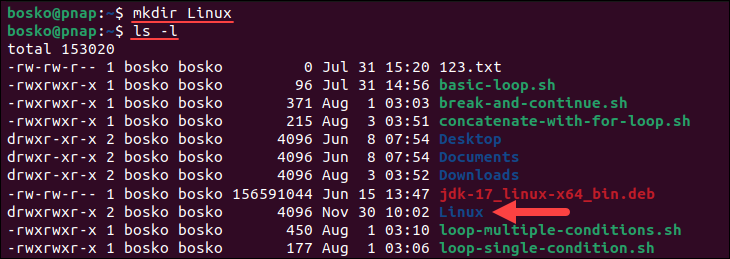
Once in the correct location, simply type mkdir followed by the name you wish to give your new directory. For example, to create a directory called “Projects”, you would type mkdir Projects and press Enter. The command executes silently if successful, returning you to the prompt. This action completes the basic directory creation.
- Open your Linux terminal.
- Navigate to the desired parent directory using
cd. - Type
mkdir YourNewDirectoryName. - Press Enter to execute the command.
Confirming Directory Creation Using `ls`
After executing the mkdir command, you should verify that the directory was created successfully. Use the ls command (list directory contents) to display the files and directories in your current location. You should see your newly created directory listed among them. This confirmation step ensures your command worked as expected.
Advanced `mkdir` Techniques: Multiple and Nested Directories
The mkdir command offers more than just creating single directories. It provides powerful options for creating multiple directories simultaneously and even complex nested structures. These advanced techniques significantly streamline your workflow. Learning them will enhance your command-line efficiency.
Simultaneously Creating Multiple Directories at Once
You can create several directories with a single mkdir command by listing all desired names, separated by spaces. For example, mkdir folder1 folder2 folder3 will create three distinct directories in your current location. This method saves time and reduces repetitive typing. It is especially useful when setting up a new project structure.
Mastering Nested Directory Creation with `mkdir -p`
To create a directory and its parent directories if they don’t already exist, use the -p (parents) option. For instance, mkdir -p project/src/main will create “project”, then “src” inside “project”, and “main” inside “src”. This is incredibly useful for building complex directory trees quickly. It prevents errors from missing parent directories.
Creating Directories with Spaces or Special Characters
When a directory name contains spaces or special characters, you must enclose the name in single or double quotes. Alternatively, you can escape the spaces with a backslash. For example, mkdir "My Documents" or mkdir My Documents both create a directory named “My Documents”. This ensures the shell interprets the name correctly. However, it is generally recommended to avoid spaces in directory names for easier command-line usage.

Setting Permissions During Directory Creation (`mkdir -m`)
Linux file permissions are crucial for security and access control. The mkdir command allows you to set these permissions right when you create a new directory. This ensures proper access rights from the outset. Understanding how to use the -m option is therefore very important for secure directory management.
Basics of Linux File Permissions (rwx)
Linux permissions are represented by three characters: read (r), write (w), and execute (x). These apply to three categories: owner, group, and others. Each permission has a numerical value: read=4, write=2, execute=1. For example, rwx is 7 (4+2+1), meaning full permissions. Understanding these basics is key to setting appropriate access levels.
Using the `-m` Option to Define Permissions
The -m option with mkdir lets you specify the permissions for the new directory using octal notation. For example, mkdir -m 755 new_folder creates “new_folder” with read, write, and execute permissions for the owner, and read and execute for the group and others. This offers precise control over who can access and modify the directory. It is a powerful feature for system administrators.
Common Permission Modes for New Directories
Here are some common permission modes for new directories:
- 755 (rwxr-xr-x): Owner has full access; group and others can read and execute. This is a common default for public directories.
- 700 (rwx——): Only the owner has full access; no one else can read, write, or execute. This is ideal for private directories.
- 775 (rwxrwxr-x): Owner and group have full access; others can read and execute. Useful for collaborative projects within a specific group.
Choosing the right permission mode is vital for maintaining system security and data integrity. Always consider who needs access when creating a directory.
Troubleshooting Common `mkdir` Issues and Errors
Even with a simple command like mkdir, you might encounter errors. Knowing how to troubleshoot these common issues will save you time and frustration. This section addresses typical problems users face when trying to create a directory in Linux. Understanding these solutions enhances your overall command-line experience.
Addressing ‘Permission Denied’ Errors
A “Permission denied” error typically means you lack the necessary rights to create a directory in the specified location. This often occurs when trying to create folders in system directories like /opt or /usr/local. To resolve this, try creating the directory in your home folder or use sudo mkdir if you have administrator privileges and truly need to create it in a restricted area. However, use sudo with caution.
Handling ‘File exists’ or ‘Directory already exists’ Messages
This error indicates that a file or directory with the same name already exists in the target location. The mkdir command will not overwrite existing items by default. To fix this, simply choose a different name for your new directory. Alternatively, you can delete the existing item first if it is no longer needed, using rmdir or rm -rf (use with extreme care).
Correcting Path Specification Mistakes
Errors can arise from incorrect path specification. This happens when you provide a path that doesn’t exist or is misspelled. Always double-check your path using pwd and ls to ensure accuracy. For instance, if you type mkdir /home/user/Docments/new_folder instead of /home/user/Documents/new_folder, it will fail. Pay close attention to capitalization and spelling.
Frequently Asked Questions
Users often have additional questions about managing directories in Linux. This section provides answers to some common queries. These insights will further enhance your understanding of directory operations. Therefore, reviewing these FAQs can deepen your command-line knowledge.
How do I delete a directory in Linux?
To delete an empty directory, use the rmdir command followed by the directory name (e.g., rmdir my_empty_folder). If the directory contains files or other directories, you must use the rm -r command (e.g., rm -r my_full_folder). Be extremely careful with rm -r as it permanently deletes contents without confirmation. Always double-check your command.
What is the default permission for a new directory?
The default permissions for a new directory are determined by the system’s umask setting. Typically, a new directory will receive 777 (rwxrwxrwx) permissions, but the umask value is subtracted from this. For example, a common umask of 002 will result in default permissions of 775 (rwxrwxr-x) for new directories. You can view your umask with the umask command.
Can I move or rename a directory after creation?
Yes, you can easily move or rename a directory using the mv command. To rename a directory, use mv old_name new_name. To move a directory to a new location, use mv directory_name /path/to/new/location. The mv command is versatile and works for both files and directories. It is an essential tool for organizing your file system.
Conclusion: Efficient Linux Directory Management
Mastering How to Create a Directory in Linux Using mkdir Command is a foundational step in becoming proficient with the Linux command line. We’ve explored everything from basic syntax to advanced techniques like creating nested directories and setting permissions. The mkdir command is a powerful and flexible tool for organizing your Linux file system effectively. Therefore, consistent practice will solidify your understanding.
Recap of Essential `mkdir` Command Skills
You have learned to use mkdir for single directories, mkdir -p for nested structures, and mkdir -m for setting permissions. Furthermore, you can now create multiple directories at once and handle names with spaces. These skills are fundamental for efficient file management. They empower you to maintain a well-organized Linux environment.
Further Steps to Enhance Your Linux Command Line Proficiency
To further enhance your skills, explore other essential commands like rmdir, mv, cp, and find. Understanding these utilities will give you comprehensive control over your file system. Practice regularly in a safe environment, perhaps a virtual machine. Continuous learning is key to Linux mastery.
Call to Action: Practice and Explore More Linux Commands
Now that you know How to Create a Directory in Linux Using mkdir Command, it’s time to put your knowledge into practice. Open your terminal and start organizing your files! Experiment with different options and scenarios. For more in-depth information on the mkdir command and its options, consult the official GNU Coreutils documentation or Wikipedia’s mkdir page. Share your favorite mkdir tips in the comments below!
