
Mastering text manipulation is fundamental for efficient coding and editing. Understanding How to Copy, Cut and Paste in Vim / Vi can dramatically speed up your workflow. This guide will demystify these essential operations, transforming you from a novice to a proficient Vim user. We will cover the core commands and advanced techniques, ensuring you can manage text seamlessly.
Introduction: Setting the Stage for Vim/Vi Text Manipulation
Vim, or Vi Improved, is a powerful, highly configurable text editor. It is built for speed and efficiency, primarily through keyboard commands. However, its modal nature often confuses new users. Learning its copy, cut, and paste functions is a crucial first step toward harnessing its full potential.
Many developers and system administrators prefer Vim due to its ubiquity and powerful editing capabilities. Therefore, knowing how to manipulate text efficiently within this environment is invaluable. This guide aims to provide clear, actionable steps for all users.
Why Master Vim/Vi Text Manipulation?
Efficient text manipulation in Vim directly translates to increased productivity. You can perform complex editing tasks with just a few keystrokes. This speed reduces reliance on the mouse, keeping your hands on the keyboard. Consequently, your focus remains unbroken, leading to a more fluid editing experience.
Furthermore, Vim’s powerful command language allows for highly precise operations. You can copy specific words, entire paragraphs, or even custom blocks of text. This precision is difficult to match in other editors, making Vim a favorite among power users.
A Quick Overview of Vim/Vi Modes
Vim operates in several modes, each with a distinct purpose. Understanding these modes is critical for effective text manipulation. Normal mode is where you issue commands for copying, cutting, and pasting. Insert mode is for typing text, much like a standard editor. Visual mode allows you to select text visually before applying commands.
Additionally, Command-line mode, accessed with a colon (`:`), enables advanced operations and configurations. Switching between these modes is fundamental to Vim’s workflow. Generally, you will spend most of your time in Normal mode for text manipulation.
Understanding Vim Modes for Copy, Cut, Paste Operations
The modal nature of Vim is its defining characteristic. Each mode serves a specific function, which impacts how you interact with text. Proper use of these modes is essential for mastering How to Copy, Cut and Paste in Vim / Vi. We will focus primarily on Normal and Visual modes for these tasks.
Transitioning between modes is straightforward. Pressing `Esc` always returns you to Normal mode. From Normal mode, you can enter Insert mode by pressing `i`, `a`, `o`, or Visual mode by pressing `v`, `V`, or `Ctrl+v`.
Normal Mode: The Command Center for Vim/Vi
Normal mode is where the magic happens for text manipulation. In this mode, keystrokes are interpreted as commands rather than literal text input. For instance, `y` initiates a copy operation, `d` starts a cut (delete) operation, and `p` pastes content. These commands often combine with motion commands to specify the target text.
For example, `yy` copies the current line, while `dw` deletes a word. This command-based approach offers incredible power and flexibility. It allows for highly efficient editing once you learn the common command patterns.
Visual Mode: Selecting Text with Precision
Visual mode provides a more intuitive way to select text before performing an action. You can highlight text using your arrow keys or motion commands, much like selecting text with a mouse. Once selected, you can then apply a command like `y` to copy or `d` to cut.
There are three types of Visual mode: character-wise (`v`), line-wise (`V`), and block-wise (`Ctrl+v`). Each offers a different granularity of selection. This visual feedback makes complex selections easier to manage, especially for beginners.
Insert Mode and Command-Line Mode (Brief Mention)
Insert mode is where you type text directly into the buffer. While you can paste text here using `Ctrl+r` followed by a register name, it is not the primary mode for copy/cut operations. You must exit Insert mode to Normal mode to perform most copy or cut actions.
Command-line mode, accessed by pressing `:` in Normal mode, allows for more advanced commands. For example, you can use `:reg` to view registers or `:w !xclip -selection clipboard` to copy to the system clipboard. These modes complement Normal and Visual modes for comprehensive editing tasks.
How to Copy (Yank) Text in Vim/Vi Effectively
In Vim, copying text is known as “yanking.” The `y` command is central to this process. Understanding how to use `y` with various motion commands is key to efficient text duplication. This section will detail the primary methods for yanking text.
The yanked text is stored in a register, which is Vim’s equivalent of a clipboard. By default, it goes into the unnamed register. You can also specify named registers for more advanced operations, allowing you to store multiple pieces of text simultaneously.
Yanks in Normal Mode: Words, Lines, and Paragraphs
Normal mode offers powerful ways to yank text quickly. The `yy` command yanks the entire current line. To yank a word, place your cursor at the beginning of the word and press `yw`. You can also yank to the end of a line with `y$`. These commands are highly efficient for common copying tasks.
For more extensive selections, `yip` yanks the current paragraph, and `yap` yanks the current paragraph including surrounding whitespace. Similarly, `yiw` yanks the inner word, and `yaw` yanks the word and its surrounding space. Practice these commands to build muscle memory.
- `yy`: Yank the current line.
- `yw`: Yank from the cursor to the end of the current word.
- `y$`: Yank from the cursor to the end of the line.
- `yip`: Yank the inner paragraph.
Copying with Visual Mode Selection
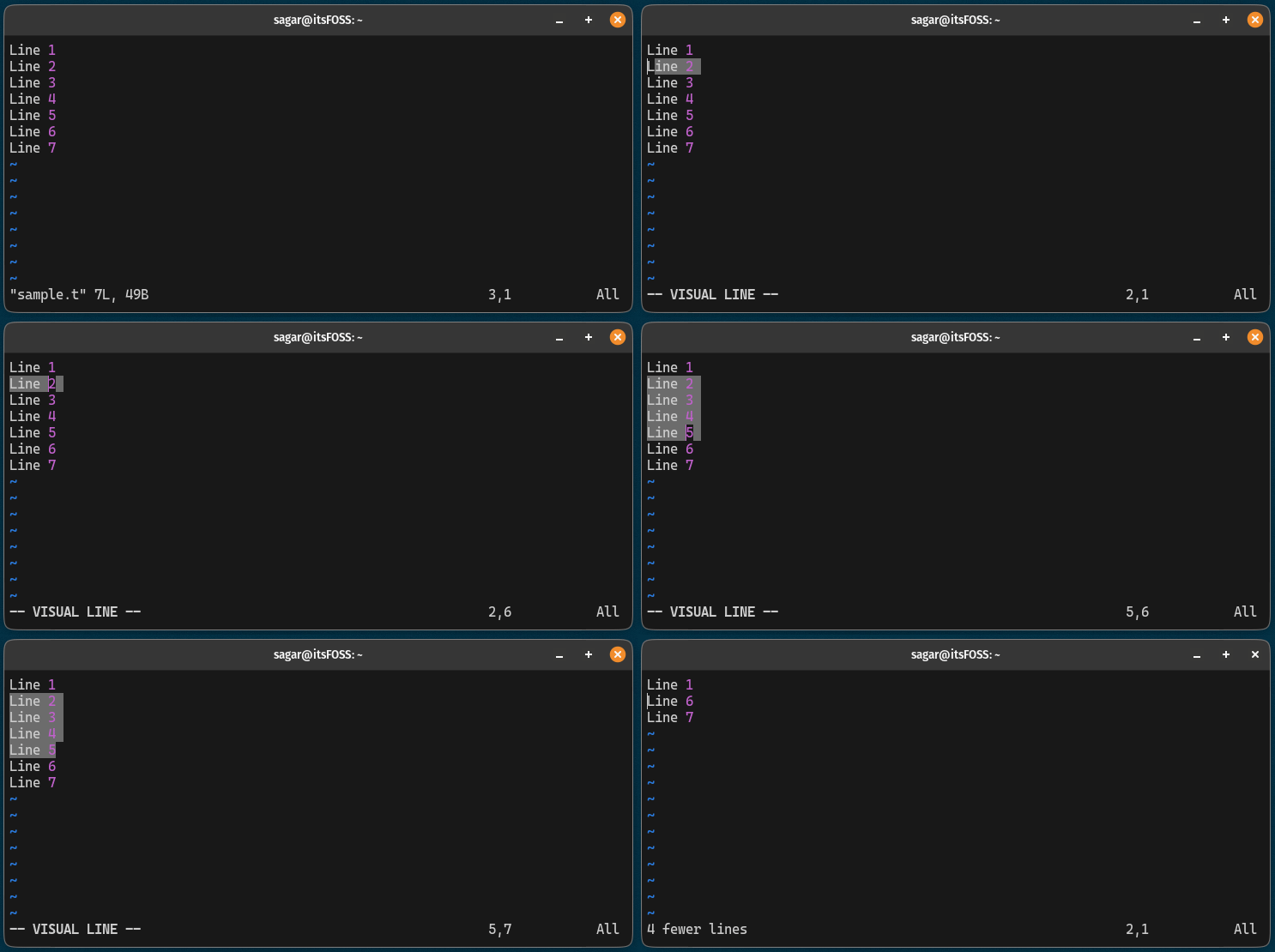
Visual mode provides a flexible way to yank arbitrary blocks of text. First, enter Visual mode by pressing `v` (character-wise), `V` (line-wise), or `Ctrl+v` (block-wise). Then, use motion keys (like `h`, `j`, `k`, `l`, `w`, `e`, `$`, `0`) to highlight the desired text. Once selected, simply press `y` to yank it.
This method is particularly useful when you need to copy text that doesn’t conform to standard line or word boundaries. The visual feedback helps ensure you select exactly what you intend. It’s a great starting point for beginners learning to copy in Vim.
Copying to Specific Registers for Advanced Use
Vim uses registers to store yanked or deleted text. The unnamed register (`””`) is the default. However, you can specify named registers (a-z) to store multiple pieces of text. For instance, to yank a line into register ‘a’, you would type `”ayy`. This allows for more complex cut and paste operations.
To access the system clipboard, you use the `”+` or `”*` registers. For example, `”+yy` yanks the current line to your system clipboard. This is crucial for copying text between Vim and other applications. Understanding registers unlocks advanced text manipulation capabilities.
How to Cut (Delete) Text in Vim/Vi and Store It
Cutting text in Vim is primarily done using the `d` (delete) command. When you delete text with `d`, it is automatically stored in a register, making it available for pasting. This behavior makes `d` function as a cut command. Like yanking, `d` combines with motion commands.
The deleted text goes into the unnamed register by default, just like yanked text. You can also specify a named register if you want to store the cut text separately. This offers flexibility in managing your cut content.
Deleting and Cutting in Normal Mode
Normal mode provides efficient commands for cutting text. To cut the current line, type `dd`. To cut a word from the cursor’s position, use `dw`. Similarly, `d$` cuts from the cursor to the end of the line. These commands are fundamental for quickly removing and storing text.
For larger blocks, `dip` deletes the current paragraph, and `dap` deletes the paragraph including surrounding whitespace. These commands are invaluable for refactoring code or reorganizing documents. Remember, the deleted text is always available for pasting.
- `dd`: Cut the current line.
- `dw`: Cut from the cursor to the end of the current word.
- `d$`: Cut from the cursor to the end of the line.
- `dip`: Cut the inner paragraph.
Cutting Selections with Visual Mode
Visual mode also facilitates cutting specific text selections. Enter Visual mode (`v`, `V`, or `Ctrl+v`), highlight the desired text using motion commands, then press `d`. The selected text will be cut and stored in the appropriate register. This method offers precise control over what you cut.
Using Visual mode for cutting is particularly helpful for non-standard text blocks. It provides a visual confirmation of the text you are about to remove. This reduces errors and makes the cutting process more intuitive, especially for complex layouts.
Deleting Without Storing (Black Hole Register)
Sometimes, you want to delete text without storing it in any register. This prevents it from overwriting your current clipboard content. Vim provides the “black hole” register, denoted by `”_`. To delete text into this register, prefix your delete command with `”_`.
For example, `”_dd` deletes the current line without storing it. Similarly, `”_dw` deletes a word without affecting your paste buffer. This is a powerful technique for cleaning up text without losing previously copied content. It helps maintain your workflow’s integrity.
How to Paste (Put) Text in Vim/Vi from Registers
Pasting text in Vim is called “putting.” The `p` and `P` commands are used for this purpose. These commands retrieve text from a register and insert it into your document. Understanding their nuances is crucial for precise text placement.
By default, `p` and `P` paste from the unnamed register, which holds the last yanked or deleted text. However, you can specify any named register or the system clipboard register to paste specific content. This flexibility is a hallmark of Vim’s power.
Pasting After or Before the Cursor
The `p` command pastes the content of the register after the cursor’s current position. If the content is line-wise (e.g., from `yy` or `dd`), it pastes on the line below. Conversely, the `P` command pastes the content before the cursor’s current position. For line-wise content, it pastes on the line above.
This distinction is important for precise placement. For instance, if you want to insert a line above the current one, use `P`. If you want it below, use `p`. Practice both to understand their behavior fully in different contexts.
Understanding Vim’s Unnamed Register
The unnamed register (`””`) is Vim’s default clipboard. Any text yanked with `y` or deleted with `d` (unless specified otherwise) goes into this register. When you use `p` or `P` without specifying a register, Vim automatically uses the content of the unnamed register. This seamless behavior simplifies Basic copy/cut/paste operations.
This default register is highly convenient for quick, successive operations. However, for managing multiple pieces of text, you will need to utilize named registers. The unnamed register is your go-to for single-item transfers.
Pasting from Named Registers and System Clipboard
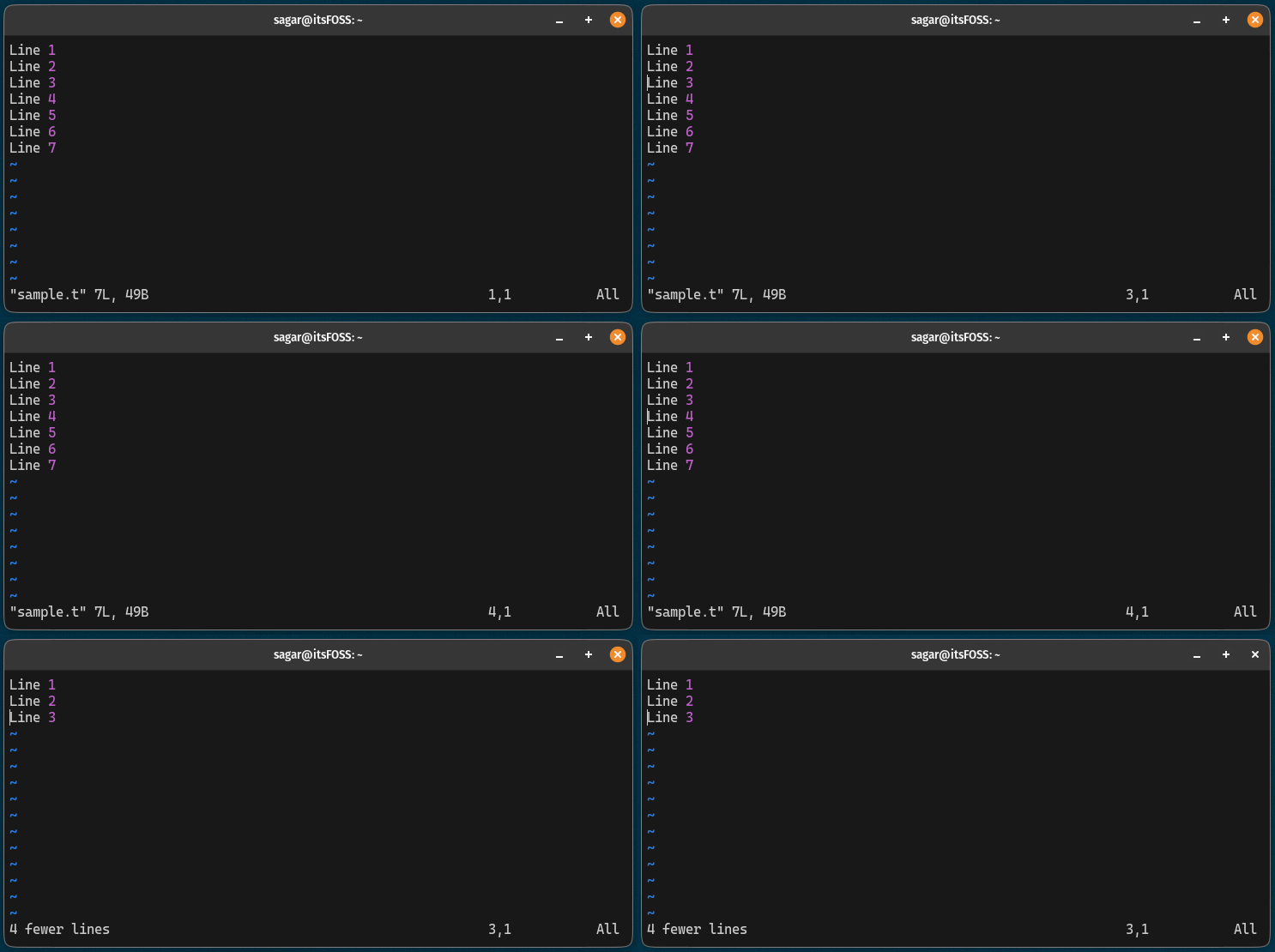
To paste from a specific named register, prefix your `p` or `P` command with the register name. For example, `”ap` pastes the content of register ‘a’ after the cursor. This allows you to paste specific content that you previously stored.
For cross-application pasting, use the system clipboard registers. `”+p` pastes from the system’s primary selection (often highlighted text), and `”*p` pastes from the system’s clipboard (usually copied text). These are indispensable for interacting with other programs. For more details on clipboard integration, refer to Vim Wiki on System Clipboard.
Advanced Copy, Cut, and Paste Techniques in Vim/Vi
Beyond the basic commands, Vim offers sophisticated techniques to enhance your text manipulation. These advanced methods can significantly boost your productivity. Mastering them allows for more complex and efficient editing workflows. This section explores several such techniques.
These techniques often involve combining commands or leveraging Vim’s powerful register system. They represent the true power of Vim for experienced users. Integrating them into your daily routine will transform your editing speed.
Using System Clipboard for Cross-Application Vim/Vi Operations
Interacting with your operating system’s clipboard is crucial for modern workflows. As mentioned, Vim uses the `+` and `` registers for this. The `+` register typically interacts with the system’s “clipboard” (what you copy with `Ctrl+C`), while `` interacts with the “primary selection” (what you highlight).
To copy to the system clipboard, use `”+yy` (yank line) or `”+dd` (cut line). To paste from it, use `”+p`. Ensure your Vim installation supports clipboard functionality (check `vim –version | grep clipboard`). This bridge between Vim and other applications is invaluable.
Manipulating Multiple Registers for Complex Tasks
Vim’s 26 named registers (a-z) allow you to store different pieces of text simultaneously. This is incredibly useful when moving or duplicating multiple, non-contiguous blocks of text. You can yank one block into register ‘a’, another into ‘b’, and then paste them independently.
For example, you might yank a function definition into `”afunc_def` and a variable declaration into `”bvar_decl`. Then, you can paste them later using `”ap` and `”bp` in different parts of your file. This multi-register approach streamlines complex refactoring and reorganization tasks.
Repeating Copy/Cut/Paste Commands for Efficiency
Vim has powerful repeat mechanisms. The `.` command repeats the last change. If your last action was `dw` (delete word), pressing `.` will delete another word. This applies to copy, cut, and paste commands as well, making repetitive tasks incredibly fast.
Additionally, you can prefix commands with a number to repeat them. For example, `5yy` yanks five lines. `3dd` cuts three lines. This numerical prefix works with most motion and operator commands, providing immense efficiency for bulk operations. Furthermore, macros (`q`) can record and replay sequences of commands for even greater automation.
Troubleshooting Common Vim/Vi Copy-Paste Issues
Users sometimes encounter difficulties with copy-paste functionality in Vim. These issues often relate to clipboard configuration or unintended deletions. Addressing these common problems helps ensure a smooth editing experience. This section provides solutions to frequent hurdles.
Understanding the root cause of these problems is the first step toward resolving them. Often, a quick check of your Vim configuration or version can reveal the solution. We aim to make your Vim experience as seamless as possible.
Clipboard Not Working: `+` and `*` Registers Explained
A common issue is that `”+p` or `”*p` does not interact with the system clipboard. This usually means your Vim installation was compiled without clipboard support. You can check this by running `vim –version | grep clipboard`. If you see `-clipboard` and `-xterm_clipboard`, clipboard support is missing.
To fix this, you might need to install a Vim package with GUI features (like `vim-gtk`, `vim-gnome`, or `gvim`) or compile Vim from source with the appropriate flags. On macOS, ensure you are using MacVim or a Homebrew-installed Vim with clipboard support. This ensures seamless integration with your desktop environment.
Accidental Deletions and Undoing Changes in Vim/Vi
Accidentally deleting important text is a common fear for new Vim users. Fortunately, Vim has a robust undo system. Simply press `u` in Normal mode to undo the last change. You can press `u` multiple times to undo previous changes sequentially. This powerful feature acts as a safety net.
If you accidentally undo too much, `Ctrl+r` will redo changes. Vim also maintains a history of changes, accessible through the undo tree. This allows you to navigate through different versions of your document. Therefore, fear of deletion should not deter you from using Vim’s powerful commands.
Configuration for Persistent Copy/Paste Settings
To make system clipboard integration permanent, you can add a line to your Vim configuration file, typically `~/.vimrc`. The command `set clipboard=unnamedplus` tells Vim to use the system clipboard as its default unnamed register. This means `yy` will copy to the system clipboard, and `p` will paste from it.
This setting significantly streamlines cross-application copy-paste operations. It eliminates the need to explicitly use `”+` every time. Always back up your `.vimrc` before making changes. This configuration simplifies How to Copy, Cut and Paste in Vim / Vi for daily use.
FAQs: Your Questions on Vim/Vi Text Operations Answered
How do I copy a whole file in Vim/Vi?
To copy an entire file’s content in Vim, you can use a combination of commands. First, ensure you are in Normal mode. Then, type `gg` to go to the beginning of the file. Next, type `VG` to select the entire file in line-wise Visual mode. Finally, press `”+y` to yank the entire content to your system clipboard. Now you can paste it anywhere.
What is the difference between `d` and `x` in Vim/Vi?
Both `d` and `x` delete text, but they operate differently. `x` deletes the character under the cursor, similar to the Delete key. It is a single-character deletion command. In contrast, `d` is an operator that requires a motion command to specify what to delete. For example, `dw` deletes a word, and `dd` deletes a line. The `d` command is much more versatile for larger deletions.
Can I copy and paste between Vim/Vi and other applications?
Yes, you can copy and paste between Vim/Vi and other applications. This requires your Vim installation to have clipboard support enabled. Use the `”+` register for system clipboard interaction. For example, `”+yy` copies the current line to your system clipboard, and `”+p` pastes content from the system clipboard into Vim. You can also configure Vim to use the system clipboard by default.
How do I view my Vim/Vi registers?
To view the contents of all your Vim registers, simply type `:reg` in Normal mode and press Enter. This command will display a list of all named, numbered, and special registers, along with their current contents. This is a useful command for debugging copy-paste issues or remembering what you’ve stored in different registers.
Conclusion: Mastering Vim/Vi for Efficient Editing
Mastering How to Copy, Cut and Paste in Vim / Vi is a cornerstone of efficient text editing. By understanding Vim’s modes, utilizing yank, delete, and put commands, and leveraging registers, you gain unparalleled control over your text. This guide has provided a comprehensive overview, from basic operations to advanced techniques and troubleshooting.
The power of Vim lies in its command-line interface and modal editing. Embrace these features to elevate your productivity. Consistent practice will embed these commands into your muscle memory, making your editing workflow incredibly fluid and fast. Start integrating these techniques today.
Practice Makes Perfect: Integrating Vim/Vi Commands into Your Workflow
The key to truly mastering Vim is consistent practice. Start by incorporating one or two new commands into your daily routine. Over time, you will naturally build proficiency and speed. Consider using Vim for all your text editing needs to accelerate this learning process. Regular use solidifies your understanding.
Utilize Vim’s built-in Tutorial (`vimtutor`) for interactive learning. Create small practice files to experiment with different copy, cut, and paste scenarios. The more you use these commands, the more intuitive they will become. This dedication will pay off with significant productivity gains.
Next Steps for Advanced Vim/Vi Users and Further Learning (CTA)
For those ready to delve deeper, explore Vim’s macro capabilities for automating repetitive tasks. Investigate plugins like `vim-clipboard` for enhanced clipboard management. Consider customizing your `.vimrc` file further to tailor Vim to your specific needs. The Vim community offers a wealth of resources for continuous learning.
Share your favorite Vim copy-paste tips in the comments below! What advanced techniques have transformed your workflow? Your insights can help other users on their journey to Vim mastery. Keep exploring and refining your Vim skills to unlock even greater efficiency.
