
Understanding how to check your Ubuntu version is a fundamental skill for any Linux user. This knowledge is crucial for various reasons, including software compatibility, system updates, and effective troubleshooting. Knowing your exact Ubuntu release ensures you install the correct applications and receive timely security patches. Therefore, mastering this simple check empowers you to maintain a stable and secure operating environment on your computer.
Why Knowing Your Ubuntu Version Matters
Ubuntu is a popular, open-source operating system. It offers a robust and user-friendly experience for millions worldwide. Each version brings new features, performance improvements, and security enhancements. Consequently, identifying your current version is essential for optimal system management.
What is Ubuntu and Why Versioning is Important
Ubuntu is a Linux distribution developed by Canonical. It is known for its ease of use and strong community support. Every six months, a new version is released. These releases follow a specific naming convention and numbering system. Furthermore, version numbers help users distinguish between different releases and their respective support cycles.
- Ensures software compatibility.
- Helps with system upgrades.
- Provides crucial information for troubleshooting.
- Indicates security update availability.
Quick Overview of Methods to Check Ubuntu Version
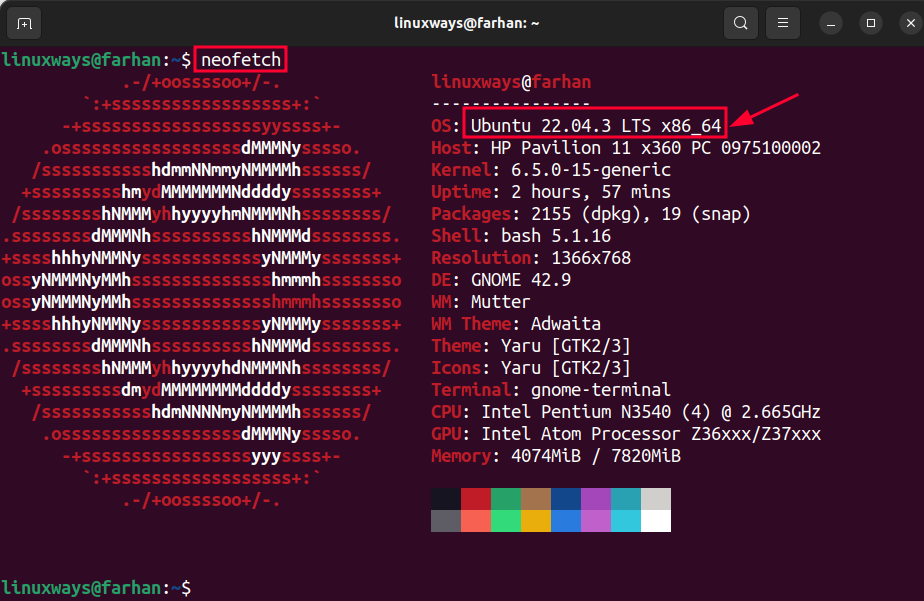
There are several straightforward ways to determine your Ubuntu version. You can use either the command line interface (CLI) or the graphical user interface (GUI). Each method offers slightly different levels of detail. We will explore both approaches thoroughly in this guide.
Checking Your Ubuntu Version Using the Terminal (Command Line)
The terminal is a powerful tool for managing your Ubuntu system. Many users prefer command-line methods for their speed and precision. These commands provide accurate information about your operating system. Therefore, learning these commands is highly beneficial.
Method 1: Using `lsb_release -a` for Comprehensive Details
The `lsb_release` command is arguably the most common and comprehensive way to check your Ubuntu version. It displays detailed information about your Linux Standard Base (LSB) distribution. To use it, simply open a terminal window. Then, type the command and press Enter.
Open your terminal (usually Ctrl+Alt+T) and enter:
lsb_release -aThis command outputs several lines. It shows the distributor ID, description, release number, and codename. For example, it might display “Ubuntu 22.04 LTS”. This indicates a Long Term Support release.
Method 2: Accessing Version Info via `/etc/os-release`
Another reliable method involves inspecting the `/etc/os-release` file. This file contains operating system identification data. It is a standard file on most modern Linux distributions. You can view its contents using the `cat` command.
In the terminal, type:
cat /etc/os-releaseThe output will include lines like `PRETTY_NAME=”Ubuntu 22.04.4 LTS”` and `VERSION_ID=”22.04″`. This provides clear details about your specific installation. It is a very direct way to find the information you need.
Method 3: Quick Check with `/etc/issue`
For a very quick and concise version check, you can look at the `/etc/issue` file. This file typically contains a short description of the operating system. It is often displayed before login. However, it might not always provide the full release number.
To view this file, use the command:
cat /etc/issueYou might see something like “Ubuntu 22.04.4 LTS n l”. This gives you a quick overview. However, for more detailed information, the previous methods are generally preferred.
How to Find Your Ubuntu Version Graphically (GUI)
Not everyone prefers the command line. Fortunately, Ubuntu offers user-friendly graphical interfaces to find your system information. These methods are intuitive and accessible. They are perfect for users who prefer point-and-click navigation.
For GNOME Desktop Environment (Default Ubuntu)
Most standard Ubuntu installations use the GNOME desktop environment. Checking your version here is very simple. You just need to navigate through a few settings menus. This process takes only a few clicks.
- Click on the Activities button in the top-left corner.
- Search for “Settings” and open the application.
- In the Settings window, scroll down and click on About in the left sidebar.
- Look for the “Ubuntu Version” or “OS Name” entry. It will display your current release, such as “Ubuntu 22.04.4 LTS”.
This graphical method is straightforward and provides clear information. It is often the first choice for new users. Furthermore, it displays other system specifications, like memory and processor details.
For Other Desktop Environments (KDE, XFCE, MATE)
Ubuntu is available with various desktop environments. These include KDE Plasma, XFCE, and MATE. While the exact steps may vary slightly, the general approach remains similar. You typically look for “About” or “System Info” sections.
- KDE Plasma: Go to “System Settings” -> “About System” or search for “Info Center”.
- XFCE: Navigate to “Settings Manager” -> “About XFCE” or “System Information”.
- MATE: Find “System” -> “About MATE” or “System Monitor”.
Regardless of your desktop environment, the goal is to locate the system information utility. This utility will clearly state your Ubuntu release number. Therefore, you can easily check your Ubuntu version with minimal effort.
Understanding Ubuntu Version Numbers and Release Cycles
Ubuntu’s versioning system is logical and informative. Each number tells you something important about the release. Understanding these conventions helps you anticipate support timelines and features. This knowledge is beneficial for long-term planning.
Decoding Ubuntu Version Numbers (e.g., 22.04 LTS)
Ubuntu version numbers follow a `YY.MM` format. Here, `YY` represents the year of release, and `MM` indicates the month. For example, “22.04” means it was released in April 2022. The “LTS” suffix stands for Long Term Support. This signifies extended maintenance and security updates.
Non-LTS releases, conversely, have shorter support periods. They are often used by users who prefer the latest features. Knowing this distinction is vital for system stability and security. It helps you choose the right version for your needs.
LTS vs. Non-LTS Releases: What’s the Difference?
LTS releases receive five years of free security and maintenance updates. They are highly recommended for most users and production environments. Their stability makes them ideal for businesses and servers. Canonical provides strong support for these versions.
Non-LTS releases, also known as interim releases, are supported for nine months. They offer newer software packages and features. However, they require more frequent upgrades. Therefore, they are better suited for users who enjoy experimenting with the latest technologies. You can find more details about Ubuntu releases on their official website: Ubuntu Release Cycle.
Why Knowing Your Ubuntu Version is Crucial
Beyond simple curiosity, knowing your Ubuntu version has practical implications. It impacts everything from software compatibility to system security. This information is a cornerstone of effective system administration. Therefore, it is a critical piece of data for any user.
Software Compatibility and Installation
Many applications and drivers are built for specific Ubuntu versions. Attempting to install incompatible software can lead to errors or system instability. For instance, a program designed for Ubuntu 20.04 might not work correctly on 22.04 without adjustments. Knowing your version prevents these headaches. It ensures a smooth installation process.
Security Updates and End-of-Life (EOL) Dates
Each Ubuntu version has a defined support period. After this period, it reaches its End-of-Life (EOL) date. This means it no longer receives security updates or bug fixes. Running an EOL version leaves your system vulnerable. Regularly checking your Ubuntu version helps you stay informed. It prompts you to upgrade before your system becomes insecure.
Troubleshooting and Seeking Support
When you encounter a problem, the first question often asked by support forums or documentation is “What Ubuntu version are you running?” This information helps diagnose issues quickly. It allows others to provide relevant solutions. Therefore, knowing how to check your Ubuntu version is essential for effective troubleshooting. It streamlines the support process significantly.
Troubleshooting & Common Issues When Checking Ubuntu Version
While checking your Ubuntu version is usually straightforward, you might occasionally encounter minor issues. Knowing how to address these common problems can save you time and frustration. These tips ensure you always get the information you need.
Dealing with ‘Command Not Found’ Errors
If you type `lsb_release -a` and receive a “command not found” error, it usually means the `lsb_release` package is not installed. This can happen on minimal installations. You can easily fix this by installing it. Use your package manager to resolve this quickly.
Open your terminal and run:
sudo apt updatesudo apt install lsb-releaseAfter installation, try the `lsb_release -a` command again. It should now work correctly. This ensures you can always check your Ubuntu version using this robust method.
Interpreting Ambiguous or Incomplete Output
Sometimes, a command like `cat /etc/issue` might give less detail than expected. It might only show “Ubuntu” without a full version number. In such cases, always revert to the more comprehensive methods. The `lsb_release -a` or `cat /etc/os-release` commands are more reliable. They provide complete and unambiguous version information. This ensures accuracy in your system details.
Frequently Asked Questions About How to Check Your Ubuntu Version
Users often have specific questions about their Ubuntu versions. This section addresses some common inquiries. It provides quick and clear answers to help you better understand your system. These FAQs cover essential aspects of Ubuntu version management.
What is the latest stable Ubuntu version?
The latest stable Ubuntu version changes periodically. Currently, the most recent Long Term Support (LTS) release is Ubuntu 22.04 LTS, codenamed “Jammy Jellyfish.” However, newer interim releases come out every six months. Always check the official Ubuntu website for the absolute latest release information.
How do I check if my Ubuntu is 32-bit or 64-bit?
To check if your Ubuntu system is 32-bit or 64-bit, open your terminal and type `uname -m`. If the output is `x86_64`, you have a 64-bit system. If it shows `i686` or `i386`, it’s a 32-bit system. Modern Ubuntu installations are almost exclusively 64-bit.
Can I upgrade my Ubuntu version directly?
Yes, you can generally upgrade your Ubuntu version directly from one release to the next, especially between LTS versions. For instance, you can upgrade from 20.04 LTS to 22.04 LTS. Use the `sudo do-release-upgrade` command in the terminal. Always back up your data before starting an upgrade. This prevents any potential data loss.
Conclusion: Easily Check Your Ubuntu Version
Knowing how to check your Ubuntu version is a simple yet vital skill. It empowers you to manage your system effectively, ensuring compatibility, security, and smooth operation. Whether you prefer the terminal’s precision or the GUI’s ease, multiple reliable methods are available. We have covered various approaches to help you find this critical information.
Recap of Key Methods for Checking Ubuntu Version
You can quickly find your Ubuntu version using commands like `lsb_release -a`, `cat /etc/os-release`, or `cat /etc/issue` in the terminal. Alternatively, for a graphical approach, navigate to the “About” section in your system settings. Each method provides clear details about your specific Ubuntu release. Choose the one that best suits your comfort level.
Final Thoughts and Call to Action (CTA)
Regularly checking your Ubuntu version helps you stay updated and secure. It ensures you leverage the best features and support. Now that you know how to check your Ubuntu version, take a moment to verify your system’s details. Share your preferred method in the comments below! What version are you running?
