
Understanding your operating system is fundamental for any Linux user. Knowing how to check your Debian Linux version provides crucial information for system maintenance, software compatibility, and security updates. This guide will walk you through various straightforward methods to identify your Debian release, ensuring you always have the necessary details at hand. We will cover both the simplest commands and alternative approaches.
How to Check your Debian Linux Version: An Essential Guide
Identifying your Debian Linux version is a core skill for system administrators and everyday users alike. This knowledge helps you understand your system‘s capabilities and limitations. Furthermore, it ensures you can apply correct procedures for upgrades or troubleshooting. We will explore why this information is so vital for stable system operation.
Why Knowing Your Debian Version Matters
Your Debian version dictates many aspects of your system. For instance, it affects which software packages are available to you. Newer applications often require more recent Debian releases. Therefore, checking your version helps prevent compatibility issues.
- Software Compatibility: Different Debian versions support different software packages.
- Security Updates: Critical security patches are specific to certain releases.
- System Upgrades: Planning an upgrade requires knowing your current version.
administration">The Importance of System Administration
Effective system administration relies heavily on accurate version identification. When you troubleshoot issues, support forums or documentation will often ask for your Debian version. Providing this information quickly helps others assist you more efficiently. Moreover, it is essential for maintaining a secure and stable environment.
The Primary Method: How to Check your Debian Linux Version with `lsb_release`
The `lsb_release` command is arguably the most common and user-friendly way to determine your Debian version. This utility provides distribution-specific information. It is part of the Linux Standard Base (LSB) package, offering a standardized way to query system details. Many users find this command to be their go-to option.
Installing `lsb_release` if Missing
Occasionally, `lsb_release` might not be installed on minimal Debian systems. If you encounter a “command not found” error, you can easily install it. Open your terminal and use the apt package manager. This process is quick and enables the command instantly.
- Open your terminal application.
- Type
sudo apt updateand press Enter to refresh package lists. - Type
sudo apt install lsb-releaseand press Enter to install the package. - Enter your password when prompted.
Interpreting the Output of `lsb_release -a`
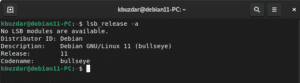
Once `lsb_release` is installed, you can execute it with the -a flag for comprehensive details. This command displays all available LSB information. You will see details like the distributor ID, description, release number, and codename. This output provides a complete picture of your Debian system.
Simply type lsb_release -a in your terminal. You will see lines similar to:
No LSB modules are available.
Distributor ID: Debian
Description:    Debian GNU/Linux 11 (bullseye)
Release:        11
Codename:       bullseye
Here, “Release: 11” and “Codename: bullseye” clearly indicate the Debian version. Therefore, this command is highly effective.
Alternative Ways to Check your Debian Linux Version
While `lsb_release` is convenient, other files and commands can also reveal your Debian version. These alternatives are useful if `lsb_release` is unavailable or if you need to cross-reference information. Furthermore, they offer deeper insights into the system’s configuration.
Examining `/etc/os-release` or `/etc/debian_version`
Most modern Linux distributions, including Debian, use the `/etc/os-release` file for system identification. This file contains various operating system data. It is a simple text file that you can view with a command like `cat`. This method is very direct.
To view its contents, type cat /etc/os-release. You will find lines such as:
PRETTY_NAME="Debian GNU/Linux 11 (bullseye)"
NAME="Debian GNU/Linux"
VERSION_ID="11"
VERSION="11 (bullseye)"
VERSION_CODENAME=bullseye
ID=debian
HOME_URL="https://www.debian.org/"
SUPPORT_URL="https://www.debian.org/support"
BUG_REPORT_URL="https://bugs.debian.org/"
Alternatively, the `/etc/debian_version` file offers a more concise output. This file typically contains just the version number or codename. It is a legacy file but still present on many Debian systems. Use cat /etc/debian_version for a quick check.
Checking Kernel Version with `uname -a`
The `uname -a` command displays comprehensive system information, including the kernel version. While this doesn’t directly tell you the Debian release number, it provides context. The kernel version is tightly coupled with the underlying operating system. Therefore, it is useful for diagnosing kernel-specific issues.
Run uname -a in your terminal. You will see output like:
Linux debian-server 5.10.0-18-amd64 #1 SMP Debian 5.10.140-1 (2022-09-02) x86_64 GNU/LinuxThis shows the kernel version (5.10.0-18-amd64) and architecture (x86_64). It is important to note that the kernel version is distinct from the Debian distribution version. However, it is still valuable system information.
Inspecting APT Sources List for Release Information
The Advanced Package Tool (APT) uses source lists to determine where to fetch packages. These files often explicitly mention the Debian release codename. You can find these files in `/etc/apt/sources.list.d/` or `/etc/apt/sources.list`. This method provides insight into your package management configuration.
For example, a line in your `sources.list` might look like:
deb http://deb.debian.org/debian bullseye main contrib non-freeThe term “bullseye” here confirms the Debian 11 release. This method is indirect but confirms the active release being used for package management. It is a good way to verify your system’s update sources.
Understanding Debian Release Names and Numbers
Debian follows a unique naming convention for its releases. Each stable release is assigned a version number and a codename. These codenames are typically characters from the Toy Story movies. Understanding this system helps you identify your version more accurately. For example, Debian 11 is codenamed “bullseye.”
Decoding Debian Codename and Version Number
Every Debian stable release has a numerical version and a distinct codename. For instance, Debian 10 was “Buster,” and Debian 11 is “Bullseye.” The codename is often more memorable and commonly used in discussions. Knowing both helps you communicate your system’s identity effectively. You can find a comprehensive list of Debian releases and their codenames on the official Debian website here.
Frequently Asked Questions
What’s the difference between Debian version and kernel version?
The Debian version refers to the entire operating system distribution, including the core utilities, applications, and desktop environment. Conversely, the kernel version specifically refers to the Linux kernel, which is the core component of the operating system responsible for managing hardware and system resources. While related, they are distinct identifiers.
Can I check the Debian version without logging in?
Generally, no. Most methods require access to the command line, which necessitates logging into the system. However, if you have physical access to the machine and it’s set up for remote access (like SSH), you can log in remotely to check the version. For a running system, direct command line interaction is essential.
How often does Debian release new versions?
Debian does not adhere to a fixed release schedule like some other distributions. New stable versions are typically released when they are ready, which usually translates to roughly every two years. Each stable release receives long-term support, including security updates, for about five years. This ensures stability and reliability for users.
Conclusion: Mastering How to Check your Debian Linux Version
Knowing how to check your Debian Linux version is a fundamental skill for maintaining a healthy and secure system. We have explored several reliable methods, from the straightforward `lsb_release` command to inspecting system files like `/etc/os-release`. Each approach offers valuable insights into your Debian environment. Regularly verifying your version helps you stay informed about updates and compatibility.
Now that you can confidently identify your Debian release, you are better equipped for system upgrades, software installations, and effective troubleshooting. Continue to explore your Debian system and leverage this knowledge for a smoother computing experience. Share your favorite method for checking the Debian version in the comments below!
