
Understanding how to add a directory to PATH in Linux is a fundamental skill for any user or administrator. This process allows your system to locate executable programs and scripts without specifying their full path every time. Effectively managing your PATH variable streamlines command-line operations and enhances productivity. Therefore, knowing how to properly configure this environment variable is crucial for a smooth Linux experience.
Introduction: Understanding the Linux PATH Variable
The PATH variable is a critical environment variable in Linux and other Unix-like operating systems. It contains a colon-separated list of directories. When you type a command in your terminal, the shell searches these directories in order. If the executable file is found in one of these locations, it runs the command directly.
What is the PATH Environment Variable?
Essentially, the PATH variable acts as a roadmap for your shell. For instance, when you type ls, the shell doesn’t immediately know where the ls program resides. Instead, it consults the PATH variable. It then checks each directory listed there until it finds the ls executable. This mechanism simplifies command execution significantly.
Why Modify the PATH in Linux?
There are several compelling reasons to modify your PATH variable. Often, you might compile a new program or install software in a non-standard location. Without adding its directory to your PATH, you would need to type the full path to execute it. Furthermore, adding custom scripts or development tools to your PATH makes them globally accessible, saving time and effort. It also helps in managing different versions of software.
Viewing and Understanding Your Current PATH Configuration
Before making any changes, it is always wise to inspect your current PATH configuration. This helps you understand the existing setup and avoid potential conflicts. Knowing what’s already there is the first step in learning how to add a directory to PATH in Linux effectively.
How PATH Works in Linux
The directories in your PATH are searched sequentially from left to right. This order is important. If two directories in your PATH contain executables with the same name, the one in the directory listed earlier will be executed. This allows for custom versions of commands to take precedence over system defaults.
Checking Your Current PATH Settings
You can easily view your current PATH variable using the echo command. Open your terminal and type the following:
echo $PATHThis command will output a string of directories separated by colons. For example, you might see something like `/usr/local/sbin:/usr/local/bin:/usr/sbin:/usr/bin:/sbin:/bin:/usr/games:/usr/local/games:/snap/bin`. Each segment represents a directory where your shell looks for executables.
The Importance of Directory Order in PATH
As mentioned, the order of directories in your PATH matters significantly. Placing a custom directory at the beginning of the PATH ensures that its executables are found first. Conversely, adding it at the end means system defaults will be prioritized. Consider this carefully when you add a directory to PATH in Linux to avoid unexpected behavior.
Temporary Method: Adding a Directory to PATH for the Current Session
Sometimes, you only need to modify your PATH for a single terminal session. This is useful for testing new installations or running specific scripts temporarily. This temporary approach is straightforward and does not require editing configuration files.
Using the ‘export’ Command to Modify PATH
To temporarily add a directory, you use the export command. For example, if you want to add `/opt/mytool/bin` to your PATH, you would type:
export PATH=$PATH:/opt/mytool/binThis command appends the new directory to your existing PATH. Alternatively, to prepend it (giving it higher precedence), you would use: export PATH=/opt/mytool/bin:$PATH. Remember, this change only lasts until you close the current terminal window.
Verifying Temporary PATH Changes
After executing the export command, it’s a good practice to verify the change. Simply use echo $PATH again. You should see your newly added directory included in the output. This confirms that the modification was successful for the current session.
Limitations of the Temporary PATH Method
The primary limitation of this method is its ephemeral nature. Once you close the terminal or reboot your system, the changes are lost. Therefore, for permanent modifications, you will need to edit shell configuration files. This method is ideal for quick tests or one-off tasks.
Permanent Method 1: Adding a Directory to PATH for a Single User
For changes that persist across sessions and reboots, you need to modify your shell’s configuration files. This method ensures that your custom directory is always available for your user account. Learning how to add a directory to PATH in Linux permanently is a key skill.
Editing Your User’s Shell Configuration Files (~/.bashrc, ~/.profile)
The most common files for user-specific PATH modifications are ~/.bashrc (for interactive bash shells) and ~/.profile (for login shells). For Zsh users, ~/.zshrc is the equivalent. You can edit these files using a text editor like Nano or Vim.
- Open the configuration file: For Bash, use
nano ~/.bashrc. - Add the export command: Append a line like
export PATH="$PATH:/home/youruser/my_scripts"to the end of the file. - Save and exit: In Nano, press
Ctrl+O, thenEnter, thenCtrl+X.
Applying Permanent User-Specific PATH Changes
After saving the file, the changes won’t take effect immediately in your current terminal. You need to “source” the file or open a new terminal session. To source it, run source ~/.bashrc (or . ~/.bashrc). This reloads the configuration, applying your new PATH setting.
Understanding ~/.bash_profile vs. ~/.profile
There’s a subtle difference between ~/.bash_profile and ~/.profile. ~/.bash_profile is read by login shells, while ~/.profile is read by login shells if ~/.bash_profile doesn’t exist. Furthermore, ~/.bashrc is read by interactive non-login shells. For most users, adding your PATH modification to ~/.bashrc is sufficient, as ~/.profile often sources ~/.bashrc for non-login shells. For more details, refer to the Bash documentation (https://www.gnu.org/software/bash/manual/bash.html){target=”_blank” rel=”nofollow noopener noreferrer”}.
Permanent Method 2: Adding a Directory to PATH System-Wide
If you need a directory to be accessible to all users on the system, you must modify system-wide configuration files. This method requires root privileges and should be done with caution. It’s a powerful way to add a directory to PATH in Linux for everyone.
Modifying PATH via /etc/environment
The /etc/environment file is a simple way to set system-wide environment variables. It’s read by all shells and programs. Open it with root privileges:
sudo nano /etc/environmentThen, append your directory to the existing PATH line, ensuring it’s colon-separated: PATH="/usr/local/sbin:/usr/local/bin:/usr/sbin:/usr/bin:/sbin:/bin:/opt/newtool/bin". Save the file. A system reboot or re-login is typically required for these changes to take effect across all sessions.
Using Custom Scripts in /etc/profile.d/
A more flexible and recommended approach for system-wide changes is to create a custom script in the /etc/profile.d/ directory. Scripts in this directory are sourced by /etc/profile, which is read by all login shells. Create a new file, for example, /etc/profile.d/custom-path.sh:
sudo nano /etc/profile.d/custom-path.shAdd the export command: export PATH="$PATH:/opt/custom_bin". Make sure the script is executable: sudo chmod +x /etc/profile.d/custom-path.sh. This method is cleaner as it keeps your changes separate from core system files.
Directly Editing /etc/profile (Use With Caution)
While possible, directly editing /etc/profile is generally discouraged. This file is a core system configuration file, and incorrect modifications can lead to system instability. It’s better to use /etc/environment or /etc/profile.d/ for system-wide PATH adjustments. Always back up any system file before editing it.
Best Practices and Troubleshooting When Modifying PATH
Modifying your PATH variable is powerful, but it comes with responsibilities. Following best practices and knowing how to troubleshoot can prevent headaches. This ensures a smooth experience when you add a directory to PATH in Linux.
Avoiding Common Mistakes and Security Considerations
- Don’t overwrite PATH: Always append or prepend to
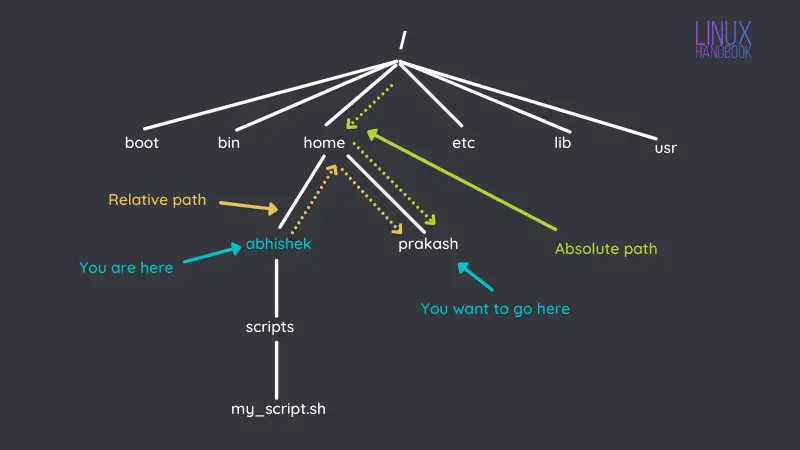
$PATH, rather than simply assigning a new value, e.g.,PATH=/new/dir. This would remove all existing system paths. - Use absolute paths: Always specify full paths to directories, like `/home/user/bin`, not relative paths.
- Security: Be cautious about adding untrusted directories to your PATH, especially at the beginning. Malicious scripts could spoof common commands.
- Backup: Before editing system-wide files, always create a backup.
Dealing with Duplicate or Invalid Paths
Occasionally, you might inadvertently add a directory to your PATH multiple times or include an invalid path. Duplicate paths don’t typically cause issues beyond being slightly inefficient. Invalid paths, however, can lead to “command not found” errors if a legitimate command is expected from that location. Review your echo $PATH output regularly to spot and correct these issues. Remove duplicates by editing the relevant configuration file.
Reverting Unwanted PATH Changes
If you encounter problems after modifying your PATH, the easiest way to revert is to edit the configuration file you changed (e.g., ~/.bashrc, /etc/environment) and remove the line you added. Save the file and then either source it or open a new terminal session. For system-wide changes, a reboot might be necessary. Having a backup of the original file makes this process much simpler.
Frequently Asked Questions
How do I remove a directory from my PATH?
To remove a directory, you need to edit the configuration file where it was added (e.g., ~/.bashrc or /etc/environment). Locate the line containing the directory and simply delete that segment from the PATH string. Save the file and then source it or open a new terminal session for the change to take effect.
What happens if I add an invalid directory to PATH?
Adding an invalid directory to your PATH generally won’t break your system. The shell will simply skip over that non-existent directory when searching for commands. However, it can make your PATH string longer and slightly less efficient. If you expect a command to be in that invalid path, you will receive a “command not found” error.
Why isn’t my PATH change working after reboot?
If your PATH change doesn’t persist after a reboot, it’s likely because you used a temporary method (like `export` in the terminal) or edited the wrong configuration file. Ensure you’ve modified a persistent file like ~/.bashrc (for user-specific) or /etc/environment (for system-wide) and that the changes were saved correctly. Also, remember to source the file or open a new session after editing.
Conclusion: Mastering Your Linux PATH Environment
Successfully learning how to add a directory to PATH in Linux significantly enhances your command-line efficiency and overall system usability. Whether you’re setting up development tools or custom scripts, understanding the temporary and permanent methods is invaluable. Always remember to verify your changes and follow best practices to maintain a stable and secure environment. Take control of your Linux shell today by confidently managing your PATH variable.
