
The ability to efficiently search through text files is crucial for anyone working in a Linux environment. Understanding the Grep Command in Linux empowers users to quickly locate specific patterns, troubleshoot issues, and manage data effectively. This powerful utility stands as a cornerstone of text processing, offering unparalleled flexibility and speed. Therefore, mastering grep is an essential skill for system administrators, developers, and everyday Linux users alike.
What is the Grep Command in Linux and Why is it Essential?
The Grep command, an acronym for “Global Regular Expression Print,” is a command-line utility in Linux and Unix-like systems. It searches for lines that match a specific pattern and then prints those lines to standard output. Consequently, it is an indispensable tool for filtering logs, finding configuration details, and analyzing data.
Definition and Core Purpose of Grep
At its core, the Grep command in Linux is designed for pattern matching within text. Users provide a search pattern, often a regular expression, and one or more files to search. Grep then scans each line of the specified files. Ultimately, it returns only the lines that contain a match for the pattern.
Brief History and Evolution of the Grep Utility
Grep was originally developed by Ken Thompson for the Unix operating system in the early 1970s. Its design was influenced by the `ed` text editor. Over time, it has evolved significantly, particularly with the GNU Project’s implementation. Richard Stallman and his team further enhanced its capabilities, making it a robust and widely used tool across various distributions. For more historical context, you can explore its origins on Wikipedia.
Key Benefits of Using Grep for Text Processing
The benefits of using the Grep command in Linux are numerous. First, it offers incredible speed when searching large volumes of text. Second, its integration with regular expressions provides powerful pattern matching capabilities. Furthermore, it is a lightweight tool that consumes minimal system resources. Therefore, Grep significantly enhances productivity for various text-related tasks.
- Efficiency: Quickly filters vast amounts of data.
- Flexibility: Supports simple strings to complex regular expressions.
- Integration: Seamlessly combines with other Linux commands via pipes.
- Ubiquity: Available on virtually all Unix-like systems.
Basic-grep-command-syntax-and-fundamental-usage">Basic Grep Command Syntax and Fundamental Usage
Understanding the basic syntax is the first step to effectively using the Grep command in Linux. The command structure is straightforward, allowing users to perform quick searches. Consequently, even beginners can start leveraging its power almost immediately.
Deconstructing the Grep Command Structure
The fundamental syntax for grep is grep [options] pattern [file...]. Here, [options] modify grep’s behavior, pattern is the text or regular expression to search for, and [file...] specifies the files to search. If no file is provided, grep reads from standard input. Therefore, mastering these components is key.
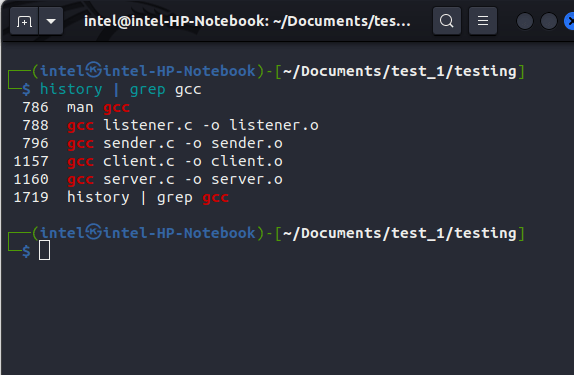
Searching for Simple Text Patterns in Files
To search for a simple text pattern, you just provide the pattern and the filename. For instance, `grep “error” /var/log/syslog` will display all lines containing the word “error” in the syslog file. This basic usage demonstrates the core functionality of the Grep command in Linux. It’s an excellent starting point for any text search.
Performing Case-Insensitive Searches with Grep
Sometimes, the case of the text does not matter for your search. The -i option makes grep perform a case-insensitive search. For example, `grep -i “warning” access.log` will match “warning”, “Warning”, and “WARNING”. This option greatly enhances the utility of the Grep command in Linux for flexible pattern matching.
Common Grep Options for Enhanced Searching in Linux
The true power of the Grep command in Linux often comes from its extensive set of options. These options allow users to refine their searches, control output, and handle various scenarios. Consequently, knowing these options can dramatically improve your command-line efficiency.
Displaying Line Numbers and Inverting Matches (-n, -v)
Two very useful options are -n and -v. The -n option displays the line number along with the matching line, which is helpful for debugging. Conversely, the -v option inverts the match, showing lines that do not contain the pattern. For example, `grep -n “failed” auth.log` shows matching lines with their numbers, while `grep -v “success” results.txt` hides successful entries.
Counting Occurrences and Suppressing Output (-c, -q)
When you only need to know how many times a pattern appears, use the -c option. This option counts the number of matching lines instead of printing them. Furthermore, the -q (quiet) option suppresses all output, returning only an exit status. This is particularly useful in scripts for conditional logic. Therefore, these options streamline automated tasks involving the Grep command in Linux.
Searching Multiple Files and Directories Recursively (-r, -R)
The Grep command in Linux can also search across multiple files and even entire directory trees. The -r (recursive) option searches files in subdirectories. Similarly, -R is like -r but also follows symbolic links. For instance, `grep -r “TODO” ~/projects` will find all “TODO” comments within your project files. This capability is invaluable for large codebases or configuration directories.
Advanced Grep Techniques and Regular Expressions
To truly master the Grep command in Linux, one must delve into the world of regular expressions. Regex provides a powerful language for defining complex search patterns. Therefore, understanding these expressions unlocks Grep’s full potential.
Introduction to Regular Expressions (Regex) with Grep
Regular expressions are sequences of characters that define a search pattern. Grep uses basic regular expressions (BRE) by default. For instance, `.` matches any single character, and `*` matches zero or more occurrences of the preceding character. Learning regex significantly enhances your ability to perform precise searches with the Grep command in Linux. It allows for much more sophisticated pattern matching.
Using Extended Regular Expressions (-E) for Complex Patterns
For more advanced patterns, the -E option (or `egrep`) enables extended regular expressions (ERE). EREs offer additional special characters like `+` (one or more), `?` (zero or one), and `|` (OR operator). For example, `grep -E “error|fail” logs.txt` finds lines containing either “error” or “fail.” This makes the Grep command in Linux incredibly versatile for complex data analysis.
Matching Whole Words (-w) and Displaying Context (-A, -B, -C)
Sometimes you need to match only whole words, not substrings. The -w option achieves this. For example, `grep -w “cat” file.txt` will match “cat” but not “catalogue.” Additionally, options like -A (after), -B (before), and -C (context) display lines surrounding the match. For instance, `grep -A 3 “error” debug.log` shows the error line and the 3 lines immediately following it. This is invaluable for understanding the context of a match.
administration">Practical Grep Command Examples for Linux System Administration
The Grep command in Linux is not just for developers; it’s a daily tool for system administrators. Its ability to quickly parse logs and configuration files makes it indispensable. Consequently, these practical examples demonstrate its real-world utility.
Finding Specific Log Entries and Error Messages
System logs are often voluminous, making manual inspection impractical. Grep simplifies this task. For example, to find all critical errors in the system log, you might use: `grep “CRITICAL” /var/log/syslog`. To narrow it down to a specific date, you could pipe commands: `grep “Jan 25” /var/log/auth.log | grep “failed”`. This targeted approach saves significant troubleshooting time.
Identifying Configuration Settings Across Multiple Files
Managing configurations across many files can be challenging. Grep helps locate specific settings. Consider finding all instances of a particular port number in web server configurations: `grep -r “Port 80” /etc/apache2/`. This command efficiently scans all relevant files. Furthermore, it ensures consistency and helps in auditing server settings. The Grep command in Linux is therefore a powerful audit tool.
Searching for Running Processes and User Activity
Monitoring system activity is another area where grep excels. You can combine it with commands like `ps` to filter process lists. For instance, `ps aux | grep “apache2″` shows all running Apache processes. To find a specific user’s activity, you might use `who | grep “john_doe”`. These combinations provide quick insights into system health and user actions.
- Identify the target command or user.
- Use `ps aux` or `who` to generate raw output.
- Pipe the output to `grep` with your specific pattern.
- Analyze the filtered results for relevant information.
Frequently Asked Questions about the Grep Command
Many users have common questions when they begin using the Grep command in Linux. Addressing these queries helps clarify its nuances and capabilities. Therefore, this section aims to provide quick, clear answers to common dilemmas.
What is the difference between `grep`, `egrep`, and `fgrep`?
Historically, `grep` used basic regular expressions (BRE), `egrep` used extended regular expressions (ERE), and `fgrep` searched for fixed strings without interpreting regex. Modern `grep` can handle all these functionalities. `egrep` is equivalent to `grep -E`, and `fgrep` is equivalent to `grep -F`. Therefore, you can often just use `grep` with the appropriate options.
How do I search for a string that contains special characters?
When your search pattern includes special characters (like `.`, `*`, `[`, `]`, `$` etc.) that have meaning in regular expressions, you need to “escape” them. Precede each special character with a backslash (“). For example, to search for `file.txt`, you would use `grep “file.txt”`. Alternatively, use `grep -F` to treat the pattern as a fixed string, ignoring all regex special characters. This simplifies searching for literal strings with the Grep command in Linux.
Can Grep search inside compressed files?
The standard Grep command in Linux does not directly search inside compressed files like `.gz` or `.zip`. However, you can use specialized versions such as `zgrep` for gzip-compressed files, `bzgrep` for bzip2 files, and `lzgrep` for lzma files. These utilities automatically decompress the file and then pass its content to grep. For other compressed formats, you might need to decompress them first or use a tool like `unzip -p` piped to grep.
Conclusion: Mastering the Grep Command in Linux for Efficiency
The Grep command in Linux is undeniably a cornerstone utility for text processing. From basic pattern matching to advanced regular expressions, its versatility makes it an essential tool for almost any Linux user. By understanding its options and combining it with other commands, you unlock immense power for data analysis and system management. Therefore, consistent practice will solidify your command over this powerful tool.
We encourage you to experiment with the various options and examples provided. Share your favorite Grep tricks in the comments below, or explore more advanced Linux commands to further enhance your productivity. Continue your learning journey to become a true Linux master!
