
When your Linux system encounters issues, maintaining filesystem integrity is paramount. Understanding the Fsck Command in Linux (Repair Filesystem) is crucial for any administrator or power user. This powerful utility helps diagnose and repair inconsistencies within your filesystem, preventing data loss and ensuring system stability. Before diving in, let’s clarify what the Fsck Command in Linux (Repair Filesystem) actually means and why it’s a cornerstone of Linux system maintenance.
Understanding Filesystem Integrity and the Fsck Command in Linux (Repair Filesystem)
Filesystem integrity refers to the consistency and correctness of the data structures that organize files on your disk. A healthy filesystem ensures that your operating system can locate, read, and write data reliably. Without this integrity, files can become corrupted or inaccessible, leading to system crashes or data loss.
The Critical Role of Filesystem Integrity in Linux
Linux filesystems, such as ext4, XFS, or Btrfs, are complex structures. They manage metadata like file permissions, ownership, and locations. Any corruption in these structures can render parts of your disk unusable. Therefore, maintaining their integrity is vital for smooth operation.
Why Filesystem Repair is Essential for System Stability
Unforeseen events like power outages, improper shutdowns, or hardware failures can damage a filesystem. When this happens, the system might fail to boot or applications might crash. Repairing these inconsistencies quickly restores stability and prevents further damage. The Fsck Command in Linux (Repair Filesystem) is your primary tool for this task.
Overview of the Fsck Command Guide
This comprehensive guide will walk you through the intricacies of the `fsck` command. We will cover its purpose, common scenarios for use, and practical examples. You will learn how to effectively troubleshoot and repair filesystem issues, ensuring your Linux system remains robust and reliable.
Common Causes of Filesystem Damage and When to Use Fsck
Filesystem corruption can arise from various sources, often without immediate warning. Recognizing these causes helps in preventing future issues. Furthermore, understanding the symptoms is key to knowing when to deploy the `fsck` utility.
Identifying Signs of a Corrupted Filesystem
Several indicators suggest a corrupted filesystem. These might include slow system performance, unexpected application crashes, or files becoming unreadable. You might also see specific error messages during boot-up. For instance, the system could report “superblock invalid” or “inode errors.”
- System fails to boot or hangs during startup.
- Files or directories disappear or become inaccessible.
- Error messages like “Input/output error” when accessing disks.
- Applications frequently crash or behave erratically.
The Purpose and Function of the `fsck` Utility
The `fsck` (filesystem check) utility is designed to check and optionally repair Linux filesystems. It scans the disk for inconsistencies in its metadata. If it finds errors, it attempts to correct them, restoring the filesystem to a consistent state. This process is critical for data recovery and system health.
Preparing for Filesystem Repair with Fsck Command in Linux (Repair Filesystem)
Before running any disk repair utility, preparation is paramount. Incorrect usage of `fsck` can sometimes exacerbate problems, leading to data loss. Therefore, always follow best practices to safeguard your data and system.
Backup-strategies-before-running-fsck">Crucial data backup Strategies Before Running Fsck
Always back up important data before attempting filesystem repairs. While `fsck` aims to fix issues, there’s a small risk of data loss, especially with severe corruption. Use tools like `rsync` or `tar` to create copies of critical files. This step provides a safety net against unforeseen complications.
Unmounting the Target Filesystem Safely
The `fsck` command must operate on an unmounted filesystem. Running `fsck` on a mounted filesystem can cause further corruption and data loss. Use the `umount` command to detach the filesystem from the directory tree. For the root filesystem, this requires booting into a special environment.
Booting into a Rescue Environment or Live CD for Fsck
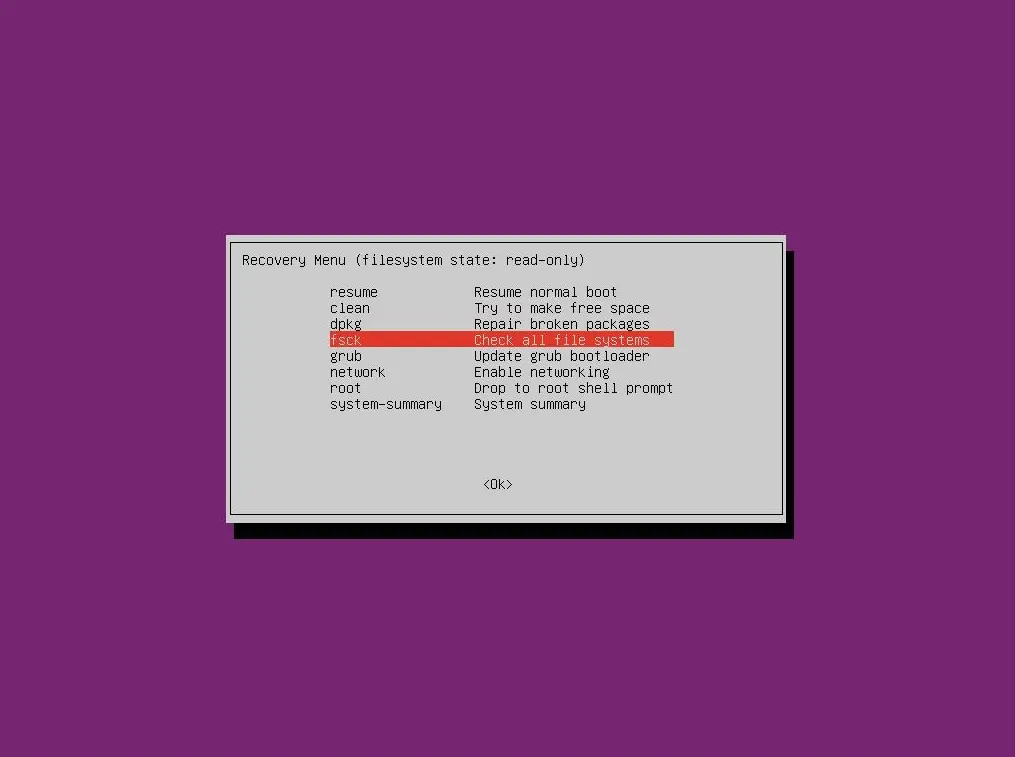
To repair the root filesystem (`/`), you cannot simply unmount it while the system is running. Instead, boot your Linux machine from a live CD/USB or a rescue environment. This allows you to access the disk without mounting the affected filesystem. Most Linux distributions provide such options during installation media boot-up.
Basic-usage-running-the-fsck-command-in-linux">Basic Usage: Running the Fsck Command in Linux
Executing the `fsck` command is straightforward once your system is prepared. However, understanding its syntax and common options is vital. This section covers the fundamental ways to use the Fsck Command in Linux (Repair Filesystem) effectively.
Syntax and Essential Parameters for `fsck`
The basic syntax for `fsck` is `fsck [options] device`. The `device` typically refers to a partition, like `/dev/sda1` or `/dev/sdb2`. You can also specify the filesystem type using the `-t` option, though `fsck` often detects it automatically. For example, `fsck /dev/sdb1` would check the specified partition.
Checking a Filesystem Without Repairing (`-n` option)
Sometimes, you might want to check for errors without making any changes. The `-n` option allows you to perform a dry run. It will show you what `fsck` would do, but it won’t write any changes to the disk. This is useful for assessing the extent of damage before committing to repairs. For example: `fsck -n /dev/sdb1`.
Interactive Repair: Responding to `fsck` Prompts
By default, `fsck` runs in interactive mode. When it finds an inconsistency, it will prompt you with questions like “Fix? (y/n)”. You must carefully consider each prompt. For instance, it might ask about orphaned inodes or invalid block pointers. Answering ‘y’ will attempt to fix the issue, while ‘n’ will skip it. This requires some understanding of filesystem structures. You can learn more about filesystems on Wikipedia.
Advanced Fsck Options for Automated Repair and Specific Filesystems
For more complex scenarios or automated scripts, `fsck` offers several advanced options. These allow for non-interactive repairs and targeting specific filesystem types. Mastering these options enhances your capability to use the Fsck Command in Linux (Repair Filesystem) efficiently.
Automating Repairs with `-y` and `-a` Flags
To automate the repair process, you can use the `-y` or `-a` flags. The `-y` option automatically answers “yes” to all prompts, attempting to fix every detected error. The `-a` option is similar but considered safer, as it only auto-repairs “safe” problems. Use these with caution, especially `-y`, as they might make undesirable changes. For instance, `fsck -y /dev/sdb1` will try to repair everything.
Forcing a Check with `-f` and Preen Mode (`-p`)
Even if a filesystem appears clean, you might want to force a check. The `-f` option forces `fsck` to check the filesystem regardless of its clean status. The `-p` option (preen mode) automatically repairs minor issues without user intervention. It’s often used in system startup scripts for routine checks. An example would be `fsck -f /dev/sdb1`.
Using Filesystem-Specific `fsck` Variants (e.g., `fsck.ext4`)
The `fsck` command is a front-end for various filesystem-specific checkers. For example, `fsck.ext4` is used for ext4 filesystems, and `fsck.xfs` for XFS. When you run `fsck`, it typically invokes the correct variant based on the filesystem type. However, you can explicitly call these variants directly if needed. This provides more granular control over the repair process.
Troubleshooting and Best Practices for Fsck Command in Linux
Even with careful preparation, you might encounter challenges when using `fsck`. Knowing how to troubleshoot common issues and adopting preventative measures will save you time and potential headaches. This section covers critical aspects of maintaining filesystem health.
Resolving “Filesystem is in use” Errors
The most common error is “Filesystem is in use.” This means the target partition is mounted. To resolve this, ensure the filesystem is unmounted. If it’s the root filesystem, boot from a live CD or rescue environment. If it’s a non-root filesystem, use `umount /dev/sdXN`. Sometimes, processes might still be using the filesystem; use `lsof` to identify and terminate them.
Dealing with Bad Superblocks and Other Critical Issues
A corrupted superblock is a severe issue, as it contains vital filesystem metadata. `fsck` can sometimes repair this by using a backup superblock. You can find backup superblocks using `mke2fs -n /dev/sdXN`. Then, use `fsck -b [backup_superblock_number] /dev/sdXN` to attempt repair. Other critical issues might require more advanced data recovery techniques or professional help.
Preventative Measures for Maintaining Filesystem Health
Prevention is always better than cure. Implement regular, graceful shutdowns of your Linux system. Use a UPS to protect against power outages. Regularly check disk health using tools like `smartctl`. Furthermore, keep your kernel and filesystem utilities updated. These practices significantly reduce the likelihood of needing the Fsck Command in Linux (Repair Filesystem).
- Always perform graceful system shutdowns.
- Install an Uninterruptible Power Supply (UPS).
- Monitor disk health with S.M.A.R.T. tools.
- Keep your Linux distribution and kernel updated.
Frequently Asked Questions about Fsck Command in Linux (Repair Filesystem)
Here are some common questions regarding the `fsck` command and filesystem repair in Linux.
Can Fsck lead to data loss during repair?
While `fsck` is designed to repair, severe corruption or incorrect usage can sometimes lead to data loss. This is why backing up your data before running `fsck` is always strongly recommended. When prompted, carefully consider each action in interactive mode.
How often should I run `fsck` on my Linux system?
Modern Linux filesystems automatically check themselves at boot if they detect an unclean shutdown. Manual `fsck` runs are generally not needed unless you suspect corruption or encounter specific error messages. Running it once every few months on critical systems, especially after unexpected reboots, can be a good preventative measure.
What are alternatives if `fsck` fails to fix the filesystem?
If `fsck` cannot repair the filesystem, options include attempting to restore from a backup. You might also try advanced data recovery tools like `testdisk` or `photorec`. In severe cases, reformatting the partition and restoring data from a backup might be the only viable solution. Professional data recovery services are also an option for extremely critical data.
Conclusion
Mastering the Fsck Command in Linux (Repair Filesystem) is an indispensable skill for anyone managing Linux systems. It provides a robust mechanism to diagnose and rectify filesystem inconsistencies, safeguarding your data and ensuring operational continuity. From understanding its basic syntax to leveraging advanced options, you are now equipped to handle common filesystem challenges. Remember to prioritize backups and practice safe usage, especially when dealing with critical system partitions.
Final Recommendations for Linux System Administrators
Always approach filesystem repair with caution and a clear understanding of the steps involved. Regularly review your backup strategy and ensure your rescue media is up-to-date. Proactive monitoring and preventative measures will significantly reduce the need for emergency repairs. The Fsck Command in Linux (Repair Filesystem) is a powerful tool, but it’s best used as a last resort after other preventative steps have failed.
Continue Your Linux Journey: Learn More About System Maintenance
This guide provides a solid foundation for using `fsck`. However, the world of Linux system maintenance is vast. We encourage you to explore other crucial utilities and concepts, such as disk partitioning, logical volume management (LVM), and kernel tuning. Continue learning and practicing to become a proficient Linux administrator. Share your experiences or ask further questions in the comments below!
