
Navigating and editing text files efficiently is a core skill for any developer or system administrator. Mastering Find and Replace in Vim / Vi significantly boosts productivity, allowing you to quickly locate specific patterns and make precise modifications across your documents. This comprehensive guide will equip you with the essential commands and techniques to perform powerful text transformations within these venerable text editors. We will explore everything from Basic searches to advanced regular expression-based replacements.
Understanding Find and Replace in Vim / Vi
The ability to find and replace text is fundamental in any text editor, and Vim / Vi offers robust tools for this task. These commands are not just about simple word swaps; they provide a powerful mechanism for complex pattern matching and substitution. Understanding the core principles will unlock a new level of editing efficiency.
Why Master Find and Replace in Vim / Vi?
Efficient text manipulation is critical for coding, scripting, and Configuration file management. Learning Find and Replace in Vim / Vi helps you automate repetitive editing tasks, saving valuable time and reducing errors. It empowers you to refactor code, update variable names, or standardize formatting across large files with ease.
Brief History and Power of Vim / Vi
Vi, created by Bill Joy in the late 1970s, laid the groundwork for modal editing. Vim (Vi IMproved), developed by Bram Moolenaar, extended Vi’s capabilities significantly, including enhanced search and replace functionalities. These editors are renowned for their speed, efficiency, and ubiquity across Unix-like systems, making their commands a universal language for text editing.
What This Guide Covers
This guide will cover the basic search commands, the versatile substitute command, and how to leverage regular expressions for advanced pattern matching. Furthermore, we will delve into practical examples and best practices to ensure you can confidently execute Find and Replace in Vim / Vi operations. You will learn to perform both simple and complex text transformations effectively.
Understanding Basic Find Operations in Vim / Vi
Before you can replace text, you first need to find it. Vim / Vi provides straightforward commands for searching within your file. These basic search operations are the foundation for any subsequent replacement task, allowing you to pinpoint exactly where changes need to occur.
Searching for a String (`/` and `?`)
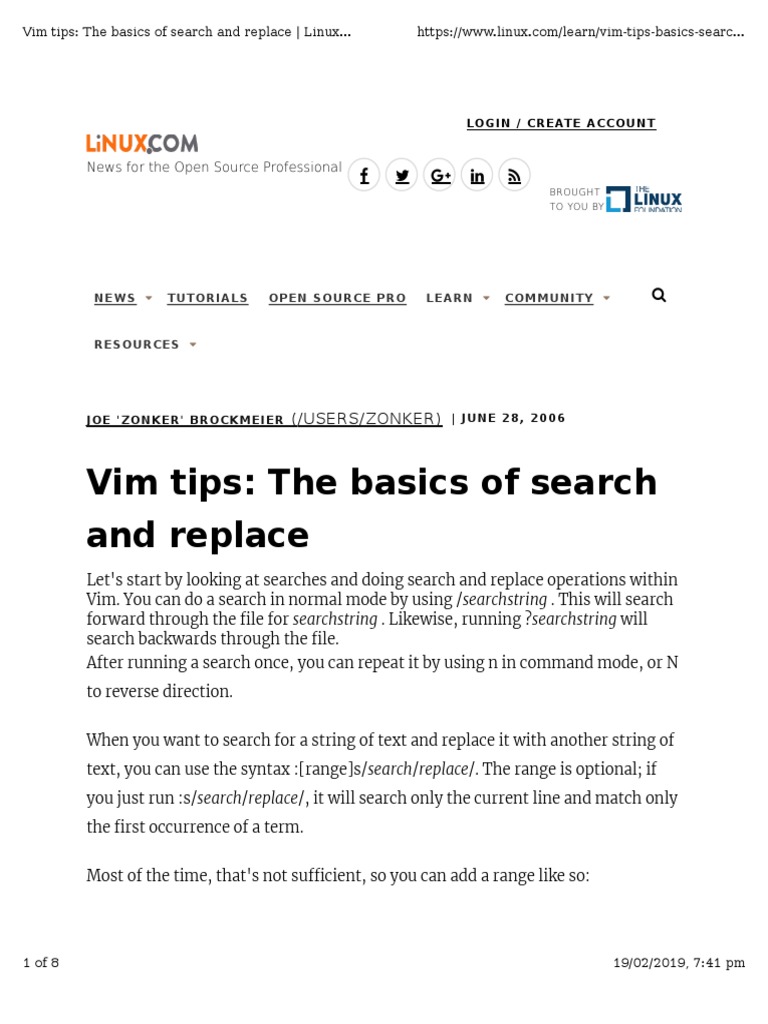
To search forward for a specific string, simply type `/` followed by the string you want to find, then press Enter. For example, `/keyword` will search for “keyword” from your current cursor position downwards. Conversely, to search backward, use `?` followed by your string, like `?keyword`.
Navigating Search Results (`n`, `N`)
Once a search is performed, you can easily navigate through the matches. Pressing `n` (next) moves the cursor to the next occurrence of the search pattern in the same direction as your initial search. Conversely, `N` (previous) moves the cursor to the previous occurrence, searching in the opposite direction. This makes reviewing matches very efficient.
Highlighting Matches and Clearing Highlights
Vim automatically highlights all occurrences of your search pattern by default. This visual feedback is incredibly useful for seeing all instances at a glance. If you wish to clear these highlights, simply type `:nohlsearch` or `:noh` and press Enter. The highlights will disappear, but your last search pattern remains active for future `n` or `N` commands.
Executing Simple and Advanced Find and Replace in Vim / Vi
The real power of text manipulation in Vim / Vi comes from its substitute command. This command allows you to replace found text with new text, offering various flags for global, interactive, and range-specific replacements. Mastering this command is key to efficient editing.
The Substitute Command (`:s`) for Basic Replacement
The basic substitute command follows the format `:s/find/replace/`. For instance, to replace the first occurrence of “old” on the current line with “new”, you would type `:s/old/new/`. This command is executed in command-line mode, making it quick and direct. Remember, without additional flags, it only affects the first match on the current line.
Global and Range-Based Replacement (`:%s`, `:/start/,/end/s`)
To replace all occurrences of a pattern on the current line, append the `g` flag: `:s/old/new/g`. For a global replacement across the entire file, prefix the command with `:%`: `:%s/old/new/g`. You can also specify a range, such as `:/start/,/end/s/old/new/g`, to replace text between lines containing “start” and “end”. This flexibility is a cornerstone of Find and Replace in Vim / Vi.
Here are common range examples:
- `:%s/find/replace/g`: Replaces all occurrences in the entire file.
- `:.s/find/replace/g`: Replaces all occurrences on the current line.
- `:’<,'>s/find/replace/g`: Replaces all occurrences within a visual selection.
- `:10,20s/find/replace/g`: Replaces all occurrences from line 10 to line 20.
Interactive Replacement with Confirmation (`c` Flag)
Sometimes you need more control over each replacement. The `c` (confirm) flag allows you to approve or deny each substitution. Use `:%s/old/new/gc` to go through every match in the file. Vim will prompt you for each instance with options like `y` (yes), `n` (no), `a` (all), `q` (quit), and `l` (last). This is particularly useful when you’re unsure about the scope of your changes.
Leveraging Regular Expressions for Powerful Vim / Vi Replacements
Regular expressions (regex) elevate Find and Replace in Vim / Vi to an entirely new level. They allow you to define complex patterns, not just fixed strings, making it possible to match and manipulate highly specific text structures. Understanding regex is crucial for advanced text processing.
Introduction to Regex in Vim / Vi (`v`, `V`)
Vim supports various regex syntaxes. By default, it uses “magic” mode, where some characters need escaping. For easier regex writing, you can use `v` (very magic) to make almost all characters special, or `V` (very nomagic) to make almost all characters literal. For example, `/v(foo|bar)` makes `(` and `|` special without needing `(` or `|`. This syntax simplifies complex pattern creation.
Using Metacharacters for Pattern Matching
Regex metacharacters like `.` (any character), `*` (zero or more of the preceding), `+` (one or more), `?` (zero or one), `^` (start of line), and `$` (end of line) are essential. For instance, `:%s/foo.*bar/replacement/g` would replace lines containing “foo”, followed by any characters, and then “bar”. This flexibility is key to effective Find and Replace in Vim / Vi.
Backreferences and Grouping in Replacements
Grouping parts of a pattern using parentheses `()` allows you to “capture” matched text. These captured groups can then be reused in the replacement string using backreferences like `1`, `2`, etc. For example, `:%s/(foo) (bar)/2 1/g` would swap “foo bar” to “bar foo” across the file. This is incredibly powerful for reordering text elements.
Practical Scenarios & Best Practices for Vim / Vi Find & Replace
Applying Find and Replace in Vim / Vi effectively requires understanding common scenarios and adopting best practices. These tips will help you work more efficiently and avoid potential pitfalls, ensuring your text transformations are precise and reliable.
Common Replacement Tasks (e.g., case change, adding/removing)
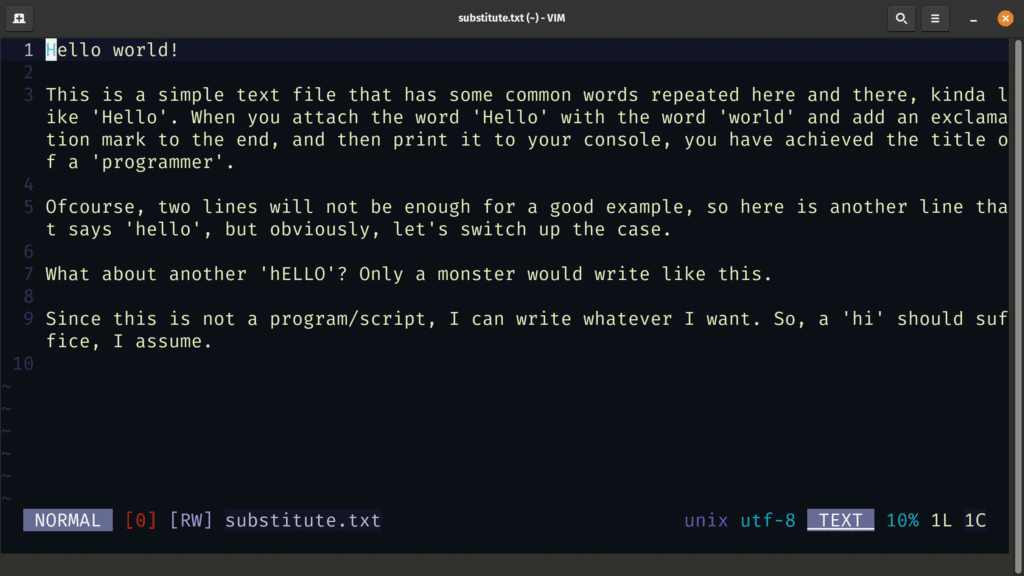
Vim’s substitute command can handle various tasks. To change case, you can use `U` (uppercase) or `L` (lowercase) in the replacement string. For example, `:%s/(word)/U1/g` makes “word” uppercase. Adding text is simple: `:%s/pattern/prefix&suffix/g` adds “prefix” and “suffix” around the matched “pattern” (where `&` represents the matched pattern). Removing text involves replacing it with an empty string: `:%s/unwanted_text//g`.
Tips for Efficiency: Repeating Commands & Command History
Vim offers several ways to boost efficiency. The `.` command repeats the last change, which can be useful after a manual substitution. For repeating a substitute command, you can use `&` to repeat the last `:s` command with the same flags, or `g&` to repeat it globally with confirmation. Furthermore, pressing `q:` opens the command-line history window, allowing you to easily recall and edit previous commands. This speeds up iterative Find and Replace in Vim / Vi tasks.
Dealing with Special Characters and Escaping
When your search or replacement string contains special characters (like `/`, “, `.` in regex), you need to escape them with a backslash (“). For instance, to search for a literal `/`, you’d use `/`. Alternatively, you can change the delimiter in the substitute command from `/` to another character, such as `#` or `|`. For example, `:s#path/to/file#new/path#g` avoids escaping the `/` character. This is a crucial technique for robust Find and Replace in Vim / Vi operations. You can find more details on Vim’s regular expressions on its official documentation: Vim Help: Patterns.
Frequently Asked Questions about Find and Replace in Vim / Vi
Many users have common questions about performing text replacements in Vim and Vi. This section addresses some of the most frequent queries, providing clear and concise answers to help you navigate specific scenarios.
How do I find and replace only in a visual selection?
To perform a Find and Replace in Vim / Vi operation only within a visually selected block of text, first enter visual mode (e.g., `v`, `V`, or `Ctrl-v`) and select your desired text. Then, type `:` to enter command-line mode. Vim will automatically insert `:’<,'>` before your cursor, indicating the range of the visual selection. You can then append your substitute command, like `:’<,'>s/old/new/g`, to apply the replacement only within that selection.
What’s the difference between `vi` and `vim` for find/replace?
While `vi` provides basic find and replace functionality, `vim` (Vi IMproved) offers significantly enhanced features. Vim’s regular expression engine is more powerful, supporting more advanced patterns and flags. Additionally, Vim includes features like persistent undo, syntax highlighting, and more intuitive command history, all of which indirectly improve the experience of performing Find and Replace in Vim / Vi by making the overall editing environment more robust and user-friendly.
How can I undo a find and replace operation?
If you make a mistake during a Find and Replace in Vim / Vi operation, simply press `u` in normal mode to undo the last change. Vim’s undo history is quite robust, allowing you to revert multiple changes. If you need to re-do an undone change, press `Ctrl-r`. This powerful undo capability provides a safety net, encouraging you to experiment with complex replacements.
Conclusion: Mastering Vim / Vi Find and Replace
Mastering Find and Replace in Vim / Vi is an invaluable skill that significantly enhances your text editing capabilities. From basic string searches to intricate regular expression substitutions, Vim provides a comprehensive toolkit for efficient text manipulation. By understanding and practicing these commands, you can streamline your workflow and tackle complex editing tasks with confidence.
Recap of Key Find and Replace Skills
We’ve covered essential commands like `/` and `?` for searching, `n` and `N` for navigation, and the powerful `:s` command for substitution. We also explored global (`g`), confirmation (`c`), and range-based flags, alongside the advanced capabilities of regular expressions and backreferences. These tools form the core of effective text transformation in Vim / Vi.
Continued Practice for Proficiency
Like any skill, proficiency in Find and Replace in Vim / Vi comes with practice. Experiment with different commands, flags, and regular expressions on various text files. The more you use these features, the more intuitive they will become, allowing you to perform complex edits almost instinctively. Consider setting up a practice file to test new commands.
Call to Action: Optimize Your Workflow with Vim / Vi
Don’t let manual, repetitive text editing slow you down. Integrate these powerful find and replace techniques into your daily workflow. Start small, then gradually tackle more complex scenarios. Share your favorite Vim / Vi find and replace tips in the comments below, or explore our other guides to further optimize your text editing prowess! Your productivity gains will be substantial.
