
Navigating the Linux filesystem often involves managing and comparing files. Therefore, understanding powerful command-line utilities becomes crucial. Before diving in, let’s clarify what the Diff Command in Linux actually means. This essential tool helps users identify differences between two files or even directories. It is a cornerstone for developers, system administrators, and anyone needing to track changes efficiently.
Introduction to the Diff Command in Linux
The diff command is a fundamental utility in Linux and Unix-like operating systems. It provides a clear, line-by-line comparison of text files. This command highlights additions, deletions, and modifications between file versions. Consequently, it simplifies the process of reviewing changes and maintaining code integrity.
What is the `diff` Command and Why is it Essential?
The diff command, short for “difference,” compares two files and outputs the disparities. It is essential for several reasons. For instance, developers use it to review code changes before committing them to a repository. System administrators rely on it to compare configuration files. This ensures system consistency and helps troubleshoot issues.
Moreover, the diff command is invaluable for auditing. It helps track modifications made to sensitive documents or scripts. This capability makes it a critical tool for maintaining system security and compliance. Understanding its output is a core skill for any Linux user.
A Brief History and Purpose of File Comparison Tools
File comparison tools have a long history in computing. They emerged from the need to manage evolving codebases and documents. The original diff utility was developed in the early 1970s at Bell Labs. It became a standard component of Unix systems.
Its primary purpose remains unchanged: to provide a concise summary of changes. This summary allows users to understand modifications quickly. Furthermore, it enables the creation of “patch” files. These patches can then apply changes programmatically to other files, streamlining collaboration.
Target Audience and What You’ll Learn About `diff` in Linux
This comprehensive guide targets Linux users of all skill levels. Whether you are a Beginner or an experienced professional, you will find valuable insights. We will cover the basics of the Diff Command in Linux. Additionally, we will explore advanced options and practical examples.
You will learn how to compare files effectively, interpret output, and leverage its full potential. We aim to equip you with the knowledge to use diff confidently in your daily tasks. By the end, you will master this powerful file comparison utility.
Understanding the Linux `diff` Command: Core Concepts
The Linux diff command operates by comparing lines of text. It identifies sequences of lines that are unique to one file or the other. It also finds lines that have been modified. This process forms the basis of its powerful comparison capabilities.
How `diff` Identifies Differences Between Files
The diff command reads both input files line by line. It then employs sophisticated algorithms to find the shortest sequence of insertions and deletions. These operations transform one file into the other. The output clearly indicates where lines were added, deleted, or changed.
For example, if a line exists in file1 but not in file2, it’s marked as a deletion. Conversely, if a line is in file2 but not file1, it’s an addition. Modified lines appear as a deletion in one file and an addition in the other. This systematic approach ensures accurate comparisons.
The Underlying Algorithms: Longest Common Subsequence (LCS)
At its heart, diff often utilizes algorithms like the Longest Common Subsequence (LCS). The LCS algorithm finds the longest sequence of elements common to both files. These elements do not need to occupy consecutive positions. By identifying the LCS, diff can then pinpoint the differing parts efficiently.
This algorithmic approach makes diff highly effective. It minimizes the number of reported changes. Consequently, the output is concise and easy to understand. This efficiency is crucial when comparing large files or complex codebases.
Common Use Cases for the `diff` Command
The diff command serves many practical purposes across various fields. Here are some common applications:
- Software Development: Comparing source code versions, reviewing pull requests, and debugging.
- System administration: Auditing configuration file changes, synchronizing settings across servers, and diagnosing system issues.
- Document Management: Tracking revisions in text documents, identifying unauthorized modifications.
- Data Analysis: Comparing datasets to spot discrepancies or trends.
These diverse applications highlight the versatility and importance of the diff command. It is truly an indispensable tool.
Basic-usage-of-the-diff-command-in-linux">Basic Usage of the `diff` Command in Linux
Using the diff command is straightforward for basic file comparisons. You simply provide the names of the two files you wish to compare. The command then processes them and displays the differences on your terminal.
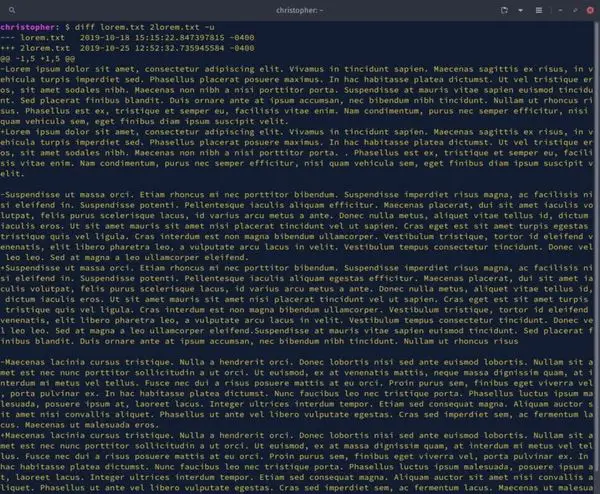
Syntax and Simple File Comparison with `diff`
The fundamental syntax for the diff command is quite simple: diff [OPTIONS] FILE1 FILE2. Here, FILE1 is typically the older or original file, and FILE2 is the newer or modified file. This convention helps in interpreting the output correctly.
For example, to compare two files named original.txt and modified.txt, you would type: diff original.txt modified.txt. The output will then show you exactly what has changed between these two files. This basic usage forms the foundation for more advanced operations.
Comparing Two Files: A Step-by-Step Guide
Let’s walk through a simple comparison process:
- Create two sample files:
echo "Line one" > file1.txt echo "Line two" >> file1.txt echo "Line three" >> file1.txt echo "Line one" > file2.txt echo "Line two changed" >> file2.txt echo "Line four added" >> file2.txt - Run the
diffcommand:diff file1.txt file2.txt - Interpret the output: The command will show the differences. You will see indicators like ‘c’ for change, ‘d’ for delete, and ‘a’ for add.
This hands-on approach helps solidify your understanding. It demonstrates the direct impact of the command. Therefore, practice is key to mastering diff.
Understanding the Default Output Format of `diff`
The default output of diff can seem cryptic at first. However, it follows a logical structure. It uses specific symbols to denote changes. For instance, ‘<' indicates lines from the first file, and '>‘ indicates lines from the second file.
Furthermore, ‘c’ denotes a change, ‘d’ a deletion, and ‘a’ an addition. A line like “2c2” means line 2 in file1 was changed to line 2 in file2. This format, while compact, conveys all necessary information about the differences. Understanding these symbols is paramount for effective use.
Advanced `diff` Command Options for Detailed Analysis
Beyond basic comparisons, the diff command offers numerous options. These options allow for more granular control over the comparison process. They also enable customization of the output format. This flexibility makes diff incredibly powerful for complex scenarios.
Controlling Output Formats: Unified, Context, and Side-by-Side
The default output can be hard to read for larger files. Thankfully, diff provides alternative formats:
- Unified Format (
-u): This format is highly popular. It shows changes in a compact, unified view. Added lines start with ‘+’, deleted lines with ‘-‘, and unchanged lines with a space. This format is also commonly used for patch files. - Context Format (
-c): This format provides context lines around the changes. It shows a few lines before and after the actual difference. This helps in understanding the surrounding code or text. - Side-by-Side Format (
-y): This option displays both files concurrently in two columns. It makes visual comparison much easier. You can combine it with-Wto specify output width.
These formats significantly enhance readability. They help users quickly grasp the extent and nature of changes. Therefore, choosing the right format is crucial for efficiency.
Ignoring Whitespace, Case, and Blank Lines with `diff`
Sometimes, minor formatting changes are not relevant. The diff command can ignore these trivial differences:
- Ignore all whitespace (
-w): This option treats sequences of whitespace characters as identical. It ignores changes in indentation or spacing. - Ignore case (
-i): This makes comparisons case-insensitive. “Hello” and “hello” are considered the same. - Ignore blank lines (
-B): This option disregards changes that involve only blank lines. It’s useful when blank lines are added or removed for formatting.
These options help focus on substantive content changes. They reduce noise in the output. Consequently, they improve the efficiency of code reviews and document comparisons.
Comparing Directories Recursively using `diff`
The diff command is not limited to individual files. It can also compare entire directories. Using the -r (recursive) option, diff will traverse subdirectories. It compares all corresponding files within them.
For example, diff -r dir1 dir2 will show differences between files in dir1 and dir2. It will also report files unique to each directory. This feature is incredibly useful for syncing configurations or managing project versions. It provides a holistic view of changes across a directory tree.
Practical Examples of `diff` Command in Linux
The versatility of the Diff Command in Linux shines through its practical applications. It is an indispensable tool across various professional domains. Let’s explore some real-world scenarios where diff proves invaluable.
Tracking Code Changes in Development Workflows
Developers frequently use diff to manage source code. Before committing changes to a version control system like Git, they often review their modifications. A command like diff -u old_code.py new_code.py provides a clear, unified view of what was altered. This helps catch potential bugs or unintended changes.
Furthermore, diff output is the basis for creating patch files. These patches can be shared with collaborators. They allow others to apply specific changes to their own codebases. This process streamlines collaborative development and code reviews.

Comparing Configuration Files for System Administration
System administrators constantly work with configuration files. Changes to these files can significantly impact system behavior. Using diff to compare current configurations with backups is a common practice. For instance, diff -u /etc/nginx/nginx.conf.bak /etc/nginx/nginx.conf can quickly highlight recent modifications.
This comparison helps in troubleshooting unexpected system behavior. It also ensures adherence to configuration standards. Moreover, it aids in migrating settings between different servers. This makes the diff command a vital tool for maintaining system stability.
Analyzing Document Revisions with the `diff` Command
Beyond code and configurations, diff is excellent for text document revision. Writers, editors, and legal professionals can use it to track changes in drafts. For example, comparing two versions of a report can quickly show edits made by a colleague. This ensures transparency and accountability.
It helps in identifying additions, deletions, or modifications to specific paragraphs. This capability is particularly useful for documents where every word matters. The diff command thus extends its utility far beyond purely technical applications.
Interpreting `diff` Output: A Detailed Guide
Understanding the output of the diff command is crucial for its effective use. The various formats convey information differently. Learning to decode these messages quickly will significantly improve your efficiency. Let’s break down the common output types.
Decoding Unified and Contextual Formats
The unified format (diff -u) is arguably the most common. It begins with lines indicating the files being compared, often with timestamps. Then, it shows hunks of differences. Each hunk starts with @@ -L1,S1 +L2,S2 @@. Here, L1 and S1 refer to the starting line and number of lines in the first file, respectively. L2 and S2 refer to the second file.
Within a hunk, lines starting with a space are unchanged context. Lines starting with ‘-‘ are deleted from the first file. Lines starting with ‘+’ are added to the second file. The context format (diff -c) is similar but uses ‘***’ and ‘—‘ for file headers. It uses ‘!’ for changed lines, ‘-‘ for deleted, and ‘+’ for added. Both formats provide surrounding context, making changes easier to locate.
Understanding Additions, Deletions, and Changes
The default diff output uses single-character codes to summarize changes. ‘a’ indicates an addition, ‘d’ a deletion, and ‘c’ a change. For example, 1a2 means that one line was added after line 1 in the first file to become line 2 in the second file. 3d2 means line 3 in the first file was deleted, resulting in line 2 in the second file.
A line like 2,3c2,3 signifies that lines 2 and 3 in the first file were changed to lines 2 and 3 in the second file. These codes, combined with the actual differing lines, provide a precise description of modifications. Mastering these indicators is key to quickly understanding the output of the Diff Command in Linux.
Using `patch` with `diff` Output for Applying Changes
One of the most powerful features related to diff is its integration with the patch command. The output of diff -u (unified format) is specifically designed to be consumed by patch. This allows you to apply changes from one file to another programmatically. For example, if you have diff -u original.txt modified.txt > changes.patch, you can then apply these changes to original.txt using patch original.txt < changes.patch.
This mechanism is fundamental to open-source development. It enables developers to share and apply code modifications efficiently. It also facilitates maintaining multiple versions of software. The `patch` command is a testament to the robust design of GNU Diffutils. Learn more about the GNU Diffutils project on its official page: GNU Diffutils.
Alternatives and Related Commands to `diff` in Linux
While the diff command is incredibly powerful, other tools exist for file comparison. Some offer different functionalities or graphical interfaces. Understanding these alternatives can help you choose the best tool for a specific task.
`cmp` and `comm`: When to Use Other Comparison Tools
The cmp command is simpler than diff. It compares two files byte by byte. It reports the first differing byte and line number. cmp is ideal for checking if two binary files are absolutely identical. It is also useful for determining if two text files are precisely the same. It does not show the actual differences, only if they exist.
The comm command compares two sorted files line by line. It outputs three columns: lines unique to file1, lines unique to file2, and lines common to both. This is useful for tasks like finding common entries in two lists. However, both cmp and comm are less versatile than diff for showing detailed text differences.
Graphical `diff` Tools: `meld`, `kdiff3`, `diffmerge`
For users who prefer a visual approach, several graphical diff tools are available. These applications provide a side-by-side view with syntax highlighting and intuitive navigation. Popular options include:
- Meld: A powerful and user-friendly visual diff and merge tool. It supports file, directory, and version control comparisons.
- KDiff3: Another excellent graphical diff and merge program. It is particularly popular in KDE environments.
- DiffMerge: Offers a robust visual comparison of files and directories. It also includes merging capabilities.
These tools are especially helpful for complex merges or when reviewing large code changes. They enhance productivity by providing a clear visual representation of differences. Consider exploring these GUI alternatives for a more interactive experience.
Version Control Systems (`git diff`) and Their Relationship to `diff`
Modern software development heavily relies on Version Control Systems (VCS) like Git. Git itself incorporates a powerful diffing capability through its git diff command. This command is essentially a wrapper around the core diff utility. It compares different versions of files within a Git repository.
git diff can compare working directory changes, staged changes, or differences between branches. It leverages the same underlying principles as the standalone diff command. However, it adds context specific to version control. Understanding the standalone Diff Command in Linux provides a strong foundation for using git diff effectively.
Frequently Asked Questions
How do I ignore specific lines or patterns with `diff`?
You can use the -I PATTERN option to ignore lines matching a specific regular expression pattern. For example, diff -I '^#' file1.txt file2.txt would ignore lines starting with a hash symbol. This is useful for ignoring comments or log entries that frequently change but are not significant.
Can `diff` compare binary files?
By default, diff is designed for text files. When comparing binary files, it typically reports "Binary files X and Y differ." It does not provide a detailed byte-by-byte comparison. For precise binary file comparison, the cmp command is more appropriate. Alternatively, specialized binary diff tools exist.
What's the difference between `diff` and `sdiff`?
The diff command provides a line-by-line report of differences in various formats. The sdiff command, on the other hand, produces a side-by-side comparison of two files. It merges common lines and indicates differences with special characters. sdiff is more interactive and often used for merging files manually. It offers a more visual comparison directly in the terminal.
Conclusion: Harnessing the Power of the Diff Command in Linux
The Diff Command in Linux is an incredibly versatile and powerful utility. It is indispensable for anyone working with text files, code, or configurations. From basic file comparisons to complex directory analyses, diff provides clear insights into changes. Mastering this command significantly boosts productivity and accuracy in various tasks.
Recap of Key `diff` Command Functionalities
We explored its core purpose of identifying line-by-line differences. We also covered its default output and advanced formatting options like unified and context views. Furthermore, we discussed how to ignore trivial differences such as whitespace or case. The ability to compare directories recursively also stands out as a key feature. Understanding these functionalities empowers you to leverage diff effectively.
Best Practices for Using `diff` in Your Workflow
Always use the -u (unified) option for clearer, more compact output. This format is also compatible with the patch command. When comparing configuration files, consider using options like -w or -B to focus on meaningful changes. Regularly using diff to review your work can prevent errors and improve code quality. Integrate it into your pre-commit hooks for automated checks.
Further Exploration and Continuous Learning (CTA)
The world of Linux commands is vast and rewarding. We encourage you to experiment with different diff options and explore its man page (man diff). Share your favorite diff tricks in the comments below! What specific scenarios do you find the Diff Command in Linux most useful for? Your insights can help other users discover new ways to utilize this essential tool. Continue learning and enhancing your Linux command-line skills!
