
Back to main guide: Complete Guide To Cron
Automating repetitive tasks is a cornerstone of efficient system administration and development, and at the heart of this automation on Unix-like systems lies the cron job. Mastering Cron Job Syntax: Mastering Crontab Scheduling empowers users to schedule commands or scripts to run automatically at specified intervals, from simple daily backups to complex system maintenance. Understanding the intricacies of crontab syntax is crucial for reliable and predictable task execution, ensuring your systems operate smoothly without constant manual intervention. This guide will walk you through the fundamentals and advanced techniques to confidently schedule your automated processes.
See also: Complete Guide to Cron.Understanding Cron Jobs and Crontab Fundamentals
Cron jobs are essentially time-based job schedulers in Unix-like operating systems, allowing you to execute commands or scripts automatically at a predetermined time or date. They are indispensable tools for system administrators and developers alike, ensuring that routine tasks like data backups, log cleaning, or custom script executions happen reliably in the background. This automation frees up valuable time and reduces the potential for human error in recurring operational duties.The `crontab` utility is the primary interface for managing these scheduled tasks. Each user on a system can have their own `crontab` file, which contains a list of cron job entries defining what command to run and when. These files are stored in a specific format that the cron daemon interprets, ensuring your specified tasks are triggered precisely as configured. Properly structuring these entries is key to harnessing the full power of automated scheduling.
Leveraging cron jobs offers significant benefits, including enhanced system efficiency, improved reliability of routine operations, and the ability to maintain systems proactively. By setting up tasks to run during off-peak hours, you can minimize impact on system performance and user experience. Furthermore, automation ensures consistency and reduces the workload on IT staff, allowing them to focus on more complex, strategic initiatives rather than repetitive manual processes.
Deconstructing Cron Job Syntax: The Five Time Fields
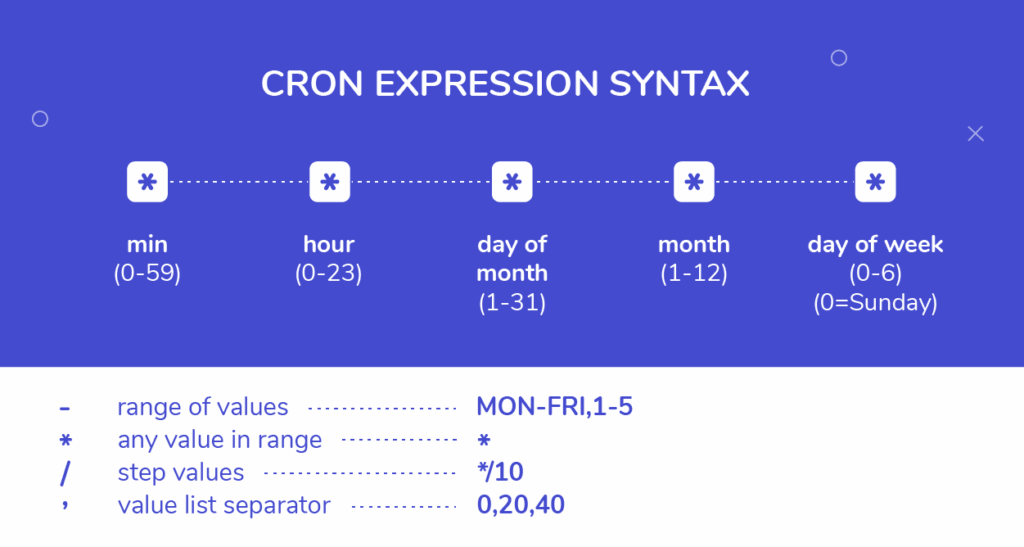
The core of effective cron job scheduling lies in understanding its unique syntax, which is composed of five time-based fields followed by the command to be executed. Each field specifies a different unit of time, and mastering their individual roles is paramount for precise automation. When you define a cron job, you are essentially creating a mini-program that tells the system exactly when to spring into action.
These five fields dictate the minute, hour, day of the month, month, and day of the week, respectively. They provide a powerful yet compact way to express virtually any recurring schedule you might need. Getting these fields right is the most critical step in ensuring your cron job runs exactly when intended, preventing unexpected executions or missed tasks.
Following these five time fields, the last part of a crontab entry is the actual command or script you wish to execute. This can be any valid shell command, a path to an executable script, or even a series of commands chained together. The cron daemon will interpret and run this command at the precise moment specified by the preceding time fields.
Here’s a breakdown of the five time fields and their valid ranges:
- Minute (0-59): Specifies the minute of the hour when the command should run.
- Hour (0-23): Indicates the hour of the day (in 24-hour format) for execution.
- Day of Month (1-31): Defines the specific day of the month.
- Month (1-12 or Jan-Dec): Represents the month of the year.
- Day of Week (0-7 or Sun-Sat): Designates the day of the week (both 0 and 7 typically represent Sunday).
Advanced Crontab Scheduling with Special Characters and Predefined Strings
Beyond simply specifying numbers for each time field, crontab syntax offers a set of powerful special characters that allow for more flexible and complex scheduling patterns. These characters enable you to define ranges, lists, and step values, significantly expanding the possibilities for your automated tasks. Understanding how to effectively use these symbols is key to truly mastering crontab scheduling.The asterisk (``) is perhaps the most common, acting as a wildcard that matches “every” possible value for a given field. For instance, `` in the hour field means “every hour.” Commas (`,`) allow you to list multiple specific values, such as `1,15` in the day of month field to run on the 1st and 15th. Hyphens (`-`) define a range, like `9-17` in the hour field to run between 9 AM and 5 PM, inclusive. Finally, the slash (`/`) specifies step values, so `*/15` in the minute field means “every 15 minutes.”
In addition to special characters, crontab also provides several predefined strings, which are convenient shortcuts for common scheduling needs. These strings simplify complex expressions into human-readable terms, making your crontab entries cleaner and easier to understand. They are particularly useful for whole-day, weekly, or monthly schedules.
Here are the most common special characters and their uses:
- `` (Asterisk): Matches every value for the field. Example: ` ` (every minute).
- `,` (Comma): Specifies a list of values. Example: `0 8,12,17 *` (at 8 AM, 12 PM, and 5 PM daily).
- `-` (Hyphen): Defines a range of values. Example: `0 9-17 1-5` (every hour between 9 AM and 5 PM, Monday to Friday).
- `/` (Slash): Specifies step values. Example: `/10 *` (every 10 minutes).
- `@reboot`: Run once after system startup.
- `@yearly` or `@annually`: Run once a year (equivalent to `0 0 1 1 *`).
- `@monthly`: Run once a month (equivalent to `0 0 1 `).
- `@weekly`: Run once a week (equivalent to `0 0 0`).
- `@daily` or `@midnight`: Run once a day (equivalent to `0 0 *`).
- `@hourly`: Run once an hour (equivalent to `0 `).
Practical Examples, Best Practices, and Troubleshooting for Crontab
Applying your knowledge of Cron Job Syntax: Mastering Crontab Scheduling through practical examples is the best way to solidify your understanding. Let’s look at a few common scenarios and how to implement them using the syntax we’ve discussed. These examples illustrate how the combination of time fields and special characters can create precise scheduling patterns for various automation needs.Consider a scenario where you need to run a data processing script every weekday morning. Or perhaps you need to clean up temporary files at regular intervals to maintain system hygiene. Each practical application demands a careful construction of the crontab entry to ensure accuracy and prevent unintended consequences.
Beyond just writing the cron entries, adopting best practices is crucial for maintaining a robust and debuggable cron environment. Proper setup can save hours of troubleshooting down the line, especially in complex systems with numerous scheduled tasks. Effective troubleshooting also relies on knowing where to look when a cron job fails to execute as expected.
Here are some practical examples:
- Run a script every 15 minutes: `/15 * /path/to/script.sh`
- Perform a database Backup every Sunday at 3:30 AM: `30 3 0 /usr/local/bin/db_backup.sh`
- Execute a cleanup script on the first day of every month at midnight: `0 0 1 /opt/cleanup/monthly_cleanup.py`
To ensure your cron jobs are reliable and maintainable, consider these best practices:
- Use absolute paths: Always specify the full path for commands and scripts (`/usr/bin/python` instead of `python`, `/home/user/myscript.sh` instead of `myscript.sh`).
- Redirect output: Cron jobs don’t have a terminal, so their output (stdout and stderr) is typically emailed to the user. Redirect output to a log file or `/dev/null` to prevent your mailbox from overflowing: `/path/to/script.sh >> /var/log/script.log 2>&1`.
- Add comments: Use `#` at the beginning of a line to add comments to your crontab file, explaining the purpose of each job.
- Test thoroughly: Always test your scripts manually before adding them to crontab to ensure they run correctly.
- Manage via `crontab -e`: Always edit your crontab file using `crontab -e` to ensure proper syntax checking and installation.
If a cron job isn’t running, here are some common troubleshooting steps:
- Check system logs: Examine `/var/log/syslog`, `/var/log/cron`, or other system logs for error messages related to cron.
- Verify paths and permissions: Ensure your script has execute permissions (`chmod +x script.sh`) and that all paths within the cron job are correct.
- Test the command manually: Run the exact command specified in your crontab entry directly in your terminal to see if it executes without errors.
- Check environment variables: Cron jobs have a minimal environment. Ensure your script doesn’t rely on specific environment variables that might not be set in the cron context. You can often set these within the crontab file itself or in the script.
