
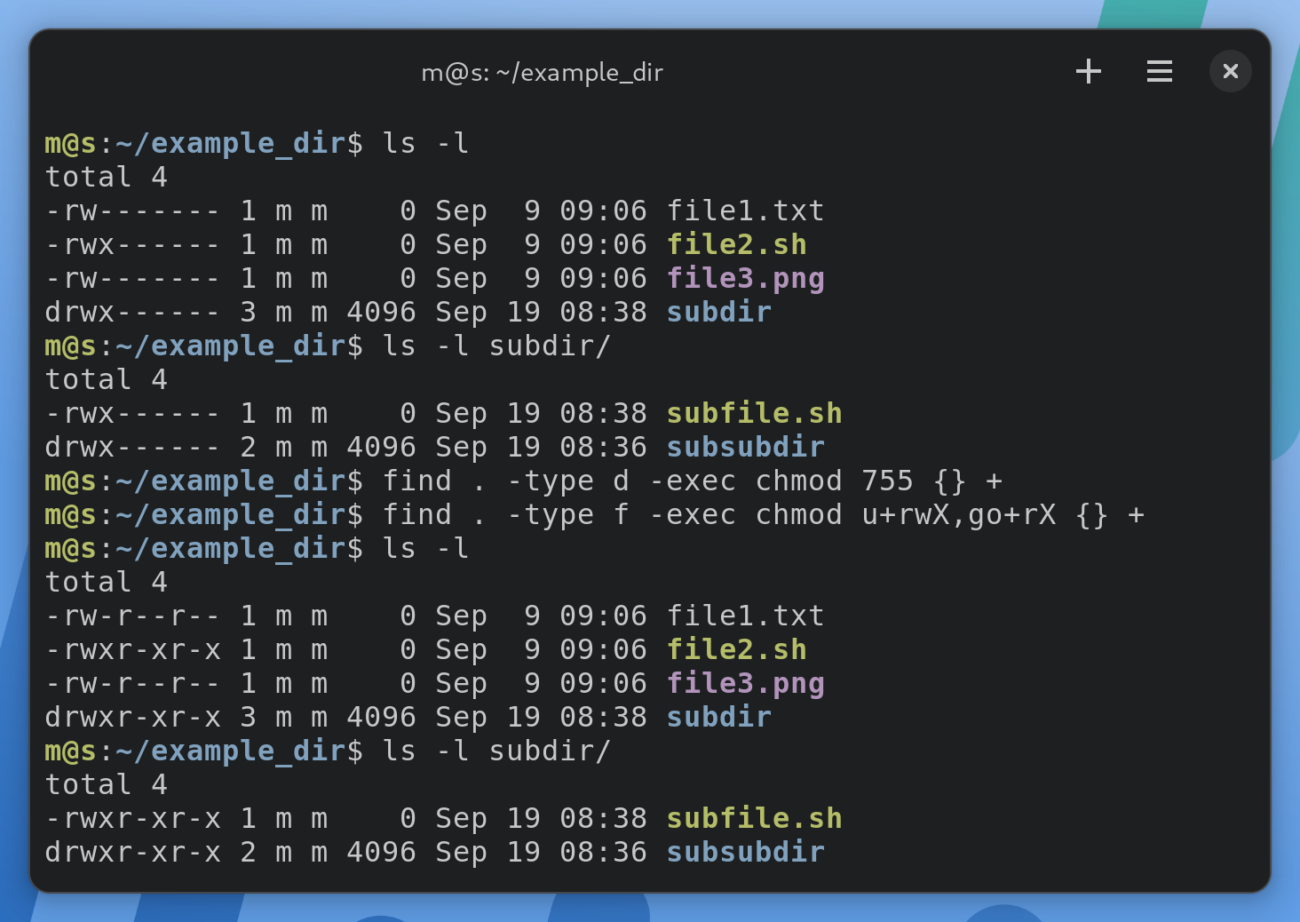
Managing file and directory permissions is a fundamental aspect of Linux and Unix-like operating systems. Understanding chmod recursive permissions is crucial for system administrators and developers alike. This powerful command allows you to apply permission changes not just to a single file or directory, but to all its contents, including subdirectories and files within them. Consequently, mastering this functionality ensures proper access control and system security.
Understanding chmod and Recursive Permissions
The `chmod` command, short for “change mode,” is a core utility in Unix-like systems. It modifies file system permissions for files and directories. These permissions dictate who can read, write, or execute a file. Therefore, correct permission settings are vital for system integrity and data protection.
The `chmod` Command: A Quick Refresher
Permissions are typically represented in octal notation (e.g., 755, 644) or symbolic mode (e.g., `u+rwx`, `go-w`). Octal mode uses three digits, representing owner, group, and others, respectively. Each digit is a sum of read (4), write (2), and execute (1) permissions. For instance, `755` means the owner has read, write, and execute access, while the group and others have read and execute access.
What Does “Recursive” Mean in `chmod`?
The term “recursive” in the context of `chmod` refers to the `-R` or `–recursive` option. When this option is used, the `chmod` command will process not only the specified directory but also all files and subdirectories contained within it. This saves significant time and effort compared to manually changing permissions for each item. It is a powerful feature, however, it requires careful execution.
How `chmod -R` Works on Directories and Files
When you execute `chmod -R`, the system traverses the entire directory tree starting from the specified path. It applies the given permission changes to every file and subdirectory it encounters. For example, applying `chmod -R 755 /var/www/html` would set `755` permissions on the `html` directory, all its subdirectories, and all files within them. This ensures consistent access rules across your entire project structure.
Syntax and Practical Use of chmod -R
Using `chmod -R` involves specifying the permissions you want to set and the target directory. The command’s flexibility allows for both broad and highly specific permission adjustments. Understanding its syntax is the first step towards effective implementation. Furthermore, always double-check your commands before execution.
Basic-chmod-r-syntax-octal-vs-symbolic-modes">Basic `chmod -R` Syntax: Octal vs. Symbolic Modes
The fundamental syntax for recursive permission changes is `chmod -R [permissions] [directory]`. You can use either octal or symbolic modes for specifying permissions. Octal mode is often preferred for its conciseness, while symbolic mode offers greater granularity for adding or removing specific permissions. For example, `chmod -R 755 /path/to/dir` sets read, write, and execute for the owner, and read and execute for group and others.
Alternatively, in symbolic mode, you could use `chmod -R u=rwx,go=rx /path/to/dir`. This achieves the same result. The choice between octal and symbolic modes often comes down to personal preference or the specific permission change required. Both methods are equally effective for applying chmod recursive permissions.
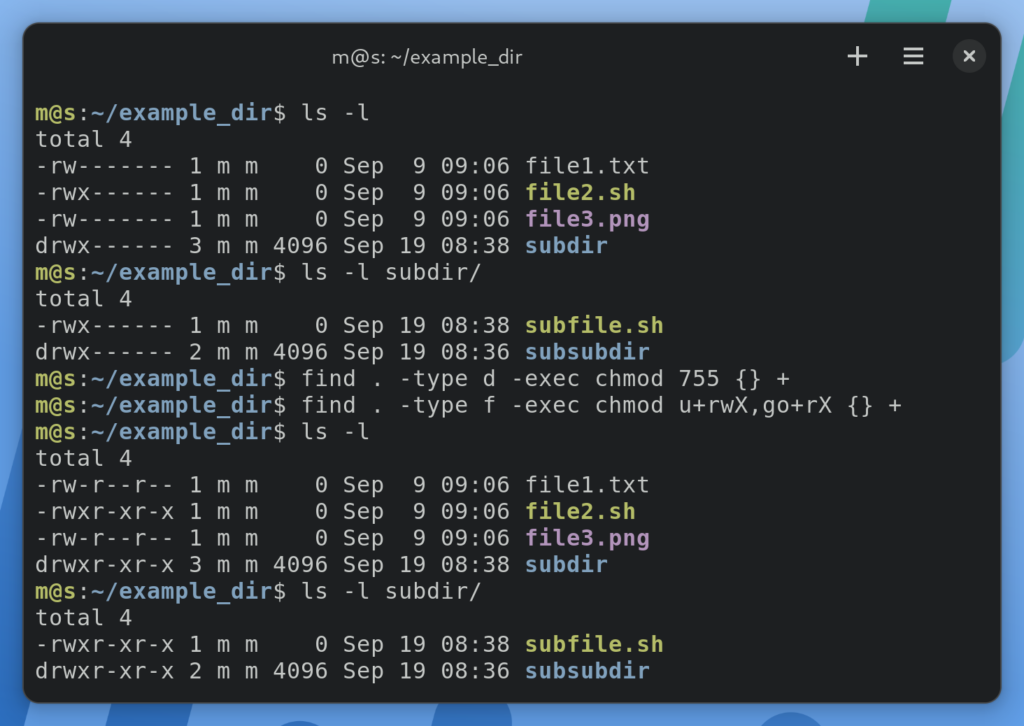
Examples: Setting Common Recursive Permissions (e.g., 755, 644)
Here are some practical examples of using `chmod -R` for common scenarios:
- Web Content Directories: To ensure web server access while protecting sensitive files, you might use:
chmod -R 755 /var/www/htmlThis allows the web server (often running as a specific user/group) to read and execute files and traverse directories, while the owner can modify them.
- User Project Folders: For a user’s personal project directory, where they need full control and others only need read access:
chmod -R 700 ~/my_projectThis grants full permissions to the owner and denies all access to anyone else.
- Data Files: If you have a directory of data files that should only be readable by the owner and group, but not executable:
chmod -R 640 /data/shared_docsThis sets read/write for the owner, read for the group, and no access for others.
Combining `chmod -R` with `find` for Granular Control
While `chmod -R` is powerful, it applies permissions uniformly. For more granular control, especially when you need different permissions for files and directories, combine it with the `find` command. This approach allows you to target specific types of entries. Therefore, it is an essential technique for advanced permission management.
Here’s how to use `find` with `chmod` for recursive operations:
- Set directory permissions:
find /path/to/dir -type d -exec chmod 755 {} +This command finds all directories (`-type d`) within `/path/to/dir` and sets their permissions to `755`.
- Set file permissions:
find /path/to/dir -type f -exec chmod 644 {} +This command finds all files (`-type f`) within `/path/to/dir` and sets their permissions to `644`. This combination is often ideal for web server environments.
Common Scenarios for Applying Recursive chmod Permissions
The ability to apply chmod recursive permissions is invaluable in various real-world scenarios. It streamlines the process of securing and managing large sets of files. Understanding these common use cases helps in implementing best practices. Furthermore, it prevents potential security vulnerabilities.
Web Server Directories (e.g., Apache, Nginx)
Web servers like Apache and Nginx serve content from specific directories, such as `/var/www/html`. These directories and their contents require precise permissions. Typically, directories need `755` permissions to allow the web server to traverse them, and files need `644` to be readable but not executable by the server. Incorrect permissions can lead to “403 Forbidden” errors or, worse, security exploits. Therefore, `chmod -R` is frequently used here, often in conjunction with `find`.
User Home Directories and Project Folders
When users create new projects or synchronize files, their home directories or project folders often need consistent permissions. For instance, a user might want all their project files to be private (`700`) or shared with a specific group (`770`). Using `chmod -R` ensures that every new file or subdirectory inherits these desired permissions. This maintains a tidy and secure working environment. It also simplifies collaboration within teams.
Shared Network Drives and Collaborative Environments
In environments where multiple users share network drives (e.g., NFS, Samba shares), managing permissions can be complex. Applying chmod recursive permissions ensures that all users in a specific group have appropriate access to shared resources. For example, setting `770` on a shared directory and its contents allows members of a project group to read, write, and execute files, while others are denied access. This facilitates seamless teamwork and data integrity.
Best Practices and Warnings for chmod Recursive Permissions
While `chmod -R` is incredibly useful, it is also a powerful command that can have far-reaching consequences if misused. Adhering to best practices is essential to prevent accidental data exposure or system instability. Always proceed with caution and verify your actions. Consequently, responsible usage is paramount.
The Dangers of Overly Permissive `chmod -R`
One of the most significant dangers is setting overly permissive permissions, such as `chmod -R 777`. This grants read, write, and execute access to everyone (owner, group, and others) on all files and directories. Such broad permissions are a severe security risk, potentially allowing unauthorized users to modify or delete critical files, or even execute malicious scripts. Always aim for the principle of least privilege: grant only the necessary permissions. Therefore, avoid `777` unless absolutely necessary and temporary.
Using `umask` and `chown` in Conjunction with `chmod`
Permissions are not solely managed by `chmod`. The `umask` command determines the default permissions for newly created files and directories. It acts as a mask, subtracting permissions from the default. Furthermore, the `chown` command (change owner) modifies the ownership of files and directories. Often, you’ll need to use `chown -R` to set the correct owner and group before applying `chmod -R` for permissions. This ensures the right entities have control over the files. For example, `chown -R www-data:www-data /var/www/html` would set the web server as the owner.
Always Test Permissions on a Staging Environment
Before applying any significant `chmod -R` command to a production system, always test it thoroughly on a staging or development environment. This allows you to verify that the permissions are set correctly and that your applications function as expected without unintended side effects. A small mistake with recursive permissions can quickly cascade, leading to widespread access issues. Therefore, diligent testing is a non-negotiable step.
Troubleshooting and Advanced Tips for Recursive chmod
Even with careful planning, issues can arise when working with recursive permissions. Knowing how to troubleshoot and apply advanced techniques can save time and prevent headaches. This section covers common challenges and more sophisticated solutions. Consequently, it enhances your command-line proficiency.
Dealing with Specific File Types (e.g., executables, scripts)
Sometimes, you need to set execute permissions only for specific files, like scripts or binaries, while keeping other files non-executable. As discussed, combining `find` with `chmod` is the ideal solution. You can target executable files specifically using `find /path -type f -perm /u=x -exec chmod +x {} +` to ensure they retain execute permissions. Conversely, you can remove execute permissions from all non-script files. This precision is key for secure system operation.
Reverting Incorrect Recursive Permissions
If you accidentally apply incorrect chmod recursive permissions, especially overly restrictive ones, it can lock you out of files. The best way to revert is to have a backup or a clear understanding of the previous permissions. If you know the correct permissions, simply re-run the `chmod -R` command with the right values. In critical situations, booting into a rescue mode or using `sudo` might be necessary to regain control. Always document your permission changes for easier rollback.
Understanding ACLs (Access Control Lists) vs. `chmod`
While `chmod` manages traditional Unix permissions, Access Control Lists (ACLs) offer a more granular way to control access. ACLs allow you to define permissions for specific users or groups beyond the owner, group, and others. For complex permission requirements, ACLs (managed by `setfacl` and `getfacl`) might be a better fit than `chmod`. However, ACLs are an extension and not universally supported or enabled by default. Therefore, `chmod` remains the primary method for most permission management tasks. For more information on ACLs, you can refer to the Wikipedia article on Access Control Lists.
Frequently Asked Questions About chmod Recursive Permissions
What’s the difference between `chmod -R 755` for directories and `chmod -R 644` for files?
The primary difference lies in the execute permission. `755` (rwx for owner, rx for group/others) grants execute permission to directories, which is necessary for users to “enter” or “traverse” them. Without execute permission on a directory, you cannot access its contents, even if you have read permission on the files inside. `644` (rw for owner, r for group/others) typically refers to files, granting read and write to the owner, and only read to the group and others. Files generally do not need execute permission unless they are scripts or binaries.
Can `chmod -R` affect symbolic links?
By default, `chmod -R` will follow symbolic links to directories and apply permissions to their targets. However, it will not change the permissions of the symbolic link itself, only the permissions of the file or directory it points to. If you want `chmod` to specifically not follow symbolic links, you would typically use the `-h` or `–no-dereference` option, though this is less common with `chmod -R` as the intent is usually to affect the underlying files.
How do I set different permissions for files and directories recursively?
To set different permissions for files and directories recursively, you should combine the `find` command with `chmod`. First, use `find /path/to/dir -type d -exec chmod 755 {} +` to set directory permissions. Then, use `find /path/to/dir -type f -exec chmod 644 {} +` to set file permissions. This two-step process ensures that directories have the necessary execute bit, while regular files do not, which is a common and secure configuration.
Conclusion
Mastering chmod recursive permissions is an indispensable skill for anyone managing Linux systems. It allows for efficient and consistent application of access controls across entire file hierarchies. While powerful, it demands careful execution to avoid security vulnerabilities or operational disruptions. Always remember the principle of least privilege, combine `chmod` with `find` for granular control, and test thoroughly.
By understanding the nuances of `chmod -R` and adhering to best practices, you can maintain a secure and well-organized file system. Continue to explore and practice these commands to enhance your system administration capabilities. Share your experiences or any advanced tips in the comments below!
