
The command line is a powerful tool for interacting with Linux systems. Understanding how to navigate directories efficiently is fundamental for any user. This article will provide a comprehensive guide to the cd command in Linux (Change Directory), an essential utility for moving between different locations within your file system. By mastering this command, you can significantly enhance your productivity and control over your Linux environment.
Understanding the Cd Command in Linux (Change Directory)
The `cd` command, short for “change directory,” is one of the most frequently used commands in the Linux terminal. It allows users to move from their current working directory to another specified directory. This capability is crucial for accessing files, executing scripts, and managing your system’s organization. Without the ability to change directories, interacting with the vast Linux file system would be nearly impossible.The Core Function of Cd
The primary function of the `cd` command is to alter your current working directory. When you open a terminal, you typically start in your home directory. However, to access files or perform operations in other locations, you must navigate to those specific directories. The `cd` command facilitates this movement, making it simple to jump between different folders and subfolders.Basic-syntax-cd-directory">Basic Syntax: `cd [directory]`
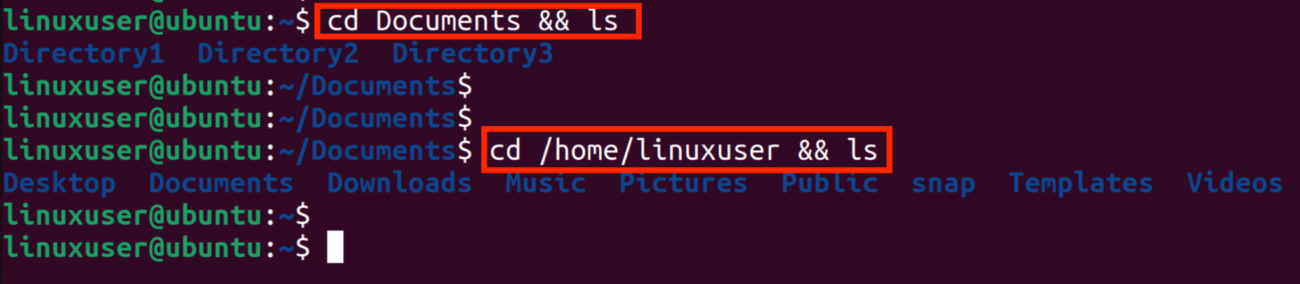
The fundamental syntax for the `cd` command is straightforward. You type `cd` followed by the name of the directory you wish to enter. For example, if you are in your home directory and want to go into a folder named “Documents,” you would type `cd Documents`. This command then changes your current location, allowing you to interact with the contents of the “Documents” folder.How to Use Cd Command: Navigating Directories
Effective directory navigation using the `cd` command involves understanding different path types. Linux uses a hierarchical file system, resembling an inverted tree structure. Knowing how to specify your destination, whether through absolute or relative paths, is key to efficient command-line work. Furthermore, there are convenient shortcuts for common navigation tasks.Absolute Paths: Starting from Root
An absolute path specifies the complete location of a directory starting from the root directory (`/`). This path always begins with a `/`. For instance, to navigate to the “bin” directory, you would use `cd /usr/bin`. Using absolute paths ensures you land in the correct directory regardless of your current location. It provides a precise and unambiguous way to specify any directory on the system.Relative Paths: Navigating from Current Location
Relative paths specify a directory’s location in relation to your current working directory. They do not start with a `/`. If you are in `/home/user` and want to go to `/home/user/Documents`, you can simply type `cd Documents`. This method is often quicker for local navigation. Understanding relative paths is vital for fluid movement within the file system hierarchy.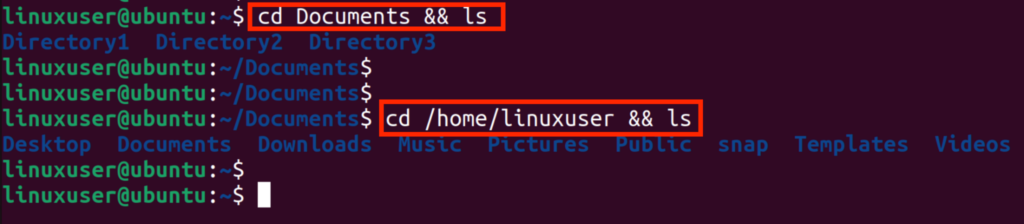
Changing to the Home Directory
The home directory is a special place for each user, typically located at `/home/username`. There are several easy ways to return to your home directory using the `cd` command. These shortcuts are incredibly useful and save a lot of typing. Knowing these methods will significantly speed up your command-line workflow.Here are common ways to reach your home directory:
- Typing `cd` without any arguments.
- Using `cd ~` (the tilde symbol represents your home directory).
- Specifying the absolute path, e.g., `cd /home/yourusername`.
Advanced Cd Command Tips & Shortcuts
Beyond basic navigation, the `cd` command offers several powerful shortcuts that can further streamline your workflow. These advanced tips are invaluable for experienced Linux users and can greatly improve efficiency. Mastering these shortcuts will make you much more adept at moving around your file system.Using `cd ..` to Go Up One Level
The `..` (double dot) represents the parent directory of your current location. To move up one level in the directory hierarchy, you use `cd ..`. For example, if you are in `/home/user/Documents` and type `cd ..`, you will move to `/home/user`. This command is incredibly useful for quickly navigating upwards in the file system tree.Returning to the Previous Directory with `cd -`
The `cd -` command is a convenient shortcut to return to the directory you were in immediately before your current one. This is particularly handy when you’ve jumped to a directory for a quick task and want to go back. It acts like a “back” button for your terminal navigation. This command saves time and reduces the need to remember long paths.Directly Accessing Home with `cd ~` or `cd`
As mentioned, `cd ~` and simply `cd` are powerful shortcuts for returning to your home directory. The tilde `~` is a universal symbol for the current user’s home directory across Linux systems. These commands are among the most frequently used for good reason. They offer instant access to your personal workspace, no matter where you are in the file system.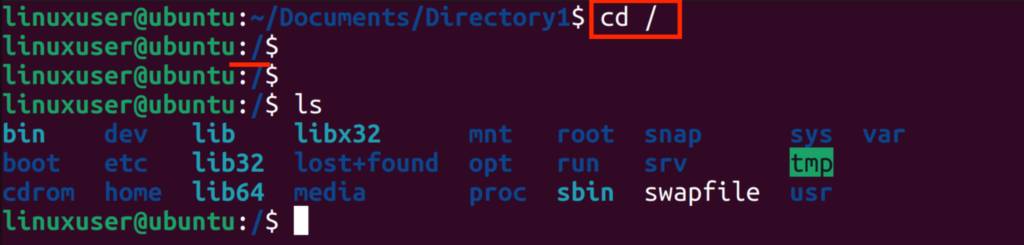
Common Cd Command Errors and Troubleshooting
Even with a simple command like `cd`, users can encounter errors. Understanding these common issues and how to resolve them is crucial for effective troubleshooting. The Cd Command in Linux (Change Directory) relies on accurate paths and proper permissions. Therefore, recognizing error messages is the first step towards a solution.‘No such file or directory’ Error
This is perhaps the most common error when using the `cd` command. It means the directory path you provided does not exist or is misspelled. Always double-check your spelling and case sensitivity, as Linux file systems are case-sensitive. You can use the `ls` command to list contents and verify directory names.Permission Denied Issues
Sometimes, you might try to `cd` into a directory but receive a “Permission denied” error. This indicates that your user account does not have the necessary read and execute permissions for that specific directory. You might need to use `sudo` (if you have administrative privileges) or request the owner to change permissions. Learning about file permissions is an important aspect of Linux system administration. You can find more details on file permissions on Wikipedia: File System Permissions.Tips for Correcting Path Mistakes
Correcting path mistakes often involves careful observation. Here are some practical tips:- Use Tab Completion: Pressing the `Tab` key after typing a few letters of a directory name will auto-complete it, preventing typos.
- Verify with `ls`: Before `cd`ing, use `ls` to list the contents of your current directory and confirm the exact name of the target directory.
- Check Current Location: Use `pwd` (print working directory) to confirm your current location before attempting to navigate.
