
The Bash while Loop is a fundamental construct in shell scripting, allowing you to execute a block of commands repeatedly as long as a specified condition remains true. This powerful tool is essential for automating repetitive tasks, processing data streams, and managing script flow. Understanding its mechanics is crucial for any serious Bash user, enabling more efficient and dynamic scripts. Therefore, mastering the while loop significantly enhances your command-line capabilities.
Understanding Bash while Loop Syntax and Structure
A Bash while loop provides a robust way to iterate through commands based on a condition. It continuously evaluates an expression; if the expression is true, the commands within the loop execute. This process repeats until the condition becomes false. Consequently, it offers flexible control over script execution.
Basic-syntax-while-condition-do-commands-done">Basic Syntax: `while` Condition `do` Commands `done`
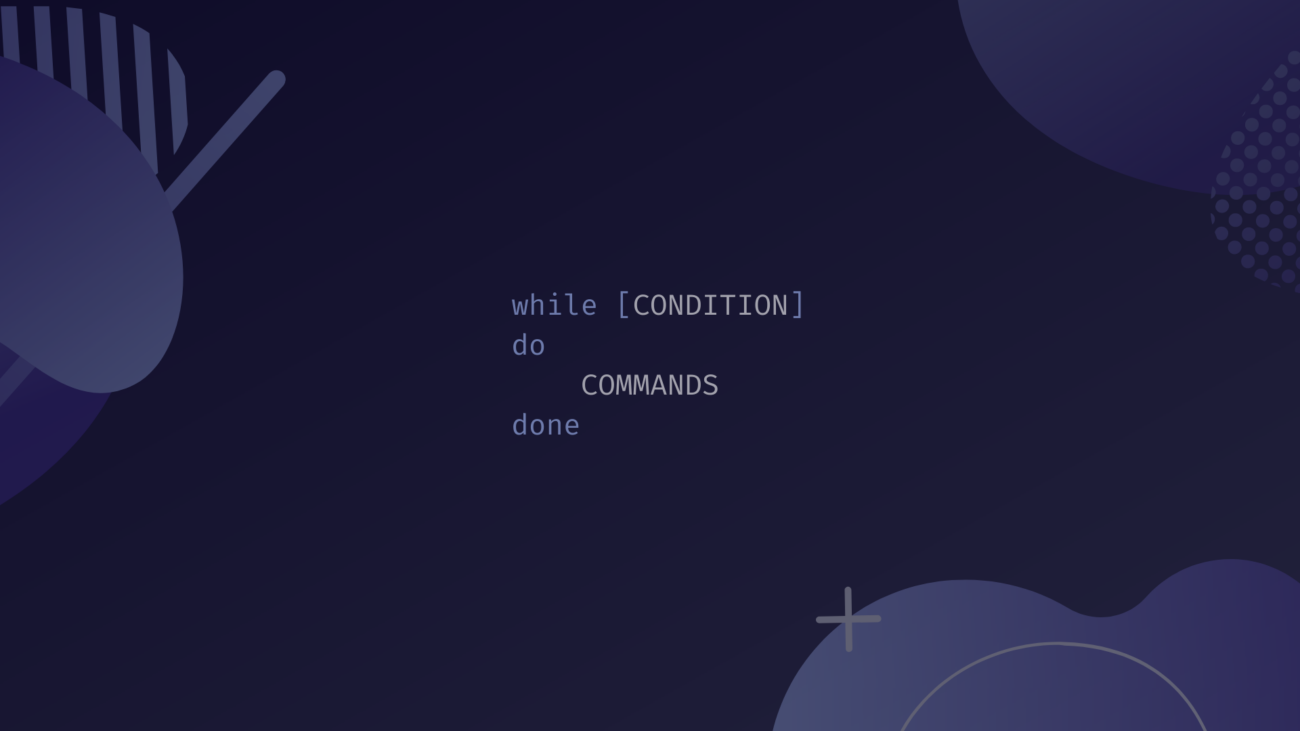
The basic structure of a Bash while loop is straightforward and easy to implement. It begins with the `while` keyword, followed by the condition to be tested. Next, the `do` keyword marks the start of the command block, and `done` signifies its end. For example, you might use `while [ $i -le 10 ]; do echo $i; i=$((i+1)); done` to count from 1 to 10.
Here is a simple breakdown of the syntax:
- `while`: Initiates the loop.
- `condition`: An expression that evaluates to true or false.
- `do`: Marks the beginning of the loop’s body.
- `commands`: The block of code executed repeatedly.
- `done`: Marks the end of the loop’s body.
Condition Evaluation in Bash while Loops
The condition in a Bash while loop is typically an exit status of a command or a test expression. A command returning an exit status of zero is considered true, while any non-zero status is false. Furthermore, you can use `test` or `[` for numerical and string comparisons. For instance, `[[ -f “myfile.txt” ]]` checks if a file exists.
Understanding how conditions are evaluated is key to writing effective loops. You can use various operators for comparison. These include `-eq` for equal, `-ne` for not equal, `-lt` for less than, and `-gt` for greater than. Additionally, string comparisons use `==` or `!=` within `[[ ]]` or single brackets `[ ]`.
The Role of `do…done` Block
The `do…done` block encapsulates all the commands that the Bash while loop will execute. These commands run sequentially each time the loop’s condition is met. Therefore, careful placement of commands within this block is essential for the loop’s intended behavior. It defines the scope of the repetitive actions.
Inside this block, you can include any valid Bash commands, functions, or even other loops. It is crucial to include a command that eventually alters the loop’s condition, preventing an infinite loop. Otherwise, your script might run indefinitely, consuming system resources.
Practical Applications of Bash while Loops
The utility of the Bash while loop extends across numerous scripting scenarios. It is exceptionally well-suited for tasks that require continuous monitoring or processing until a specific criterion is met. Consequently, system administrators and developers frequently leverage this loop for automation. This includes tasks like reading log files or managing background processes.
Reading Files Line by Line with `while read`
One of the most common and powerful uses of the Bash while loop is reading files line by line. The `while read line` construct efficiently processes each line of a file. This method is generally preferred over `for` loops for file processing due to its robustness in handling filenames with spaces or special characters. It is also more memory-efficient for large files.
Consider this example for processing a list of users:
!/bin/bash
filename="users.txt"
while IFS= read -r line; do
    echo "Processing user: $line"
    # Further commands to process each line
done < "$filename"
Here, `IFS=` prevents leading/trailing whitespace trimming, and `-r` prevents backslash interpretation. This combination ensures accurate line reading. Furthermore, the `< "$filename"` redirects the file content as input to the while loop. This makes the Bash while loop an excellent tool for data manipulation.
Processing Command Output and Streams
Beyond file reading, the Bash while loop can effectively process the output of other commands or data streams. By piping the output of a command directly into a `while read` loop, you can parse and act upon the data in real-time. This is particularly useful for tasks like analyzing `ps` output or parsing `find` results. It provides a dynamic way to interact with system information.
For instance, you might want to process a list of running processes:
!/bin/bash
ps aux | while IFS= read -r process; do
    if [[ "$process" == "firefox" ]]; then
        echo "Firefox process found: $process"
    fi
done
This snippet demonstrates how to filter and act on specific lines from `ps aux` output. The pipe (`|`) directs the standard output of `ps aux` to the standard input of the while loop. Therefore, the Bash while loop becomes a versatile data processing pipeline component.
Implementing Counters and Delays in Bash Scripts
Bash while loops are also ideal for implementing counters or introducing delays in scripts. You can easily create a loop that runs a specific number of times or pauses for a set duration. This functionality is invaluable for tasks requiring timed execution or progress tracking. For example, you might use it to retry a command after a short delay.
Here’s how to create a simple counter:
!/bin/bash
count=1
while [ $count -le 5 ]; do
    echo "Iteration $count"
    sleep 1 # Pause for 1 second
    count=$((count + 1))
done
echo "Loop finished!"
This loop runs five times, printing the iteration number and pausing for one second between each. The `sleep` command is particularly useful for implementing delays. Consequently, the Bash while loop offers precise control over timing and repetition in your scripts.
Advanced Bash while Loop Techniques
Moving beyond basic usage, advanced techniques can unlock even greater power from the Bash while loop. These methods allow for more complex logic and efficient script design. Understanding them helps in tackling sophisticated automation challenges. Therefore, exploring these advanced features is highly beneficial for seasoned script developers.
Nesting Bash while Loops for Complex Tasks
Just like other programming constructs, Bash while loops can be nested within each other. This means one while loop can contain another while loop in its `do…done` block. Nested loops are perfect for processing multi-dimensional data or iterating through combinations of items. However, they can also increase complexity and resource usage. It is important to manage them carefully.
For example, you might use nested loops to iterate through rows and columns of a simulated matrix. The outer loop handles rows, and the inner loop processes columns for each row. This structured approach allows for detailed data traversal. Therefore, nested Bash while loops are powerful for intricate data structures.
Controlling Loop Flow: `break` and `continue`
The `break` and `continue` statements provide essential control over the execution flow within a Bash while loop. The `break` command immediately terminates the loop, transferring control to the command following the `done` keyword. Conversely, `continue` skips the rest of the current iteration and proceeds to the next iteration, re-evaluating the condition. These statements are vital for handling specific conditions or errors efficiently.
Using `break` can prevent unnecessary processing once a desired state is reached. Similarly, `continue` can skip invalid data entries without stopping the entire loop. Mastering these commands allows for more dynamic and responsive Bash while loop scripts. They are indispensable for fine-tuning loop behavior.
Handling Input Redirection and Pipes with while
The Bash while loop excels at processing data from various input sources, not just files. Input redirection (`<`) and pipes (`|`) are fundamental for feeding data into a while loop. This flexibility makes it a powerful tool for stream processing. You can process output from any command that writes to standard output. For example, using `cat file | while read line` is a common pattern.
However, be aware of subshells when piping. Each command in a pipeline, including the `while` loop itself, often runs in its own subshell. This means variables modified inside the loop might not retain their values outside the loop. To overcome this, process the entire loop in the current shell using process substitution or other techniques. This ensures variable persistence when using the Bash while loop with pipes.
Common Pitfalls and Best Practices for Bash Loops
While the Bash while loop is incredibly useful, it’s also easy to fall into common traps. Understanding these pitfalls and adopting best practices can save significant debugging time. Moreover, it ensures your scripts are robust and performant. Therefore, attention to detail in loop construction is paramount.
Avoiding Infinite while Loops
An infinite while loop is a common mistake where the loop’s condition never becomes false. This causes the script to run indefinitely, consuming CPU cycles and potentially freezing your terminal. Always ensure that there is a mechanism within the loop’s body to change the condition. For example, incrementing a counter or modifying a flag variable is crucial. Double-check your conditions carefully.
Consider using `set -e` at the beginning of your script to exit immediately if a command fails. This can sometimes help prevent unexpected infinite loops caused by command failures. Furthermore, adding a `timeout` command if running a script in production can act as a safeguard. This ensures the Bash while loop doesn’t run forever.
Performance Considerations for Large Data Sets
When working with large data sets, the performance of your Bash while loop becomes critical. Repeated execution of complex commands within the loop can be slow. Minimize external command calls inside the loop whenever possible. Instead, utilize Bash built-ins for better speed. For example, string manipulation with `sed` or `awk` might be faster than multiple `grep` and `cut` commands within a loop. You can also pre-process data before entering the loop.
Additionally, avoid unnecessary file I/O operations within each iteration. Reading the entire file once and then processing it in memory, if feasible, can be more efficient. For extremely large files, consider specialized tools like `awk` or `perl` which are optimized for text processing. This can significantly improve the speed of your Bash while loop scripts.
Effective Error Handling in Bash while Loop Scripts
Robust scripts include effective error handling, especially within loops. Check the exit status of commands executed inside the loop. You can use `$?` to inspect the status of the last command. Implement `if` statements to handle non-zero exit statuses gracefully. This prevents unexpected behavior or script crashes. For example, logging errors or retrying operations can enhance reliability.
Furthermore, use `trap` to catch signals like `SIGINT` (Ctrl+C) to perform cleanup actions before exiting. This ensures that temporary files are removed or processes are properly terminated. A well-designed Bash while loop script anticipates and manages potential errors. Therefore, it becomes more resilient and professional.
Bash while Loop vs. Other Loop Constructs
Bash offers several loop constructs, and choosing the right one for your task is important. Each loop has its strengths and ideal use cases. Understanding these differences helps you write more efficient and readable scripts. Therefore, a brief comparison can guide your decision-making process.
Comparing `while` and `for` Loops in Bash
The `for` loop in Bash is primarily used for iterating over a fixed list of items. This list can be a set of strings, numbers, or filenames. It’s excellent when you know the number of iterations beforehand or have a predefined collection to process. For instance, `for i in {1..10}; do echo $i; done` prints numbers from 1 to 10. It is often more concise for simple iterations.
In contrast, the Bash while loop is condition-driven. It continues as long as a specified condition remains true, making it suitable for tasks where the number of iterations is unknown. This includes reading files until the end or waiting for a specific event. Therefore, choose `for` for known iterations and `while` for condition-based, indefinite iterations. More information on Bash loops can be found on Wikipedia.
Distinguishing `while` from `until` Loops
Both `while` and `until` loops are condition-driven, but their conditions work in opposite ways. A Bash while loop executes as long as its condition is true. Conversely, an `until` loop executes as long as its condition is false. This means an `until` loop continues until the condition becomes true. Essentially, `until` is the logical inverse of `while`.
For example, `while [ $i -lt 10 ]` runs as long as `$i` is less than 10. However, `until [ $i -ge 10 ]` runs until `$i` is greater than or equal to 10. The choice between them often comes down to readability and what makes more intuitive sense for your specific condition. Both are powerful tools in Bash scripting.
Choosing the Right Loop for Your Bash Script
Selecting the appropriate loop construct depends entirely on your script’s requirements. If you need to iterate over a known list of items or a specific range, a `for` loop is usually the best choice. It offers clarity and conciseness for such scenarios. Furthermore, its syntax is often simpler for fixed iterations.
However, if your loop needs to continue based on an evolving condition, or if you’re processing an indeterminate stream of data, the Bash while loop is superior. It provides the flexibility to run until an external event or internal state change dictates termination. For example, reading user input until a specific keyword is entered. Similarly, `until` is useful when you want to wait for a condition to become true.
Frequently Asked Questions
How do I read a file line by line using a while loop in Bash?
To read a file line by line using a Bash while loop, you typically use the `while IFS= read -r line; do … done < filename` construct. The `IFS=` prevents leading/trailing whitespace from being trimmed, and `-r` prevents backslash interpretation. This ensures each line is read exactly as it appears in the file. The `< filename` redirects the file's content as standard input to the loop.
What is the difference between `while` and `until` loops in Bash?
The primary difference lies in their condition evaluation. A Bash while loop continues to execute as long as its condition evaluates to true (exit status 0). Conversely, an `until` loop continues to execute as long as its condition evaluates to false (non-zero exit status). Essentially, `until` is the inverse of `while`; it runs “until” the condition becomes true.
How can I prevent an infinite while loop in Bash?
To prevent an infinite Bash while loop, ensure that the loop’s body contains at least one command that modifies the loop’s condition. This change must eventually cause the condition to evaluate to false. For example, if your condition checks a counter, make sure to increment or decrement that counter within the loop. Always test your loop logic thoroughly before deployment.
Can I use multiple conditions in a Bash while loop?
Yes, you can use multiple conditions in a Bash while loop by combining them with logical operators like `&&` (AND) or `||` (OR) within the `[[ … ]]` or `[ … ]` test commands. For instance, `while [[ $count -le 10 && -f “myfile.txt” ]]; do … done` will run as long as `count` is less than or equal to 10 AND “myfile.txt” exists. This allows for complex conditional logic.
How do `break` and `continue` work in Bash while loops?
The `break` statement immediately terminates the innermost Bash while loop, resuming script execution at the command following the `done` keyword. On the other hand, the `continue` statement skips the remaining commands in the current iteration of the loop and proceeds directly to the next iteration, re-evaluating the loop’s condition. Both are crucial for controlling loop flow based on specific events or data.
Conclusion: Harnessing the Power of the Bash while Loop
The Bash while Loop is an indispensable tool for anyone working with shell scripting. Its ability to repeatedly execute commands based on a dynamic condition makes it incredibly versatile for automation, data processing, and system management. From reading files line by line to implementing complex conditional logic, the while loop empowers you to write more powerful and efficient scripts. Mastering its syntax, understanding its applications, and adhering to best practices will significantly elevate your scripting prowess.
By effectively utilizing the Bash while loop, you can streamline your workflows and tackle challenging command-line tasks with confidence. We encourage you to experiment with the examples provided and integrate while loops into your own scripts. Share your favorite Bash while loop tips or challenges in the comments below, and let’s continue to learn and grow together!
