

The `printf` command in bash is a powerful utility for formatting output, offering precise control over how text, numbers, and variables are displayed. Before diving in, let’s clarify what the Bash printf Command actually means and why it’s indispensable for shell scripting. It allows developers and system administrators to create highly structured and readable reports, logs, and interactive prompts. This command provides a robust alternative to `echo` when advanced formatting is required.
Introduction to the Bash printf Command
The `printf` command is a fundamental tool within the Bash shell, designed for formatted output. Unlike the simpler `echo` command, `printf` offers extensive control over the presentation of data. This includes specifying field widths, alignment, precision for numbers, and handling various data types with specific format specifiers. Therefore, it’s crucial for generating clean and consistent text output.
What is `printf` and its Purpose in Bash Scripting?
The `printf` command in Bash is essentially a shell built-in that mimics the functionality of the `printf()` function found in the C programming language. Its primary purpose is to produce formatted output according to a specified format string. This capability is vital in scripting for tasks such as generating reports, logging information, and creating user-friendly command-line interfaces. Ultimately, it ensures data is presented clearly and consistently.
Why Choose `printf` Over `echo` for Advanced Output Formatting?
While `echo` is sufficient for Basic text output, `printf` excels when precise formatting is necessary. `printf` allows for fixed-width columns, padding with zeros, right or left alignment, and specific decimal precision. Additionally, it handles escape sequences more predictably across different systems. Consequently, for professional scripting and structured data presentation, `printf` is the superior choice.
A Brief History and Evolution of `printf` in Unix-like Systems
The `printf` utility originated in the C programming language, becoming a standard part of Unix-like operating systems. Its inclusion in Bash reflects its widespread utility and robustness for formatted text. Over the years, its core functionality has remained consistent, making it a reliable tool for generations of programmers and system administrators. Furthermore, understanding its heritage helps appreciate its design principles.
Understanding Bash printf Command Syntax and Structure
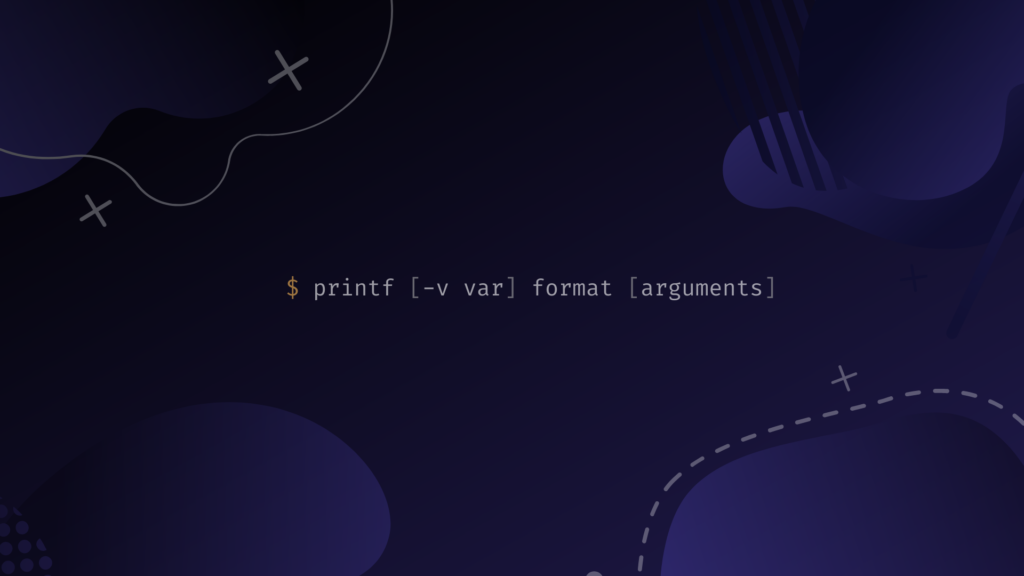
Mastering the Bash printf Command begins with a clear understanding of its syntax. The command follows a specific pattern: `printf “FORMAT_STRING” [ARGUMENT…]`. The `FORMAT_STRING` dictates how the subsequent `ARGUMENT`s will be displayed. This structure provides immense flexibility for various output requirements.
The Basic `printf` Format String: Structure and Components
The format string is the heart of the `printf` command. It contains literal text, escape sequences, and format specifiers. Literal text is printed as is, while escape sequences modify the output’s layout (e.g., newlines, tabs). Format specifiers, starting with a `%` sign, act as placeholders for the arguments that follow the format string. For instance, `%s` is for strings and `%d` for integers.
Arguments and Their Correspondence to Format Specifiers
Each format specifier in the format string expects a corresponding argument. The `printf` command processes these from left to right. If there are more arguments than specifiers, the format string is reused. Conversely, if there are fewer arguments, missing arguments are treated as zero or an empty string, depending on the specifier. Therefore, careful argument matching is essential for correct output.
Key Differences from C `printf` and Common Pitfalls
While Bash `printf` is inspired by C `printf`, there are subtle differences. For example, Bash `printf` handles numeric arguments differently when they don’t match the specifier type. A common pitfall is forgetting to include a newline character (`n`) at the end of the format string, as `printf` does not add one automatically. Always test your `printf` commands to avoid unexpected output.
Essential Format Specifiers in Bash printf
The power of the Bash printf Command lies in its diverse set of format specifiers. These specifiers tell `printf` how to interpret and display different types of data. Understanding them is key to producing precise and readable output. They allow for fine-tuned control over data presentation.
String Formatting with `%s` and Width Modifiers
The `%s` specifier is used for printing strings. You can control the field width and alignment using modifiers. For example, `%-10s` will left-align a string in a 10-character field, while `%10s` will right-align it. This is incredibly useful for creating columnar data. Consider these common modifiers:
- `%s`: Prints a string.
- `%Ns`: Prints a string in a field of N characters, right-aligned.
- `%-Ns`: Prints a string in a field of N characters, left-aligned.
- `%.Ns`: Prints only the first N characters of a string.
Integer Formatting: `%d`, `%i`, `%o`, `%x` for Different Bases
Integers can be displayed in various bases using specific specifiers. `%d` and `%i` are for decimal integers. For octal representation, use `%o`, and for hexadecimal, use `%x` (lowercase) or `%X` (uppercase). These are particularly useful when working with system permissions or memory addresses. Furthermore, you can add width and padding modifiers, like `%05d` to pad with leading zeros.
Floating-Point Numbers: `%f`, `%e`, `%g` for Scientific and General Formats
When dealing with floating-point numbers, `printf` offers several options. `%f` displays the number in fixed-point notation (e.g., 123.456). `%e` or `%E` presents it in scientific notation (e.g., 1.23e+02). The `%g` or `%G` specifier chooses the more compact representation between `%f` and `%e`. Precision can be controlled with `%.2f` for two decimal places. For example, `printf “Value: %.2fn” 3.14159` would output “Value: 3.14”.
Harnessing Escape Sequences and Special Characters
Escape sequences are crucial for controlling the layout and appearance of your output with the `printf` command. These special character combinations allow you to insert non-printable characters or format text in specific ways. Understanding them enhances the readability of your scripts. They provide precise control over the visual presentation.
Newlines (`n`), Tabs (`t`), and Backspaces (`b`) for Layout Control
The most commonly used escape sequences are `n` for a newline, `t` for a horizontal tab, and `b` for a backspace. Newlines ensure that subsequent output starts on a new line, while tabs help align text into columns. Backspaces can be used for simple cursor movements or overwriting characters. These are fundamental for structuring text output effectively.

Carriage Returns (`r`) and Form Feeds (`f`) for Advanced Output
Less common but still useful are `r` for a carriage return and `f` for a form feed. A carriage return moves the cursor to the beginning of the current line, allowing subsequent text to overwrite existing content. A form feed advances to the next page or section, which is more relevant for printer output. These sequences offer specialized control over text flow.
Representing Octal (`nnn`) and Hexadecimal (`xnn`) Values
You can also embed characters directly using their octal or hexadecimal representations. `nnn` represents a character using its 3-digit octal value, while `xnn` uses its 2-digit hexadecimal value. This is particularly useful for inserting special characters or control codes that don’t have a direct escape sequence. For example, `x1b` is often used for ANSI escape codes. More information on these can be found on Wikipedia: Printf format string.
Advanced Bash printf Techniques and Examples
Beyond basic formatting, the Bash printf Command offers advanced techniques for highly customized output. These methods allow for even greater precision and visual consistency in your scripts. By combining various specifiers and modifiers, you can achieve sophisticated presentation.
Controlling Field Widths, Precision, and Alignment
You can precisely control field widths, numeric precision, and text alignment. For example, `%10.2f` will print a floating-point number in a field of 10 characters, with 2 decimal places. The `.` (period) separates width from precision. Alignment is managed by adding a `-` for left-alignment (e.g., `%-10s`). These controls are vital for creating uniform reports. Here’s a quick example:
- `printf “%-10s %5dn” “Item” 123` – Left-aligned string, right-aligned integer.
- `printf “%.3fn” 3.14159265` – Floating-point with 3 decimal places.
- `printf “%08xn” 255` – Hexadecimal padded with leading zeros.
Padding with Zeros and Custom Characters for Visual Consistency
Padding is essential for maintaining visual consistency, especially with numbers. Using `%0Nd` (where N is the total width) will pad an integer with leading zeros. While `printf` doesn’t directly support custom character padding like some other tools, you can achieve similar effects by combining `printf` with other Bash commands. However, zero-padding is built-in and highly effective for IDs or timestamps.
Practical Scripts Using `printf` for Structured Output and Reports
Consider a script that generates a report of user disk usage. `printf` can format this data into neat columns. For instance, `printf “%-20s %10s %10sn” “Username” “Used (MB)” “Limit (MB)”` would create a header. Subsequent lines would then fill in the data, ensuring perfect alignment. This approach makes reports much easier to read and analyze.
Formatting Output with Bash printf for Readability
Effective use of the `printf` command significantly enhances the readability of script output. Well-formatted text is easier to parse, both for humans and for subsequent script processing. This section explores how to leverage `printf` for maximum clarity. Therefore, prioritizing readability is always a good practice.
Creating Tables and Columns with `printf` for Data Presentation
One of `printf`’s strongest features is its ability to create tabular data. By carefully defining field widths and using `t` or spaces, you can align data into professional-looking tables. This is invaluable for displaying lists of files, process information, or configuration settings. For example:
printf "%-15s %-10s %-5sn" "Name" "Status" "ID"
printf "%-15s %-10s %-5dn" "ServerA" "Online" 101
printf "%-15s %-10s %-5dn" "ServerB" "Offline" 102
This creates a clear, three-column table. Additionally, the consistent spacing improves comprehension.
Conditional Formatting and Dynamic Output based on Variables
You can integrate `printf` with conditional logic (`if/else`) in Bash scripts to produce dynamic output. For instance, you might print a status message in green if a process is running and red if it’s stopped. While `printf` itself doesn’t handle colors directly, it can output ANSI escape codes for color. This allows for visually distinct feedback based on variable values. Consequently, scripts become more interactive and informative.
Integrating `printf` in Shell Scripts for Professional Reporting
For professional reporting, `printf` is indispensable. It allows scripts to generate output that looks consistent and polished, regardless of the data source. Whether creating CSV files, log entries, or on-screen reports, `printf` ensures that every piece of information is presented exactly as intended. This level of control is crucial for reliable and presentable automation. Therefore, mastering this command is a significant asset.
Frequently Asked Questions About Bash printf Command
How do I print a literal ‘%’ character with `printf`?
To print a literal percent sign (`%`), you need to escape it by using `%%` within your format string. For example, `printf “Progress: 50%%n”` will output “Progress: 50%”. This double percent sign tells `printf` to treat it as a literal character rather than a format specifier. It’s a common requirement when displaying percentages.
Can `printf` handle arrays or multiple arguments easily?
Yes, `printf` can handle multiple arguments. If you provide more arguments than format specifiers, `printf` will reuse the format string until all arguments are processed. This makes it very efficient for iterating over arrays. For example, `printf “%s ” “${my_array[@]}”` will print all elements of `my_array` separated by spaces. However, for complex array formatting, a loop might be clearer.
What are common errors to avoid when using the `printf` command?
Common errors include forgetting the `n` for newlines, leading to concatenated output. Another mistake is mismatching format specifiers with argument types (e.g., `%d` for a string). Additionally, incorrect field width or precision modifiers can lead to truncated or misaligned text. Always double-check your format string and argument types. Furthermore, always test your `printf` commands with sample data.
Conclusion: Mastering Output with Bash printf
The Bash printf Command is an incredibly versatile and powerful tool for anyone working with shell scripting. Its ability to precisely format strings, integers, and floating-point numbers, coupled with robust control over layout using escape sequences, makes it superior to `echo` for complex output requirements. By understanding and applying its various specifiers and modifiers, you can transform raw data into clear, readable, and professional reports. Therefore, investing time in mastering `printf` will significantly enhance your scripting capabilities.
We encourage you to experiment with different format strings and arguments to solidify your understanding. Practice is key to becoming proficient with this essential Bash utility. What are your favorite `printf` tricks? Share them in the comments below, or explore more advanced Bash scripting tutorials to further expand your knowledge!
