
Understanding how to automate repetitive tasks is crucial for anyone working with the command line. A fundamental tool in this automation arsenal is the Bash for loop. This comprehensive guide will explore the Bash For Loop: Syntax and Examples, helping you master this powerful scripting construct. We will cover its Basic structure, various iteration methods, and practical applications to streamline your daily operations. Therefore, you can significantly enhance your shell scripting capabilities.
Understanding Bash For Loop: Syntax and Examples
A Bash for loop is a control flow statement that allows you to execute a block of commands repeatedly. It iterates over a list of items, performing the specified actions for each item in sequence. This makes it incredibly useful for processing files, manipulating strings, or generating numerical sequences. Furthermore, mastering its syntax is a cornerstone of efficient script writing.
The Basic `for…in` Loop Structure
The most common Bash for loop syntax involves iterating through a list of words or items. The structure is straightforward and highly readable. You define a loop variable that takes on the value of each item in the list during successive iterations. Consequently, the commands within the loop body execute for every item.
Here is the fundamental syntax:
for VARIABLE in ITEM1 ITEM2 ITEM3 ...
do
  # Commands to execute for each item
done
Iterating Over Word Lists
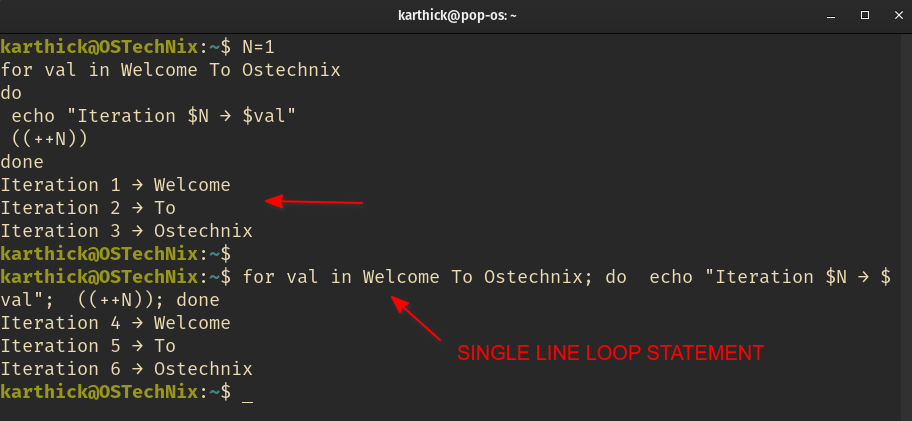
Bash for loops excel at processing lists of words, which are often space-separated strings. The shell automatically splits the list into individual items based on the Internal Field Separator (IFS), usually whitespace. For instance, you can easily loop through a predefined set of names or file extensions. This method is particularly intuitive for beginners.
Loop Variables and Execution Flow
The `VARIABLE` in a for loop acts as a placeholder for the current item being processed. In each iteration, this variable is assigned the next value from the list. The commands between `do` and `done` then execute using the current value of the variable. This sequential execution ensures every item is handled systematically. Therefore, understanding this flow is key to predicting loop behavior.
Practical Bash For Loop Examples: Lists and Strings
Bash for loops offer immense flexibility for real-world scripting tasks. They can handle various data types, from simple strings to complex file paths. These practical examples illustrate how to apply the Bash For Loop: Syntax and Examples to common scenarios. You will see how to iterate through items, process files, and even handle command-line inputs.
Looping Through a List of Items
Consider a scenario where you need to perform an action on a specific set of items. A for loop provides a clean and efficient way to achieve this. You can define the list directly within the loop statement or use a variable containing the items. This approach simplifies repetitive tasks significantly.
for fruit in Apple Banana Cherry Orange
do
  echo "I like $fruit."
done
Processing Files in a Directory
One of the most powerful applications of for loops is processing files. You can use wildcard characters (globbing) to generate a list of files matching a pattern. The loop then iterates through each file, allowing you to perform operations like renaming, backing up, or analyzing content. This is a common task in system administration.
- Rename files: `for f in *.txt; do mv “$f” “${f%.txt}.log”; done`
- Backup specific files: `for file in important_docs/*; do cp “$file” ~/backups/; done`
- Count lines in multiple scripts: `for script in *.sh; do echo “$script: $(wc -l < "$script") lines"; done`
Iterating Over Command-Line Arguments
Bash scripts often need to process arguments passed to them when executed. The special variable `$@` expands to all positional parameters, making it perfect for for loops. This allows your scripts to be dynamic and accept multiple inputs from the user. Consequently, your scripts become much more versatile.
#!/bin/bash
echo "Processing arguments:"
for arg in "$@"
do
  echo "Argument received: $arg"
done
Bash For Loop with Numeric Ranges and C-style Syntax
Beyond simple word lists, Bash for loops can also handle numeric sequences and emulate traditional C-style loop constructs. These methods are particularly useful when you need to perform actions a specific number of times or iterate through a range of numbers. Therefore, they add another layer of functionality to your scripting toolkit.
Generating Sequences with Brace Expansion `{start..end}`
Bash’s brace expansion feature provides a concise way to generate numeric sequences. You can specify a start and end number, and Bash will automatically create a list of integers. This is often the simplest method for iterating through a fixed range. Furthermore, it supports leading zeros for consistent formatting.
for i in {1..5}
do
  echo "Count: $i"
done

for j in {01..03}
do
  echo "Item $j"
done
The Traditional C-style `for ((…))` Loop
For those familiar with C, Java, or similar languages, Bash offers a C-style for loop syntax. This allows for explicit initialization, condition checking, and increment/decrement operations within the loop header. It provides fine-grained control over the loop’s progression. This syntax is especially useful for complex numeric iterations.
for (( i=1; i<=3; i++ ))
do
  echo "Iteration $i"
done
Using `seq` Command for Numeric Iteration
The `seq` command generates a sequence of numbers, which can then be fed into a for loop. This command offers more options, such as specifying a step value. While brace expansion is often simpler, `seq` is valuable for more complex numeric sequences. It is a separate utility, but it integrates seamlessly with Bash for loops.
- Generate numbers from 1 to 5: `seq 5`
- Generate numbers from 0 to 10 with a step of 2: `seq 0 2 10`
- Use `seq` in a loop: `for k in $(seq 1 3); do echo "Number: $k"; done`
Advanced Bash For Loop Techniques
As you become more comfortable with basic loops, you can explore advanced techniques to solve more complex problems. These include nesting loops, controlling their flow, and working with data structures like arrays. Mastering these methods will significantly enhance your scripting prowess. Consequently, you can tackle more intricate automation challenges.
Implementing Nested For Loops
Nested for loops involve placing one loop inside another. The inner loop executes completely for each iteration of the outer loop. This pattern is ideal for processing two-dimensional data, such as rows and columns, or generating combinations. However, be mindful of performance with deeply nested loops.
for i in {1..2}
do
  for j in {A..B}
  do
    echo "Outer: $i, Inner: $j"
  done
done
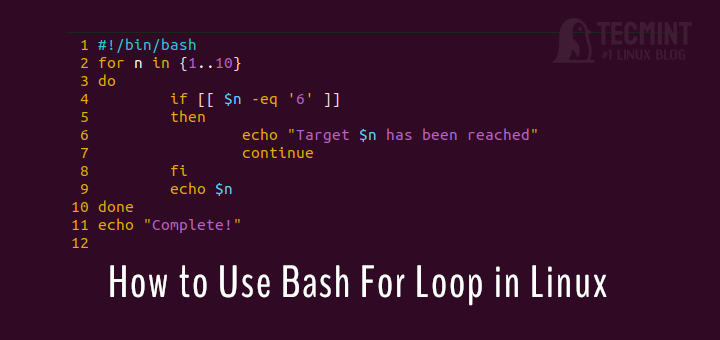
Controlling Loop Flow with `break` and `continue`
Bash provides `break` and `continue` statements to alter the normal execution flow of a loop. The `break` command immediately exits the entire loop. Conversely, `continue` skips the current iteration and proceeds to the next one. These commands are essential for implementing conditional logic within your loops. You can learn more about control flow statements in Bash on authoritative resources like the GNU Bash manual here.
- `break`: Exits the loop entirely.
- `continue`: Skips to the next iteration.
- Example: `for i in {1..5}; do if [ "$i" -eq 3 ]; then break; fi; echo "$i"; done`
Working with Bash Arrays in For Loops
Bash arrays allow you to store multiple values in a single variable. For loops can effectively iterate over array elements, making them powerful for processing collections of data. You can access individual elements or loop through the entire array. This capability is particularly useful for managing lists of related items.
my_array=("apple" "banana" "cherry")
for item in "${my_array[@]}"
do
  echo "Fruit: $item"
done
Bash For Loop Best Practices and Common Pitfalls
To write robust and efficient Bash scripts, it's important to follow best practices and be aware of common pitfalls. Proper quoting, understanding performance implications, and effective debugging are crucial. Adhering to these guidelines will help you avoid errors and create more reliable scripts. Therefore, your understanding of Bash For Loop: Syntax and Examples will be truly comprehensive.
Quoting Variables for Robustness
Always quote your variables, especially when they might contain spaces or special characters. Using double quotes (`"$variable"`) prevents word splitting and globbing, ensuring the variable's value is treated as a single item. This is a common source of errors in Bash scripting. Unquoted variables can lead to unexpected behavior.
Performance Considerations for Large Data Sets
While Bash for loops are versatile, they can be slow for processing extremely large data sets. For millions of lines or files, consider using specialized tools like `find` with `-exec` or `xargs`. These external commands are often optimized for performance. However, for most common tasks, Bash loops are perfectly adequate.
Debugging Bash For Loops Effectively
Debugging loops involves understanding how variables change during each iteration. Use `echo` statements to print variable values at different stages of the loop. Additionally, running your script with `bash -x script.sh` provides a trace of executed commands. This helps identify where issues might be occurring. Effective debugging saves significant time.
Frequently Asked Questions (FAQs) about Bash For Loops
How do I break or skip iterations in a Bash For Loop?
You can control the flow of a Bash for loop using `break` and `continue` statements. The `break` command terminates the loop entirely, while `continue` skips the remaining commands in the current iteration and proceeds to the next one. These are typically used within `if` conditions inside your loop.
What are the main differences between `for` and `while` loops?
A `for` loop iterates over a predefined list of items or a numeric range, executing commands for each item. Conversely, a `while` loop continues to execute commands as long as a specified condition remains true. `For` loops are ideal for fixed iterations, while `while` loops are better for indefinite iterations based on a condition.
Can Bash For Loops handle special characters in filenames?
Yes, Bash for loops can handle special characters in filenames, but it requires careful quoting. Always enclose variables that might contain filenames in double quotes (e.g., `for file in *; do echo "$file"; done`). This prevents issues with spaces, asterisks, or other special characters being misinterpreted by the shell.
How can I make a Bash For Loop run in parallel?
Running Bash for loops in parallel typically involves using background processes and managing them. You can append `&` to a command to run it in the background. For more controlled parallelism, tools like `xargs -P` or GNU Parallel are highly recommended. These tools offer robust ways to execute commands concurrently across multiple CPU cores.
Conclusion: Mastering Bash For Loop: Syntax and Examples for Efficient Scripting
Mastering the Bash For Loop: Syntax and Examples is an indispensable skill for anyone involved in shell scripting and automation. We have explored the fundamental `for...in` structure, practical applications for lists and files, and advanced techniques like C-style loops and array iteration. By applying these concepts, you can write more efficient, robust, and automated scripts. Continue practicing with various examples to solidify your understanding. Share your favorite Bash for loop tricks in the comments below!
