
The `apt` command in Linux is a powerful and user-friendly command-line tool. It is essential for managing software packages on Debian-based distributions like Ubuntu. Understanding the `apt` command in Linux allows users to efficiently install, update, upgrade, and remove applications. This guide will help you master this fundamental utility, ensuring your system remains secure and up-to-date.
Understanding the apt Command in Linux: History and Purpose
The `apt` command serves as a high-level interface for Debian’s package management system, APT (Advanced Package Tool). It simplifies software installation and removal processes for users. This tool efficiently handles dependencies, ensuring all necessary components are installed correctly. Consequently, it makes system administration much more straightforward for both beginners and experienced users.
What is apt? A Brief Overview
At its core, `apt` is a command-line utility that interacts with repositories to fetch and manage software packages. It provides a more consolidated and user-friendly experience compared to its predecessors. Essentially, `apt` streamlines the complex task of software management on Linux systems. It offers a clear and concise way to interact with your system’s software.
Evolution from apt-get to the Modern apt Interface
Historically, `apt-get` was the primary command-line tool for package management. While powerful, it often required additional commands for common tasks. The modern `apt` command was introduced to combine the most frequently used functions of `apt-get` and `apt-cache` into a single, intuitive interface. Therefore, it offers a more consistent and pleasant user experience. This evolution reflects a commitment to user-friendliness within the Linux ecosystem.
Key Advantages of Using apt for Package Management
Using the `apt` command offers several significant benefits for Linux users. It simplifies complex package management tasks into easily executable commands. Furthermore, `apt` provides better progress indicators and colored output, enhancing readability. These improvements contribute to a more efficient and enjoyable system administration experience.
- Simplified Syntax: Combines common `apt-get` and `apt-cache` commands.
- Improved User Experience: Offers better progress bars and colored output.
- Dependency Resolution: Automatically handles software dependencies during installation.
- Enhanced Security: Ensures packages are fetched from trusted repositories.
Essential apt Commands for Linux Package Management
Mastering a few core `apt` commands is crucial for effective system maintenance. These commands allow you to keep your software up-to-date and manage installations effortlessly. Regularly using these commands ensures your system remains secure and performs optimally. Therefore, understanding these fundamental operations is a key step in managing your Linux environment.
Updating Your System: apt update and apt upgrade
Maintaining an up-to-date system is vital for security and performance. The `apt update` command refreshes the list of available packages from your configured repositories. Following this, `apt upgrade` installs the newer versions of all installed packages. Always run `apt update` before `apt upgrade` to ensure you are working with the latest package information. This two-step process is fundamental to proper system hygiene.
sudo apt updateThis command fetches new package information. It does not install or upgrade any packages. Instead, it updates the local cache of available software. You should run this command frequently, especially before installing new software or performing an upgrade.
sudo apt upgradeAfter updating the package list, `apt upgrade` installs the latest versions of all currently installed packages. It intelligently handles dependencies and usually prompts for confirmation before proceeding. This command is critical for applying security patches and new features.
Installing and Removing Software with apt install and apt remove
The `apt` command makes adding and removing software straightforward. You can quickly get new applications onto your system or clean up unwanted programs. These commands are intuitive and handle all necessary dependencies automatically. Consequently, managing your software library becomes a seamless process.
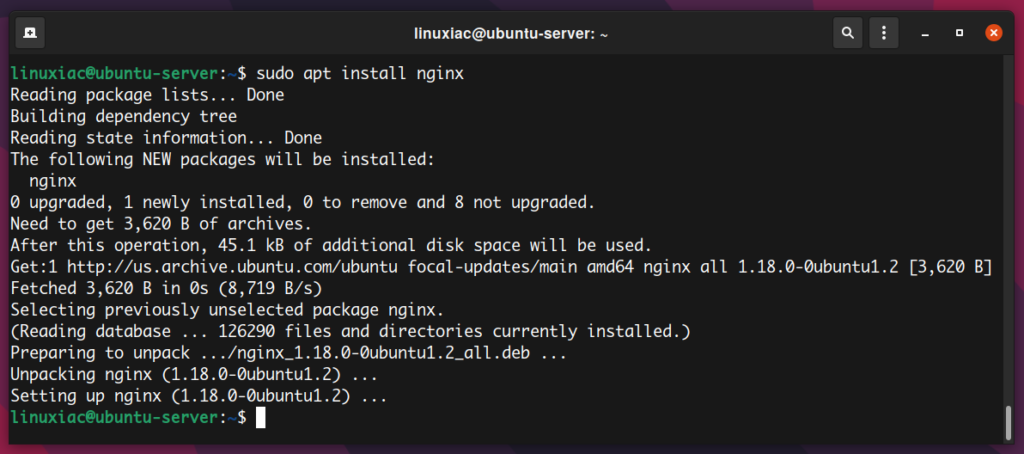
sudo apt install [package_name]To install a new software package, simply use `apt install` followed by the package name. For example, to install the popular text editor `vim`, you would type `sudo apt install vim`. The system will then download and install the package along with any required dependencies. This command is your gateway to expanding your system’s capabilities.
sudo apt remove [package_name]Conversely, `apt remove` uninstalls a specified package from your system. It removes the core application files but may leave behind configuration files. This can be useful if you plan to reinstall the software later. For a complete removal, including configuration files, use `apt purge`.
Searching for Packages: Using apt search and apt show
Finding the right software package is often the first step in system customization. The `apt search` command allows you to look for packages based on keywords. Furthermore, `apt show` provides detailed information about a specific package. These tools are invaluable for exploring available software and understanding its purpose. They empower users to make informed decisions about what to install.
apt search [keyword]This command searches through all available packages for your specified keyword. It’s incredibly useful when you know what you want to do but not the exact package name. For instance, `apt search media player` will list various media player packages. The output includes package names and short descriptions, helping you identify relevant software.
apt show [package_name]Once you’ve identified a potential package, `apt show` provides a wealth of information. This includes the package description, version, size, dependencies, and maintainer details. It’s an excellent way to verify a package’s legitimacy and suitability before installation. Always review this information to ensure the software meets your requirements.
Advanced apt Command Usage and System Maintenance
Beyond Basic installations, the `apt` command offers powerful features for advanced system maintenance. These commands help keep your system lean, efficient, and tailored to your needs. Utilizing these advanced options can significantly improve your Linux experience. They allow for more granular control over your software environment.
Cleaning Up Your System: apt autoremove and apt clean
Regularly cleaning your system is crucial for freeing up disk space and maintaining performance. The `apt` command provides specific utilities for this purpose. These commands help remove unnecessary files and packages that accumulate over time. Incorporating them into your routine ensures a tidy and efficient operating system.
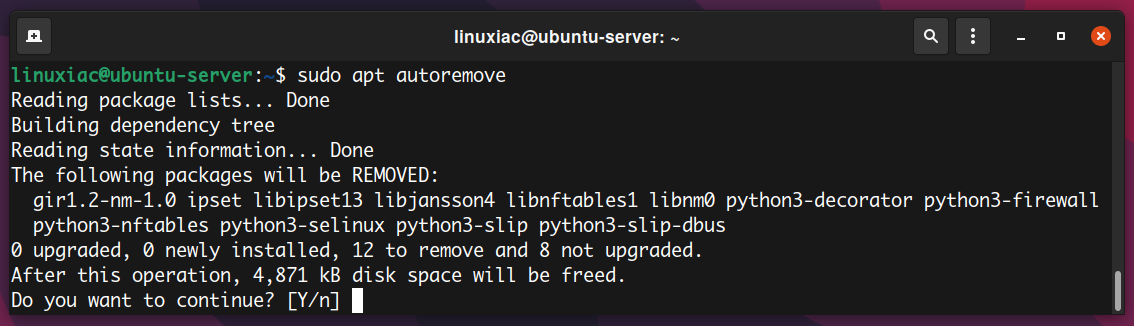
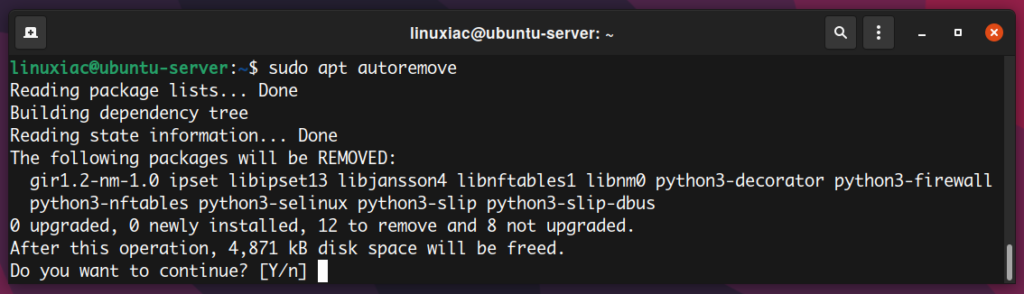
sudo apt autoremoveWhen you install a package, `apt` often pulls in other packages as dependencies. If you later remove the main package, these dependencies might remain on your system, unused. `apt autoremove` identifies and removes these orphaned packages. This helps reclaim valuable disk space and keeps your system clutter-free. It’s a highly recommended command after uninstalling software.
sudo apt cleanThe `apt clean` command clears out the local repository of retrieved package files. These files are stored in `/var/cache/apt/archives/`. While useful for reinstallations without re-downloading, they can consume significant disk space over time. Running `apt clean` periodically frees up this space. It’s particularly useful on systems with limited storage. This command does not remove installed software, only the downloaded installation files.
Managing Software Repositories and Sources.list
Software repositories are central to how the `apt` command functions. They are locations where packages are stored and retrieved. Managing these repositories correctly is vital for accessing the software you need. The `/etc/apt/sources.list` file and files in `/etc/apt/sources.list.d/` define which repositories your system uses. Understanding this configuration is key to expanding your software options.
You can add new repositories to access a wider range of software, including proprietary or cutting-edge applications. This often involves adding a new line to your `sources.list` file or creating a new file in `sources.list.d/`. Always ensure new repositories are trustworthy to maintain system security. After adding a new repository, remember to run `sudo apt update` to refresh your package lists. This ensures the `apt` command recognizes the new sources.
Holding and Pinning Packages with apt
Sometimes, you might want to prevent a specific package from being upgraded. This could be due to compatibility issues or a preference for an older version. The `apt` command provides mechanisms to “hold” or “pin” packages. These features offer fine-grained control over your software updates. They are particularly useful in production environments or for specific development needs.
- Holding a package: Use `sudo apt-mark hold [package_name]`. This prevents the package from being automatically upgraded.
- Unholding a package: Use `sudo apt-mark unhold [package_name]` to allow future upgrades.
- Package Pinning: This is a more advanced technique involving `/etc/apt/preferences` or `/etc/apt/preferences.d/`. Pinning allows you to specify a preference for certain package versions or sources. It’s useful for maintaining specific versions across different repositories. This level of control is powerful but requires careful configuration.
Troubleshooting Common Issues with the apt Command
Even with its robustness, the `apt` command can sometimes encounter issues. Understanding how to troubleshoot these common problems is an essential skill for any Linux user. Addressing these errors promptly ensures your system remains functional and accessible. This section will guide you through resolving some frequent `apt` command challenges.
Resolving Broken Packages and Dependencies
Broken packages or unmet dependencies are common issues that can prevent `apt` from functioning correctly. These problems often arise from incomplete installations or conflicting software versions. Fortunately, `apt` provides tools to help diagnose and fix these situations. Addressing these issues promptly is crucial for maintaining system stability.
sudo apt install -fThis command, often referred to as “fix broken,” attempts to correct a system with broken dependencies. It tries to install missing dependencies or remove problematic packages. It’s a first line of defense when you encounter errors related to unmet dependencies. Always try this command before resorting to more drastic measures.
sudo dpkg --configure -aSometimes, package installation or configuration might get interrupted, leaving packages in an unconfigured state. This `dpkg` command forces all pending packages to be configured. It can often resolve issues where `apt` commands are blocked by unconfigured packages. Follow this with `sudo apt update` and `sudo apt upgrade` to ensure consistency.
Dealing with Repository Errors and GPG Keys
Repository errors can prevent `apt` from fetching package lists or installing software. These often manifest as “Failed to fetch” messages or GPG key warnings. Such errors usually indicate a problem with your `sources.list` configuration or missing authentication keys. Resolving these issues is critical for a functional package manager.
If you see GPG key errors, it means your system cannot verify the authenticity of a repository. You typically need to import the repository’s public key using `apt-key` or by placing the key in `/etc/apt/trusted.gpg.d/`. For “Failed to fetch” errors, double-check your `sources.list` entries for typos or incorrect URLs. You can also try commenting out problematic repositories temporarily. Consult the repository’s official documentation for correct setup instructions. An external resource for GPG key management is available on Debian Wiki.
Tips for Debugging apt Problems
When `apt` commands fail, understanding how to debug them can save significant time. Look closely at the error messages provided in the terminal. These messages often contain clues about the root cause of the problem. Additionally, using verbose output can offer more insights into what’s going wrong.
- Read Error Messages Carefully: The terminal output usually points directly to the problem.
- Check Network Connectivity: Ensure your internet connection is stable, as `apt` relies on it for downloads.
- Review `sources.list`: Verify that all repository entries are correct and accessible.
- Clear Cache: Use `sudo apt clean` to remove potentially corrupted package files.
- Search Online: Copying specific error messages into a search engine often yields solutions from community forums.
apt vs. apt-get vs. aptitude: A Comparative Analysis
The Linux ecosystem offers several tools for package management on Debian-based systems. While `apt` is the recommended modern interface, `apt-get` and `aptitude` still exist and have their specific use cases. Understanding their differences helps you choose the right tool for the job. Each tool offers a slightly different approach to managing your software.
Key Differences in Functionality and User Experience
`apt` provides a more user-friendly interface with features like progress bars and colored output. It consolidates common commands from `apt-get` and `apt-cache`. `apt-get` is the older, more script-friendly backend tool, often used in automated scripts. `aptitude` offers a powerful, ncurses-based interactive interface, making it excellent for complex dependency resolution and package exploration. Each tool caters to different user preferences and technical requirements.
When to Use Each Package Manager
For daily interactive use, `apt` is generally the preferred choice due to its improved user experience. It’s perfect for installing, updating, and removing packages quickly. `apt-get` remains valuable for scripting and automated tasks where a simpler, non-interactive output is desired. `aptitude` shines when you need to perform intricate dependency management or explore packages interactively. It provides more control over dependency conflicts.
The Future of Package Management in Debian-based Systems
The `apt` command is clearly positioned as the future standard for interactive package management in Debian and Ubuntu. While `apt-get` will likely remain for backward compatibility and scripting, `apt` continues to evolve. Developers are focusing on enhancing its features and user experience. This consolidation aims to provide a consistent and powerful tool for all users. The goal is to make managing software on Linux even more intuitive and efficient.
Frequently Asked Questions
What is the difference between ‘apt update’ and ‘apt upgrade’?
`apt update` refreshes your local list of available packages from the repositories. It effectively tells your system what new versions of software exist. Conversely, `apt upgrade` then downloads and installs those new versions for all currently installed packages. You must run `apt update` before `apt upgrade` to ensure your system knows about the latest software. This two-step process ensures you are always working with the most current package information.
Can I use ‘apt’ on non-Debian distributions?
No, the `apt` command is specifically designed for Debian-based Linux distributions, such as Ubuntu, Linux Mint, and Debian itself. Other distributions use different package managers. For example, Fedora and CentOS use `dnf` (or `yum`), while Arch Linux uses `pacman`. Attempting to use `apt` on these systems will result in an error. Always use the package manager native to your specific Linux distribution.
How do I fix ‘Unable to locate package’ error with apt?
The ‘Unable to locate package’ error typically means `apt` cannot find the specified package in its configured repositories. First, double-check the package name for any typos. Next, ensure your package lists are up-to-date by running `sudo apt update`. If the issue persists, the package might not be available in your current repositories. You might need to add a new repository or enable specific components (like `universe` in Ubuntu) to access it. Sometimes, the package name might differ from what you expect.
Conclusion: Mastering Your Linux System with apt
The `apt` command in Linux is an indispensable tool for managing software on Debian-based systems. From basic installations to advanced system maintenance, `apt` provides a powerful yet user-friendly interface. Regularly using `apt update`, `apt upgrade`, `apt install`, and `apt remove` will keep your system secure, efficient, and tailored to your needs. Embrace the power of `apt` to confidently navigate your Linux environment. Share your favorite `apt` tips in the comments below!
