
Managing user accounts is a fundamental skill for any system administrator working with Linux environments. This comprehensive guide will walk you through how to add and delete users on Debian 13, ensuring your system remains secure and well-organized. We will cover everything from Basic user creation to advanced management techniques, providing clear, actionable steps for both new and experienced users. Understanding these commands is crucial for maintaining proper access control and system integrity.
Why User Management is Crucial on Debian 13
Effective user management is vital for the security and stability of any Debian 13 system. It allows administrators to control who can access the system and what resources they can utilize. Properly configured user accounts prevent unauthorized access and potential data breaches, which is paramount in today’s digital landscape.
Furthermore, managing users helps in isolating processes and data, reducing the impact of a compromised account. Each user operates within their own environment, minimizing the risk of system-wide issues. This structured approach fosters a more secure and efficient operating environment for all stakeholders.
What You’ll Learn in This Comprehensive Guide
Throughout this article, you will gain a deep understanding of various user management commands and best practices. We will explore the nuances of adding new users, modifying their properties, and securely removing them from your Debian 13 system. Our goal is to equip you with the knowledge to confidently manage your server’s user base.
Specifically, you will learn about the `adduser` and `deluser` commands, along with their essential options. Additionally, we will delve into modifying user attributes using `usermod` and managing group memberships. By the end, you will be proficient in maintaining a robust user infrastructure on Debian 13.
Prerequisites and Initial Setup for User Management on Debian 13
Before you begin adding or deleting users, a few preliminary steps are essential. These steps ensure you have the necessary permissions and your system is up-to-date. Proper preparation prevents common issues and streamlines the user management process effectively.
Therefore, always start by accessing your terminal and verifying your administrative privileges. This foundational setup guarantees a smooth and secure experience when manipulating user accounts. Furthermore, keeping your system updated is always a good practice.
Accessing the Terminal and Understanding Root Privileges
To perform user management tasks, you must first access the command-line interface, commonly known as the terminal. You can typically open the terminal by searching for “Terminal” in your applications menu. Once open, you will interact with your Debian 13 system using various commands.
The root user possesses ultimate administrative privileges on a Linux system. It can perform any action, including adding or deleting users. However, directly logging in as root for daily tasks is discouraged due to security risks. Instead, we use the `sudo` command for elevated permissions.
The Importance of the `sudo` Command
The `sudo` command (substitute user do) allows a permitted user to execute a command as the superuser or another user, as specified by the security policy. It provides a secure way to grant administrative privileges without sharing the root password. This approach significantly enhances system security.
When you prepend `sudo` to a command, you are prompted for your own user password, not the root password. This mechanism ensures accountability and limits the scope of potential damage from errors or malicious actions. Always use `sudo` when performing administrative tasks like user management.
Basic System Updates Before Managing Users
It is always a good practice to update your system’s package list and upgrade installed packages before making significant system changes. This ensures you are working with the latest versions of tools and security patches. Running updates minimizes compatibility issues and improves overall system stability.
To update your Debian 13 system, execute the following commands in your terminal:
- `sudo apt update` (refreshes the list of available packages)
- `sudo apt upgrade` (installs the newest versions of all installed packages)
Understanding User Accounts and Groups on Debian 13
User accounts and groups are fundamental concepts in Linux for managing permissions and access. They define who can do what on the system. A clear understanding of these elements is essential for effective system administration.
By organizing users into logical groups, administrators can streamline permission assignments. This hierarchical structure simplifies security management and ensures that users only have access to necessary resources. Therefore, mastering these concepts is key to secure operations.
Types of User Accounts (System, Regular, Root)
Debian 13 systems typically feature several types of user accounts. The root account is the superuser, with full system control. Regular user accounts are for human users, with limited privileges to protect system integrity. These users usually have their own home directories.
System accounts, on the other hand, are created automatically during software installation. They are used by services and applications to run processes with specific, often restricted, permissions. Examples include `www-data` for web servers or `daemon` for background services. They do not typically have interactive logins.
The Role and Benefits of User Groups
User groups in Debian 13 provide a powerful mechanism for managing permissions for multiple users simultaneously. Instead of assigning permissions to individual users, you can assign them to a group. All members of that group then inherit those permissions, simplifying administration.
Every user belongs to at least one primary group, usually named after their username. Users can also be members of multiple secondary groups. For instance, adding a user to the `sudo` group grants them `sudo` privileges. This flexibility makes permission management highly efficient.
Key Configuration Files: `/etc/passwd`, `/etc/shadow`, `/etc/group`
Linux systems store user and group information in specific plain-text files. The `/etc/passwd` file contains basic user account information, excluding passwords. Each line represents a user and includes details like username, UID, GID, home directory, and default shell.
The `/etc/shadow` file stores encrypted user passwords and password expiration information. This file is highly sensitive and readable only by the root user, ensuring password security. Finally, the `/etc/group` file lists all groups and their members, defining group IDs and user memberships. You can learn more about these files on the Wikipedia page for passwd.
How to Add New Users on Debian 13
Adding new users is a common administrative task on any Debian 13 system. The `adduser` command provides a user-friendly way to create new accounts, handling many details automatically. This section will guide you through the process step-by-step.
When you add a user, the system performs several actions, such as creating a home directory and setting up default configurations. Therefore, understanding the command’s options is crucial for tailoring user accounts to specific needs. Let’s explore the primary method.
Using the `adduser` Command for Simple User Creation
The most straightforward way to add a new user on Debian 13 is by using the `adduser` command. This command is a Perl script that simplifies user creation by interactively prompting for necessary information. It automatically creates a home directory, copies skeleton files, and sets up a primary group.
To add a new user, simply open your terminal and type:
sudo adduser newusernameSetting User Passwords and Account Details
After executing `sudo adduser newusername`, you will be prompted to enter and confirm a new password for the user. Always choose a strong, unique password to protect the account from unauthorized access. A strong password combines uppercase and lowercase letters, numbers, and symbols.
Following the password prompts, the `adduser` command will ask for additional information such as the user’s full name, room number, work phone, home phone, and other details. You can press Enter to leave any of these fields blank if they are not required. Finally, confirm the information to complete the user creation.
Creating Users with Specific Home Directories and Shells
Sometimes, you might need to create a user with a non-standard home directory or a different default shell. The `adduser` command offers options to customize these settings. For example, you might want a user’s home directory to be on a different partition.
Although `adduser` is interactive, you can pass some options directly. For more advanced scenarios, the underlying `useradd` command offers greater control. However, for most cases, `adduser` is sufficient. If you need to change these after creation, the `usermod` command is your tool.
Modifying User Properties and Permissions on Debian 13
Once a user account is created, you may need to modify its properties, such as changing passwords, updating personal information, or adjusting group memberships. Debian 13 provides powerful commands for these tasks, ensuring flexibility in user management.
These modification tools are essential for maintaining security and adapting user accounts to evolving organizational needs. Understanding how to use them effectively is a core part of system administration. Let’s explore the key commands.
Changing User Passwords with `passwd`
The `passwd` command is used to change user passwords. A user can change their own password, or the root user (or a user with `sudo` privileges) can change any user’s password. This is crucial for security and account recovery.
To change a user’s password, use:
sudo passwd usernameModifying User Information with `usermod`
The `usermod` command is a versatile tool for modifying existing user account properties. You can use it to change a user’s login name, home directory, default shell, or even their UID. It’s a powerful command, so use it carefully.
Some common uses for `usermod` include:
- Changing a user’s default shell: `sudo usermod -s /bin/bash username`
- Moving a user’s home directory: `sudo usermod -d /new/home/path -m username`
- Changing a user’s username: `sudo usermod -l newname oldname`
Adding and Removing Users from Groups
Managing group memberships is vital for controlling user permissions. You can add a user to an existing secondary group using the `usermod` command with the `-aG` options. The `-a` stands for append, and `-G` specifies the group.
To add a user to a group (e.g., adding `myuser` to the `sudo` group):
sudo usermod -aG sudo myusersudo deluser myuser groupname
How to Delete Users on Debian 13
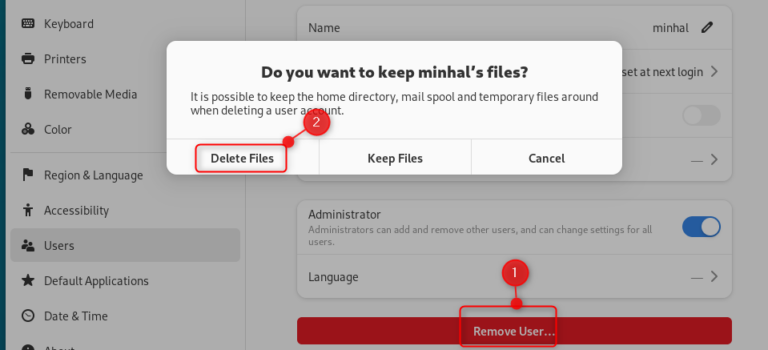
Deleting users is another critical aspect of user management, especially when an employee leaves or an account is no longer needed. Properly removing user accounts helps maintain system security and frees up resources. This section details the steps to effectively delete users on Debian 13.
It is important to consider whether to remove the user’s home directory and mail spool, as this impacts data retention. Therefore, carefully choose the appropriate `deluser` options. Always proceed with caution to avoid accidental data loss.
Using the `deluser` Command for Account Removal
The `deluser` command is used to remove a user account from the Debian 13 system. By default, `deluser` removes the user’s account but leaves their home directory and mail spool intact. This is a safer default, allowing for potential data recovery or transfer.
To simply delete a user account without removing their associated files, execute:
sudo deluser usernameDeleting Users and Their Home Directories
In many cases, when a user account is no longer needed, you will want to remove their home directory and all its contents. This action permanently deletes all files owned by that user within their home directory. Exercise extreme caution when using this option.
To delete a user account along with their home directory and mail spool, use the `–remove-home` option:
sudo deluser --remove-home usernameRemoving Users Without Deleting Home Directories
As mentioned, the default behavior of `deluser` is to remove the user account but preserve the home directory. This is useful if you need to retain the user’s files for archival purposes or transfer ownership to another user. The files will remain on the system, but their ownership will change to a numeric ID (UID) since the user no longer exists.
To perform this default action explicitly, you can simply use:
sudo deluser usernameAdvanced User Management and Best Practices for Debian 13
Beyond basic adding and deleting, advanced user management involves implementing robust security measures and monitoring. These practices are crucial for maintaining a secure and compliant Debian 13 environment. Proactive management prevents many common security vulnerabilities.
By adopting these best practices, system administrators can significantly enhance the overall security posture of their systems. This includes managing password policies and regularly auditing user activities. Therefore, integrating these steps into your routine is highly recommended.
Managing User Expiration and Account Locking
For enhanced security or temporary access, you might need to set an expiration date for a user account or temporarily lock it. The `chage` command allows you to manage password aging and account expiration. This is particularly useful for temporary contractors or guest accounts.
To set an account expiration date (e.g., December 31, 2024):
sudo chage -E "2024-12-31" usernamesudo usermod -L usernamesudo usermod -U usernameImplementing Strong Password Policies
A strong password policy is a cornerstone of system security. Debian 13 allows you to enforce password complexity, length, and history requirements. This prevents users from setting weak or easily guessable passwords, significantly reducing the risk of brute-force attacks.
You can configure password policies using PAM (Pluggable Authentication Modules), specifically the `pam_pwquality` module. This module enables rules like minimum password length, required character types, and dictionary checks. Regularly educating users about password best practices also reinforces security.
Auditing User Activity and Logs for Security
Regularly auditing user activity and system logs is paramount for detecting suspicious behavior and maintaining security. Debian 13 records various system events, including login attempts, `sudo` usage, and command executions, in log files.
Key log files to monitor include:
- `/var/log/auth.log`: Records authentication events, including `sudo` usage and login attempts.
- `/var/log/syslog`: General system activity log.
Frequently Asked Questions About Adding and Deleting Users on Debian 13
Here are some common questions regarding user management on Debian 13, providing quick answers to frequently encountered scenarios.
What’s the difference between `useradd` and `adduser`?
The primary difference lies in their user-friendliness and default behaviors. `adduser` is a high-level Perl script that interactively prompts for information, automatically creating a home directory, assigning a UID/GID, and copying skeleton files. Conversely, `useradd` is a low-level binary that requires more manual options for these tasks. For most administrators, `adduser` is the preferred command due to its simplicity and automation.
Can I recover a deleted user’s data on Debian 13?
If you deleted a user using `deluser –remove-home`, the user’s home directory and its contents are permanently removed. Recovery is generally not possible without a prior backup. If you used `deluser` without `–remove-home`, the home directory remains on the system, but its ownership will be numeric. In this case, the data is preserved and can be reassigned to another user or moved.
How do I list all users on my Debian 13 system?
You can list all users by examining the `/etc/passwd` file, which contains an entry for each user. A common way to view this is by using the `cat` command: `cat /etc/passwd`. Alternatively, the `getent passwd` command provides a more robust way to query user information from various sources, including local files and network databases.
What happens if I delete a user who owns important files?
If you delete a user who owns files outside their home directory, those files will remain on the system. However, their ownership will change from the deleted username to the numeric User ID (UID) of the former user. This can cause permission issues if other users or processes relied on the original ownership. It’s best practice to reassign ownership of such files to an existing user or root before deleting the original owner using `chown`.
Conclusion: Mastering User Management on Debian 13
Effectively managing users on your Debian 13 system is a cornerstone of robust system administration and security. This guide has provided you with the essential knowledge and commands to confidently add, modify, and delete user accounts. By following these practices, you ensure a secure and well-organized environment.
Recap of Essential User Management Commands
We’ve covered several critical commands throughout this guide. The `adduser` command facilitates easy user creation, while `deluser` handles account removal. For modifying user properties and group memberships, `usermod` proves invaluable. Furthermore, `passwd` is essential for password management. Mastering these commands empowers you with complete control over your user base.
The Importance of Secure User Practices
Beyond just knowing the commands, implementing secure user practices is paramount. Always use strong, unique passwords and enforce password policies. Grant users only the necessary privileges (least privilege principle) and regularly audit user activity. These measures significantly reduce security risks and protect your Debian 13 system from unauthorized access.
Next Steps for Debian System Administration
With a solid understanding of how to add and delete users on Debian 13, consider exploring other aspects of system administration. Delve into file permissions, network configurations, and firewall management. Continuous learning is key to becoming a proficient Linux administrator. Feel free to share your experiences or ask further questions in the comments below!
