
Navigating system configurations can sometimes feel complex, but understanding how to set or change the time zone in Linux is a fundamental skill for any user or administrator. An accurate time zone ensures proper logging, scheduled tasks, and seamless communication across distributed systems. This comprehensive guide will walk you through the essential steps, commands, and best practices to manage time zones effectively on your Linux machine, helping you maintain system integrity and operational efficiency.
Why Accurate Time Zones Matter for Your Linux System
Maintaining a precise time zone on your Linux system is more critical than you might initially realize. It impacts various aspects, from system logs to application functionality. Incorrect time settings can lead to significant operational issues and data discrepancies.
The Importance of Accurate System Time
Accurate system time is vital for many reasons. Firstly, it ensures that log files correctly reflect when events occurred, which is crucial for troubleshooting and security auditing. Furthermore, scheduled tasks like cron jobs rely heavily on the system’s time to execute at the intended moments. Without correct time, these automated processes can fail or run at inappropriate times.
UTC, Local Time, and Daylight Saving Time (DST)
Linux systems typically manage time using Coordinated Universal Time (UTC) internally. Local time is then derived from UTC based on the configured time zone and any applicable Daylight Saving Time (DST) rules. Understanding this distinction is key to preventing time-related issues. DST adjustments, for instance, are automatically handled when your time zone is correctly set, preventing manual intervention and potential errors. Learn more about UTC on Wikipedia.
How Linux Manages Time Zone Data
Linux systems store time zone information in a standardized format, usually within the /usr/share/zoneinfo directory. This directory contains a hierarchical structure of files representing various geographical regions and cities. The system then uses a symbolic link from /etc/localtime to point to the appropriate file in this directory, thereby defining the system’s current time zone. This method ensures consistency and simplifies updates.
Prerequisites: Checking Your Current Linux Time Zone
Before you endeavor to set or change the time zone in Linux, it’s prudent to first ascertain your system‘s current Configuration. This initial check provides a baseline and helps confirm whether any adjustments are indeed necessary. Moreover, understanding your permissions is crucial for executing time zone changes successfully.
Identifying Your Current Time Zone
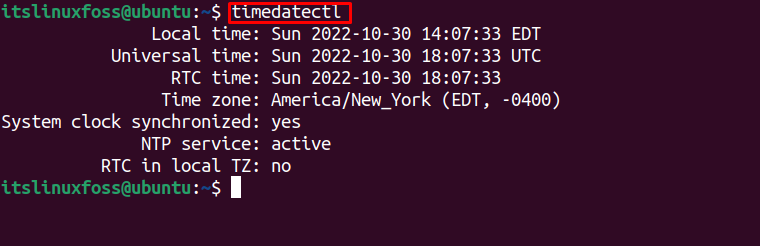
You can easily check your current time zone using the timedatectl command, which is standard on systems utilizing systemd. Simply open your terminal and type timedatectl status. This command provides a comprehensive overview, including your local time, universal time, RTC time, and the currently active time zone. It’s a quick and efficient way to get the necessary information.
Listing Available Time Zones on Your System
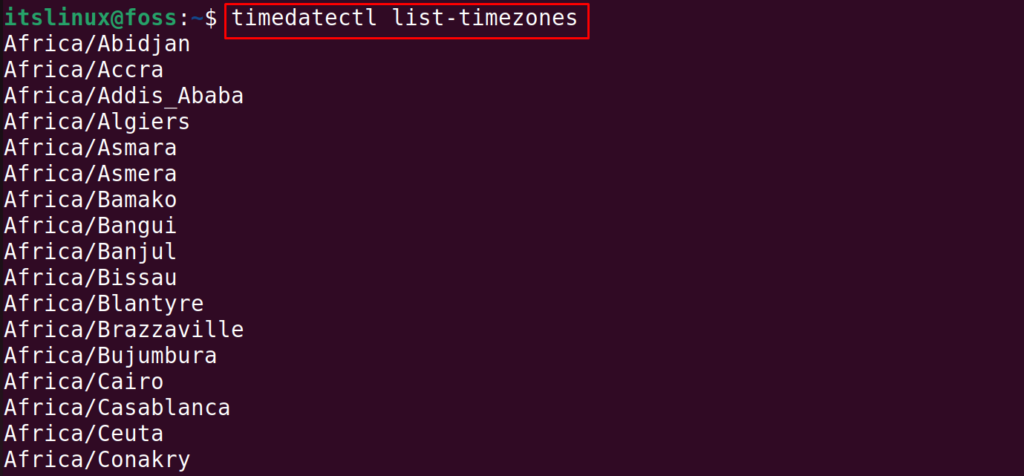
To successfully change your time zone, you need to know the correct format for the desired zone. You can list all available time zones by running timedatectl list-timezones. This command will output a long list of options, typically in the “Region/City” format, such as “America/New_York” or “Europe/London.” This extensive list helps you select the precise time zone for your needs.
Required User Permissions to Change Time Zone
Changing the system time zone requires elevated privileges. Therefore, you must execute these commands as the root user or with sudo. Attempting to modify time zone settings without the necessary permissions will result in an error. Always ensure you have administrative access before proceeding with any system-wide configuration changes.
How to Set Time Zone in Linux Using `timedatectl` (Systemd)
For modern Linux distributions that use systemd, the timedatectl utility is the recommended and most straightforward method to set or change the time zone in Linux. This command simplifies the process significantly, ensuring accuracy and proper synchronization. It is the preferred tool for managing system time and date settings.
Listing All Available Time Zones with `timedatectl`
Before setting a new time zone, you should confirm the exact name of the zone you wish to use. Execute the command timedatectl list-timezones in your terminal. This will display a comprehensive list of all recognized time zones in the “Area/Location” format. For example, you might see “Asia/Kolkata” or “Australia/Sydney.”
Setting the System Time Zone Using `timedatectl`
Once you have identified the correct time zone, setting it is a simple command. Use the following syntax, replacing Your/Timezone with your chosen zone: sudo timedatectl set-timezone Your/Timezone. For instance, to set the time zone to New York, you would type sudo timedatectl set-timezone America/New_York. This command updates the system’s time zone configuration instantly.
Synchronizing Time with NTP Servers (Recommended)
After setting the time zone, it’s highly recommended to enable Network Time Protocol (NTP) synchronization. NTP ensures your system’s clock remains accurate by regularly synchronizing with external time servers. You can enable NTP with sudo timedatectl set-ntp true. This command guarantees that your Linux system always displays the correct time, even after reboots or network changes.
Changing Time Zone Manually in Linux (Legacy/Alternative Methods)
While timedatectl is the preferred modern approach, understanding legacy or manual methods to set or change the time zone in Linux can be beneficial. These methods are particularly useful on older systems or in environments where systemd is not present. They offer a deeper insight into how Linux manages time zone data.
Locating Time Zone Data Files (`/usr/share/zoneinfo`)
The core of Linux time zone management lies within the /usr/share/zoneinfo directory. This directory contains a vast collection of time zone files organized geographically. For example, you’ll find directories like “America,” “Europe,” and “Asia,” each containing specific city-based time zone files. Navigating this structure helps you locate the exact time zone file you need.
Creating a Symbolic Link to `/etc/localtime`
The traditional method involves creating a symbolic link from /etc/localtime to the desired time zone file in /usr/share/zoneinfo. First, remove any existing /etc/localtime link: sudo rm /etc/localtime. Then, create the new link: sudo ln -sf /usr/share/zoneinfo/Your/Timezone /etc/localtime. For example, sudo ln -sf /usr/share/zoneinfo/America/Los_Angeles /etc/localtime would set the time zone to Los Angeles. This manual process directly configures the system’s local time file.
Updating System Clock and Hardware Clock
After manually changing the symbolic link, it’s good practice to update the system clock and, importantly, the hardware clock. The hardware clock (RTC) is independent of the operating system and maintains time even when the system is off. Use sudo hwclock --systohc to synchronize the system time to the hardware clock. This ensures that your time zone changes persist across reboots, providing a consistent time experience.
Verifying and Confirming Your New Linux Time Zone Setting
After you set or change the time zone in Linux, it’s crucial to verify that the changes have been applied correctly. Confirmation steps ensure that your system is now operating with the desired time zone. This verification process helps prevent potential time-related issues and confirms successful configuration.
Using `timedatectl status` to Verify
The most straightforward way to confirm your new time zone is by running timedatectl status again. This command will display the updated “Time zone” entry, reflecting your recent changes. Additionally, it will show the current local time, which should now correspond to your newly set time zone. This provides an immediate visual confirmation of the adjustment.
Checking the `date` Command Output
Another simple verification method is to use the date command. When executed without any arguments, date will output the current system date and time, including the time zone abbreviation. For example, if you set your time zone to Eastern Time, the output might show “EDT” or “EST.” This command offers a quick check of the active time zone.
Inspecting the `/etc/localtime` Symlink
For a more technical verification, especially after manual changes, you can inspect the symbolic link at /etc/localtime. Use the command ls -l /etc/localtime to see where the link points. It should now point to the specific time zone file you selected in /usr/share/zoneinfo. This confirms the underlying file system configuration for your time zone. You can also check for more advanced troubleshooting tips.
Frequently Asked Questions
How do I find my current time zone in Linux?
You can easily find your current time zone by opening a terminal and typing timedatectl status. This command will display a detailed output, including the “Time zone” entry, which shows your system’s currently configured time zone. Alternatively, the simple date command will also show the time zone abbreviation.
What is the difference between `timedatectl` and manual methods?
timedatectl is a modern utility integrated with systemd, offering a streamlined and comprehensive way to manage time, date, and time zones. It handles all underlying configurations automatically. Manual methods, conversely, involve directly manipulating the /etc/localtime symbolic link and are typically used on older systems or for specific troubleshooting scenarios, requiring more direct user intervention.
Will changing the time zone affect running applications or logs?
Yes, changing the time zone can affect running applications and logs. Applications that rely on system time for timestamps will immediately reflect the new time zone. Log files generated after the change will also use the new time zone. However, historical log entries will retain their original timestamps, which were recorded under the previous time zone setting. It’s generally a good practice to restart critical applications after a time zone change.
Conclusion: Master Your Linux Time Zone Configuration
Successfully managing time zones in Linux is a critical skill that ensures system accuracy and operational integrity. Whether you use the modern timedatectl utility or opt for manual methods, understanding these processes empowers you to maintain precise timekeeping across your systems. An accurate time zone is fundamental for everything from secure logging to reliable scheduled tasks.
By following the steps outlined in this guide, you can confidently set or change the time zone in Linux, verify your settings, and troubleshoot common issues. We encourage you to implement these practices on your Linux machines to enhance their reliability and performance. Share your experiences or any further tips in the comments below!
