
Learning how to create a file in Linux is a fundamental skill for anyone interacting with this powerful operating system. Whether you are a system administrator, a developer, or a casual user, knowing various methods to generate files is crucial. This guide will walk you through the most common and effective techniques, ensuring you can confidently manage your Linux environment. We will cover everything from simple empty files to those with specific content, helping you master file creation from the command line.
Understanding File Creation in Linux
Creating files in Linux is a core operation, essential for storing data, writing scripts, or configuring applications. The Linux file system is highly organized, and understanding its structure helps you place files correctly. Different commands serve distinct purposes, offering flexibility based on your specific needs. Therefore, choosing the right method streamlines your workflow and improves efficiency.
The Linux File System Hierarchy Explained
The Linux File System Hierarchy Standard (FHS) defines the directory structure and content in Unix-like operating systems. It ensures consistency across different distributions. Understanding this hierarchy helps you know where to store various types of files. For instance, user documents typically reside in `~/Documents` or `~/home/user/`, while system configurations are often in `/etc/`. This structure is vital for system stability.
Key File Types and Permissions
Linux distinguishes between several file types, including regular files, directories, and symbolic links. Each file also possesses specific permissions that dictate who can read, write, or execute it. These permissions are crucial for security and system integrity. You must have appropriate write permissions in a directory to create new files within it. Always verify permissions before attempting to create new files.
- Regular files: Store data like text, images, or executable programs.
- Directories: Act as containers for other files and directories.
- Symbolic links: Pointers to other files or directories, similar to shortcuts.
How to Create a File in Linux: Essential Commands
Linux offers several robust commands for file creation, each suited for different scenarios. Mastering these commands empowers you to manage your system effectively. We will explore the most frequently used tools, from simple empty file generation to adding content directly. Each method provides unique advantages for various tasks. Consequently, you can select the best tool for the job.
Creating Empty Files with `touch`
The `touch` command is the simplest way to create an empty file in Linux. It is primarily used to change file timestamps, but if the specified file does not exist, `touch` creates it. This command is fast and efficient for generating placeholder files. Furthermore, it is incredibly useful for script development or quick file setup. For example, you might create a log file before a script starts writing to it.
- Open your terminal application.
- Type `touch newfile.txt` and press Enter.
- Verify its creation using `ls -l newfile.txt`.
Adding Content with `echo` and Redirection
The `echo` command displays a line of text, but when combined with redirection operators, it can create files with content. This method is excellent for quickly adding small amounts of text to a new file. You can either overwrite existing file content or append new text. Therefore, `echo` is a versatile tool for command-line file manipulation.
- `>` (Redirection): Overwrites a file or creates a new one if it doesn’t exist. Example: `echo “Hello, Linux!” > greetings.txt`.
- `>>` (Append Redirection): Adds content to the end of an existing file or creates it if it’s new. Example: `echo “Welcome.” >> greetings.txt`.
Interactive File Creation Using `cat`
The `cat` command, short for “concatenate,” is primarily used to display file content. However, it can also create files by redirecting standard input to a new file. This interactive method is useful when you want to type multiple lines of text directly into a file. It provides a simple, direct way to populate a file with content without opening a dedicated text editor. This makes `cat` a flexible utility.
Using `cat > filename` for Direct Input
To create a file with `cat`, you use the redirection operator `>`. After executing the command, your terminal will wait for input. You can type as many lines as you need. Once finished, press `Ctrl+D` to save the content and exit the input mode. This method is perfect for quick notes or small configuration files. It offers a straightforward way to input text.
For example, try `cat > my_notes.txt`. Then type your content and press `Ctrl+D`. This creates `my_notes.txt` with your entered text. You can then use `cat my_notes.txt` to view its contents. This simple command is a powerful way to create files in Linux.
Creating and Editing with Text Editors (`nano`, `vi`/`vim`)
For more extensive content or complex editing, text editors are indispensable. Linux offers several powerful command-line editors. These tools provide a full-screen interface for typing, editing, and saving files. They are ideal for writing scripts, configuration files, or any document requiring detailed modification. Learning to use at least one text editor is a fundamental Linux skill.
- `nano`: A user-friendly, Beginner-oriented text editor. To create or edit, type `nano filename.txt`. Save with `Ctrl+O` and exit with `Ctrl+X`.
- `vi`/`vim`: A powerful, highly configurable editor with a steeper learning curve. Type `vi filename.txt` to open. Press `i` for insert mode, type content, press `Esc`, then `:wq` to save and quit.
Advanced Techniques for How to Create a File in Linux
Beyond the Basic commands, Linux offers more specialized methods for file creation. These techniques cater to specific requirements, such as creating files of a particular size or generating temporary files for scripts. Understanding these advanced options expands your command-line capabilities. They are particularly useful for system administration tasks or complex scripting. Therefore, exploring these methods enhances your overall Linux proficiency.
Creating Files with Specific Sizes Using `dd`
The `dd` command is primarily used for converting and copying files, but it can also create files of a precise size. This is useful for testing disk space, creating swap files, or generating dummy files. You specify the block size (`bs`) and the count of blocks (`count`). For example, `dd if=/dev/zero of=largefile.bin bs=1M count=100` creates a 100MB file filled with zeros. This command provides granular control over file dimensions.
Generating Temporary Files
Scripts often require temporary files to store intermediate data. Linux provides utilities like `mktemp` to create unique temporary files or directories safely. This prevents naming conflicts and security vulnerabilities. For instance, `mktemp mytemp.XXXXXX` creates a file with a unique suffix. These files are typically deleted after the script finishes execution. Using `mktemp` is a best practice for robust scripting. For more information on temporary files, you can refer to resources like Wikipedia’s entry on Temporary files.
Verifying and Managing Your Newly Created Files
After you create a file, it is important to verify its existence and manage its properties. This ensures that the file was created correctly and has the desired permissions. Proper file management is crucial for system security and functionality. You can use several commands to inspect your new files. Consequently, you maintain control over your file system.
Checking File Existence and Properties
The `ls` command is your primary tool for listing directory contents and checking file existence. Using `ls -l` provides detailed information, including permissions, ownership, size, and modification date. Additionally, the `find` command can locate files based on various criteria. For example, `ls -l my_notes.txt` will show details for `my_notes.txt`. These commands help confirm successful file creation.
Understanding and Changing File Permissions (`chmod`)
File permissions determine who can access and modify your files. The `chmod` command allows you to change these permissions. For instance, `chmod 644 myfile.txt` sets read/write for the owner and read-only for others. Understanding `chmod` is vital for securing your files and ensuring proper access. It prevents unauthorized modifications or accidental deletions. Always set appropriate permissions for your files.
Frequently Asked Questions About Creating Files in Linux
What is the difference between `touch` and `cat >` for file creation?
The `touch` command primarily creates an empty file or updates its timestamp. It does not allow you to add content directly during creation. Conversely, `cat > filename` creates a file and immediately allows you to type content into it from standard input. You must press `Ctrl+D` to save and exit. Therefore, `touch` is for empty files, while `cat >` is for files with immediate content.
How do I create a file in a specific directory?
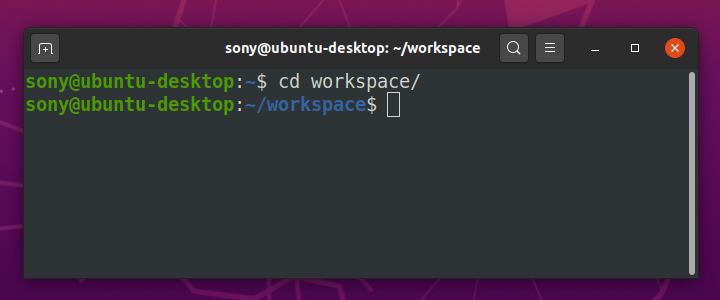
To create a file in a specific directory, simply specify the full path to the file. For example, `touch /home/user/documents/report.txt` will create `report.txt` inside the `documents` directory. Alternatively, you can navigate to the desired directory using `cd` first, then create the file. Ensure you have write permissions for that directory. This precise targeting is essential for organization.
Can I create a file with a non-standard name or special characters?
Yes, Linux allows file names with spaces and many special characters, but it’s generally best practice to avoid them. If you use spaces or special characters like `&`, `*`, `(`, `)`, you must enclose the filename in single or double quotes. For example, `touch “My New File.txt”` works correctly. However, sticking to alphanumeric characters, hyphens, and underscores simplifies command-line interaction. This practice prevents potential parsing issues.
Conclusion: Mastering File Creation in Linux
You now have a comprehensive understanding of how to create a file in Linux using various commands and techniques. From the simplicity of `touch` for empty files to the power of text editors like `nano` and `vi`, you possess a versatile toolkit. Remember to choose the right method for the task at hand, whether it’s quick notes or complex scripts. Continuously practicing these commands will solidify your Linux proficiency. Share your favorite file creation tips in the comments below!
